

Analysing JavaScript Websites.
How to analyse websites with JavaScript content that could get in the way of search engine bots.
How to crawl sites built with JavaScript (React, Angular, Vue) and compare the original HTML with the rendered DOM. See the differences between server-side and client-side rendering, Google’s timings and how to set up JavaScript rendering in SEO Spider.
Introduction to JavaScript websites
Until a few years ago, one of the most common SEO problems was getting pages with content generated dynamically by JavaScript indexed. Search engine bots couldn’t crawl and index these resources and only considered the content in the static HTML source.
Alongside this, frameworks such as AngularJS, React and Vue.js, single-page applications (SPAs) and progressive web apps (PWAs) evolved, pushing Google to evolve significantly and fully mature in understanding web pages like a modern browser.
However, even though Google can now generally crawl and index most JavaScript content, server-side rendering, pre-rendering or dynamic rendering is still recommended over relying on client-side JavaScript, because crawlers still find it hard to process JavaScript successfully or immediately.
That’s why, when analysing a site, it’s essential to understand the differences between the DOM after JavaScript has built the page and the static HTML response.
JavaScript, SEO Spider and some caveats
Screaming Frog helps here with its “JavaScript Rendering” mode, which integrates the Chromium library to emulate Googlebot’s behaviour as closely as possible.
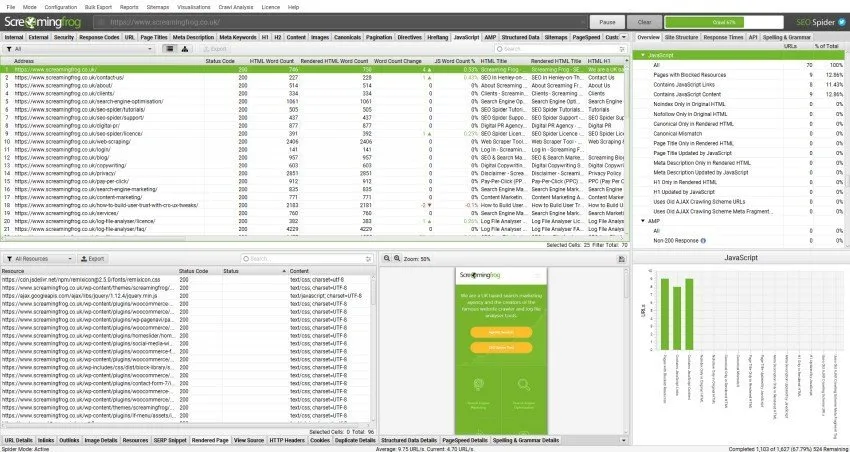
Further reading: in 2019 Google updated its Web Rendering Service (WRS), previously based on Chrome 41, to the latest stable version of Chrome, adding support for over a thousand extra features.
Let’s look at some aspects of JavaScript websites:
-
- Enable “JavaScript Rendering” with care
Understanding the differences between the DOM and static HTML after JavaScript runs is very important, but I don’t recommend enabling “JavaScript Rendering” mode for every website indiscriminately.
Crawling with JavaScript is slower and heavier on the server, because every resource (JavaScript, CSS, images and so on) has to be fetched to render each page. This doesn’t matter for small sites, but for large portals or e-commerce stores it can become an obstacle in terms of time and RAM.
-
- Consider the principles and limitations of JavaScript crawling
All of a page’s resources (JS, CSS, images) must be available to be crawled, rendered and indexed.
Google still requires clean, unique URLs for a page, and links must be in proper HTML anchor tags (you can offer a static link as well as calling a JavaScript function).
Googlebot doesn’t interact like users do: for example, it doesn’t click on things to load extra events after rendering (a click, a hover or a scroll, for example).
The snapshot of the rendered page is taken when network activity is judged to have stopped, or after a time threshold. If a page takes a long time to render, there’s a risk it’s skipped and its elements aren’t seen and indexed.
In general Google renders all pages, but it doesn’t queue pages for rendering if they have a ‘noindex’ in the initial HTTP response or static HTML.
Finally, Google’s rendering is separate from indexing. Google first crawls a website’s static HTML and defers rendering until it has resources available.
When you start developing a website, knowing these conditions is vital to the project’s success or failure in terms of organic ranking.
Server-side and client-side JavaScript
Google advises against relying on client-side JavaScript and recommends developing with “progressive enhancement”: building the site’s structure and navigation with HTML only, then enhancing its look and interface with AJAX.
So if you use a JavaScript framework, Google recommends server-side rendering, pre-rendering or hybrid rendering, which can improve performance for users and search engine crawlers.
With server-side rendering (SSR) and pre-rendering, running the page’s JavaScript produces an initial rendered HTML version that’s ready to crawl.
Hybrid rendering (sometimes called “isomorphic”) runs JavaScript server-side for the initial page load and HTML, and client-side for non-critical elements and subsequent pages.
Many JavaScript frameworks, such as React or Angular Universal, support server-side and hybrid rendering.
Alternatively, you can use dynamic rendering.
This can be especially useful when you can’t change the front-end codebase. Dynamic rendering switches between client-side rendering for users and pre-rendered content for search engines.
Google’s crawl timings
Although choosing one of the three solutions above solves most crawling problems, there’s one more thing to consider.
Google indexes in two phases: it first crawls and indexes the static HTML, then comes back later, when resources are available, to render the page and crawl and index the content and links in the rendered HTML.
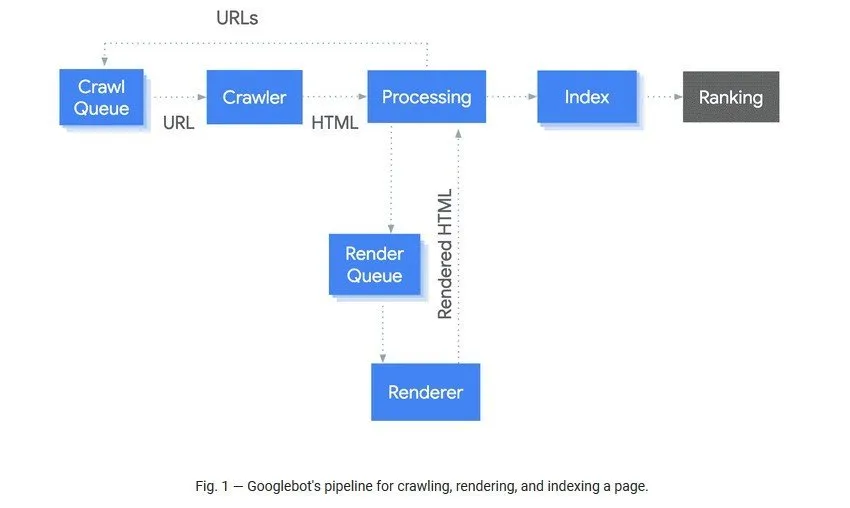
The time between crawling and rendering can be very long (up to 7 days), which is a problem for sites whose content is time-sensitive or simply expires (e.g. news or event sites); the median time (as stated at Chrome Dev Summit 2019) is 5 seconds.
How to identify JavaScript
Identifying a site built with a JavaScript framework can be fairly easy, but diagnosing sections, pages or just smaller elements that are adjusted dynamically with JavaScript can be much harder. When you start an SEO audit, it’s good practice to establish straight away whether JavaScript is involved and whether the site might have problems with different user agents’ crawls.
There are several ways to tell whether a site is built with a JavaScript framework:
-
- Identify JavaScript with Screaming Frog
By default SEO Spider crawls using the “old AJAX crawling scheme”, which means JavaScript is disabled and only the raw HTML is crawled.
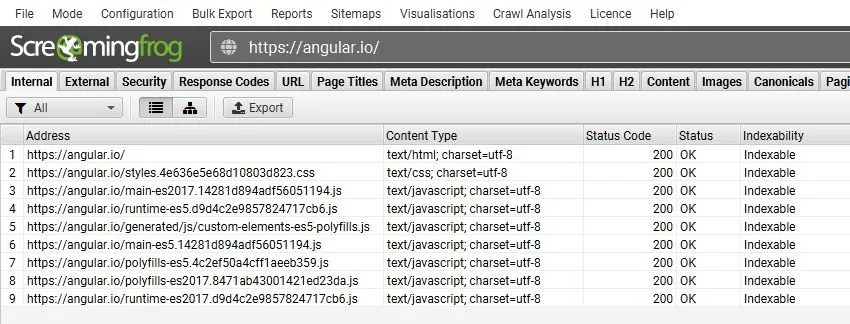
If the site uses only client-side JavaScript, your crawl will return just the home page with a 200 response and a few JavaScript and CSS files.
As you can see, the “Outlinks” tab has no hyperlinks either, because they aren’t in the raw HTML and SEO Spider can’t see them.
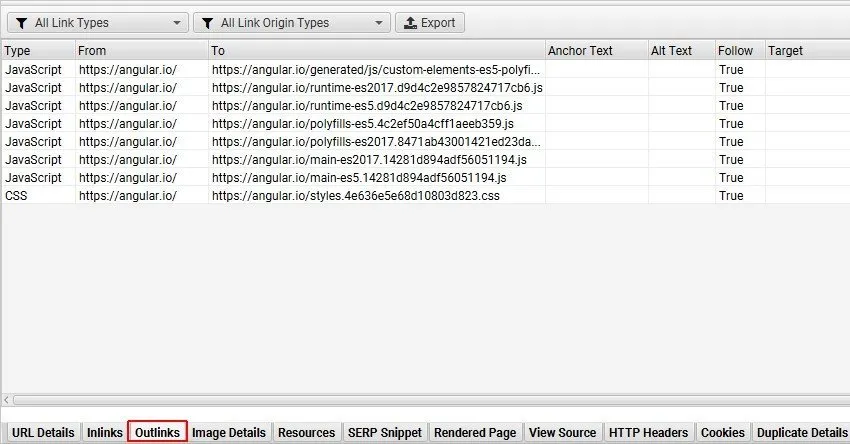
While this is often a sign that the website uses a client-side rendered JavaScript framework, it doesn’t tell you whether there are other JavaScript dependencies on the site.
For example, a website might use JavaScript only to load products on category pages, or to update title elements.
So how do you find them easily?
To identify JavaScript more efficiently, switch to JavaScript rendering mode (1Configuration›2Spider›3Rendering) and crawl the site, or a sample of templates from across the site.
SEO Spider will crawl both the original and the rendered HTML to identify pages with content or links available only client-side and flag other key dependencies.
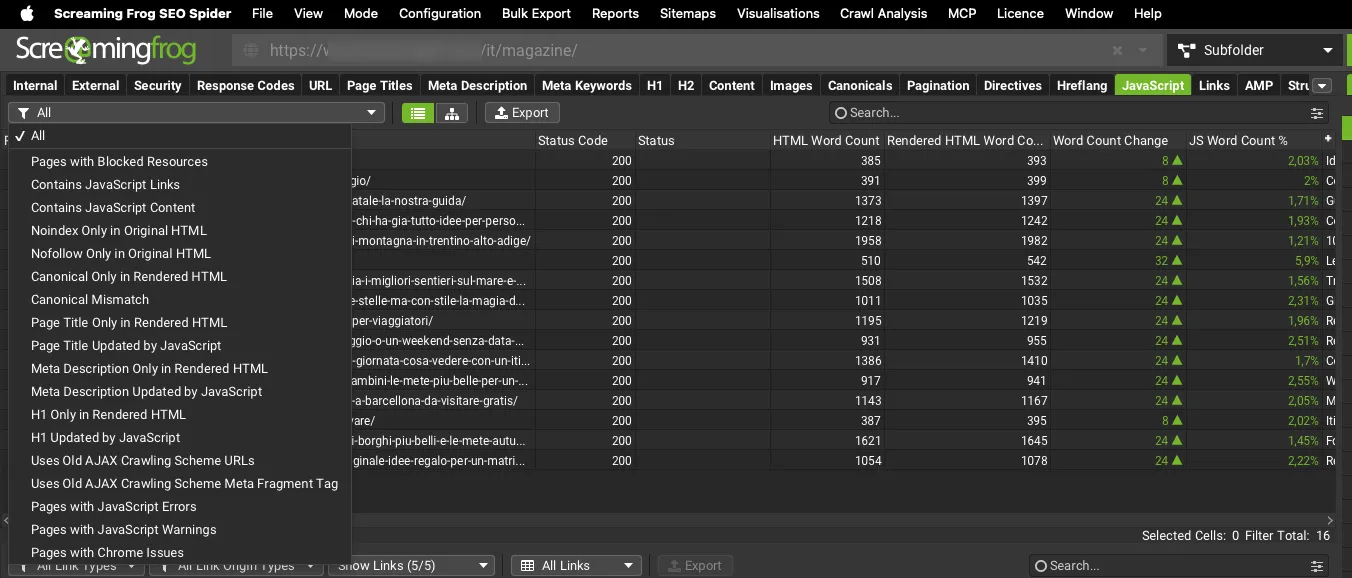
To find your way around the common problems of client-side JavaScript sites, you have a complete list of filters to guide your SEO audit.
SEO Spider will flag any content that exists only in the HTML rendered after JavaScript runs, giving you a complete view of how the website behaves.
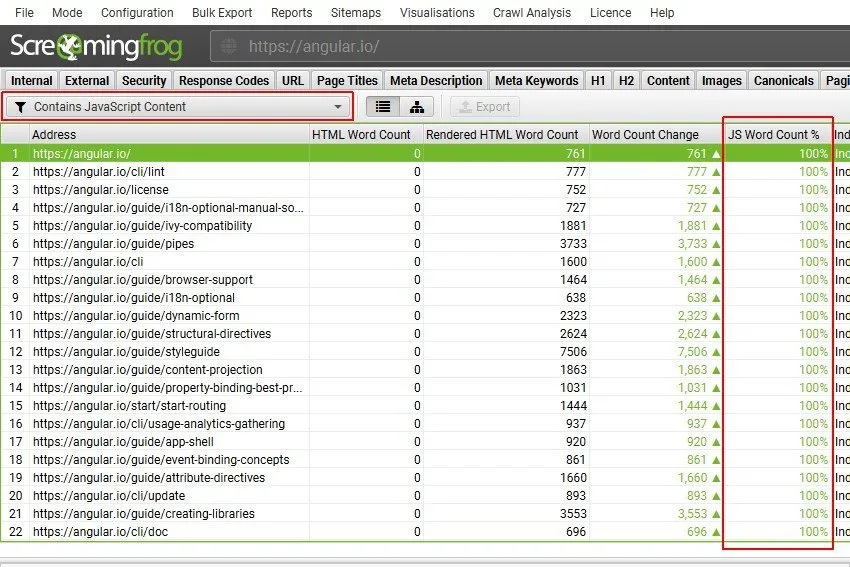
In this example, 100% of the content is only in the rendered HTML, because the site relies entirely on JavaScript.
Here the check focused on the number of words in the page content, but you can also find, for example, pages with links present only in the rendered HTML, and fix them following Google’s guidance.
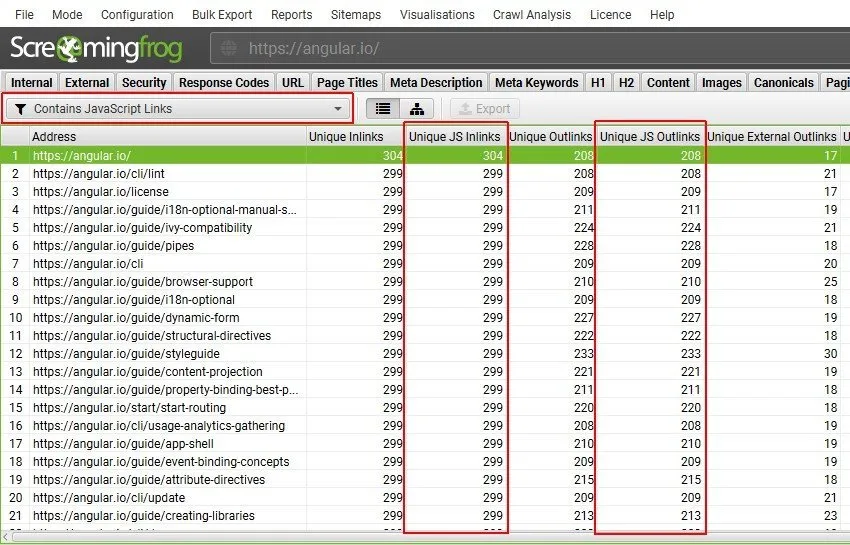
This Screaming Frog feature is also very useful for checking whether meta tags or other SEO elements are in the static HTML, or are only served and/or changed once JavaScript has run.
-
- Disable JavaScript in the browser
Another way to understand the nature of a website is to disable JavaScript directly in the browser and reload the page. If it comes up blank, there’s no doubt the website was built with JavaScript.
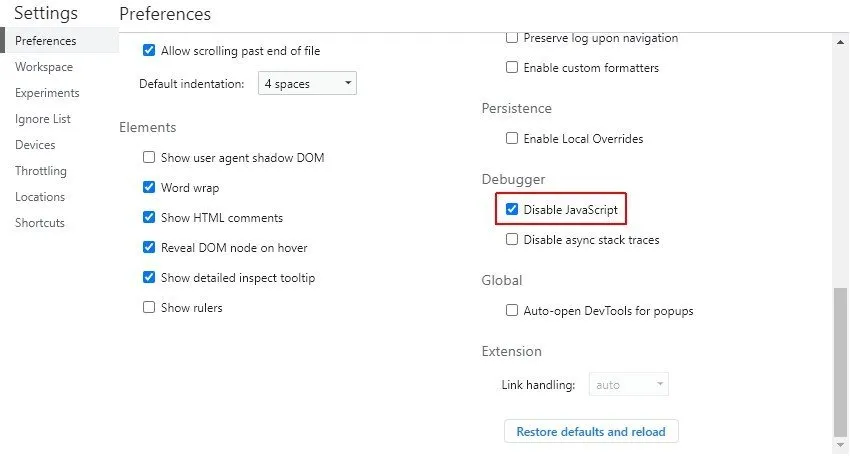
-
- Look for JavaScript in the source code
The third option is to right-click the page and view the source, checking the HTML for text, links or signs of the various JS framework libraries.
This way you see the code before the browser processes it, which matches what SEO Spider crawls when it’s not in JavaScript rendering mode.
If you search for an element and find no match in the source, it’s presumably generated dynamically in the DOM and will only be visible in the rendered code.
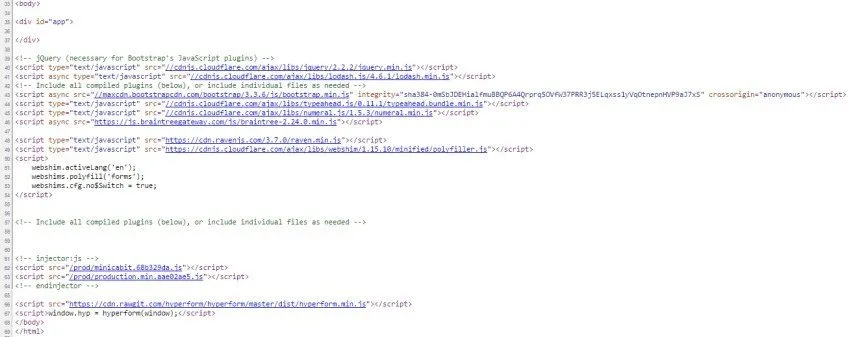
Here the <body> tag is completely empty, a clear sign the site uses JS.
-
- Audit the rendered code
The first question to ask is: how different is the rendered code from the static HTML source? To find out, just right-click and use “Inspect” in Chrome to see the rendered HTML. You can often see the name of the JS framework in the rendered code, such as ‘React’ in the example below.
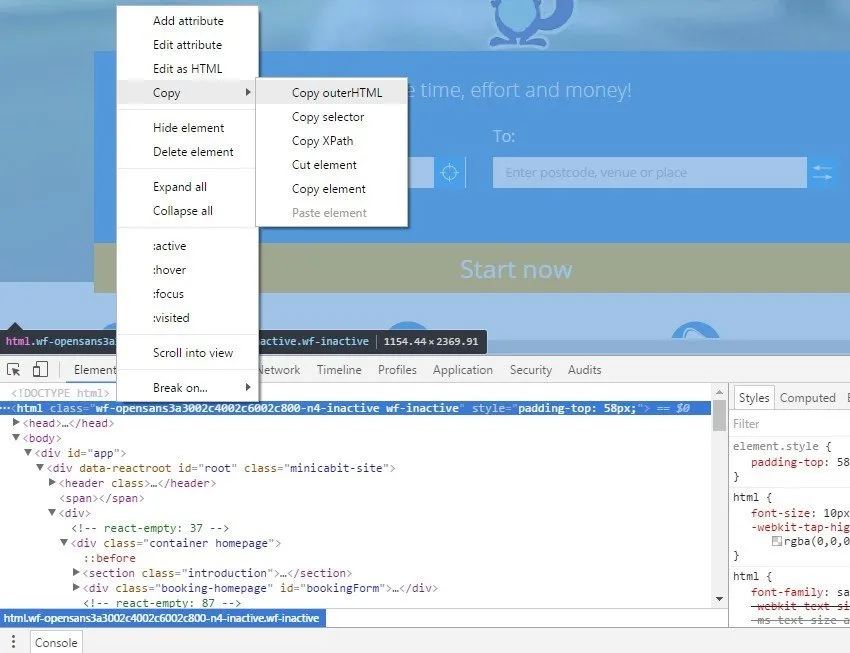
You’ll find the content and hyperlinks are in the rendered code but not in the original HTML source. This is what SEO Spider sees in JavaScript rendering mode.
By clicking the opening HTML element, then “Copy › outerHTML”, you can compare the rendered source with the original.
Crawling JavaScript with Screaming Frog
Once you’ve confirmed JS is present and understood the pitfalls, you can start your SEO audit with Screaming Frog in JavaScript rendering mode. This lets you crawl dynamic websites rich in JavaScript and frameworks such as Angular, React and Vue.js.
-
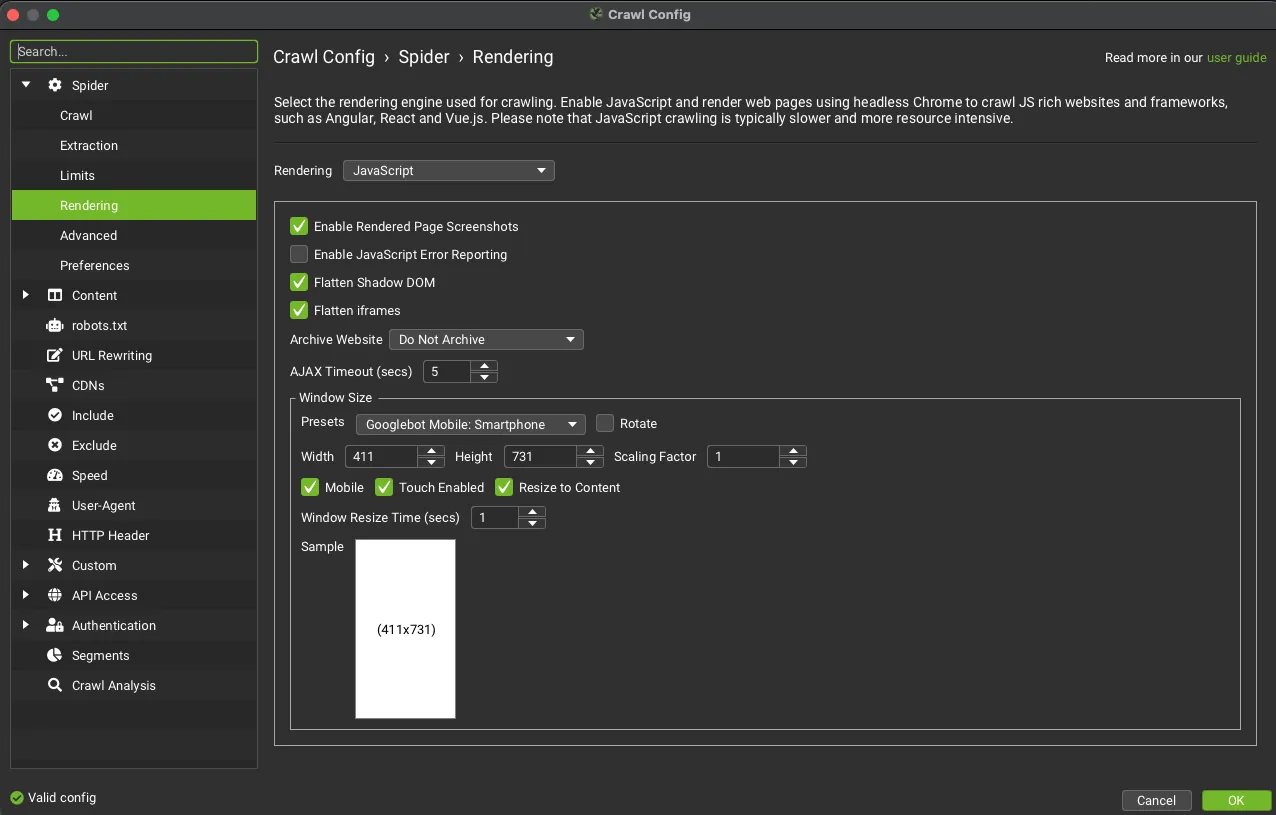
- To crawl a JavaScript website, open SEO Spider, go to 1Configuration›2Spider›3Rendering and change ‘Rendering’ to ‘JavaScript’.
-
- Set the User-Agent and Window Size
Set the user agent in 1Configuration›2User-Agent.
And the window size in 1Configuration›2Spider›3Rendering.
By default the viewport is set to “Googlebot Mobile: Smartphone”, in line with the search engine’s mobile-first indexing.
-
- Check resources and external links
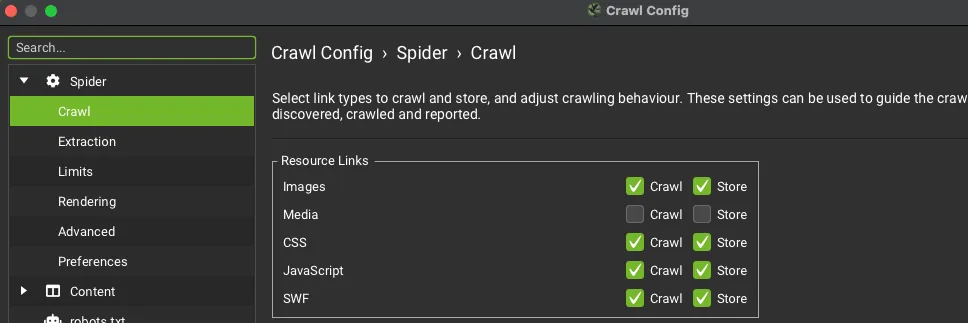
Make sure resources such as images, CSS and JS are ticked in 1Configuration›2Spider›3Crawl. If resources are on a different subdomain or a separate root domain, also enable external links in 1Configuration›2Spider›3Crawl›4External Links, otherwise they won’t be crawled and therefore rendered.
-
- Run the crawl
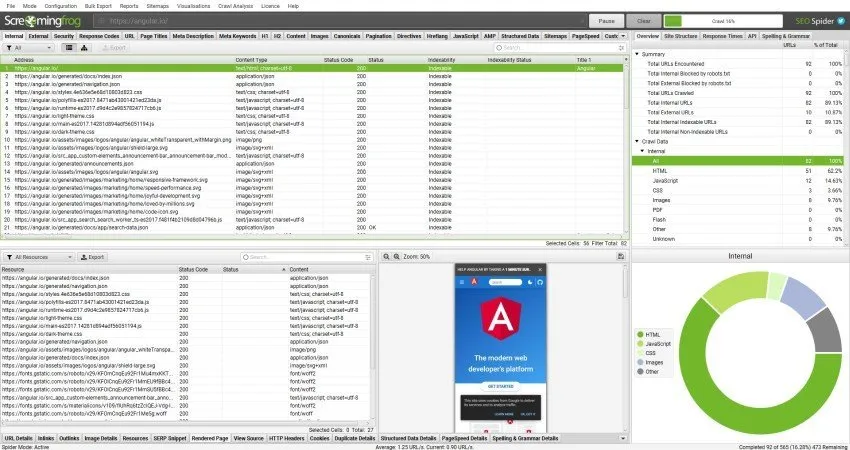
-
- Check the JavaScript tab
The JavaScript tab has 18 filters that help you account for JavaScript dependencies and isolate the most common problems.
-
Pages with Blocked Resources: identifies all pages with resources (such as images, JavaScript and CSS) blocked by robots.txt. This can be a problem, because search engines may not be able to access the resources they need to render pages accurately. I recommend updating robots.txt so all critical resources can be crawled and used for rendering. Non-critical resources (such as a Google Maps embed) can be ignored.
-
Contains JavaScript Links: pages containing hyperlinks discovered in the rendered HTML only after JavaScript runs. These hyperlinks aren’t in the raw HTML. It’s good practice to include important links server-side in the static HTML.
-
Contains JavaScript Content: all pages whose body text exists only in the HTML rendered after JavaScript runs. Google can render pages and see client-side-only content, but consider including important content server-side in the raw HTML.
-
Noindex Only in Original HTML: pages with a noindex tag in the static HTML but not in the rendered HTML. When Googlebot meets a noindex tag, it skips rendering and JavaScript execution. Because of this, using JavaScript to remove ‘noindex’ in the rendered HTML won’t work.
-
Nofollow Only in Original HTML: pages with a nofollow attribute in the static HTML but not in the rendered HTML. This means any hyperlinks in the raw HTML before JavaScript runs won’t be followed. Remove ‘nofollow’ if the links should be followed, crawled and indexed.
-
Canonical Only in Rendered HTML: pages with a canonical tag only in the HTML rendered after JavaScript runs. I recommend including a canonical link in the static HTML (or HTTP header) so Google can see it, rather than relying only on the canonical in the rendered HTML.
-
Canonical Mismatch: pages with a different canonical link in the static HTML than in the HTML rendered after JavaScript runs. This can send mixed signals and lead to unwanted behaviour by the search engine.
-
Page Title Only in Rendered HTML: pages with a page title only in the HTML rendered after JavaScript runs. This means a search engine must render the page to see it. Consider including important content server-side in the raw HTML.
-
Page Title Updated by JavaScript: pages whose title is modified by JavaScript, meaning the title in the static HTML differs from the one in the rendered HTML. Consider including important content server-side in the static HTML.
-
Meta Description Only in Rendered HTML: pages with a meta description only in the HTML rendered after JavaScript runs.
-
Meta Description Updated by JavaScript: pages whose meta description is modified by JavaScript, meaning the meta description in the static HTML differs from the one in the rendered HTML.
-
H1 Only in Rendered HTML: pages with an h1 only in the HTML rendered after JavaScript runs. A search engine must render the page to take the heading into account. Consider including headings server-side in the static HTML.
-
H1 Updated by JavaScript: pages whose h1 is modified by JavaScript, meaning the h1 in the raw HTML differs from the one in the rendered HTML.
-
Uses Old AJAX Crawling Scheme URLs: URLs still using the old AJAX crawling scheme (a URL containing a #! hash fragment), officially deprecated since October 2015. Consider server-side rendering or pre-rendering where possible, and dynamic rendering as a workaround.
-
Uses Old AJAX Crawling Scheme Meta Fragment Tag: URLs including a meta fragment tag indicating the page still uses the old AJAX crawling scheme, officially deprecated since October 2015. Update the URLs to keep up with how JavaScript is used on modern websites. Consider server-side rendering or pre-rendering where possible, and dynamic rendering as a workaround. If the site still has the old meta fragment tag by mistake, remove it.
-
Pages with JavaScript Errors: pages with JavaScript errors detected in the Chrome console during rendering. To see them, enable “Enable JavaScript Error Reporting” in 1Configuration›2Spider›3Rendering.
-
Pages with JavaScript Warnings: pages with JavaScript warnings in the Chrome console.
-
Pages with Chrome Issues: pages with issues reported by Chrome during rendering, such as blocked resources or security problems.
-
- Monitor blocked resources
Keep an eye on everything that shows up under the “Pages with Blocked Resources” filter in the “JavaScript” tab.

Blocked resources can also be viewed for each page in the ‘Rendered Page’ tab, next to the rendered screenshot in the bottom panel. In severe cases, if a JavaScript site blocks its JS resources entirely, the site simply won’t be crawled.
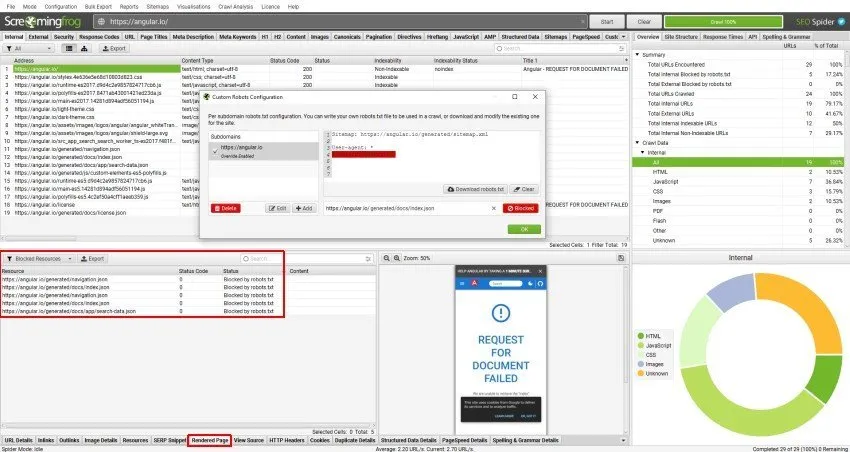
You can also see every blocked resource in the “Response Codes” tab, under 1Response Codes›2Blocked Resource.
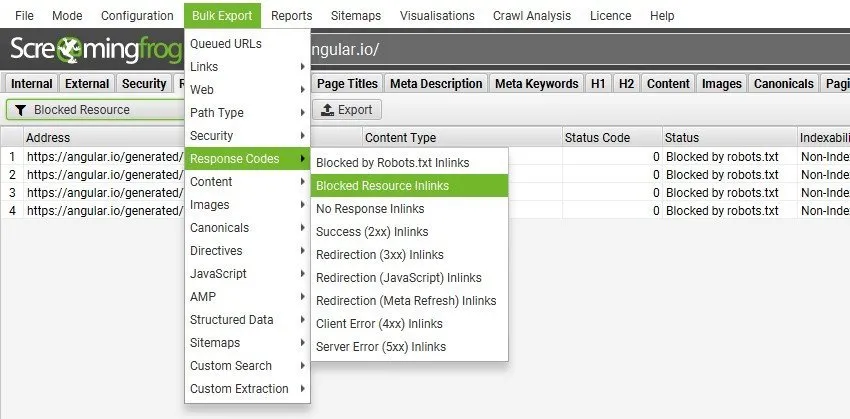
Pages and individual blocked resources can also be bulk exported with 1Bulk Export›2Response Codes›3Blocked Resource Inlinks, so you can unblock and optimise them.
-
- View the rendered pages
With Screaming Frog you can view the crawled rendered page in the ‘Rendered Page’ tab, which appears dynamically at the bottom of the interface when crawling in JavaScript rendering mode.
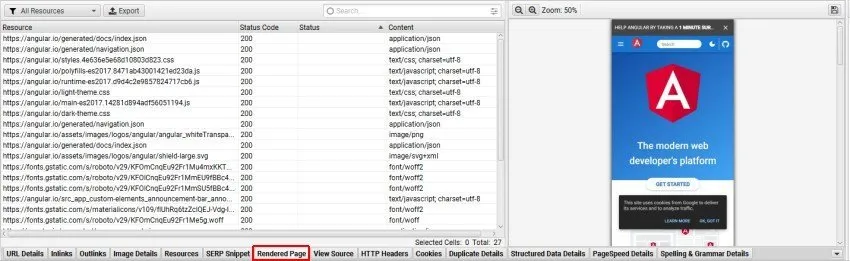
If page rendering doesn’t load, consider adjusting the AJAX timeout directly in SEO Spider’s configuration.
Seeing the rendered page is vital when analysing what a modern search bot can see, and it’s especially useful when reviewing a staging site, where you can’t use Google’s URL Inspection live test in Search Console.
If you’ve set the user agent and viewport to Googlebot Smartphone, you can see exactly how each page renders on mobile, for example.
-
- Compare raw and rendered HTML
When working with JavaScript you may want to store and view the HTML and rendered HTML in SEO Spider, from 1Configuration›2Spider›3Extraction.
Ticking the “Store HTML” and “Store Rendered HTML” options lets you easily compare the two versions and the differences, to make sure critical content and links are present in the DOM.
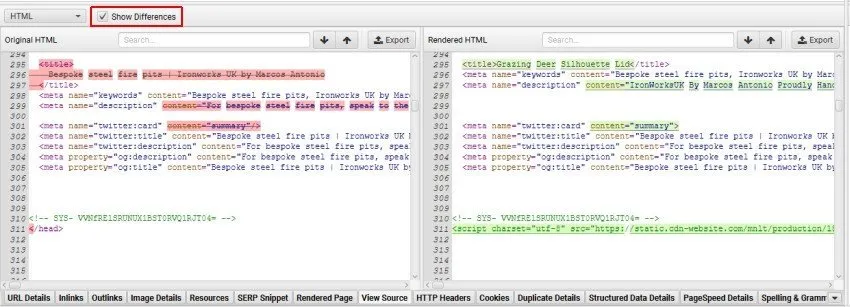
This is extremely useful in many scenarios, such as debugging differences between what’s seen in a browser and in SEO Spider, or simply analysing how JavaScript has been rendered and whether certain elements are in the code.
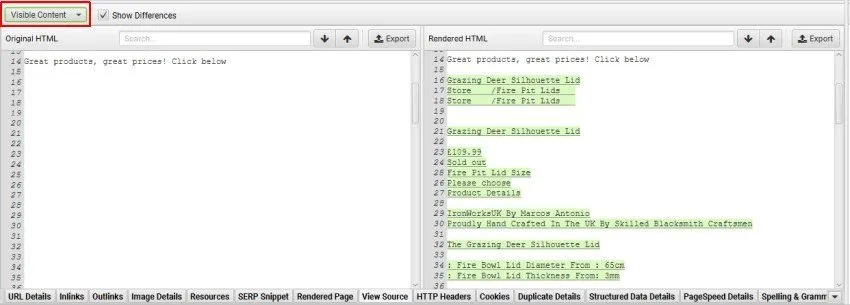
If the “Contains JavaScript Content” filter has triggered for a page, you can switch from the ‘HTML’ filter to ‘Visible Content’ to see exactly which text exists only in the rendered HTML.
-
- Identify JavaScript-only links

Another important check concerns links present only in the rendered code. With the “Contains JavaScript Links” filter you can see which hyperlinks are discovered after JavaScript runs.
Once the data is collected, just click a URL in the top window, then the “Outlinks” bottom tab, and select “Rendered HTML” as the filter.
-
- Set the AJAX Timeout
Depending on how your crawl responds, you can choose the timeout setting, which defaults to 5 seconds. This is very useful if SEO Spider has trouble rendering pages, from 1Configuration›2Spider›3Rendering.
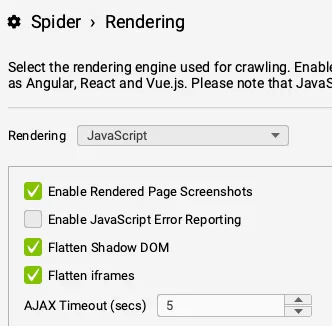
The 5-second timeout is generally fine for most websites, and Googlebot is usually more flexible, adapting to how long a page takes to load its content, taking network activity into account and doing a lot of caching.
Related tabs: Bottom tabs | Side panel | Reports
Video tutorials (in Italian)
Questions about Analysing JavaScript Websites?
These guides come from real projects. If something in your crawl doesn’t add up, or you want to apply this process to your site, get in touch.
 Author.Raffaele Visintin.Search & Strategic Marketing Advisor