

MAIN BOTTOM TABS.
An overview of Screaming Frog’s bottom tabs and the details they provide.
The SEO Spider bottom window tabs used most in audits: images, duplicates, resources, SERP preview, rendered page, source, HTTP headers, cookies, structured data, spelling and grammar.
Bottom tabs
overview
An analysis of Screaming Frog’s most used bottom tabs, for detailed and thorough monitoring of the key data during SEO audits.
Images
This tab isolates every image on a page and, if you select an image URL, shows you a preview.
The data available:
- From: the selected URL.
- To: the images found on the HTML page.
- Alt Text: the text of the “alt” attribute, if present in the code.
Duplicate Details
This tab isolates any pages with duplicate or very similar content to the selected URL.
It shows which URLs are similar and how similar they are, as a percentage.
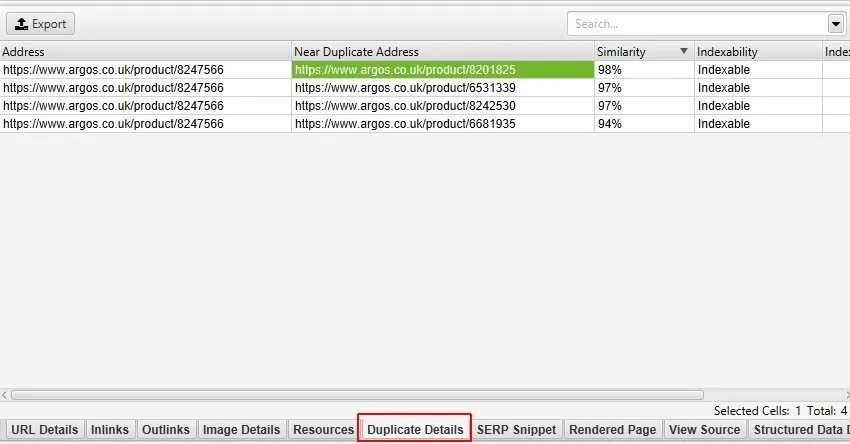
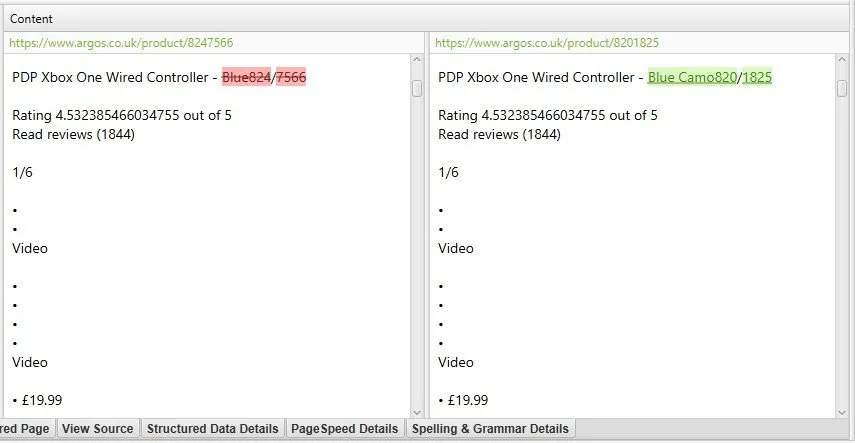
Once the data is collected, click a “Near Duplicate Address” in the tab to see a comparison of the pages with the differences highlighted.
Resources
This tab lists the resources used by the URL selected in the top window, such as images, CSS and JavaScript files, with their response codes, so you can spot blocked or broken resources.
SERP Snippet
The SERP Snippet tab is a handy way to see how the URL’s snippet appears in Google’s search results. With it you can optimise the snippet and avoid truncation in search results, with a view for both desktop and mobile. The truncation point (where Google shows "…" and cuts the text) is calculated from pixel and character width.
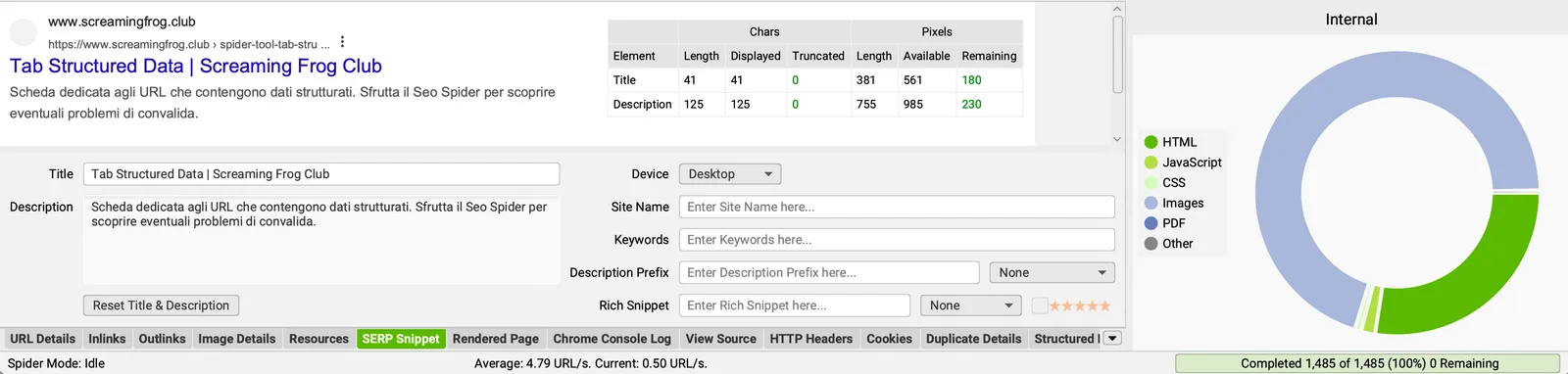
The left of the tab shows the snippet preview, the right an overview table. Search engines have never officially defined the pixel size or maximum number of characters you can use without truncation, so these thresholds were set by SEO Spider based on various SERP studies.
The SERP snippet emulator uses desktop by default.
Config > Spider > Preferences
You can change the device to simulate and see how snippets look on desktop, tablet or mobile from the drop-down menu.
The interface is very handy: you can edit page titles and descriptions directly in the window and the changes are saved automatically (database storage), unless you click the button to reset the title and description to their original state. This lets you refine your snippets and export the document (‘Reports > SERP Summary’) to send to a client or the development team to apply your meta tags on the website.
Rendered Page
This tab shows the rendered page SEO Spider crawled in JavaScript mode.
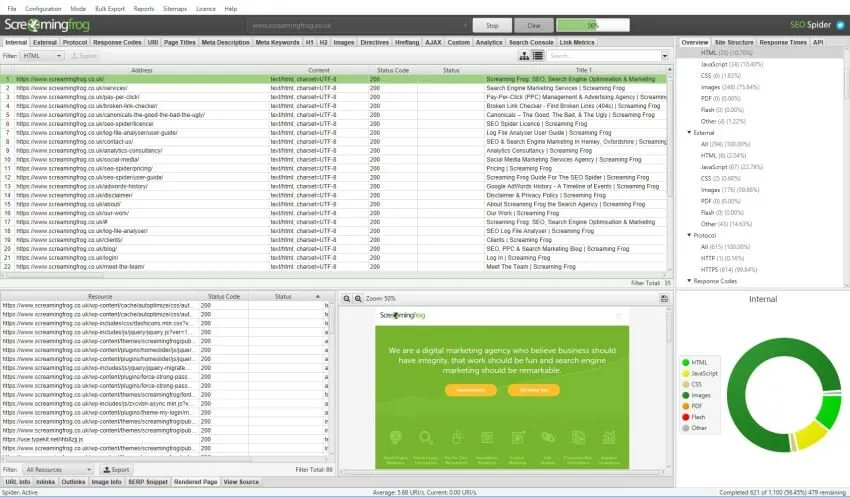
It’s enabled by default when you use JavaScript rendering, and works with the configured user agent, AJAX timeout and viewport size.
By default it shows “blocked resources”, but you can switch it to show “all resources” used by the page.
View Source
The “View Source” tab lets you collect and compare the static HTML and the rendered HTML of a page selected in the top window; it requires “Store HTML” or “Store Rendered HTML” to be enabled.
Configuration > Spider > Extraction > Store HTML / Store Rendered HTML
The tab has an internal search filter to make it easy to find elements in the code.
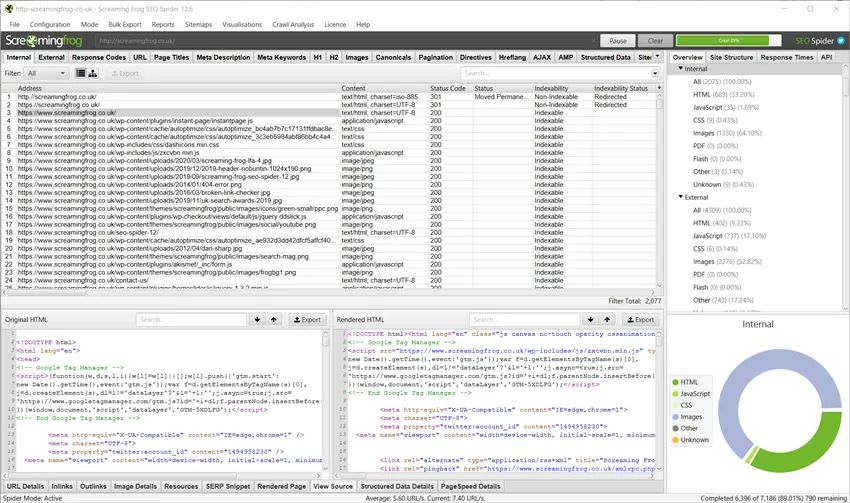
The left pane shows the original HTML before JavaScript kicks in, just like right-clicking “View source” in a browser. It’s a great debugging tool, or for comparing with the rendered HTML.
The right pane lets you store the rendered HTML of every URL crawled by SEO Spider and view the DOM as with “Inspect Element” (in Chrome DevTools), after JavaScript has run.
HTTP Headers
This tab collects the HTTP header responses.
Configuration > Spider > Extraction > HTTP Headers
On the left you see the HTTP request headers, on the right the HTTP response headers.
The available columns include:
- Header Name: the name of the server response header.
- Header Value: the value of the server response header.
Once extracted, HTTP headers are added as columns in the Internal tab, where you can query them together with the crawl data.
The HTTP headers can be exported in detail via “Bulk Export > Web > All HTTP Headers” or in aggregate via “Reports > HTTP Headers > HTTP Header Summary”.
Cookies
To populate this tab, remember to enable SEO Spider to crawl and store cookies. When you select one or more URLs in the top window you’ll find the details in the Cookies tab of the bottom window.
Configuration > Spider > Extraction > Cookies
You can also use JavaScript rendering mode for an accurate view of the cookies loaded on the page via JavaScript or pixel image tags.
The Cookies tab columns include:
- Cookie Type: where the cookie was found (‘HTTP’, ‘On-Page’ etc).
- Cookie Name: the cookie name.
- Cookie Value: the cookie value.
- Domain: the domain that issued the first- or third-party cookie.
- Expiration Time: the cookie expiry time.
- Secure: the cookie’s Secure attribute details.
- HttpOnly: the cookie’s HttpOnly attribute details.
- Address: the URL where the cookie was found.
Bulk Export > Web > All Cookies
Note: by default, when you choose to store cookies, SEO Spider disables the automatic exclusion of Google Analytics tracking tags, to give an accurate view of every cookie issued, analytics cookies included.
Structured Data
As you know, search engines value structured data highly, and the “Structured Data” tab is very useful to optimise it and avoid validation errors or warnings. The data in this bottom tab refers to the URL selected in the top window, provided the crawl was configured to extract it.
Configuration > Spider > Extraction > JSON-LD/Microdata/RDFa & Schema.org Validation/Google Validation
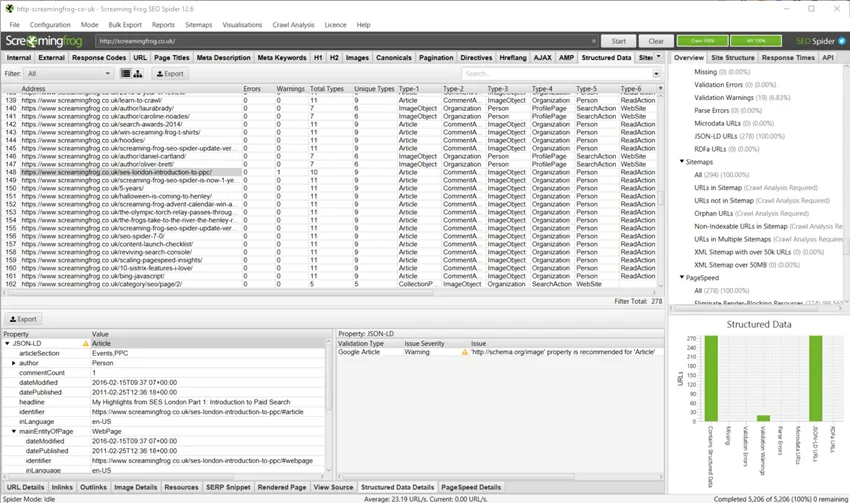
On the left you see the property values, with icons for errors and/or warnings; click the items with errors to see the specific validation details in the right pane.
- Validation Type: the structured data type with the validation issue (Article, Person, Product etc.).
- Issue Severity: whether the item is an error or a warning according to Schema.org guidelines.
- Issue: the details of the specific issue found.
Spelling & Grammar
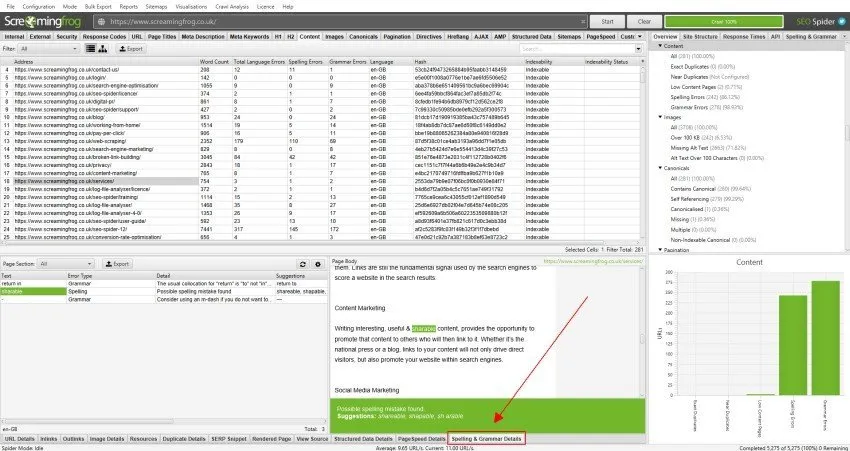
Once the option is enabled in the config menu, this tab contains the details of any spelling and grammar issues for each URL selected in SEO Spider’s top window.
The “Spelling & Grammar Details” tab lists the errors, says whether they’re spelling or grammar errors and offers suggestions to fix them.
The right pane previews the page text with the errors highlighted.
English is the default language, but you can set the analysis to your own language.
Config > Content > Spelling & Grammar
Questions about MAIN BOTTOM TABS?
These guides come from real projects. If something in your crawl doesn’t add up, or you want to apply this process to your site, get in touch.
 Author.Raffaele Visintin.Search & Strategic Marketing Advisor
