

Orphan Pages.
Analysing and monitoring orphan pages to improve your website’s internal linking.
How to find orphan pages, those without internal links, by combining the crawl with the XML sitemap and the Google Analytics and Search Console APIs. See also how to spot them from an empty crawl depth.
Crawling orphan pages
Now that we know why finding orphan pages matters, let’s see the procedure with SEO Spider.
1. Crawling the XML sitemap
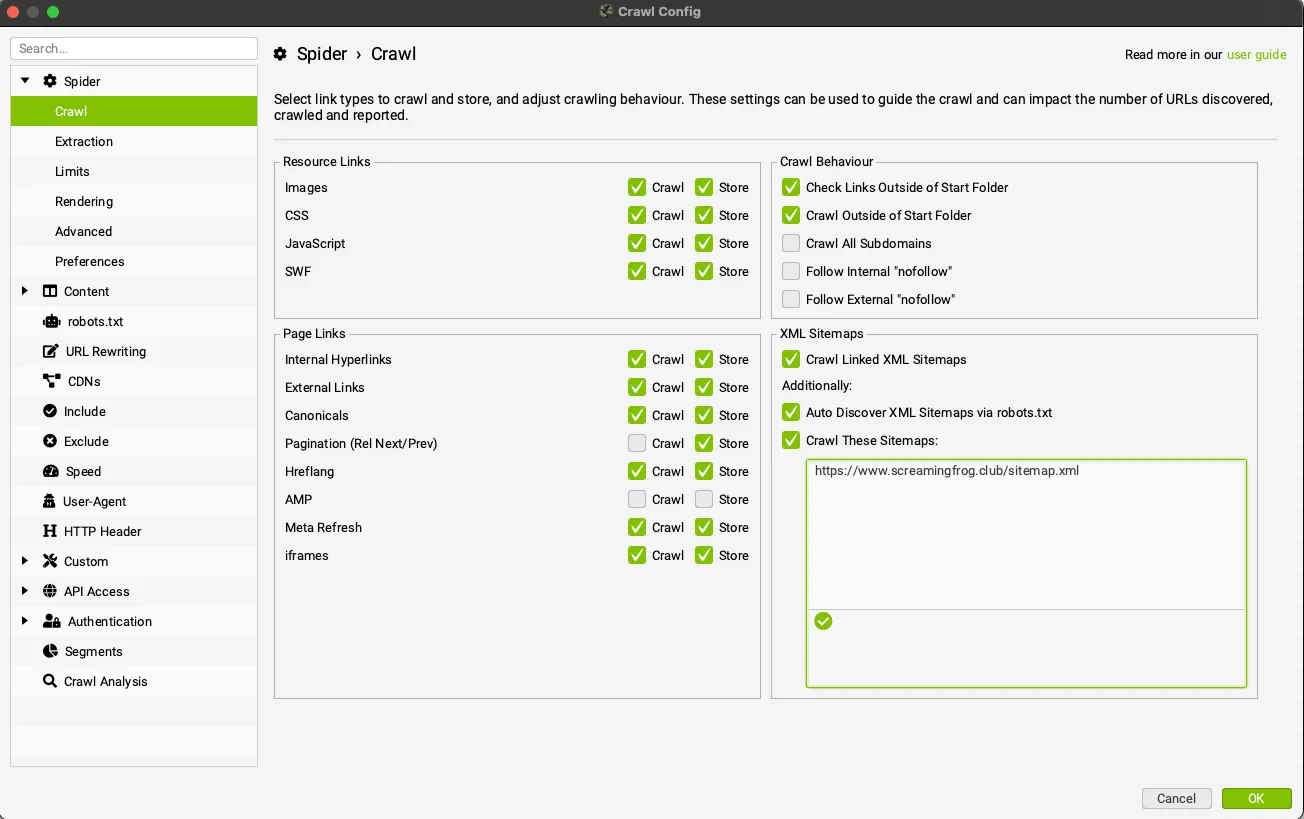
First, enable Crawl Linked XML Sitemaps in 1Configuration›2Spider›3Crawl to crawl your website’s sitemap.
2. Connecting the Google Analytics API
Set up the connection to the Google Analytics API in 1Configuration›2API Access›3Google Analytics 4 to find orphan pages receiving organic traffic for a specific account and property.
Remember to limit the data to organic traffic, set the date range (one month by default) and choose the metrics and dimensions you’re interested in. The screenshot below shows the old Universal Analytics connection, with views and segments: Google Analytics 4 no longer has views, and organic traffic is isolated with a filter on the “Organic Search” channel.
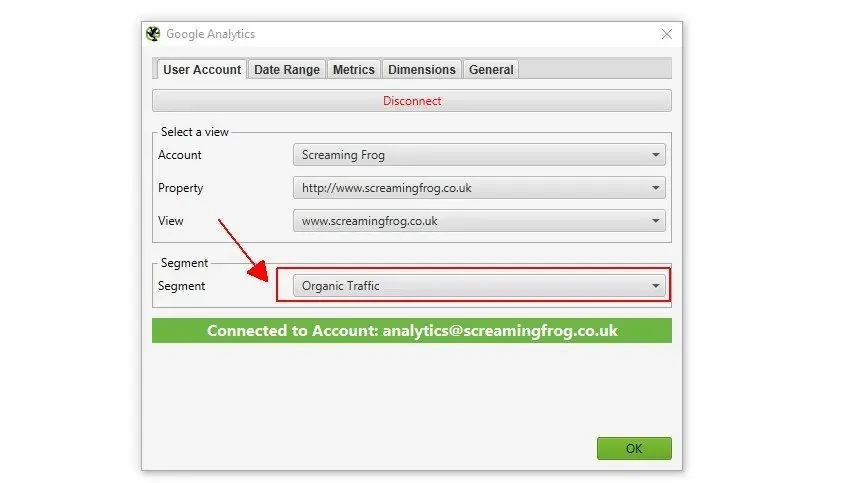
Remember to enable Crawl New URLs Discovered in Google Analytics in the General tab. If it’s disabled, URLs discovered through Google Analytics are only available in the “Orphan Pages” report: they won’t be added to the crawl queue and won’t appear in the interface’s tabs and filters.
3. Connecting the Search Console API
You can also connect the Google Search Console API in 1Configuration›2API Access›3Google Search Console to find every page that, despite having no internal links, is getting impressions and clicks over a given period.
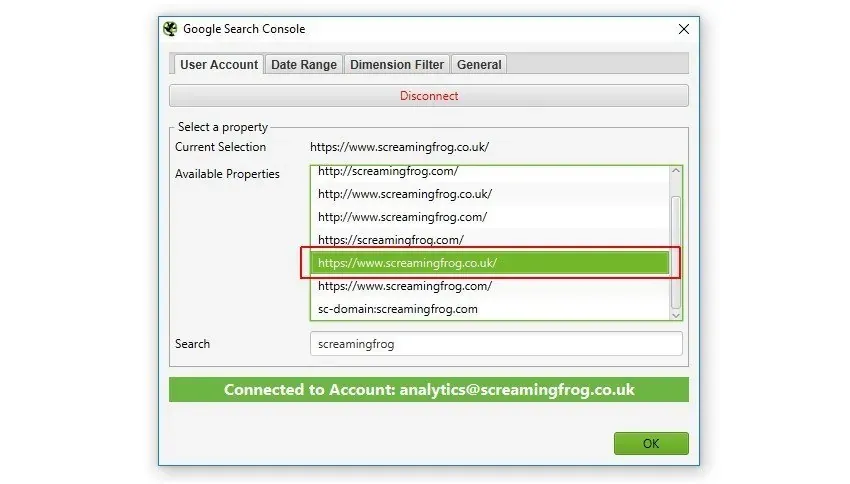
Here too you can change the date range for data collection. As with Google Analytics, if Crawl New URLs Discovered in Google Search Console isn’t enabled, new URLs discovered through Google Search Console are only available in the “Orphan Pages” report: they won’t be added to the crawl queue and won’t appear in the tabs and filters.
4. Run the crawl and Crawl Analysis
Once everything’s set up, run the crawl and start Crawl Analysis from 1Crawl Analysis›2Start (unless you’ve already automated it in 1Crawl Analysis›2Configure).
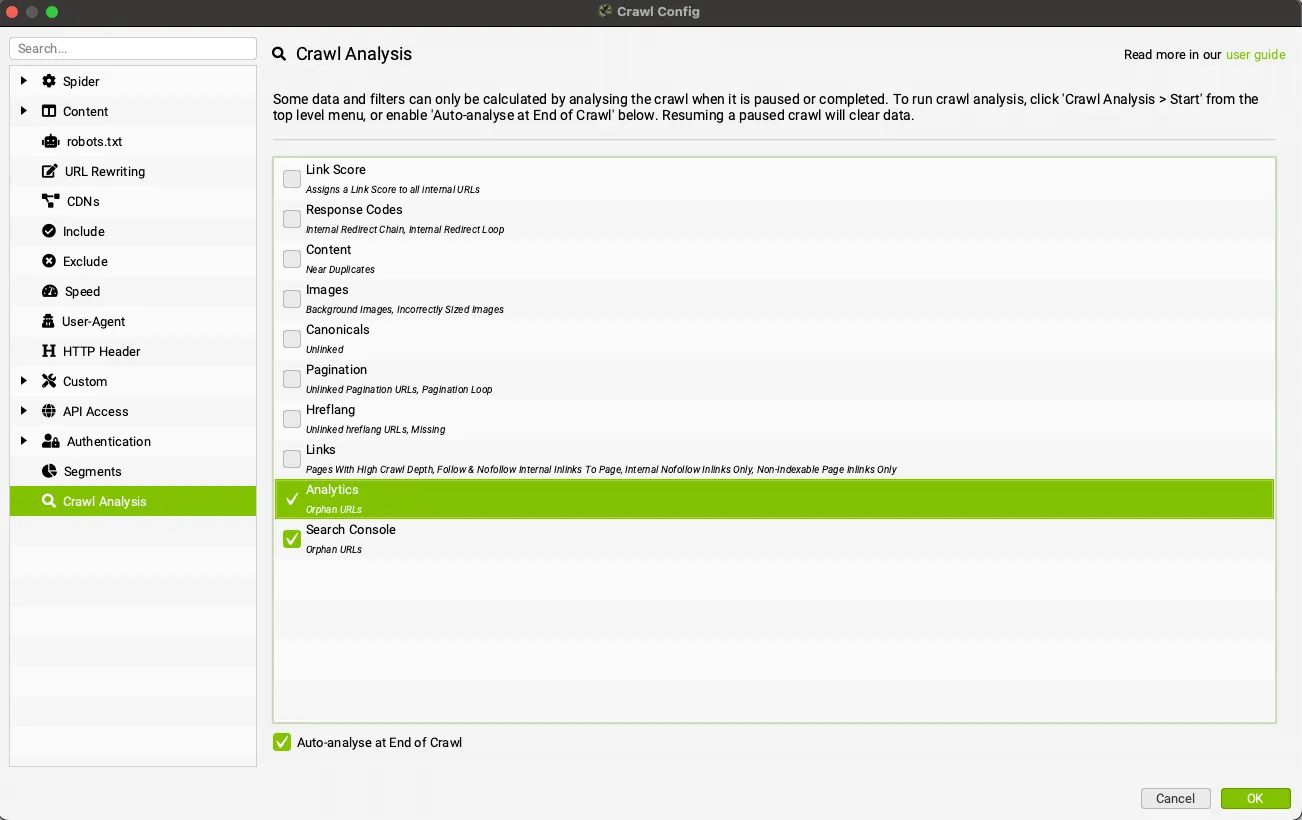
Once done, you can browse each tab and its ‘Orphan URLs’ filter to see every orphan page found.
A practical example
Let’s put this into practice by crawling the Screaming Frog website.
We set it up to crawl the XML sitemap and connect it to the Google Search Console API.
XML sitemap

In the example above, the Screaming Frog site has some orphan pages (Sitemaps tab) discovered by crawling the XML sitemap.
These pages return 404 and 301 status codes and may be old pages that weren’t removed from the XML sitemap after the new site went live.
Search Console API
When the Screaming Frog site is connected to the Search Console API (figure below), unlike the previous case (sitemap.xml analysis), the orphan pages are still live on the website (status code 200) and get impressions from Google even though they have no internal links.

Remember: both Google connectors let you export the results individually with the “Export” button in SEO Spider’s top window.
Orphan Pages report
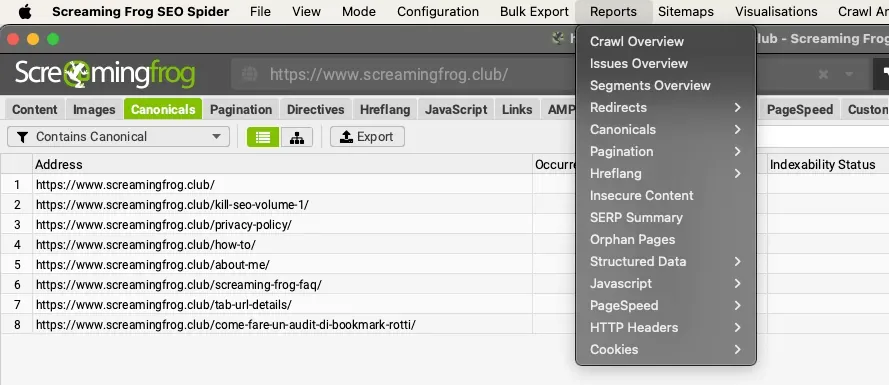
For an overview of every orphan page found through Google Analytics, Search Console and sitemap.xml, use the 1Reports›2Orphan Pages report.
Crawl depth analysis
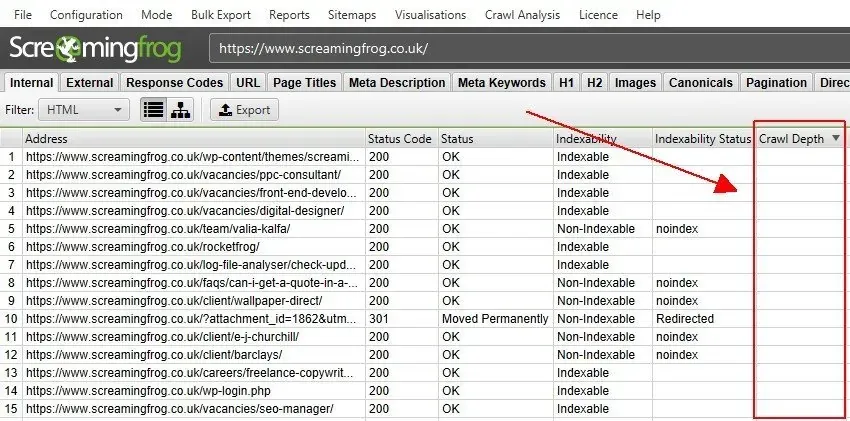
The last way to find orphan pages (after setting up the XML sitemap and the Google Analytics and Search Console APIs) is the ‘Internal’ tab, which includes every URL found during the crawl and Crawl Analysis.
Pages not found by crawling internal links always have an empty crawl depth.
Video tutorial
Questions about Orphan Pages?
These guides come from real projects. If something in your crawl doesn’t add up, or you want to apply this process to your site, get in touch.
 Author.Raffaele Visintin.Search & Strategic Marketing Advisor
