

RIGHT-HAND SIDEBAR.
An overview of the right-hand sidebar for concise, aggregated first analyses.
What SEO Spider’s right-hand sidebar shows: data overview, site structure, response times, issues, segments, API, spelling and grammar, crawl depth analysis. Useful for an immediate big picture.
Overview
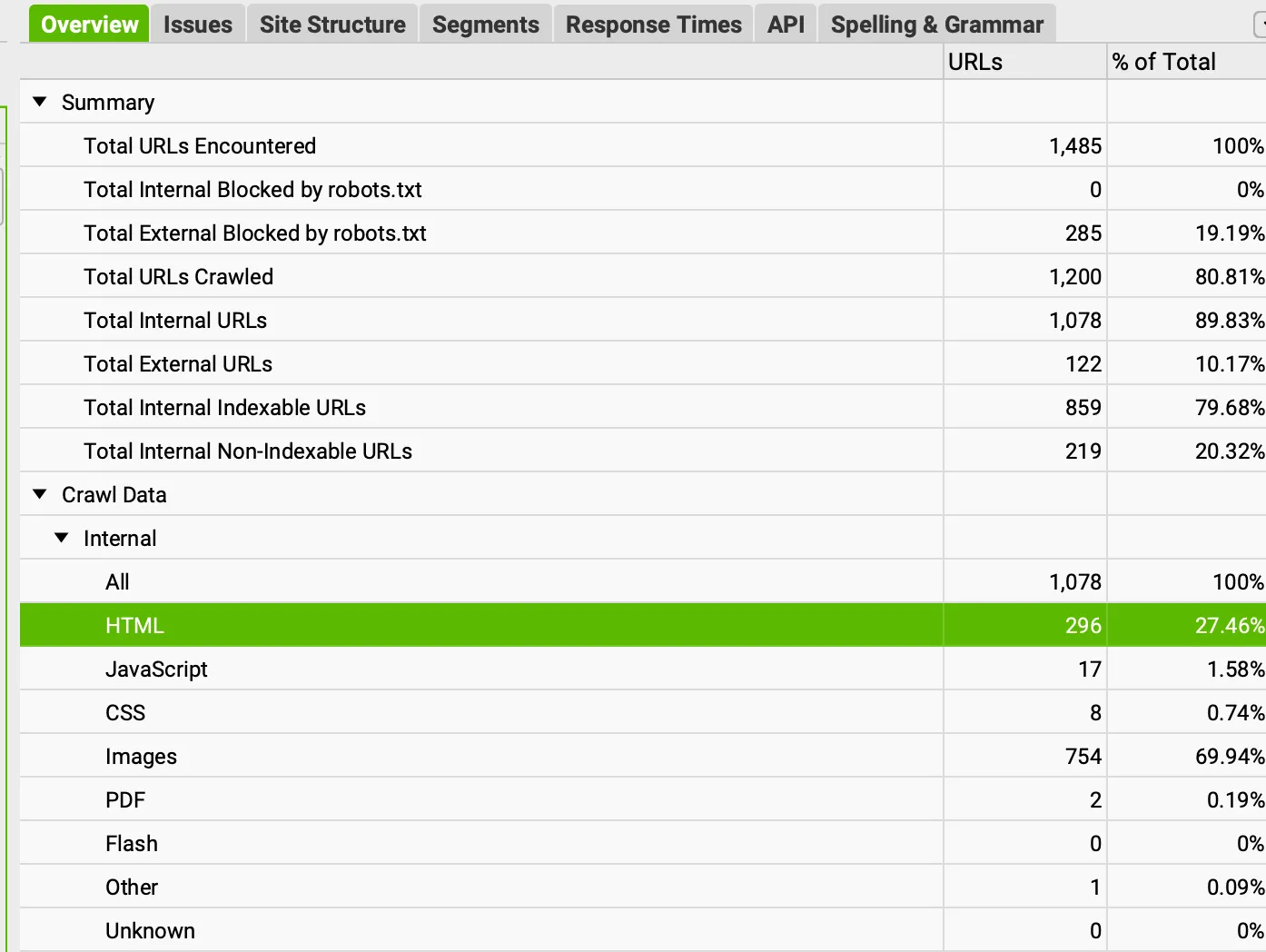
The “Overview” tab on the right of SEO Spider updates in real time during the crawl and gives a useful summary of the URLs and the totals for each tab and filter.
- Summary: a summary of the URLs encountered during the crawl.
- SEO Elements (Crawl Data): the number of URLs found for each top-level tab and its filters, in absolute and percentage terms. It gives you a first aggregated analysis, very useful to highlight straight away the areas that need optimising without clicking through every tab and filter.
It’s also a shortcut to the source of the issues: click any item to open the matching tab on the left of SEO Spider.
Issues
The errors and warnings grouped by Screaming Frog into macro areas and aggregated by topic. This section also shows the priority of each fix according to the SEO Spider team’s assessment. Personally I find it interesting as a first approach, but it needs deeper analysis to draw the right conclusions in an SEO audit.
Site Structure
Search engines are very advanced and find all of your website’s resources on their own by following internal links, but a good site architecture gives both crawlers and users a more satisfying navigation experience. A logical site structure, together with a clear search intent, brings significant organic ranking benefits, and this tab is a great starting point to optimise your project.
At the top you can see, in real time, the path, the total number of URLs, and the indexable and non-indexable URLs in each path of the website.
- Path: the URL path of the crawled website.
- URLs: the total number of unique URLs found within the path.
- Indexable: the total number of indexable URLs found within the path.
- Non-Indexable: the total number of non-indexable URLs found within the path.
- For a closer look, you can switch the Site Structure view to show the URLs’ indexability status, response codes and crawl depth in each path, or choose the crawl depth level by clicking “+” or “-” on the “Level” option.
The bottom of the sidebar shows a chart (or table) with the number of URLs at each crawl depth from 1 to 10+, already split by response code.
- Depth (Clicks from Start URL): how deep the page is, based on the number of clicks needed to reach it from the homepage or the crawl’s start page.
- Number of URLs: the number of URLs at each depth.
- % of Total: the number of URLs at each depth as a percentage.
Segments
This section of the sidebar shows your segments (groups of URLs aggregated by rules you define); very useful for a first look at the areas with the most errors.
Response Times
This tab gives you an overview of URL response times during a crawl.
- Response Times: time ranges (in seconds) to download the URLs.
- Number of URLs: the total number of URLs in a given response time range.
- % of Total: the percentage of URLs in a given response time range.
This data measures the time between sending an HTTP request and receiving the complete HTTP response from the server.
Note: this data can be affected by server load and by the client’s network activity at the time of the request.
The response time shown by SEO Spider doesn’t include the time taken to download additional resources in JavaScript rendering mode. Each resource appears with its own response time.
For a complete performance analysis, I recommend connecting the PageSpeed Insights API.
API
If you’ve connected SEO Spider to the Google Analytics 4, Search Console, PageSpeed Insights, Majestic, Ahrefs or Moz APIs, this tab shows the progress of data collection from every API along with an individual error count.
Spelling & Grammar
The “Spelling & Grammar” tab gives you an overview of the top 100 spelling or grammar errors found during the crawl and the number of URLs affected.
Very useful in a first analysis to catch errors in templates.
Video tutorial
Questions about RIGHT-HAND SIDEBAR?
These guides come from real projects. If something in your crawl doesn’t add up, or you want to apply this process to your site, get in touch.
 Author.Raffaele Visintin.Search & Strategic Marketing Advisor
