

Broken Bookmarks.
How to audit and manage broken bookmarks.
How to find bookmarks (links with #) that no longer lead to the right section because the ID has changed or doesn’t exist. SEO Spider checks the IDs on the pages; you bulk export the source URLs to fix.
Bookmark analysis
In this article we’ll see how to run an audit with Screaming Frog that finds every broken bookmark on a website, analyses the source pages and bulk exports the results.
Bookmarks are a handy way to send users to a specific section of a page with one click.
Setting them up is simple: in the HTML you use the ID attribute to create the bookmark.
<h1 id=”example”>Bookmark example</h1>Then you can link straight to the bookmark by adding a fragment (#) and the ID name (‘example’) to the page URL.
<a href=”https://www.screamingfrog.co.uk/how-to-find-broken-bookmarks/#example”>See our bookmark example</a>When the link is clicked, the page scrolls to the bookmarked position: in this case the ‘Bookmark example’ section.
Google always treats a page with several bookmarks as a single page (because it ignores anything after the “#”), but the anchors used for “jump to” links may appear in search results.
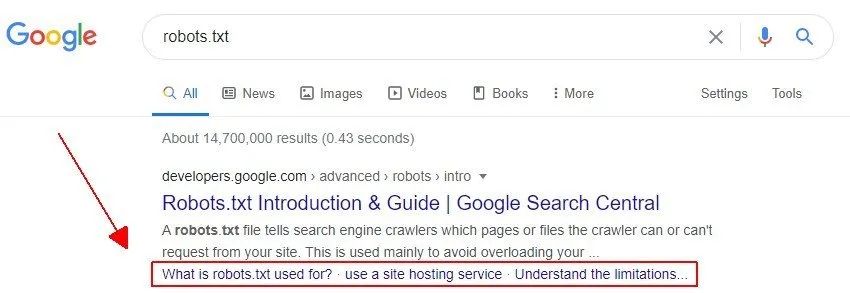
Bookmark links are very popular because they take users straight to the point, but they’re also a source of many errors: they often break over time as pages are updated and IDs are changed or removed. A broken bookmark still leads to the right page (it doesn’t return a 404), but it loses its purpose.
To solve this, SEO Spider crawls URLs with “#” and checks that the matching ID exists in the page’s HTML so the bookmark works. This lets you find broken bookmark links across the whole site, simply and automatically.
-
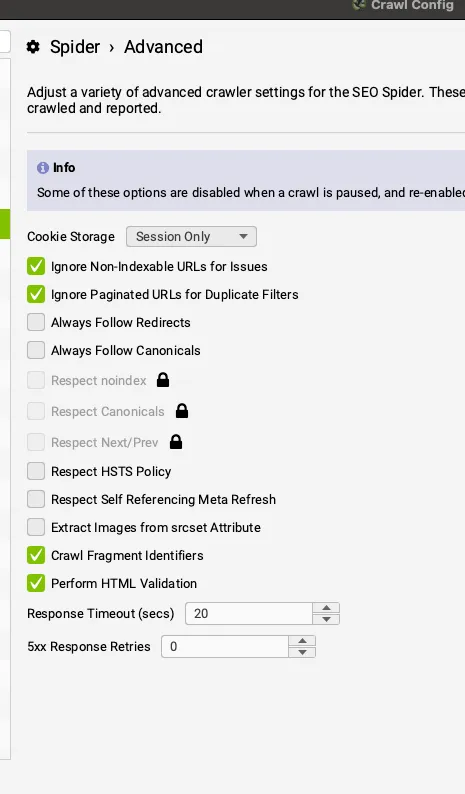
- Enable “Fragment identifiers”
Config > Spider > Advanced
-
- Crawl the website
-
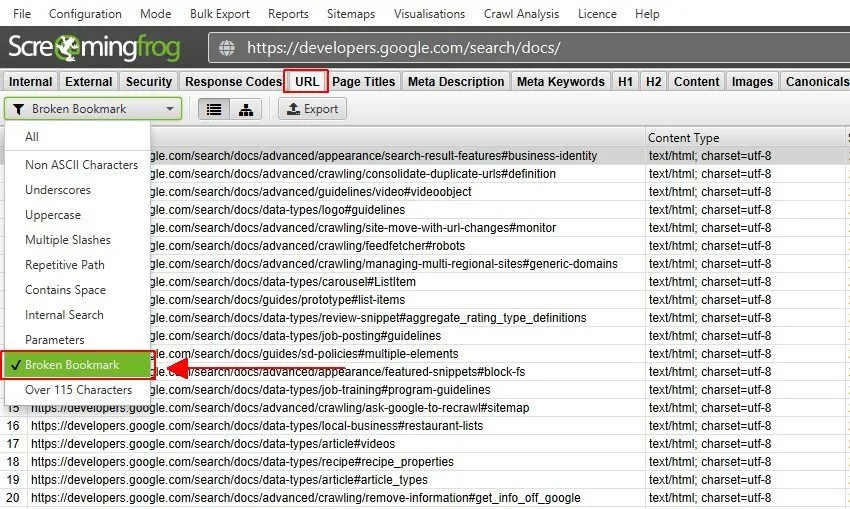
- Click the “URL” tab and use the “Broken Bookmark” filter
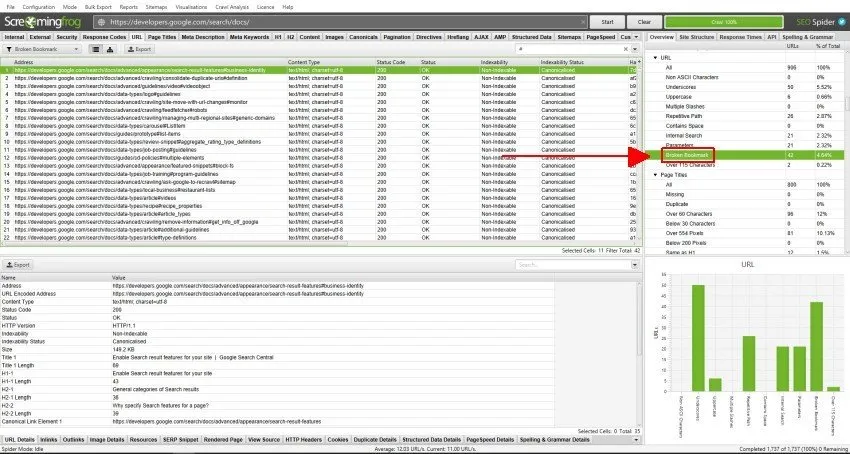
Alternatively, you can check the metric in SEO Spider’s sidebar.
-
- With the data collected, see the source of the broken bookmarks in the Inlinks tab.
To see which URLs on the site link to these broken bookmarks, select a URL in the top window and check the “Inlinks” section.
This way you can fix the links or change the ID attribute on the page with the broken bookmark.
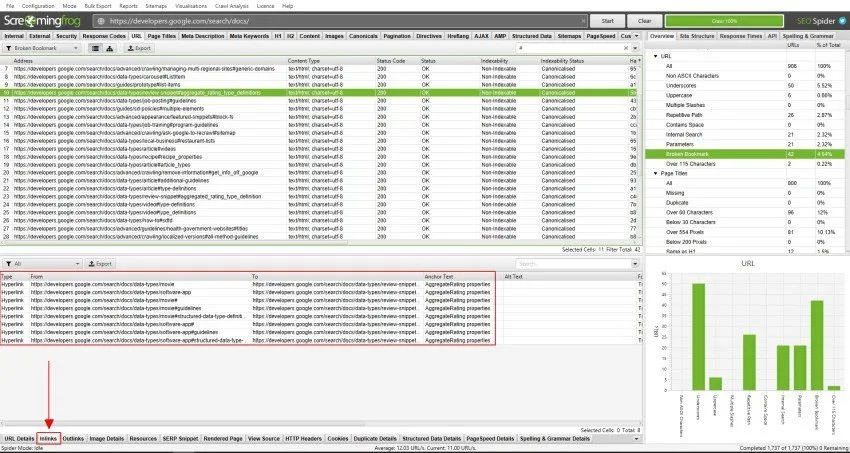
The “From” column shows the source where the broken link was placed, while “To” shows the page with the bookmark that doesn’t work.
-
- Exporting the data
Now just bulk download the results, including both the “source” URLs and the broken bookmark pages, by highlighting every URL in the top window and right-clicking to select the “Inlinks” report.
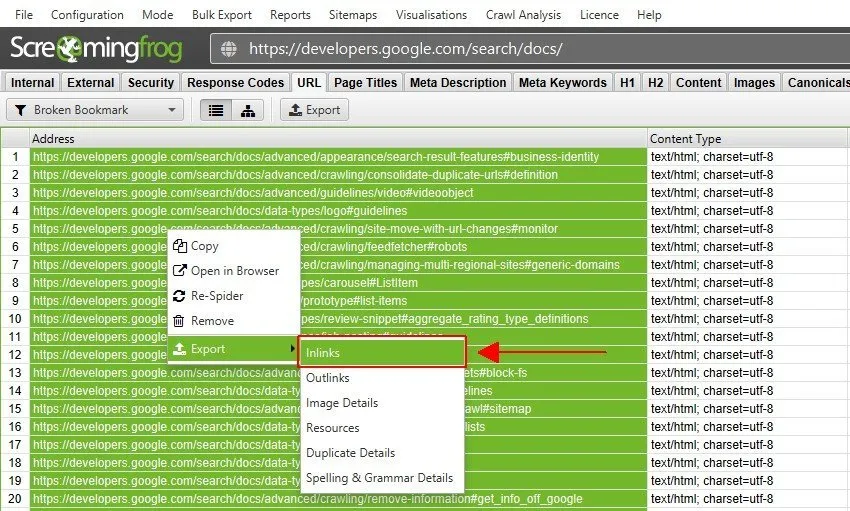
Alternatively, click the “Export” button directly in the window’s “Inlinks” tab.
Bookmark analysis video
Questions about Broken Bookmarks?
These guides come from real projects. If something in your crawl doesn’t add up, or you want to apply this process to your site, get in touch.
 Author.Raffaele Visintin.Search & Strategic Marketing Advisor