

Link Position Analysis.
Analysing link position to manage broken links and internal ranking.
How to classify the position of internal links (menu, sidebar, content, footer) and check whether important pages get relevant links. See how SEO Spider uses HTML5 elements and how to customise the classification with XPath.
Link position audit
The correct distribution and placement of links are important factors for a website’s rankings and for giving search engine crawlers a good navigation experience.
Knowing a link’s position makes it easier to spot broken links, redirects and so on, and to assess whether links to the most important pages carry the right weight (a link in the top menu is worth more than one hidden in the text, on the assumption that Google reads from top to bottom).
In this guide you’ll analyse the position of the links found during a crawl with Screaming Frog SEO Spider.
“Link position” refers to where links sit on a page: for example in the navigation menu, the sidebar, the main content or the footer.
SEO Spider classifies links using semantic HTML5 elements such as <header>, <nav>, <footer> (or clearly defined non-semantic elements such as div id="nav") to work out which area they’re in.
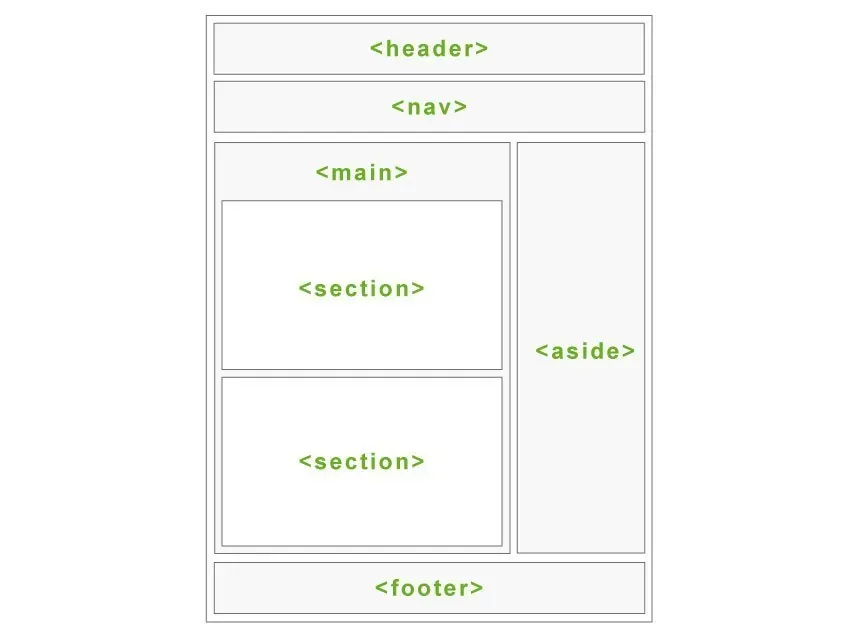
The tool doesn’t render the page to see where a link appears; it uses a classification based on common HTML tags. If a site doesn’t use semantic HTML5 elements or easily identifiable HTML, you can set up your own classification with SEO Spider’s dedicated feature.
Why link position matters
Finding and fixing link issues
Knowing where a link is can be very useful for finding and fixing problem links, such as broken links, jump links, redirects and so on.
It also helps you prioritise which links to fix: for example, a sitewide link in the main navigation may matter more than an in-content link on a secondary page.
Improving internal links
The user experience depends not only on content but also on where it sits on the page: well-placed links, and especially CTAs, increase conversions. Beyond UX, a good link distribution helps steer search engine crawlers as effectively as possible.
For search engines, Google’s “Reasonable Surfer Model” weighs how much PageRank a link may pass based on the likelihood that someone clicks it. So it’s clearly important to place key links in strategic positions, also in terms of the PageRank they pass.
How to analyse link position
Inlinks and the Link Position column
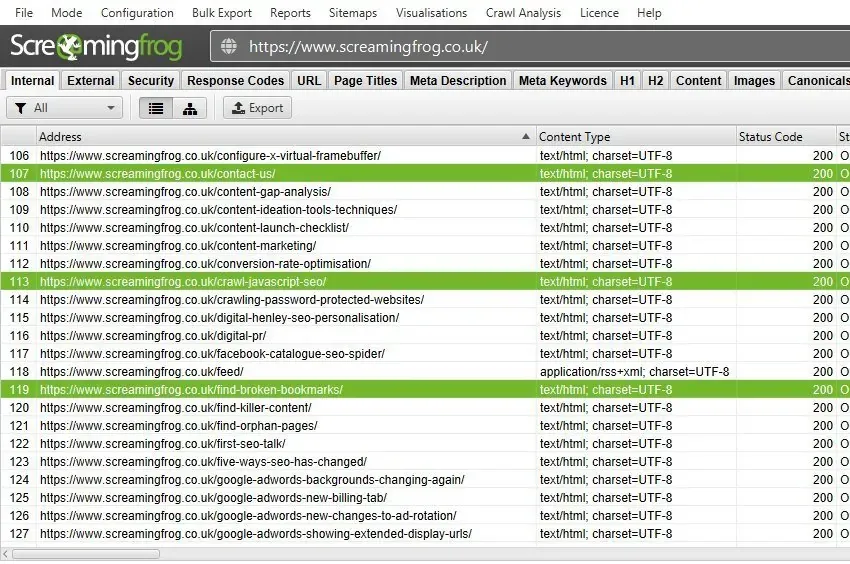
First, enter the subdomain and run the crawl; when it’s finished, select one or more URLs to dig into the link positions in the HTML documents.
In the bottom window, open the Inlinks tab and filter the data by Hyperlink type.
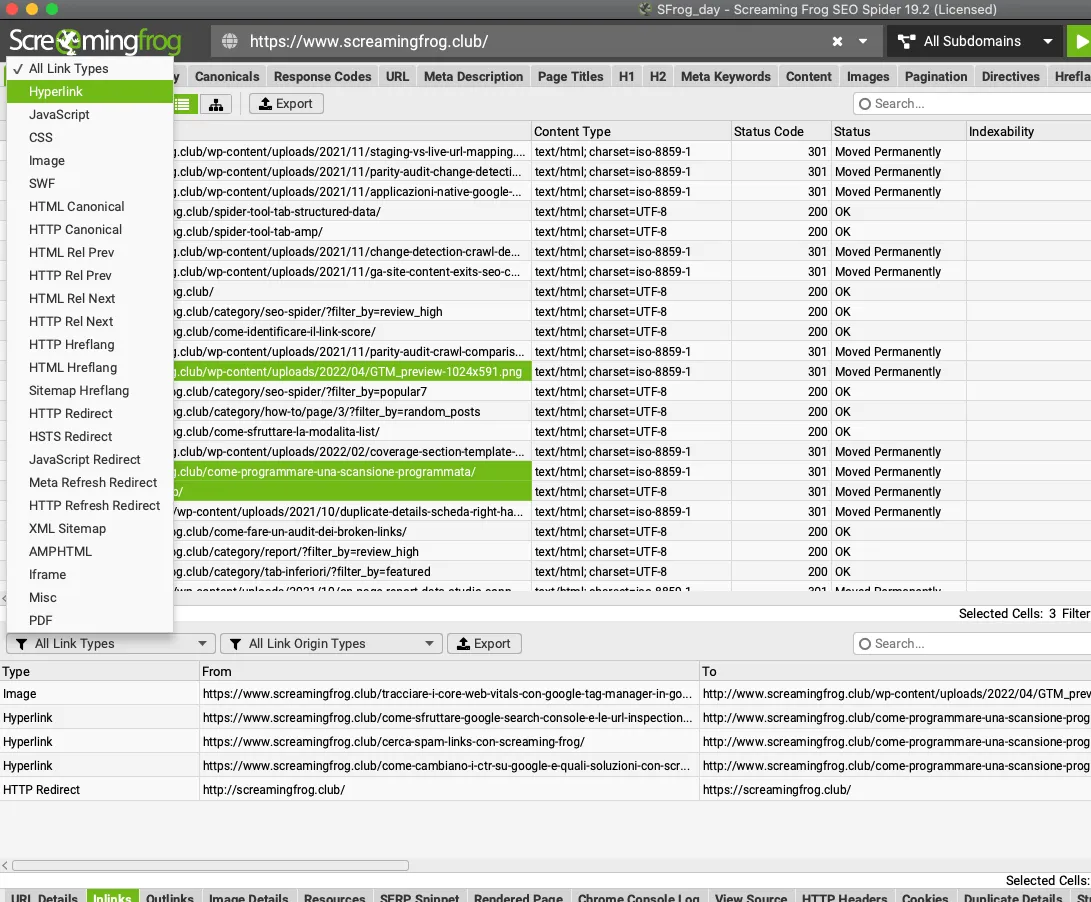
The “From” column shows the pages linking via a hyperlink, and the “To” column the pages you selected.
This tab shows every link’s details: anchor text, alt text (if it’s a linked image), whether it’s followed and its target.
Scroll right to reach the “Link Position” column, which tells you where each link sits.
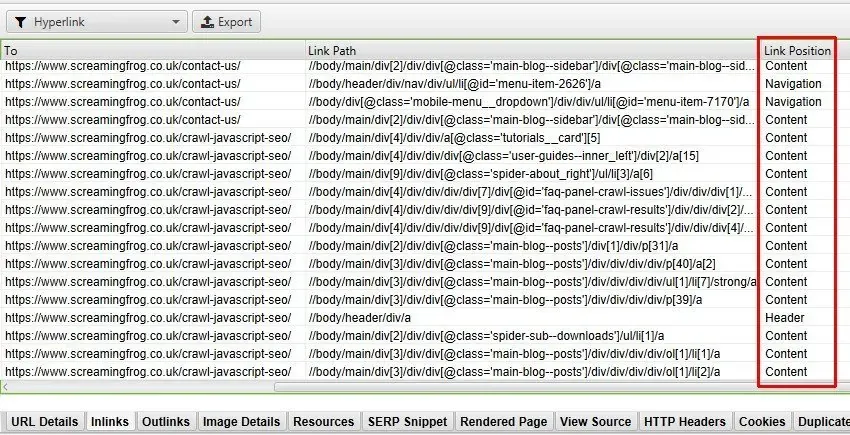
Broken links

A very useful check is to look at URL response codes and filter for 4xx errors. Click the URLs with client errors to see the source page, the anchor text and the link position, so you can fix them.
Link positions
Screaming Frog classifies link positions as follows:
- Navigation: links inside the main nav element, usually the main menu.
- Header: links inside the header, usually at the top of the page.
- Aside: links in call-out boxes and sidebars.
- Footer: links inside the footer at the bottom of the page.
- Content: links inside the page’s main content.
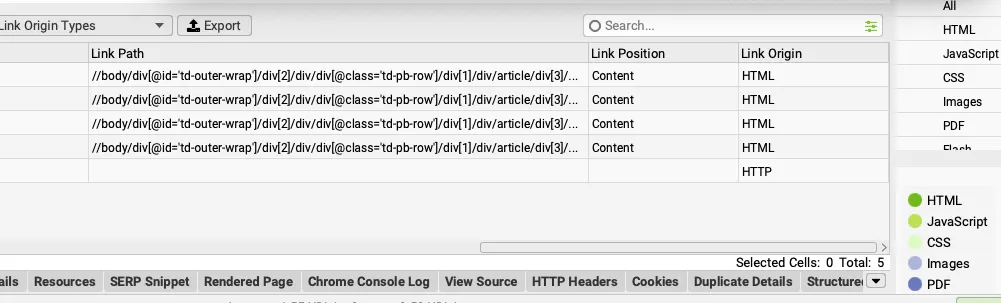
This classification uses the ‘link path’ (as an XPath) to identify known semantic substrings. For developers, the “Link Path” column gives even more precise context on exactly where each link sits in the HTML.
Filtering by position
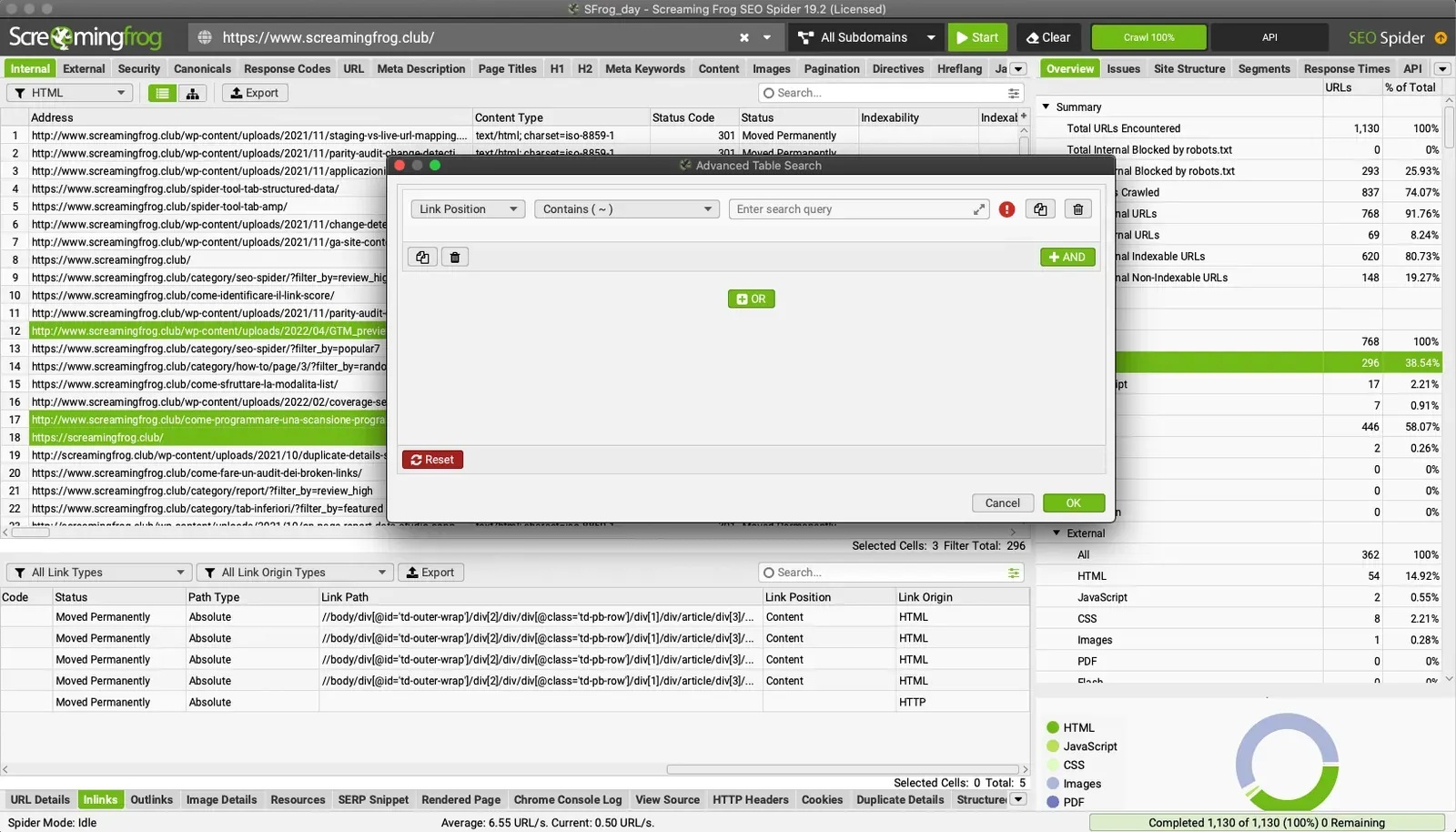
If the site has a large number of links, it’s good practice to filter the results by isolating each position, by clicking the green icon in the search bar.
Exporting the data
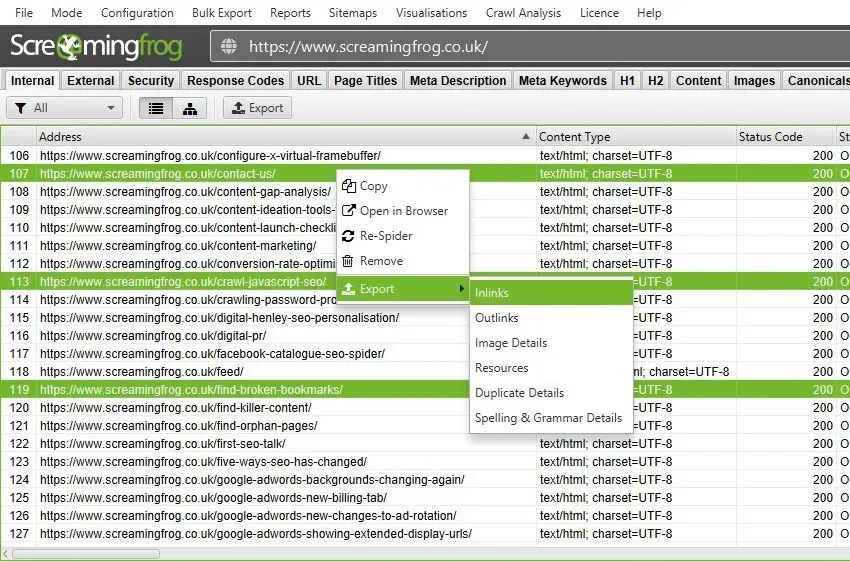
When you’re done, you can export the data with the tab’s “Export” button, by right-clicking the URLs and choosing 1Export›2Inlinks, or by downloading the report from 1Bulk Export›2Links›3All Inlinks.
Note: you can repeat this process to analyse outlinks too.
Classifying link positions
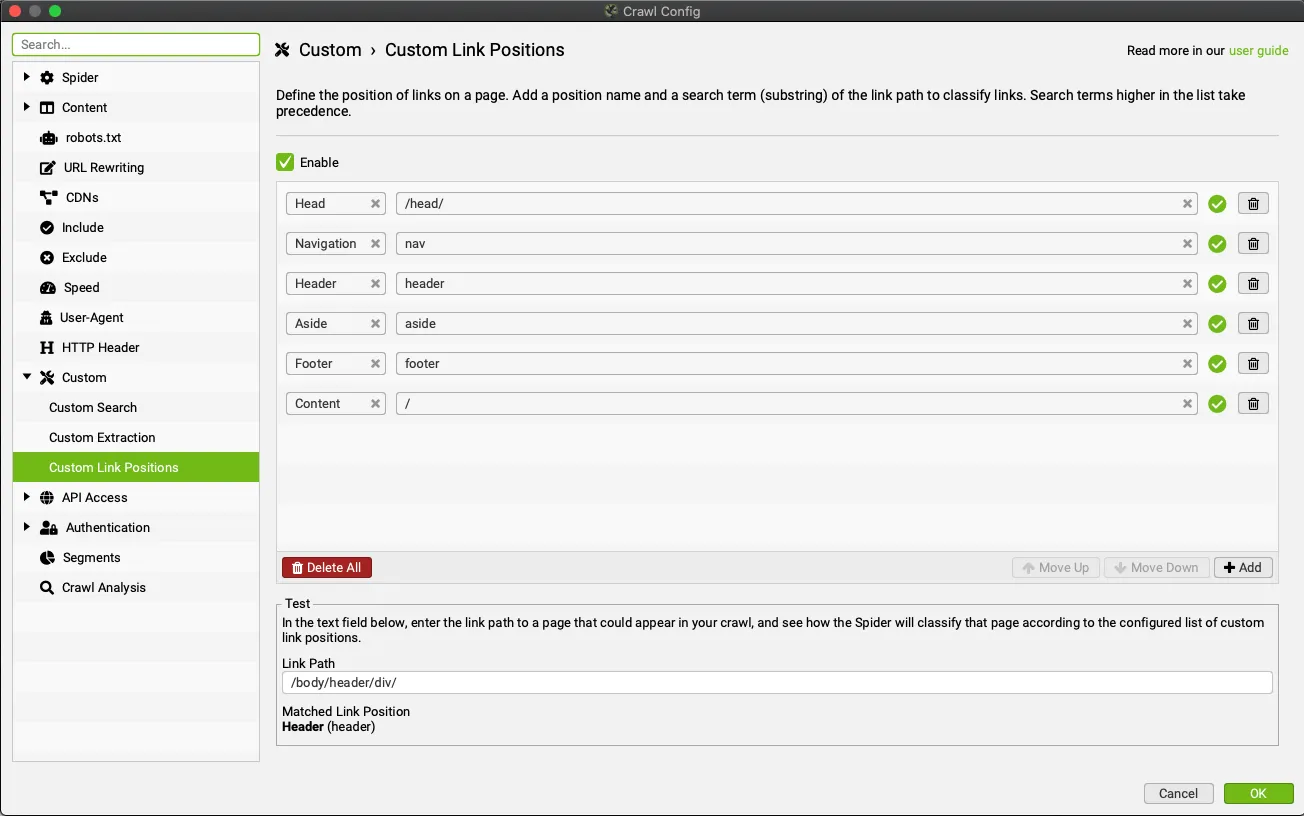
Screaming Frog’s standard classification covers over 90% of link position analyses but, if it doesn’t give reliable data, you can set up your own classification in 1Configuration›2Custom›3Custom Link Positions.
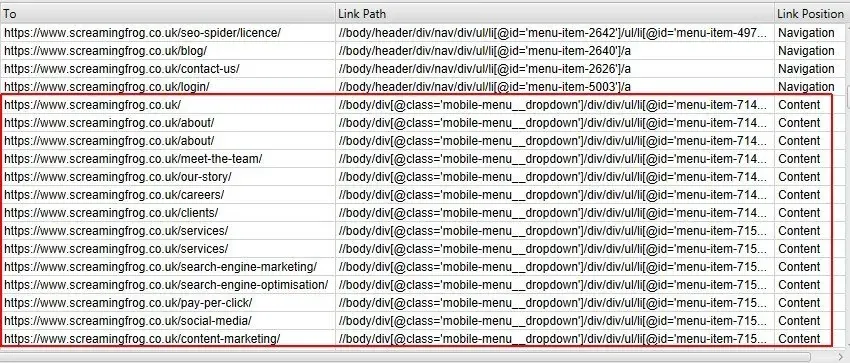
To see how it works, take the Screaming Frog website, where some mobile menu links sit outside the “nav” element and are classified as ‘content’ links. That’s wrong, because they’re just extra site navigation on mobile.
Using the class name ‘mobile-menu__dropdown’ found in the link path, you can redefine the correct position.
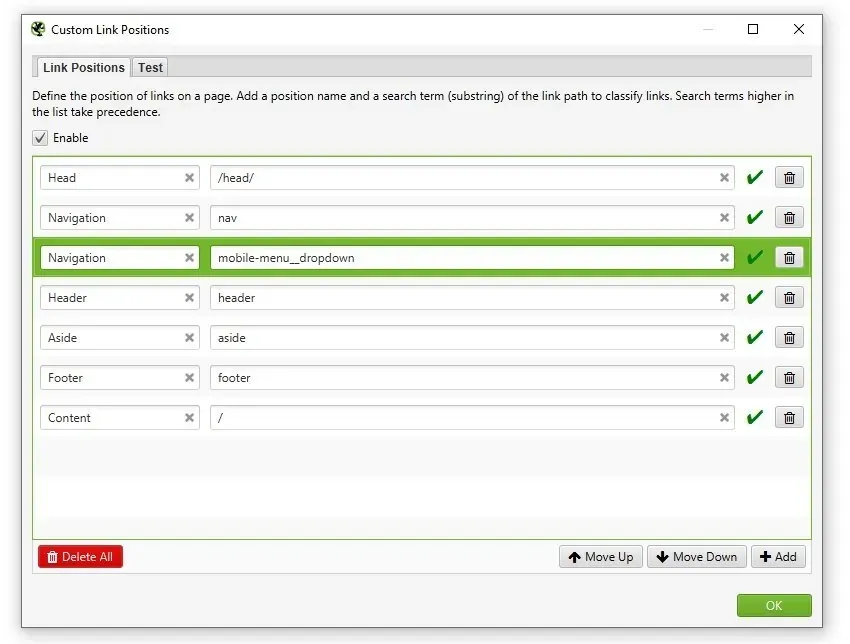
Once you’ve made your customisations and recrawled the site, the Inlinks tab will show the correct positions.
You can follow this process for any type of link, essentially “clustering” links by their XPath substrings.
Video tutorial
Questions about Link Position Analysis?
These guides come from real projects. If something in your crawl doesn’t add up, or you want to apply this process to your site, get in touch.
 Author.Raffaele Visintin.Search & Strategic Marketing Advisor