

Broken Links.
How to analyse and manage broken links to improve UX and avoid wasting crawl budget.
Guide contents 4 sections
●Brief01.Broken link analysis02.Exporting client errors03.Broken link analysis videoHow to find broken links that return 404 and waste crawl budget. Filter Client Errors (4XX), trace the page containing the link from the Inlinks tab and export everything with the dedicated reports.
Broken link analysis
One check that’s always in my SEO audits is broken links, which generate 404 errors and inevitably waste crawl budget. Finding them with Screaming Frog is very simple and takes just a few steps:
- Start crawling your website.
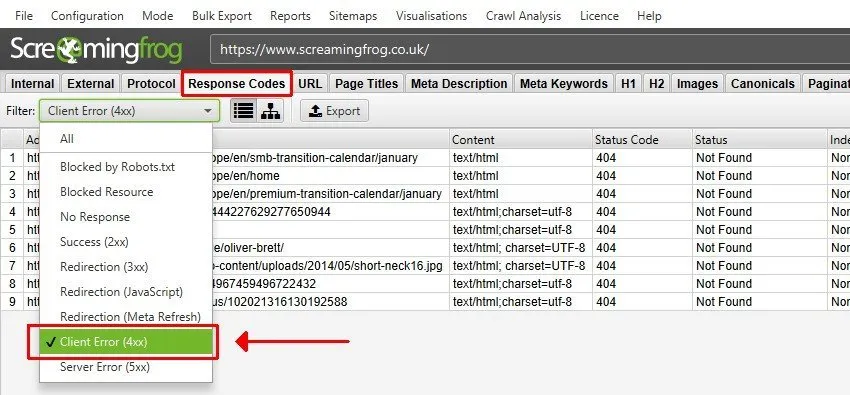
- Select the “Response Codes” tab.
- Set the “Client Error (4XX)” filter to see the broken links.
Alternatively, you can select “Client Error” in the right-hand sidebar.
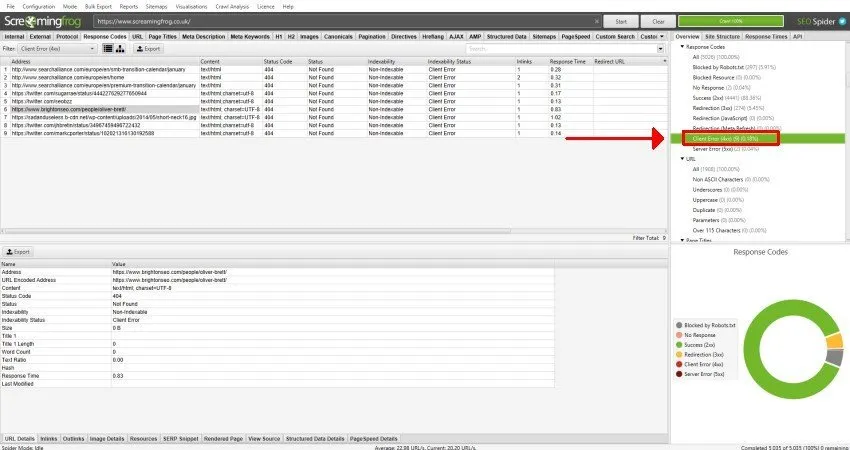
In the example, 9 errors with a 404 status code were found, 0.18% of the links discovered in the crawl.
4. See the source of the broken links by clicking the ‘Inlinks’ tab: select a URL in the top window to populate the “Inlinks” tab.
As you can see in the next example, there’s a broken link to the BrightonSEO site (https://www.brightonseo.com/people/oliver-brett/), whose source is https://www.screamingfrog.co.uk/2018-a-year-in-review/.
Here’s a close-up of the bottom pane showing the ‘inlinks’ data

The “From” column shows the source page containing the link that generates the 404, while the “To” column shows the broken link (destination). The following columns also show the anchor text, the alt text (if it’s a linked image) and whether the link is followed (true) or nofollow (false).
-
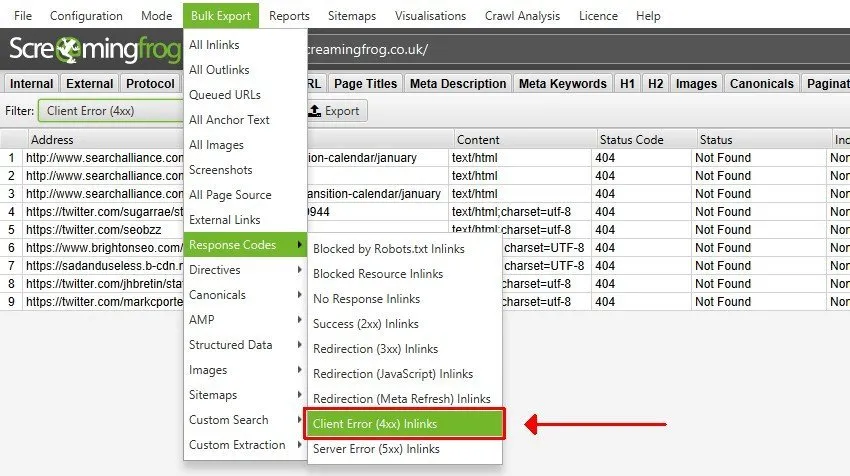
- Once you’ve collected the data, export the results
Exporting client errors
This process covers most broken link cases, but sometimes the “source” URL, the last page linking to the 404, is itself a redirect (or a hop in a redirect chain) and has to be handled as such. To find out whether the source is a redirect, check the ‘Type’ column and see whether it says ‘HTTP Redirect’.
To quickly find the original page behind these errors, I recommend the “All Redirects” report.
Reports > Redirects > All Redirects
This way you can isolate the original page, the redirects and the last source generating the 4xx errors, and fix the links properly.
Finally, if you have a list of URLs to check for broken links instead of crawling a website, simply upload them in list mode.
Related tabs: Response Codes | Right-hand sidebar | Reports
Broken link analysis video
Questions about Broken Links?
These guides come from real projects. If something in your crawl doesn’t add up, or you want to apply this process to your site, get in touch.
 Author.Raffaele Visintin.Search & Strategic Marketing Advisor