

Crawl Profiles.
How to use custom profiles and customise your crawls with Screaming Frog
How to save and reload different crawl configurations (crawl profiles) so you don’t redo your settings every time. See how to save them, load them and use them in the most common cases: user agent, JavaScript rendering and custom extractions.
What crawl profiles are
Screaming Frog is a very powerful yet versatile SEO Spider, with plenty of customisation options for your everyday SEO audits.
One of its most underrated features is customising “crawl profiles”, which lets you recall even advanced configurations in a few clicks for ever more granular, relevant crawls.
In the licensed version of the tool you can save a default configuration for your analysis, and save configuration profiles to load whenever you need them.
Saving and loading profiles
Saving a crawl profile
Screaming Frog gives you several options for crawl profiles:
- To save the current configuration as the default, select 1Configuration›2Profiles›3Save Current Configuration as Default. The latest configuration stays in SEO Spider’s memory and is available even after you restart the tool.
- To save the configuration profile and load it in future, click 1Configuration›2Profiles›3Save As… and rename the file. The configuration file is saved on your computer but isn’t used by default when you restart SEO Spider, which starts with the default configuration. To use this profile, load it when you need it.
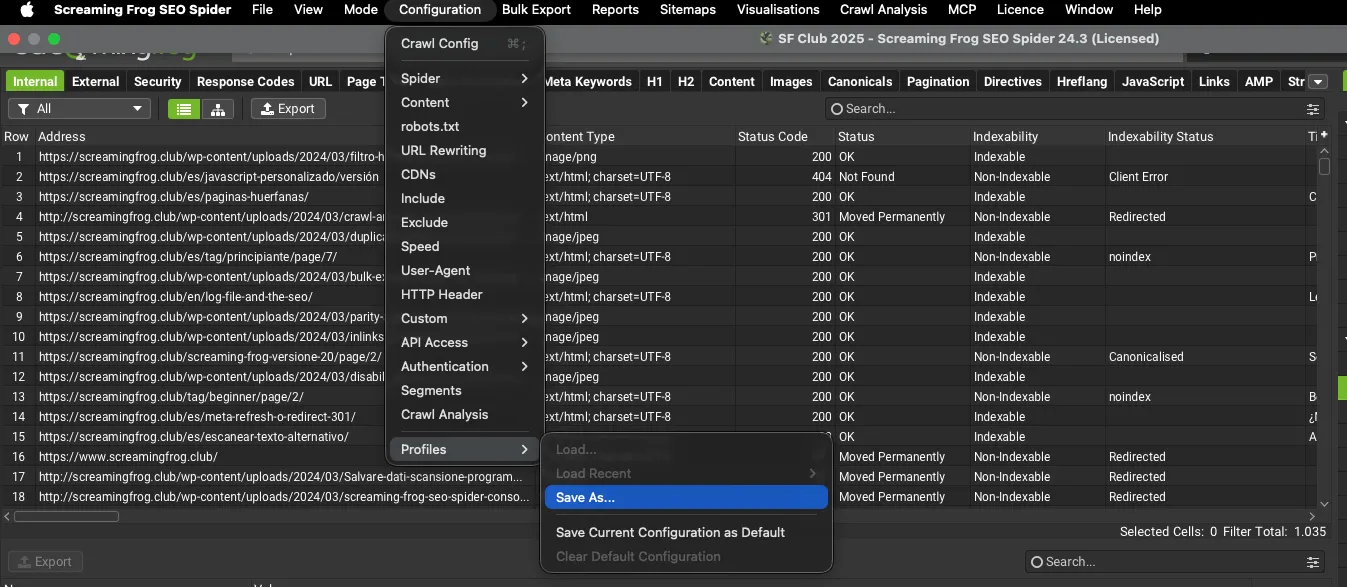
Loading a crawl profile
To load a configuration profile, click 1Configuration›2Profiles›3Load… and pick the file, or choose it from a recent list with 1Configuration›2Profiles›3Load Recent.
To restore SEO Spider’s original configuration, select 1Configuration›2Profiles›3Clear Default Configuration.
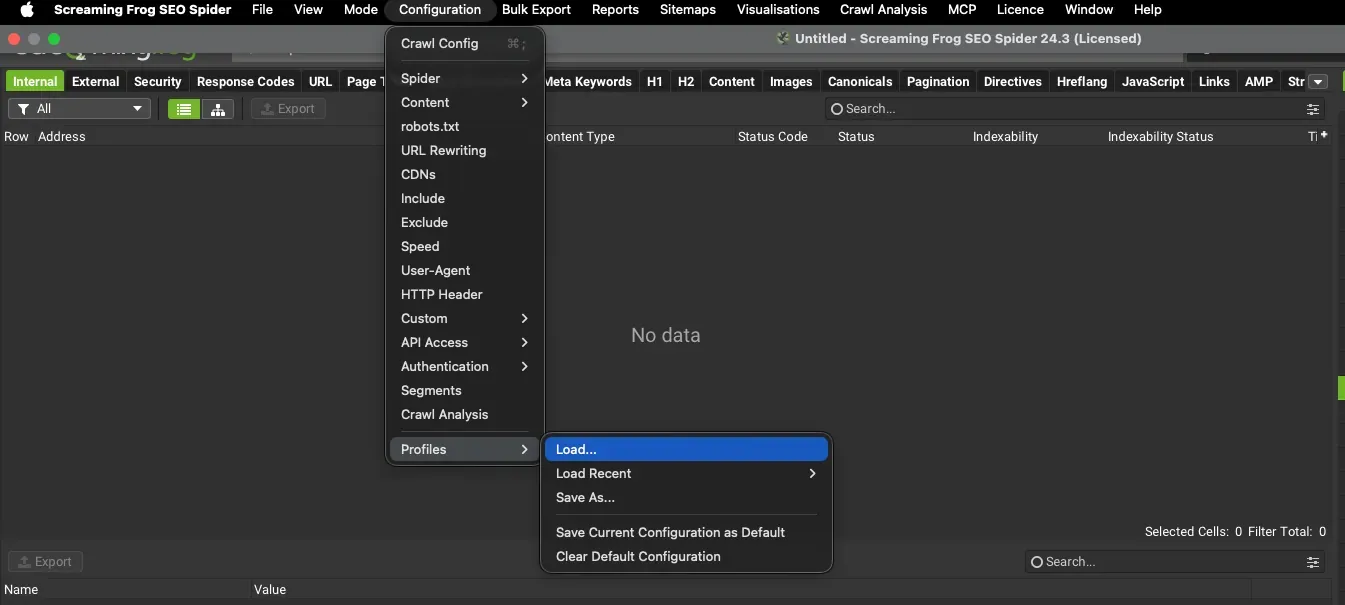
Using custom profiles
What custom profiles are for
Custom profiles have endless uses, but these are the ones I use most with Screaming Frog:
- User agent: different crawl configurations depending on the user agent (1Configuration›2User-Agent) for a more complete view. I recommend creating profiles with the “Screaming Frog SEO Spider”, “Googlebot”, “Googlebot Smartphone” and “Chrome” user agents.
- Text Only/JavaScript: two separate configurations, one with “Text Only” rendering and one with “JavaScript” (1Configuration›2Spider›3Rendering), to find any bottlenecks in your crawls.
- Custom Search/Extraction: different profiles for specific HTML scraping (1Configuration›2Custom›3Custom Extraction): social tags, presence of GTM or GA4, every H2 on the page and so on.
- Preliminary analyses: profiles that extract only a few elements, for very lean, fast crawls to use as a first pass.
These are the uses I rely on most myself, but they’re only examples: depending on your needs you’ll create more or less detailed profiles.
My advice is to invest some time in a measurement plan for the standard goals of your analyses, and in custom crawl profiles you can save and recall whenever you need them. Good groundwork will save you a lot of time in your daily SEO work.
Tips for using custom profiles
Custom profiles are one of the most valuable habits, especially in busy periods when one project follows another and every minute saved means less stress at audit delivery. As I said, my advice is to create a measurement plan for your crawl goals and to use scheduled crawls systematically: they let you choose the crawl profile during setup. That way the work is already waiting on your desk and meeting deadlines becomes much easier!
Further readingScheduled crawls.Schedule SEO Spider crawls from File › Scheduling and pair them with crawl profiles: the work is ready when you switch on your computer.Read the guideVideo tutorial
Note: the video was recorded with SEO Spider version 18. Since version 19, profiles are in 1Configuration›2Profiles.
Questions about Crawl Profiles?
These guides come from real projects. If something in your crawl doesn’t add up, or you want to apply this process to your site, get in touch.
 Author.Raffaele Visintin.Search & Strategic Marketing Advisor