

Crawling Staging Sites.
Learn how to run an SEO audit of a staging website and be ready for go-live.
How to crawl a staging site by getting around the blocks meant for search engines: robots.txt, authentication, IP restrictions, noindex and nofollow. At the end, compare staging with the live site.
Analysing staging sites
Staging websites usually can’t be crawled by search engines and crawlers. Since there are various ways to prevent crawling, there are different Screaming Frog approaches and settings to crawl them anyway and get around these limits.
robots.txt
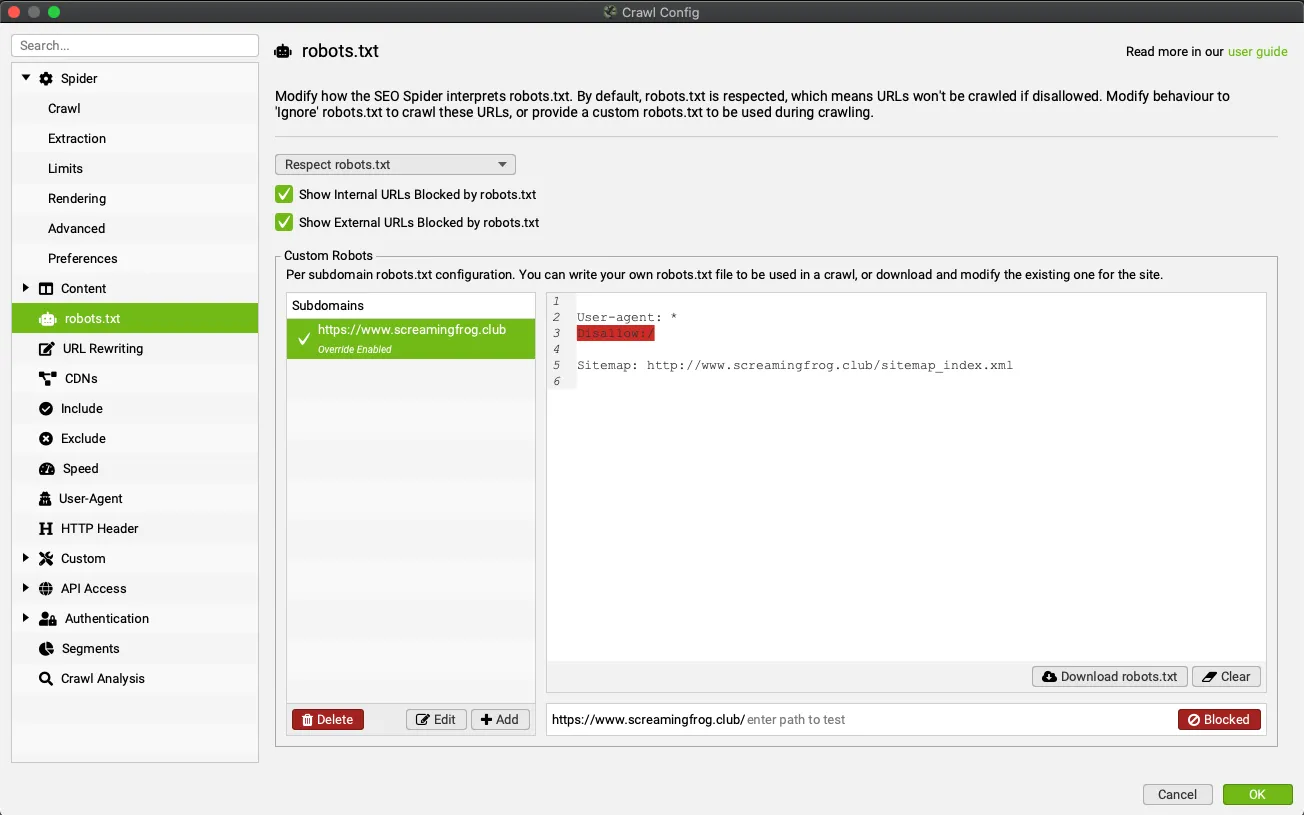
The most common case is a robots.txt file blocking the crawl. Here SEO Spider collects a single URL, the status shows “Blocked by robots.txt” and the URL is “Non-Indexable”.

To get past this barrier, just set Ignore robots.txt in 1Configuration›2robots.txt.
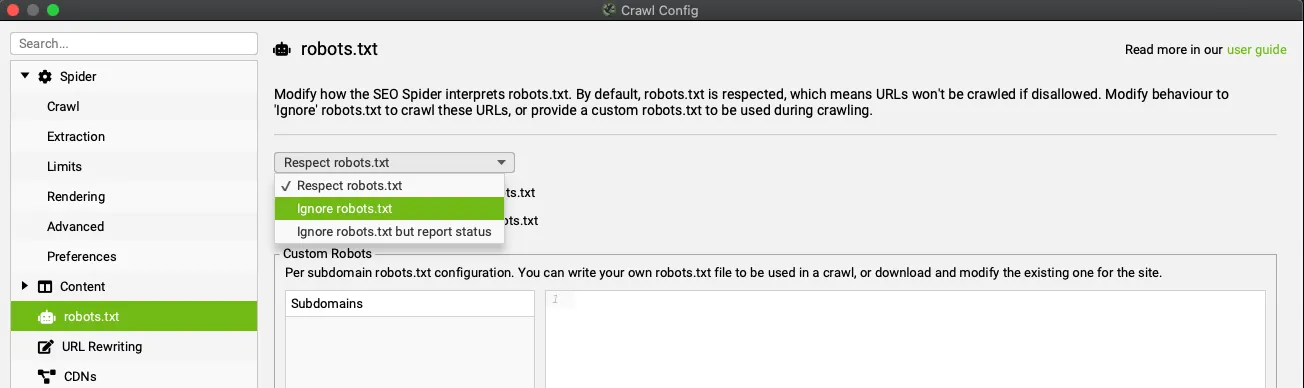
Alternatively, set up a custom robots.txt in the Custom Robots section of the same window, to remove any “disallow” directives and, if needed, add other rules for SEO Spider to follow.
Authentication
If the server requires authentication, you can give SEO Spider a username and password to crawl the site.
Basic authentication
Basic and digest authentication is detected automatically by SEO Spider when crawling the website: an authentication pop-up appears, just like in a browser, asking for a username and password.
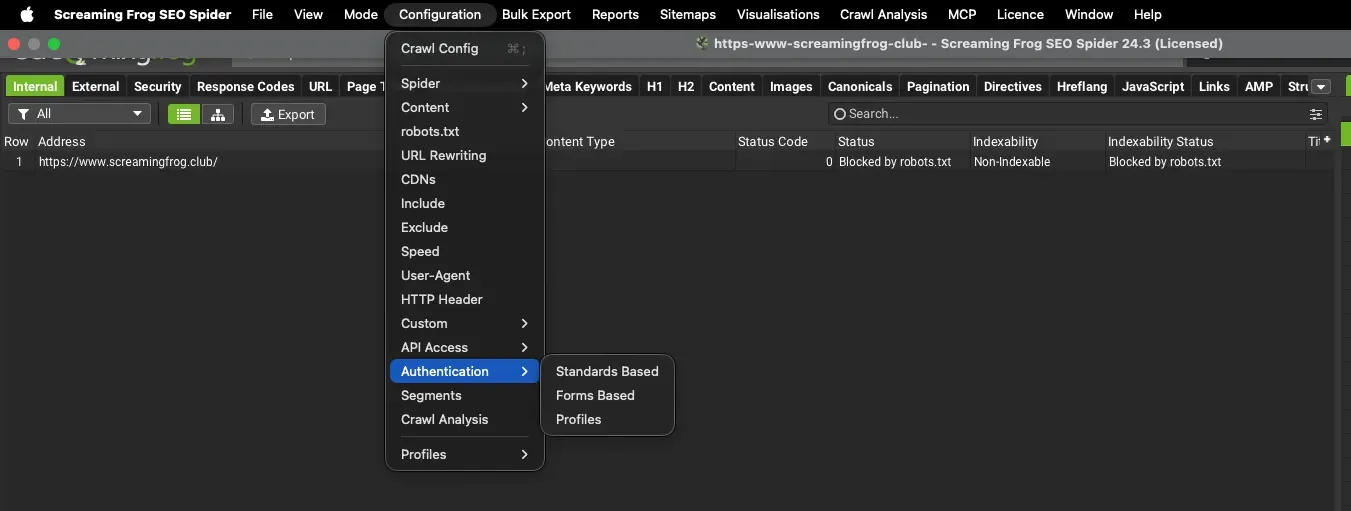
Alternatively, enter the credentials before the crawl in 1Configuration›2Authentication›3Standards Based: enable Allow standards based authentication, click Add and fill in URL/Host, Username and Password.
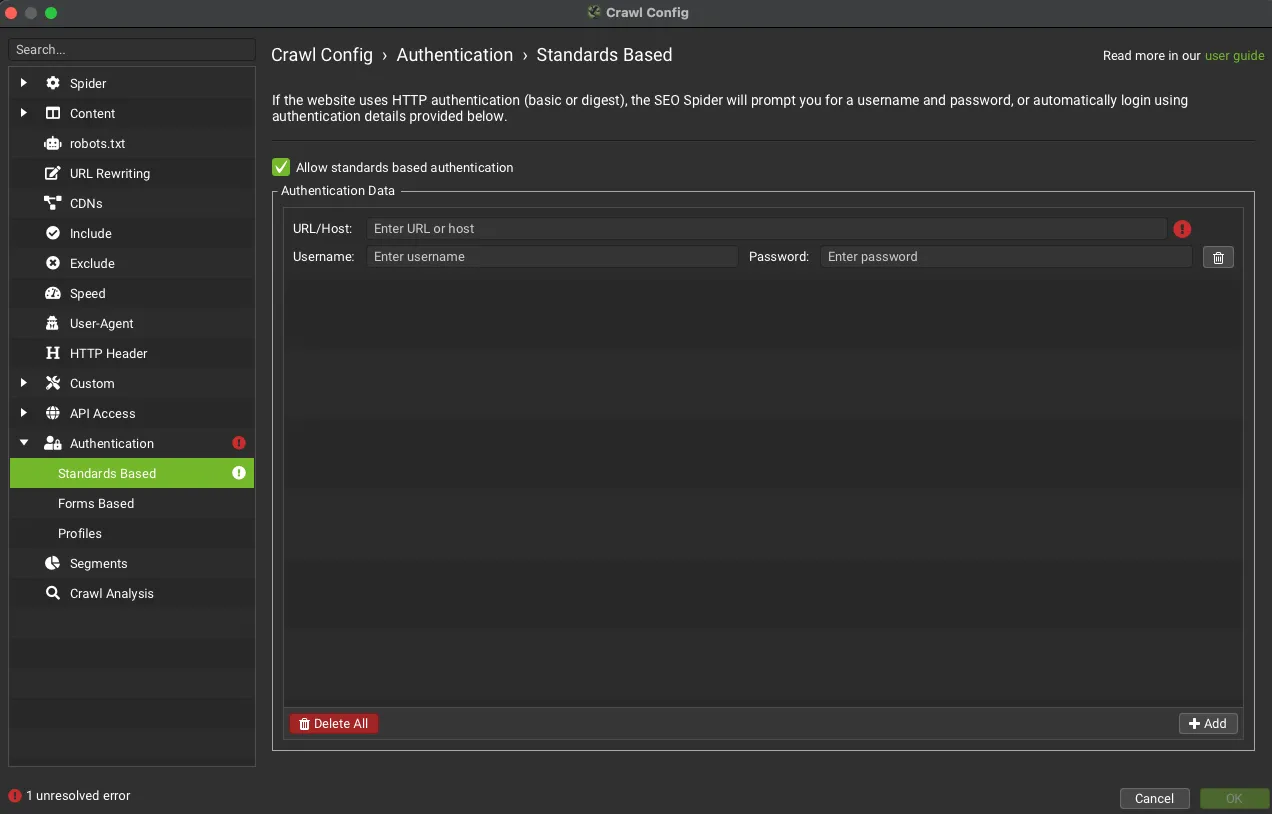
With the right credentials, SEO Spider starts crawling the staging site as usual.
Web form authentication
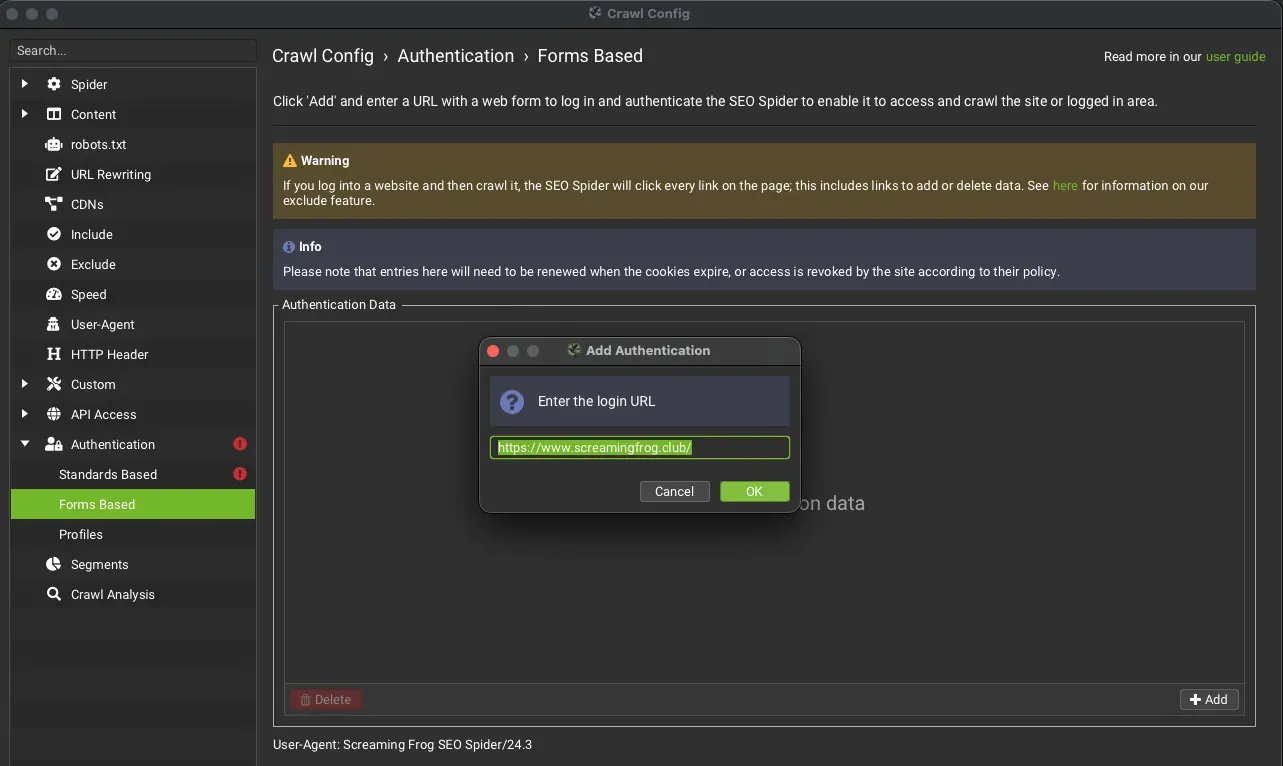
If there are web forms or areas that require a cookie-based login, SEO Spider lets you log in through them in its built-in Chrome browser.
To log in with web form authentication, go to 1Configuration›2Authentication›3Forms Based, click Add, enter the login page URL and log in from the browser.
IP address
Some staging platforms restrict access by IP address.
Since SEO Spider crawls locally from the machine it runs on, you need to provide that IP address so it can be whitelisted.
SEO Spider configuration
Development sites can respond to HTTP requests differently from live ones, and often have robots directives that need extra configuration in SEO Spider.
Crawl speed
Staging websites are usually slower and can’t handle the same load as a production server. If you notice instability, timeouts or server errors, lower the crawl speed in 1Configuration›2Speed.
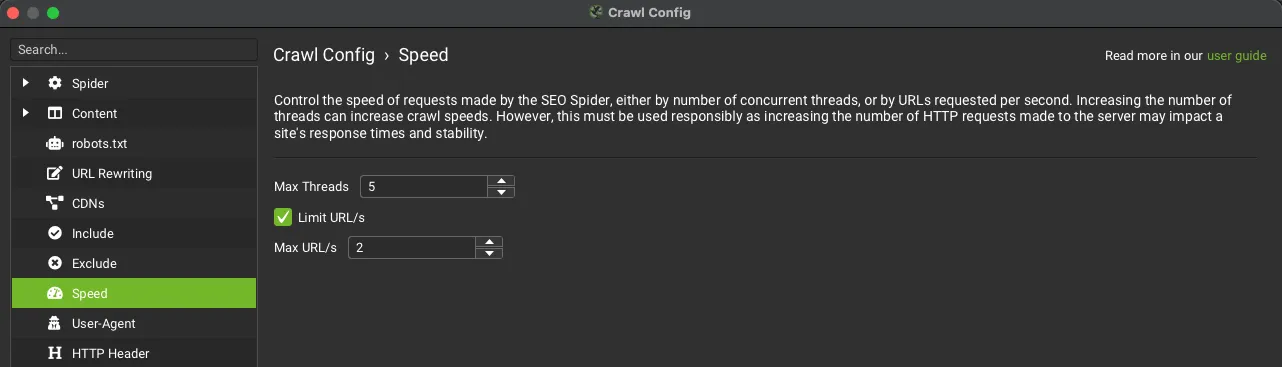
You can also manage the response timeout and the AJAX timeout when crawling with JavaScript rendering.
Nofollow
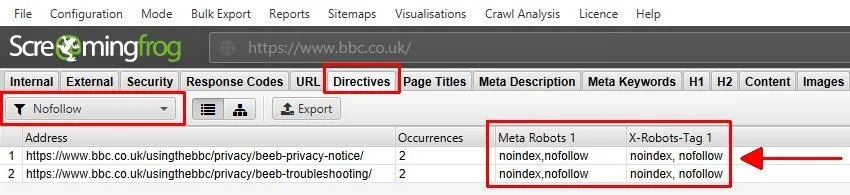
To keep bots out, many development sites use a site-wide “nofollow” meta robots, or an X-Robots-Tag in the HTTP header. “nofollow” is a very different directive from noindex: it tells a crawler not to follow any outlinks from a page.
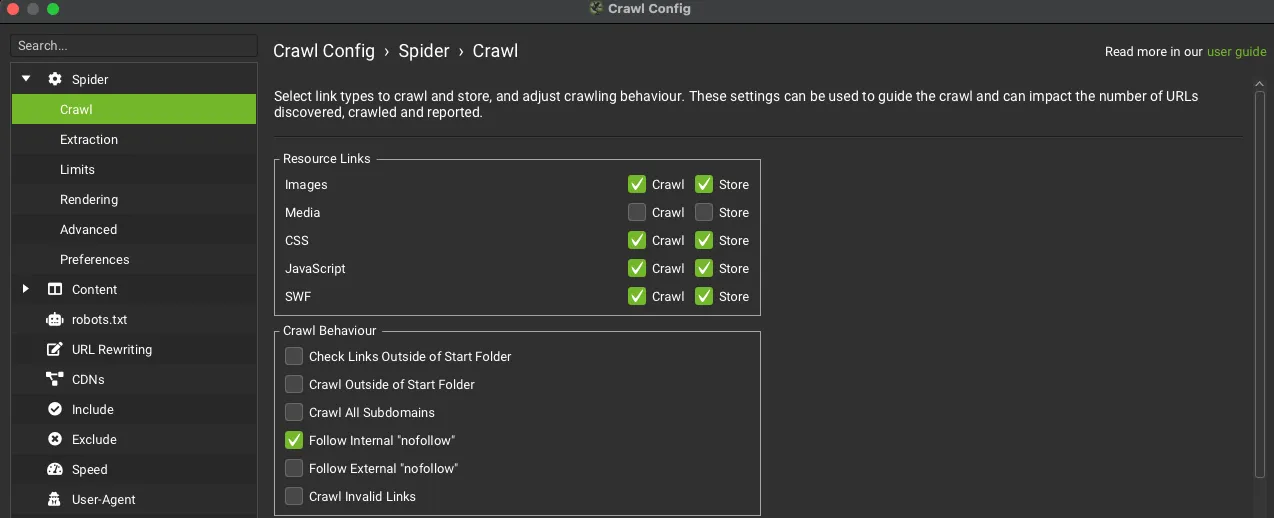
In this case, go to 1Configuration›2Spider›3Crawl and enable Follow Internal “nofollow” to crawl the outlinks from these pages and get a complete audit.
Noindex URLs
Another tag you may find on a staging site is noindex, which lets crawlers crawl but not index. You can see it in the Directives tab with the Noindex filter. I recommend checking that this tag is removed straight away at go-live: far too often you see sites still blocked by robots.txt or noindex after launch.
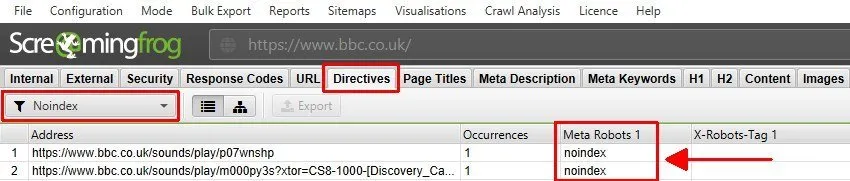
Beyond go-live, bear in mind that SEO Spider crawls noindex pages (like a normal bot) but treats them as “non-indexable”. By default the Spider leaves them out of the issue filters: it won’t flag duplicate content, missing titles, meta descriptions and so on, so the analysis could be very partial.
The fix is to disable Ignore Non-Indexable URLs for Issues for a complete crawl of the staging site:
1Configuration›2Spider›3Advanced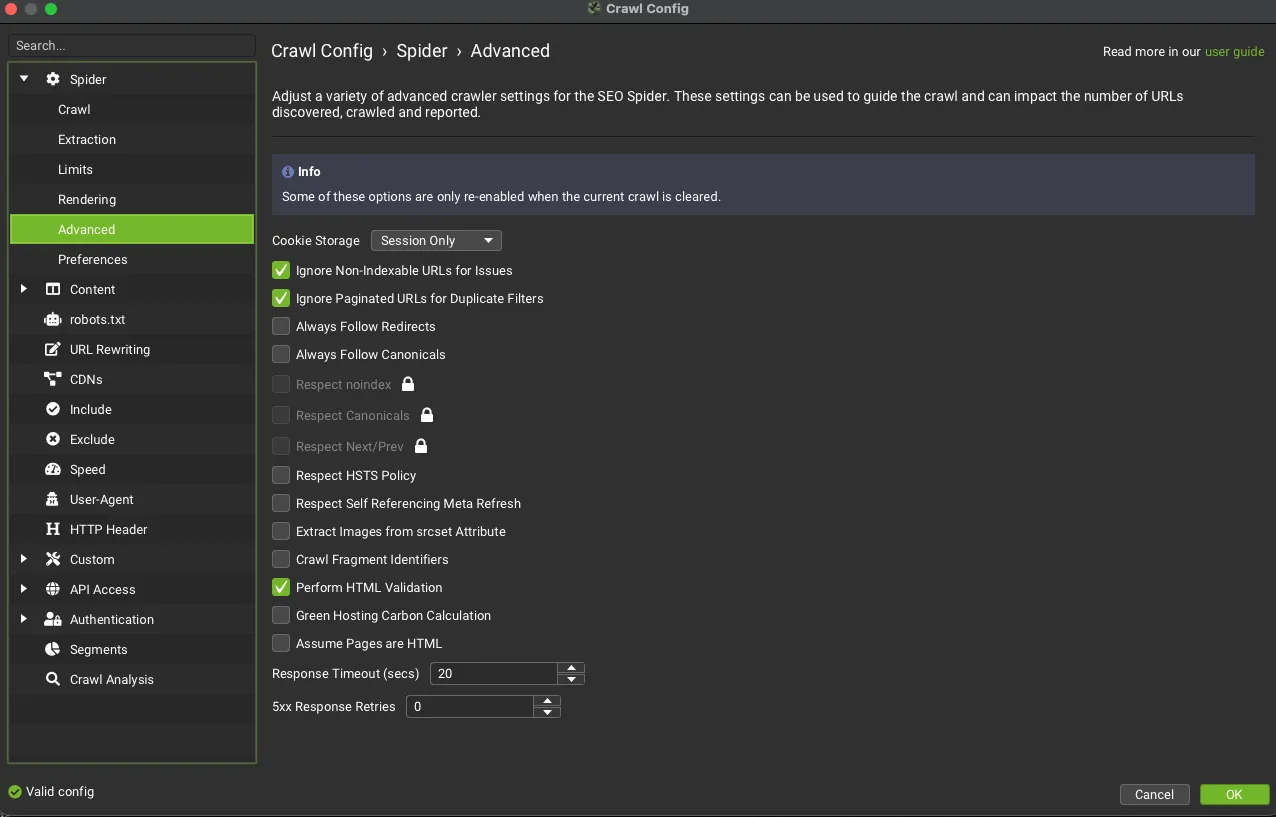
The none directive
The “none” directive is too often underestimated and misread as meaning “no directives”: in fact it’s equivalent to “noindex, nofollow”!
If that’s the case, follow the same steps described above.
Live site vs staging
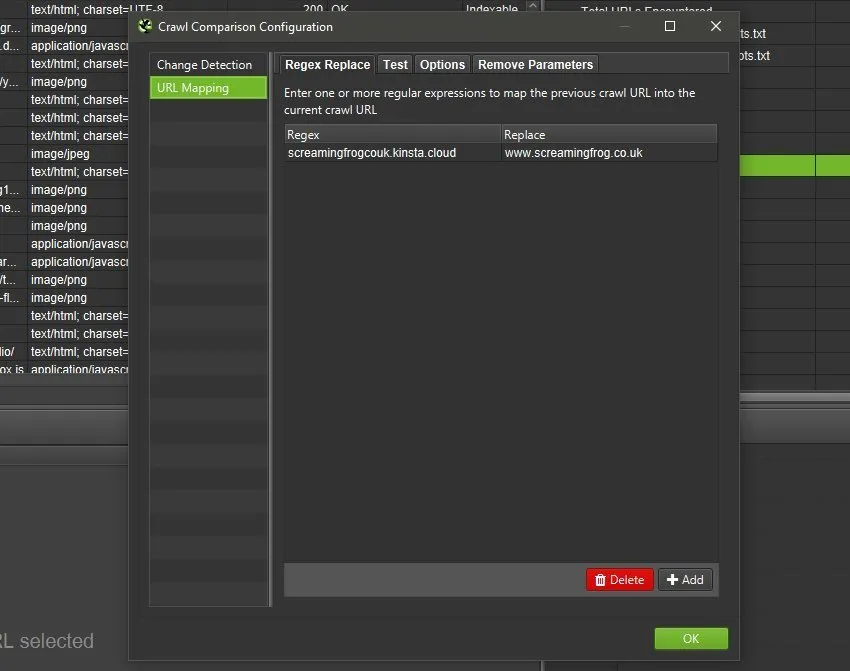
With recent Screaming Frog releases you can compare two crawls to see the differences, also thanks to URL Mapping, which lets you compare two different URL structures such as a staging site and a production environment.
To compare staging with the live site, click 1Mode›2Compare and select the two crawls.

Crawling staging sites video
Questions about Crawling Staging Sites?
These guides come from real projects. If something in your crawl doesn’t add up, or you want to apply this process to your site, get in touch.
 Author.Raffaele Visintin.Search & Strategic Marketing Advisor