

Custom JavaScript.
A closer look at Screaming Frog’s Custom JavaScript feature
How to run JavaScript on every crawled URL, a feature introduced in SEO Spider version 20. See extraction and action snippets, the ready-made library, calls to APIs such as ChatGPT and how to share snippets.
Setting up Custom JS
Custom JavaScript is a feature introduced in Screaming Frog version 20 that lets you run JavaScript on every URL crawled by SEO Spider.
With it you can extract all kinds of useful information from a web page that SEO Spider might not already provide, and communicate with APIs such as OpenAI’s ChatGPT, local LLMs or other libraries.
To set it up, click 1Configuration›2Custom›3Custom JavaScript. Then click Add to start configuring a new snippet, or “Add from Library” to pick an existing snippet pre-configured by the Screaming Frog team.
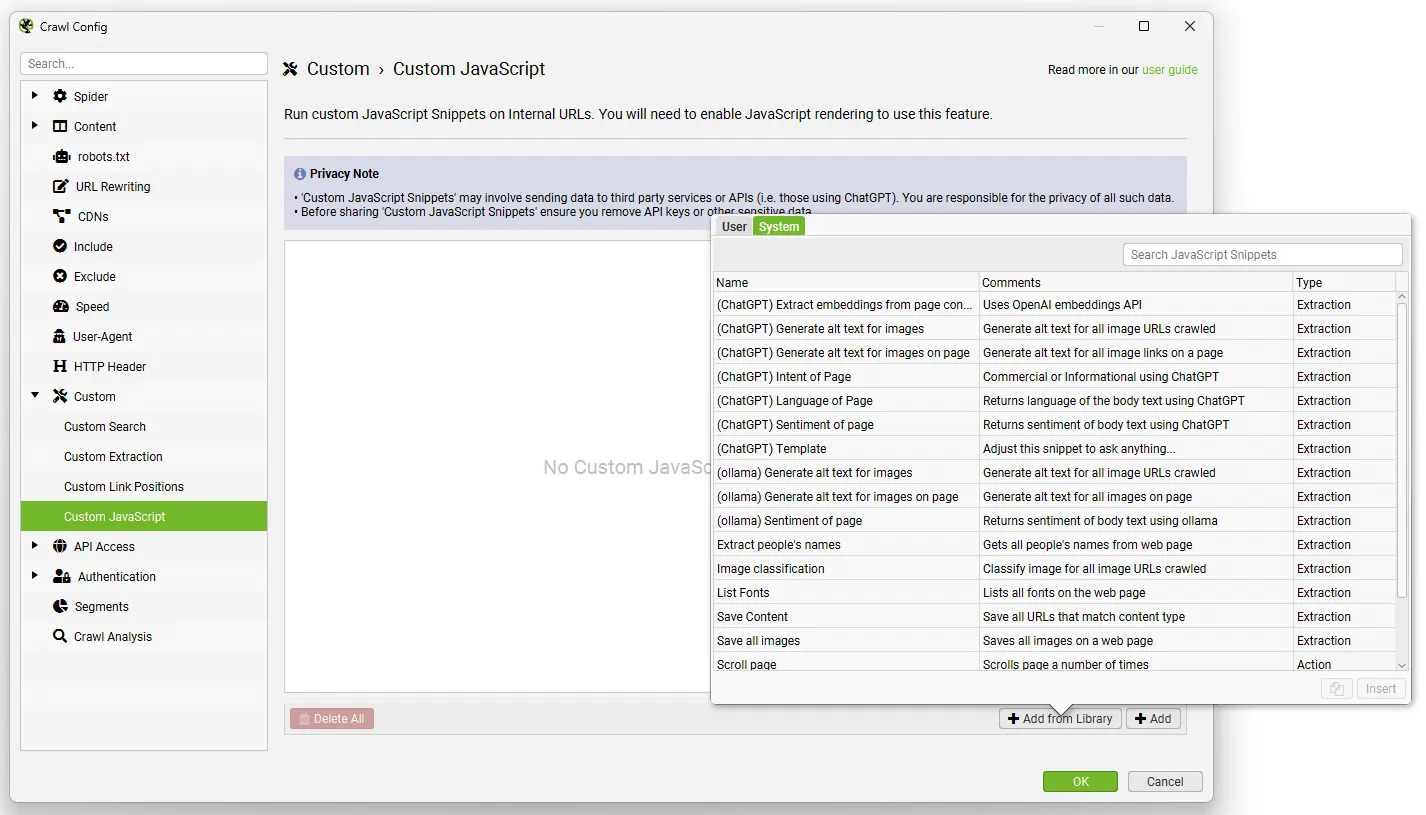
The library includes example snippets for various tasks and is a real source of inspiration for ever more granular, complete analyses:
- Analysing the sentiment, search intent or language of the page content.
- Generating alt text for images.
- Triggering mouseover events.
- Scrolling a page (to analyse some infinite-scroll setups).
- Extracting embedded content from the page.
- Downloading and saving various content locally, such as images.
The library is an excellent way to start working with JS and, by reviewing the snippets, to tailor them to your project.
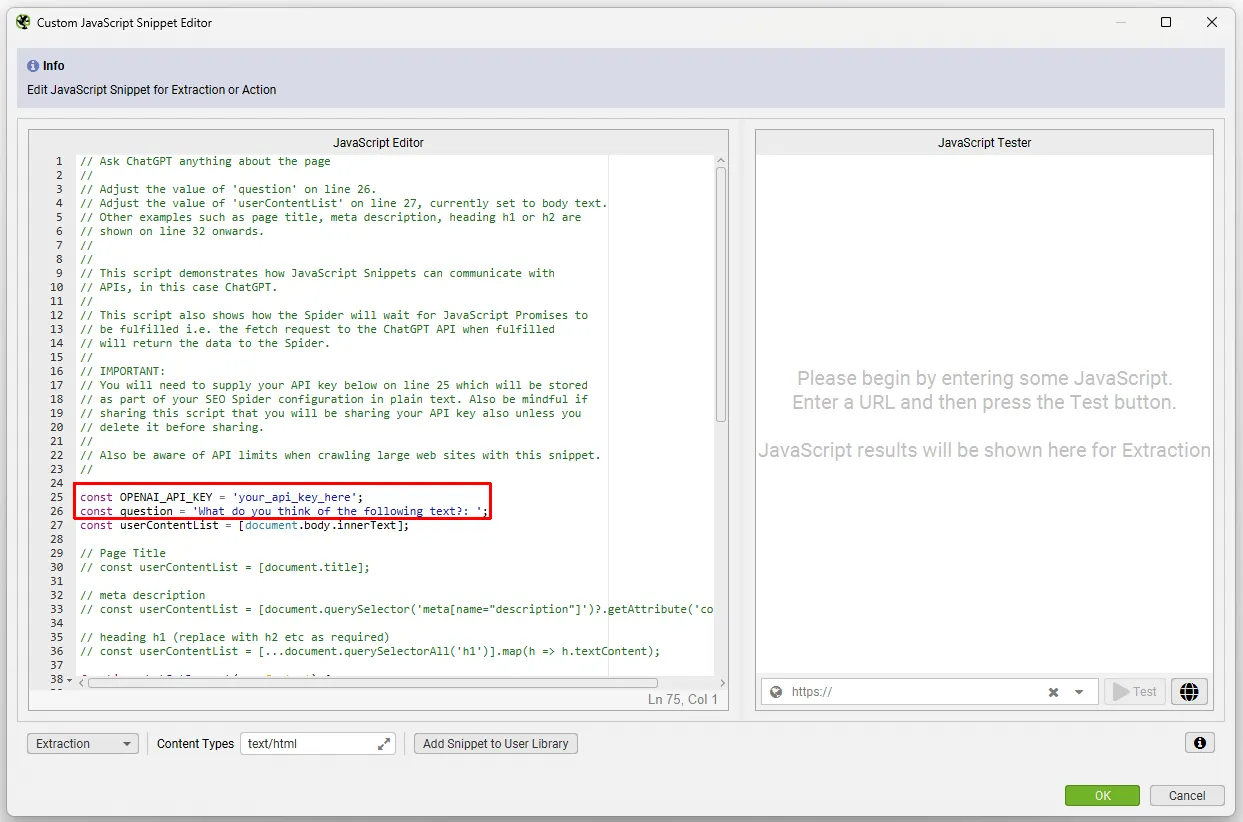
You can also set a content type filter so the custom JavaScript snippet only runs on certain content types and doesn’t waste OpenAI API calls.
The results are then available in the dedicated Custom JavaScript tab.
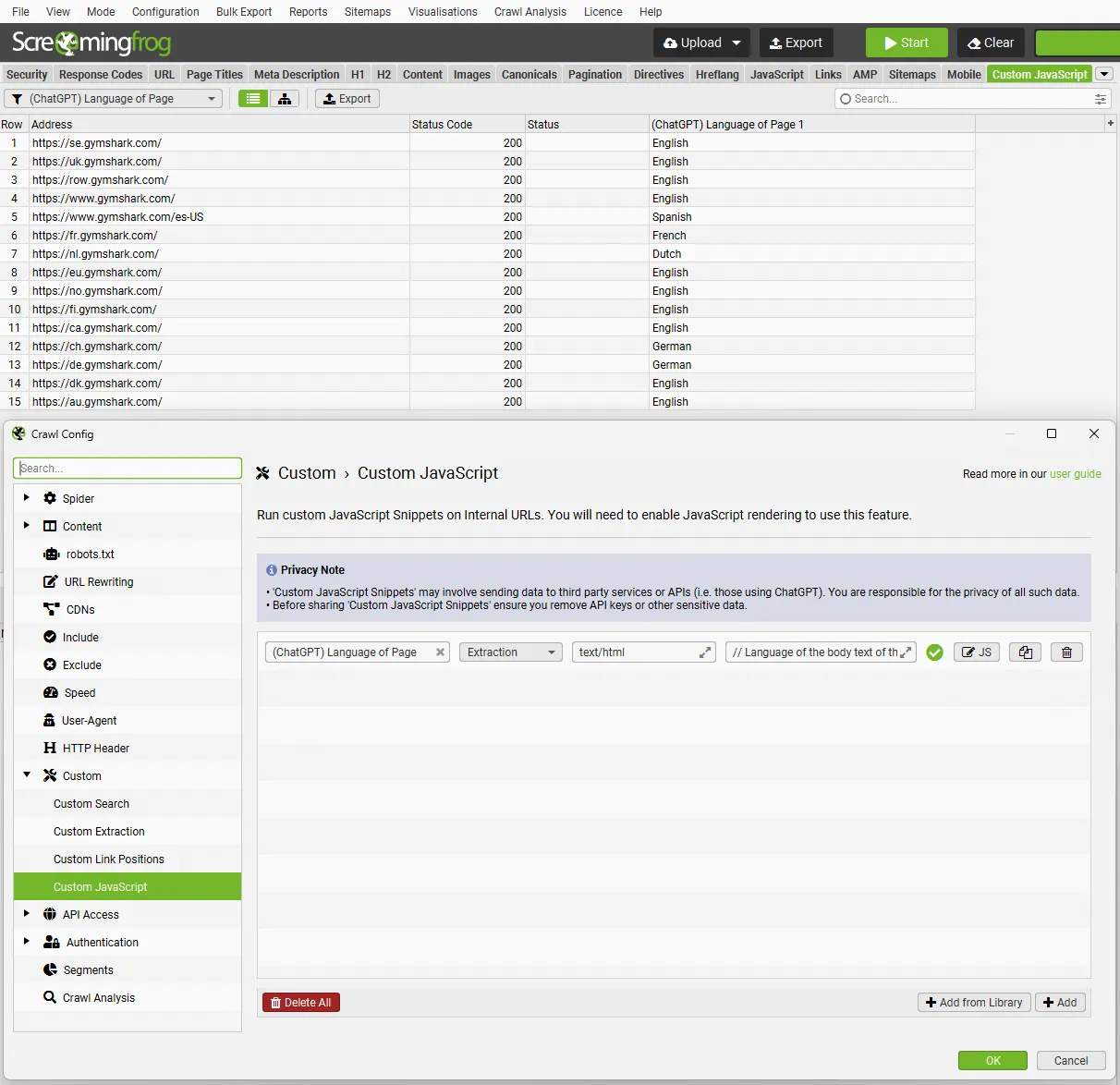
To use the OpenAI API you need to buy credits: the free version of ChatGPT isn’t enough.
Snippet types
Looking at the snippets, there are 2 types: Extractions and Actions.
Extraction snippets
Extraction snippets return a value or a list of values (numbers or strings), shown as columns in the “Custom JavaScript” tab.
Each value in a list is mapped to its own column in the tab.
When these snippets run, the page stops loading any further resources and the snippet starts executing.
SEO Spider won’t finish analysing the page until the snippet completes. In some cases snippets that run too long may time out and the page crawl won’t complete.
This type of snippet can download URLs and write to a text file. The library includes snippets that download every image on a page or append page attributes to a CSV file.
Action snippets
Action snippets don’t return data, they only perform actions. For example, there’s a snippet that simulates scrolling a page so you can analyse lazy-loaded images.
The key difference from extraction snippets is that while they run, the page keeps loading resources.
However, you need to set a timeout in seconds, and when it expires SEO Spider finishes analysing the page.
How snippets behave
- SEO Spider can run several snippets at once. Be aware, though, that crawl speed depends on the number and type of snippets you run. While debugging it, I noticed that too many simultaneous requests make Screaming Frog crash. In my tests I ran about ten.
- With several snippets, actions run before extractions.
- With action snippets that have different timeouts, Screaming Frog uses the highest timeout configured.
- Extraction snippets stop all page loading, so no further requests are made. Actions don’t have this limit, but you must set a timeout.
- Snippets have access to the Chrome Console Utilities API, so they can use methods such as getEventListeners(), which aren’t available to normal JavaScript on a web page.
Extraction snippets API
Extraction snippets talk to SEO Spider through the seoSpider object, an instance of the SEOSpider class documented below. In its most basic form you use it like this:
// The SEO Spider will display '1' in a single column
return seoSpider.data(1);

// The SEO Spider will display each number in a separate column
return seoSpider.data([1, 2, 3]);

// The SEO Spider will display 'item1' in a single column
return seoSpider.data("item1");

// The SEO Spider will display each string in a separate column
return seoSpider.data(["item1", "item2"]);
You can also send data to SEO Spider with a “Promise”. SEO Spider waits for it to complete, which lets you do asynchronous work such as fetch requests before returning data. For example:
let promise = new Promise(resolve => {
    setTimeout(() => resolve("done!"), 1000);
});

// sends "done!" to the SEO Spider after 1 second
return promise.then(msg => seoSpider.data(msg));
As in all the examples above, with a Promise too you must use “return” to end the function. That’s because SEO Spider implicitly wraps all the snippet code in an immediately invoked function expression (IIFE), to avoid conflicts in JavaScript’s global namespace when snippets run. If you don’t, SEO Spider won’t receive any data.
The example below shows how your snippet code is implicitly wrapped in an IIFE, and how the seoSpider instance is created for you just before your code is inserted.
(function () {
    // seoSpider object created for use by your snippet
    const seoSpider = new SEOSpider();

    // Your JavaScript Snippet code is inserted here i.e:
    return seoSpider.data("data");
})();
The SEOSpider class
This class provides methods to send data to SEO Spider. Remember: don’t call “new” on this class, because an instance called seoSpider is already provided.
data(data)Returns the data to SEO Spider to display in the Custom JavaScript tab. The “data” parameter can be a string or a number, or a list of strings or numbers. If it’s a list, each item is shown in a separate column in the tab.
PARAMETERS:
Name: Data
Type: string | number | Array.<string> | Array.<number>

EXAMPLE:
// Get all H1 and H2 headings from page
let headings = Array.from(document.querySelectorAll("h1, h2"))
    .map(heading => heading.textContent.trim());

return seoSpider.data(headings);error(msg)Returns error messages to SEO Spider. They appear in a column of the Custom JavaScript tab. The result is a string.
return functionThatReturnsPromise()
    .then(success => seoSpider.data(success))
    .catch(error => seoSpider.error(error));
}
The next method is saveText(text, saveFilePath, shouldAppend)
text
Type: string
The text to save

saveFilePath
Type: string
The full path of the file the text will be saved to. The directory is created if it doesn’t exist

shouldAppend
Type: boolean
Set to true to append to the file

EXAMPLE:

return seoSpider.saveText('some text', '/Users/john/file.txt', false);
The next method is loadScript(src), of type string.
It loads external scripts for the snippet to use. The script loads asynchronously, so write your code inside the ‘then’ clause, as in the example below.
return seoSpider.loadScript("Your script URL")
    .then(() => {
        // The script has now loaded, you can start using it from here

        ...

        // Return data to the SEO Spider
        return seoSpider.data(your_data)
    })
    .catch(error => seoSpider.error(error));
Sharing snippets
Snippets are saved in your user library, and you can export/import the library as JSON to share it very easily.
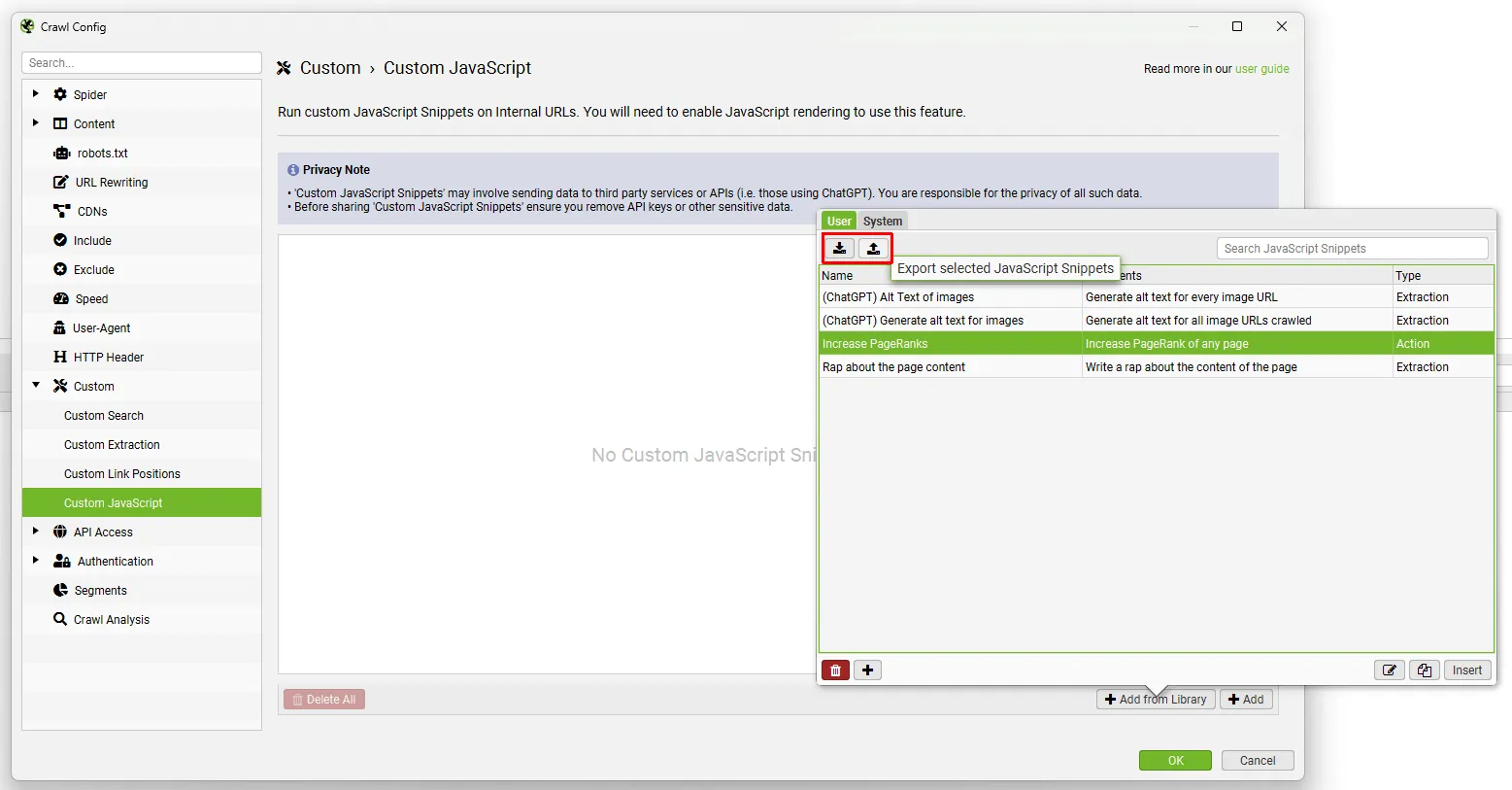
Questions about Custom JavaScript?
These guides come from real projects. If something in your crawl doesn’t add up, or you want to apply this process to your site, get in touch.
 Author.Raffaele Visintin.Search & Strategic Marketing Advisor