

SEO Parity Audit.
Learn how to analyse different versions of your website and fix any issues.
How to check that a site is served the same way in different scenarios: mobile and desktop, HTML and JavaScript, staging and live. With SEO Spider you compare titles, headings, canonicals, hreflang and structured data between versions.
Comparative SEO audit
In this tutorial we look at the SEO Parity Audit with Screaming Frog: an often underrated analysis that can uncover many issues standing in the way of correct organic indexing.
With this analysis you can assess whether there are differences in how the website is served in different scenarios as the crawler goes about its work.
The most interesting cases for an SEO Parity Audit are:
- Mobile site vs desktop site.
- JavaScript vs raw HTML.
- Live site vs staging site (essential during migrations).
With SEO Spider you can isolate the on-page SEO elements that differ between versions and could affect crawling and, as a result, indexing and the ranking assigned by the search engine.
The most common elements to consider in this process include:
- Page structure;
- HTTP response code;
- Page title;
- Headings;
- Canonicals;
- Hreflang;
- Structured data;
- and so on.
JavaScript Parity Audit
Setting up JavaScript rendering
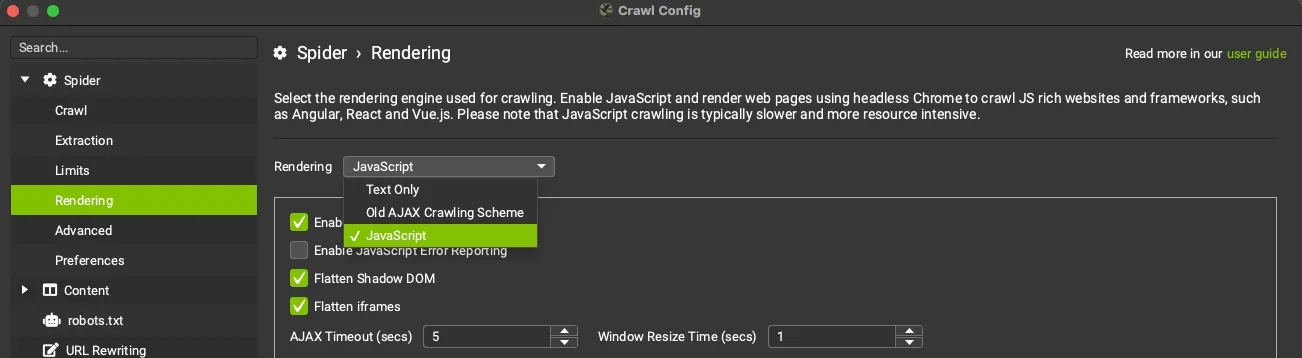
The first step for a Parity Audit on a website that uses JS resources is to set the JavaScript Rendering crawl mode:
1Configuration›2Spider›3Rendering›4JavaScriptWith JavaScript crawling enabled, SEO Spider crawls and returns both the static HTML and the HTML rendered after JavaScript runs. In the configuration tab, as well as choosing “JavaScript Rendering”, I recommend setting the Viewport to “Googlebot Mobile Smartphone”, given the search engine’s focus on Mobile First Indexing.
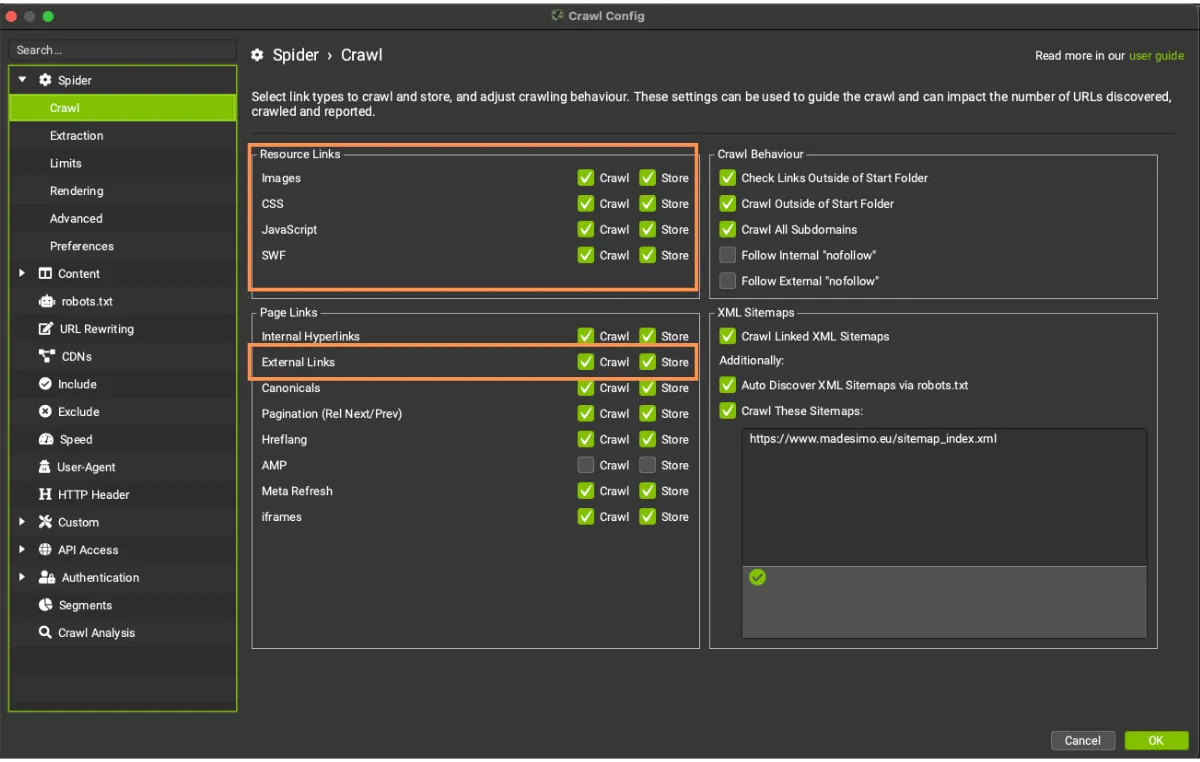
Once the crawl mode is set, enable the resources to examine from the 1Configuration›2Spider›3Crawl menu. Remember that if some resources are on a subdomain or a different root domain you also need to select Check external links, otherwise SEO Spider won’t use those elements for rendering.
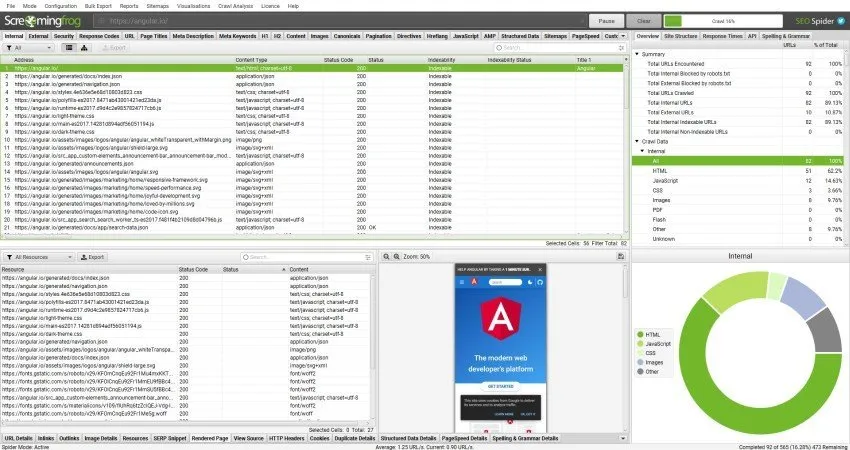
With that done, just start the crawl: SEO Spider will crawl the website and render the pages using headless Chrome.
Raw HTML and rendered HTML
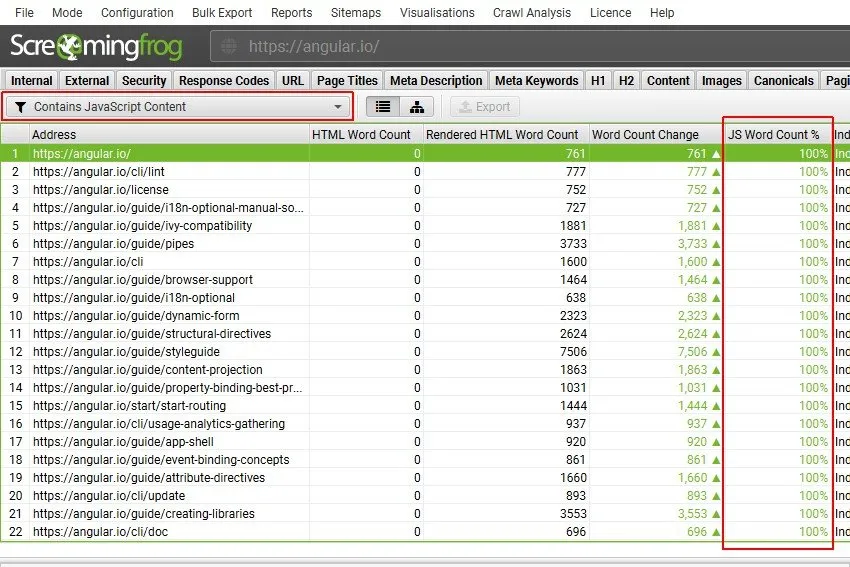

When the crawl is complete you can check the filters in the JavaScript tab and start assessing whether there are differences between raw and rendered HTML. The filters show which pages have JavaScript content and whether there are differences in meta tags, canonicals or other on-page elements such as titles and headings that are only updated after JavaScript runs.
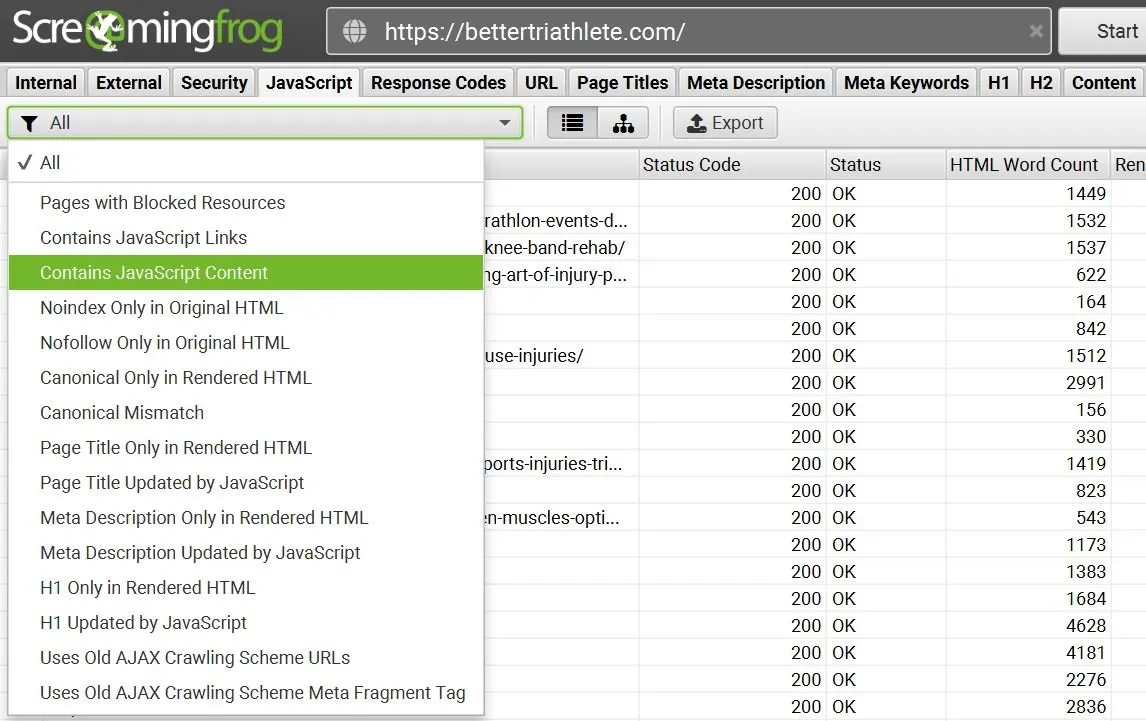
Simply and intuitively, you can see which pages have JS content and, above all, which elements are only present after rendering.
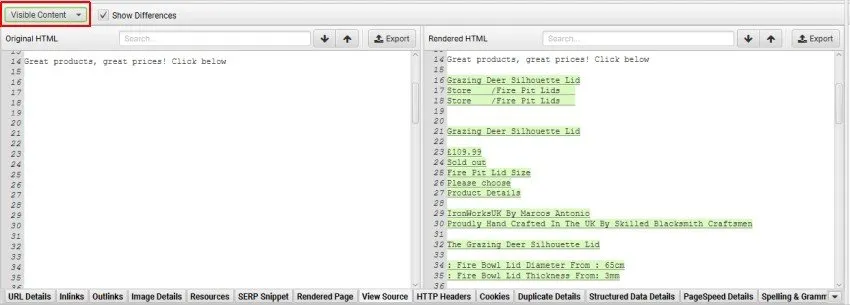
Once you find differences, check Screaming Frog’s bottom window, select the View Source tab, choose Visible Content as the filter and preview the two versions by enabling Show Differences.
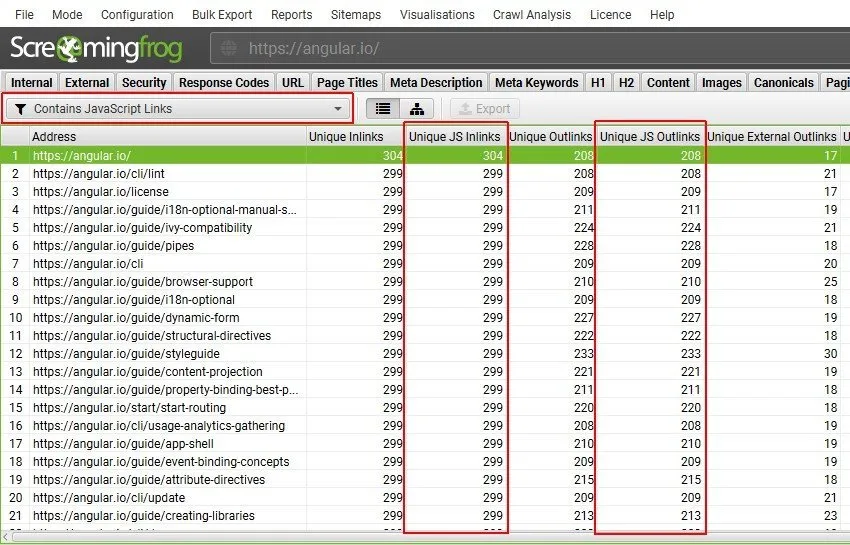
Here the Parity Audit is very useful for finding links that exist only in the rendered HTML, which the search engine bot might never discover and therefore never follow and index.
To see which links only exist after JS runs, click the Outlinks tab and set Rendered HTML as the filter. For a deeper analysis you can export them from the menu:
1Bulk Export›2JavaScript›3Contains JavaScript Links
Besides links, you can assess a whole range of elements that change after the JS script runs, depending on your project’s needs.
JavaScript tab filters
The filters Screaming Frog provides are an essential aid for running your Parity Audit. In the current version of SEO Spider the JavaScript tab has 18 of them.
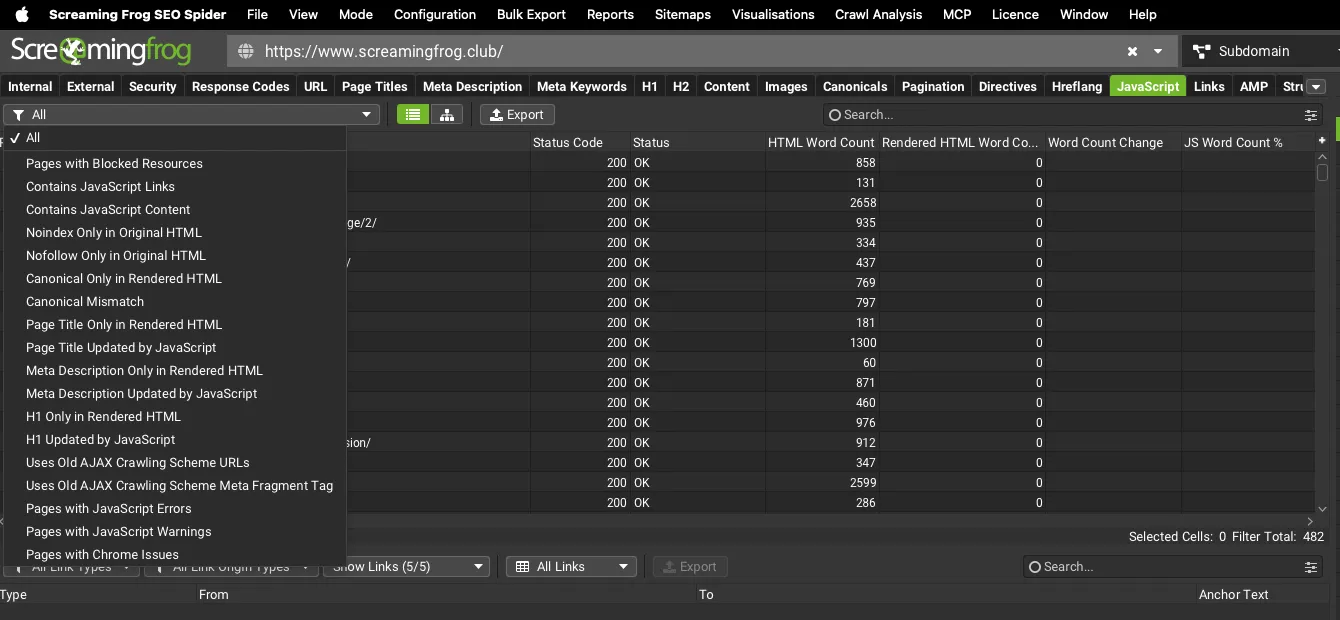
- Pages with Blocked Resources: pages with resources (JavaScript, CSS, images) blocked by robots.txt or returning errors, which can compromise rendering.
- Contains JavaScript Links: pages containing hyperlinks discovered in the rendered HTML only after JavaScript runs. These links aren’t in the raw HTML: it’s good practice to include important links server-side in the static HTML.
- Contains JavaScript Content: all pages whose body text exists only in the HTML rendered after JavaScript runs. Google can render pages and see client-side content, but consider including important content server-side in the raw HTML.
- Noindex Only in Original HTML: pages with a noindex tag in the static HTML but not in the rendered HTML. When Googlebot meets a noindex tag it skips rendering and JavaScript execution: using JavaScript to remove noindex in the rendered HTML won’t work.
- Nofollow Only in Original HTML: pages with a nofollow attribute in the static HTML but not in the rendered HTML. This means links in the raw HTML before JavaScript runs won’t be followed. Remove nofollow if the links should be followed, crawled and indexed.
- Canonical Only in Rendered HTML: pages with a canonical tag only in the HTML rendered after JavaScript runs. I recommend including the canonical in the static HTML (or HTTP header) so Google can see it, rather than relying only on rendered HTML.
- Canonical Mismatch: pages with a different canonical in the static HTML than in the rendered HTML. This can send mixed signals and cause unwanted behaviour by the search engine.
- Page Title Only in Rendered HTML: pages with a title only in the rendered HTML. A search engine must render the page to see it: consider including important content server-side in the raw HTML.
- Page Title Updated by JavaScript: pages whose title is modified by JavaScript, i.e. with a title in the static HTML different from the one in the rendered HTML.
- Meta Description Only in Rendered HTML: pages with a meta description only in the HTML rendered after JavaScript runs.
- Meta Description Updated by JavaScript: pages whose meta description is modified by JavaScript, so it differs between static and rendered HTML.
- H1 Only in Rendered HTML: pages with an H1 only in the rendered HTML. A search engine must render the page to consider the heading: include headings server-side in the static HTML.
- H1 Updated by JavaScript: pages whose H1 is modified by JavaScript, i.e. with an H1 in the raw HTML different from the one in the rendered HTML.
- Uses Old AJAX Crawling Scheme URLs: URLs still using the old AJAX crawling scheme with the
#!fragment, no longer supported by Google. - Uses Old AJAX Crawling Scheme Meta Fragment Tag: pages containing the old AJAX scheme fragment meta tag.
- Pages with JavaScript Errors: pages with JavaScript errors detected in the Chrome console during rendering.
- Pages with JavaScript Warnings: pages with JavaScript warnings in the Chrome console.
- Pages with Chrome Issues: pages with issues reported by Chrome during rendering.
Mobile vs desktop
With Mobile First Indexing the search engine has made the importance of mobile for organic ranking unmistakable: a Parity Audit between the mobile and desktop versions is essential when optimising a website.
The Parity Audit involves three separate steps:
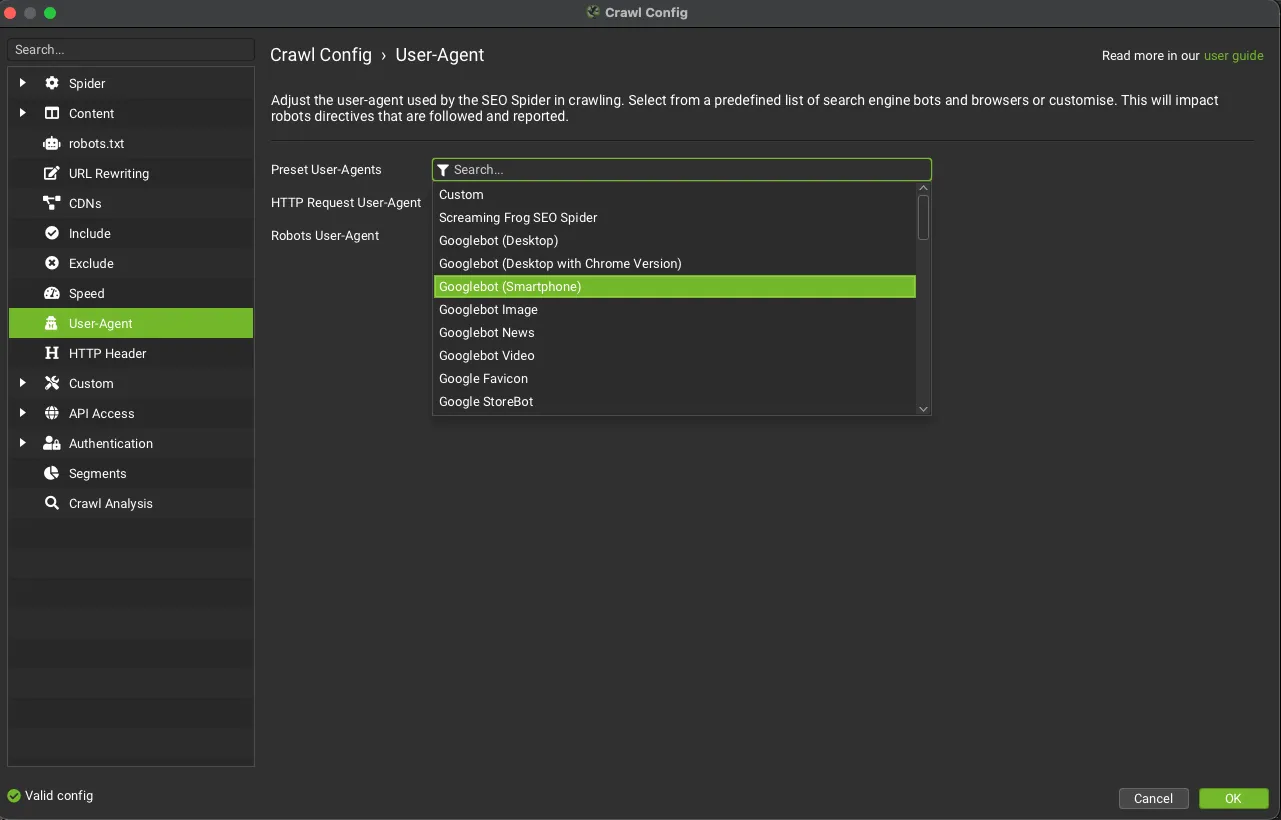
- Crawl the website with the “Googlebot (Smartphone)” user agent.
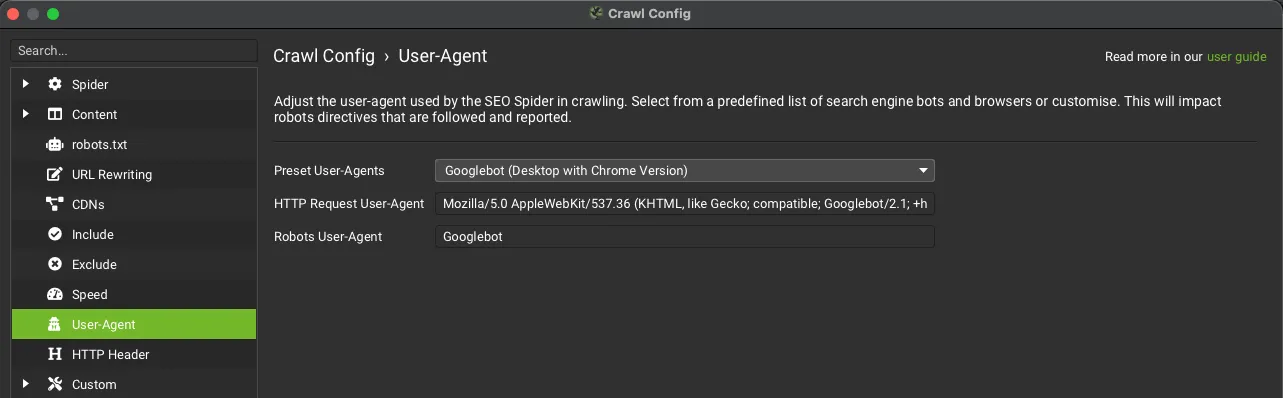
- Crawl with the “Googlebot (Desktop)” user agent or another desktop user agent.
- Use Compare mode to compare the two crawls.
Remember that for this scenario Screaming Frog’s storage mode must be set to Database Storage Mode.
Googlebot Smartphone user agent
Crawl your website using the “Googlebot (Smartphone)” user agent from 1Configuration›2User-Agent. If the website has JS content or dependencies, also enable JavaScript Rendering crawl mode.
Googlebot user agent
Go back to the configuration, set the User-Agent to Googlebot (Desktop) or another desktop user agent and start the second crawl with Screaming Frog.
Comparing mobile and desktop
With the two separate crawls done, compare them with Compare mode.
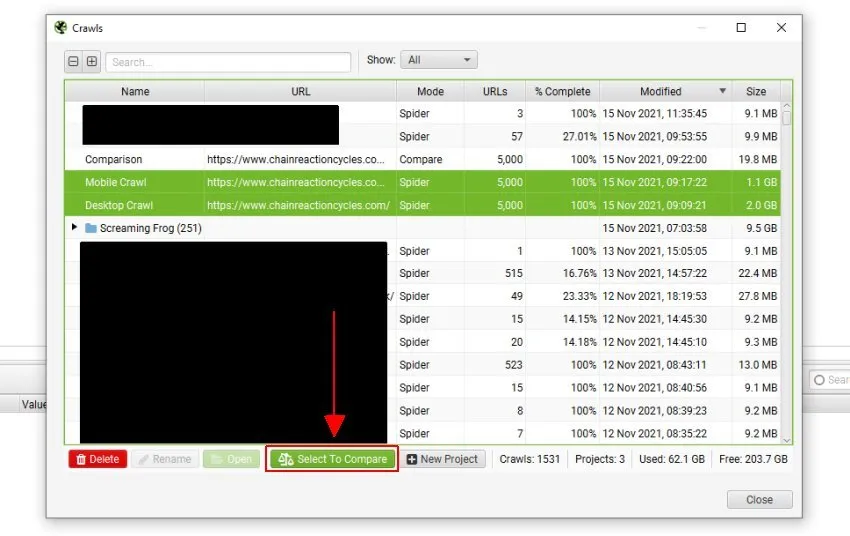
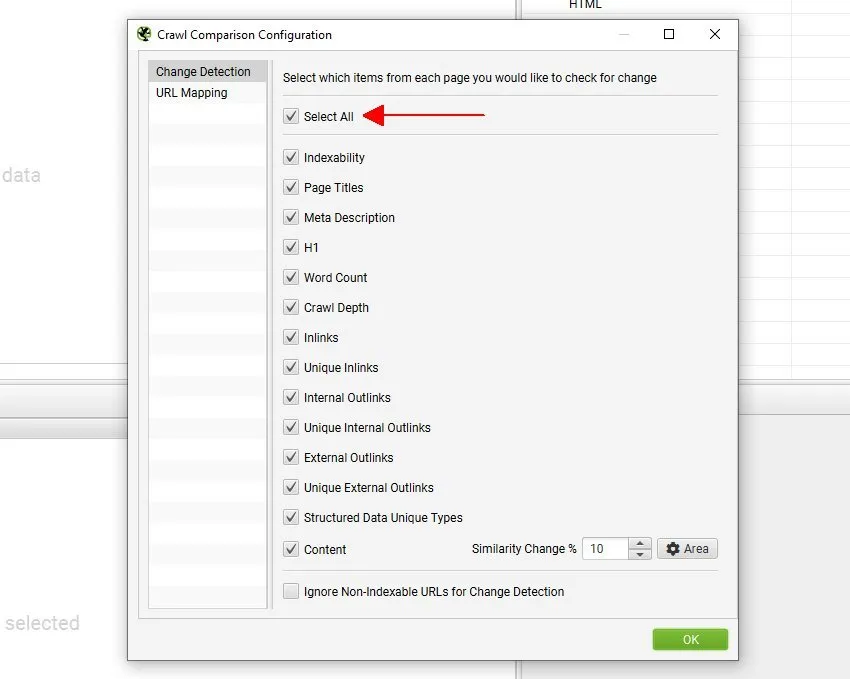
Now click the cog icon at the top of the screen or go to 1Configuration›2Compare. Here you can set up Change Detection, which identifies differences in specific elements such as titles, meta descriptions, headings, word count, internal links, structured data and much more.
To include every element, just enable Select All at the top of the configuration window.
If the website is responsive and serves different content on mobile and desktop on the same URLs, you can go ahead with the comparison; otherwise you’ll also need to set up URL Mapping. In the same window, click the corresponding tab and align the subdomains with a Regex.
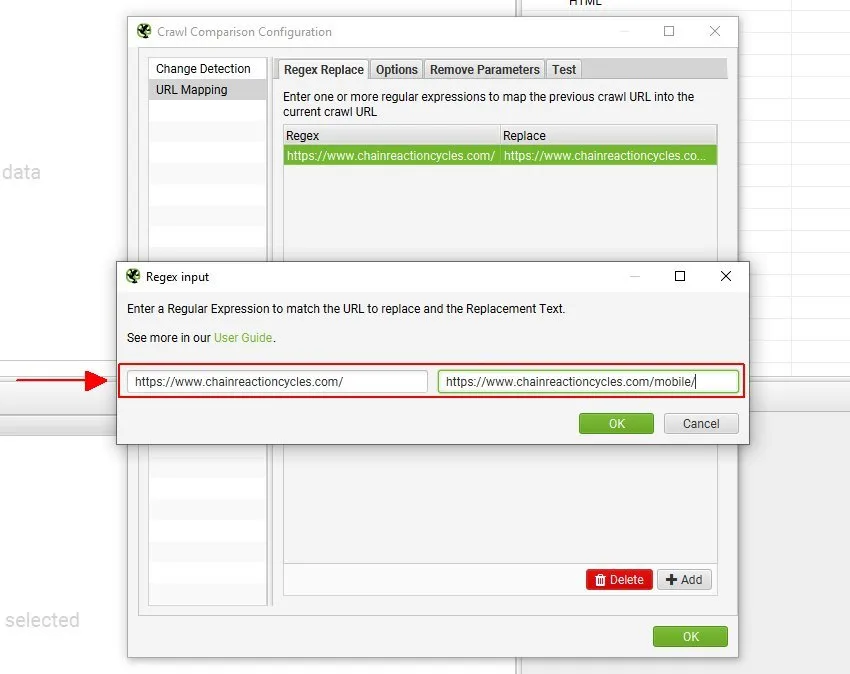
Now just click OK and Compare to start the analysis.
Further readingComparing data from 2 crawls.How SEO Spider’s Compare mode, Change Detection and URL Mapping work, step by step.Read the guideWhen the analysis is complete you can view the data in Change Detection, in SEO Spider’s side panel.
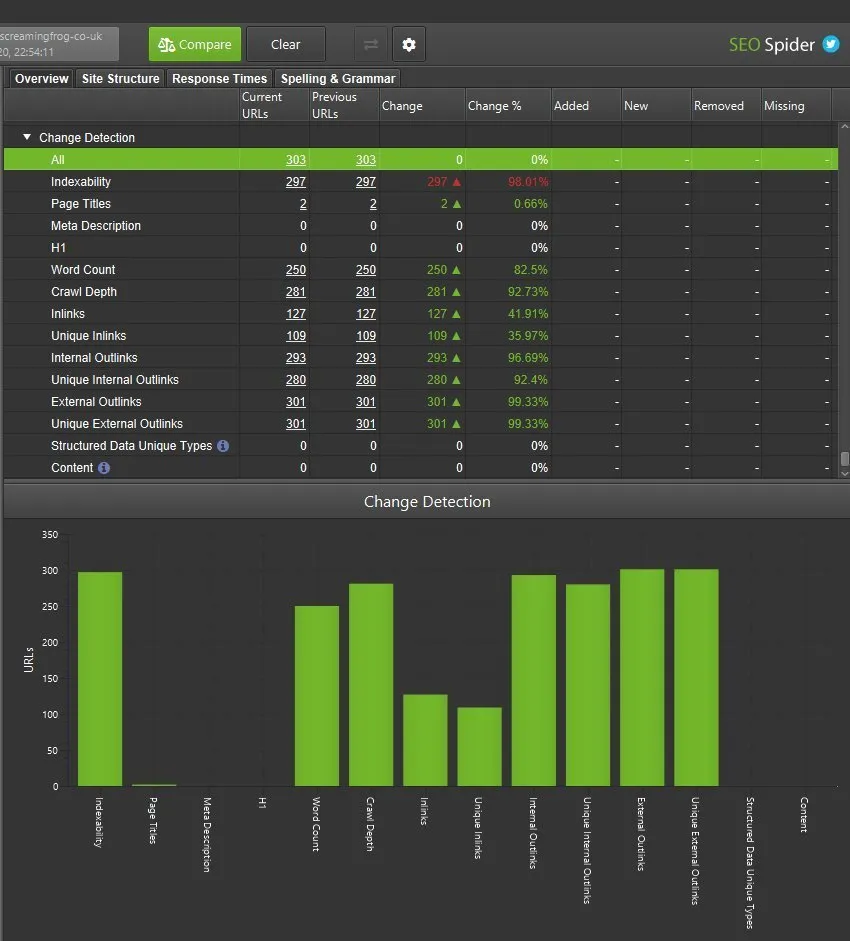
Ideally the content should be identical, but there may be inconsistencies between mobile and desktop: you’ll find them from the main screen through the 4 filters introduced in Screaming Frog version 16.
- Added: URLs present in both crawls but with elements that have entered a filter in the “Current” crawl. For example, a URL had a meta title in the previous version but is missing it in the current one: in that case the URL will be in the “Missing” filter for Page Title.
- New: all new URLs that weren’t in the previous crawl but are in the current one.
- Removed: URLs present in both crawls with elements that were in a filter in the previous crawl but no longer are in the current one. Going back to the Page Title example, this filter shows URLs that had no title and were in the “Missing” filter, but aren’t any more in the current crawl because they’ve been optimised.
- Missing: URLs present in the previous crawl but not found in the “Current” crawl.
Scrolling down the Change Detection tab you’ll find a very useful Summary that shows all the changes detected at a glance.
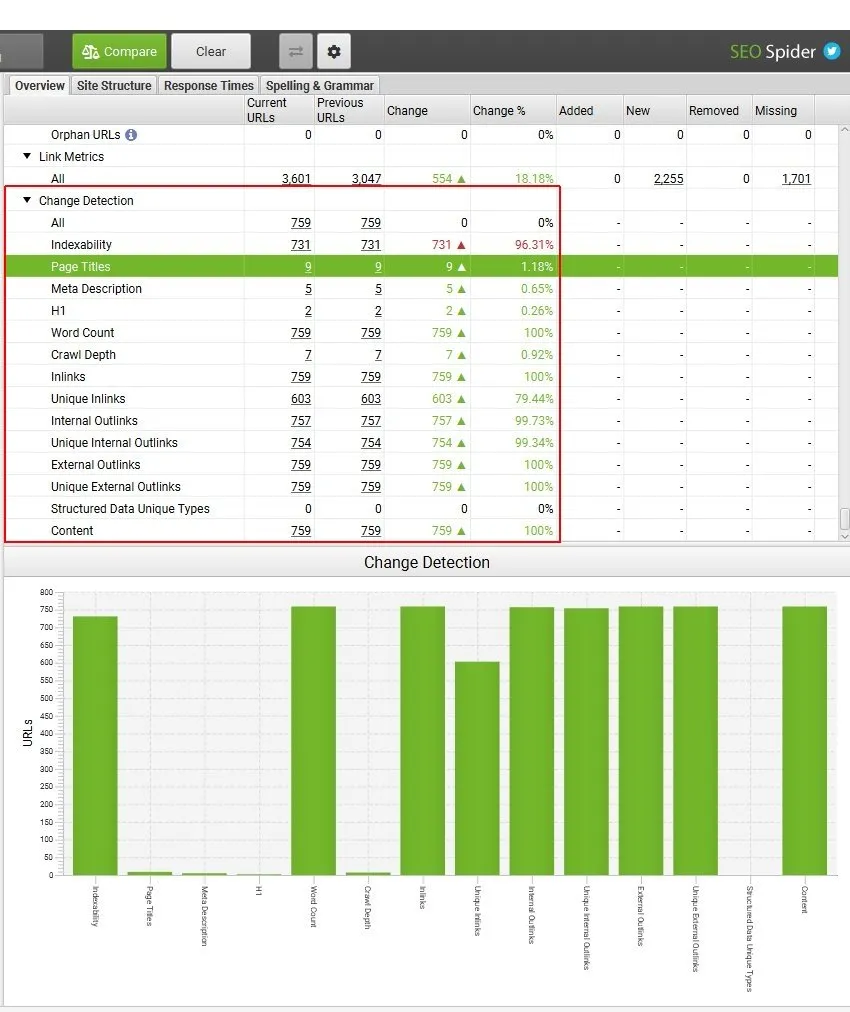
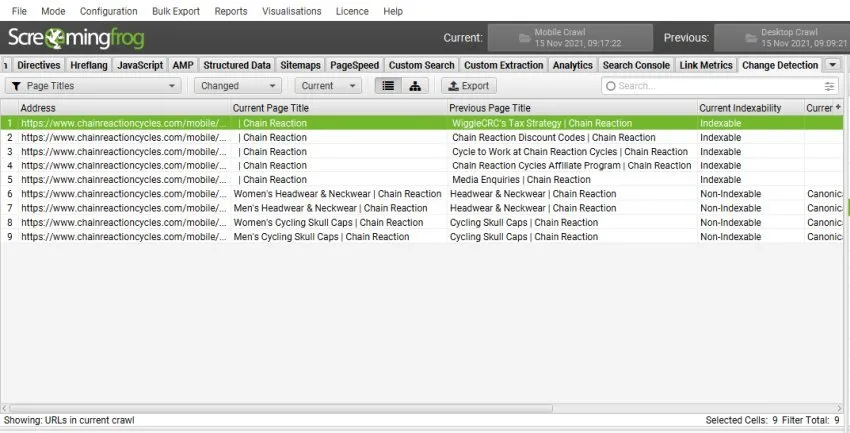
Click the filters to see the URLs affected by each change. Here’s an example of how page titles change.
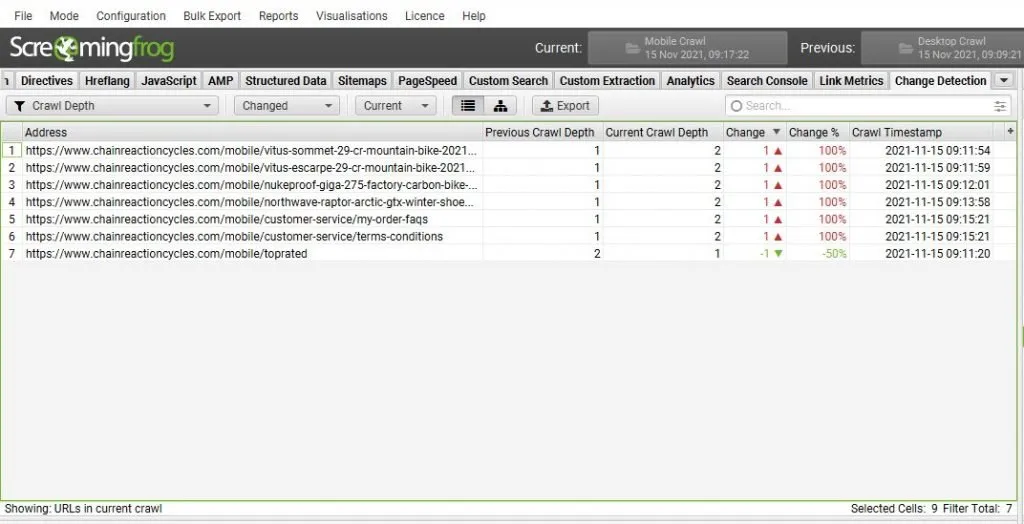
And here’s an example of how crawl depth changes between the two versions.
With these checks you can avoid substantial differences between versions that could hold back or complicate the website’s ranking.
Staging vs live sites
The last but not least comparison is between staging and live sites. This scenario is very delicate and should always be given careful attention during migrations.
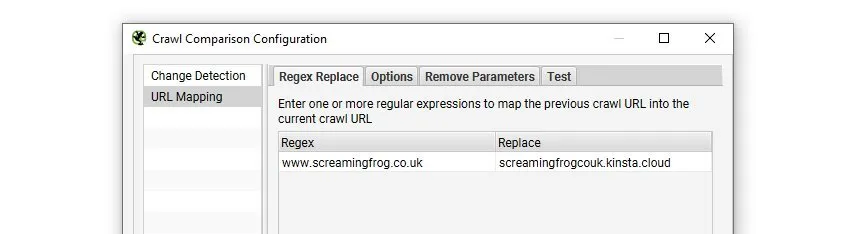
The Parity Audit process follows the same steps as the mobile vs desktop comparison, always including URL Mapping to align the URLs of the published version and the one still in development.
Questions about SEO Parity Audit?
These guides come from real projects. If something in your crawl doesn’t add up, or you want to apply this process to your site, get in touch.
 Author.Raffaele Visintin.Search & Strategic Marketing Advisor