

Automated Crawl Audits with Data Studio.
Learn how to set up Screaming Frog SEO Spider to produce automated audits for Google Data Studio.
How to build fully automated crawl reports in Looker Studio (formerly Data Studio). You schedule the crawl, export in headless mode to Google Drive and connect the template to monitor the site’s health over time.
Automating SEO audits
This guide explains how to set up Screaming Frog SEO Spider to create fully automated crawl reports for Google Data Studio (now Looker Studio), so you can monitor the site’s health, spot problems and keep an eye on the website’s performance.
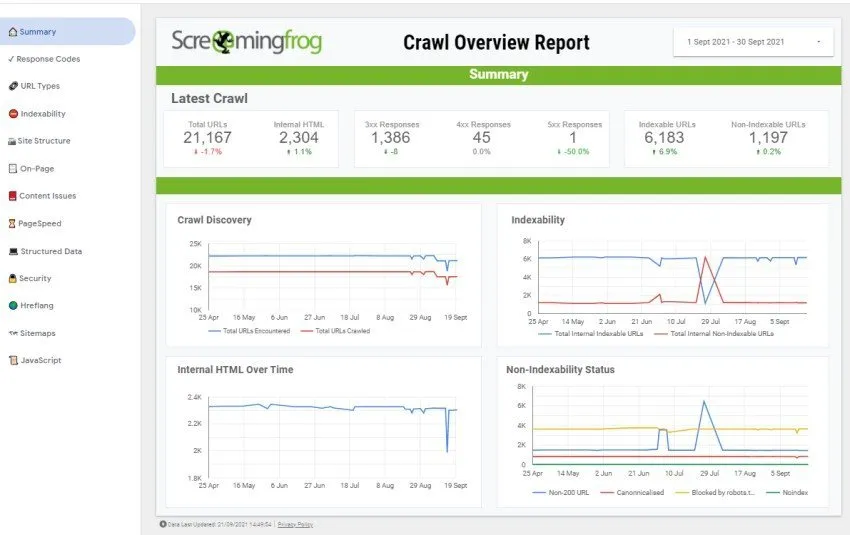
By connecting a scheduled crawl to a Google Drive account, SEO Spider updates the Overview report data after every crawl: you can build up the data and give your analysis a history.
The Scheduling feature
Schedule the crawl
You create a scheduled crawl from 1File›2Scheduling (shortcut ⌘T on Mac).
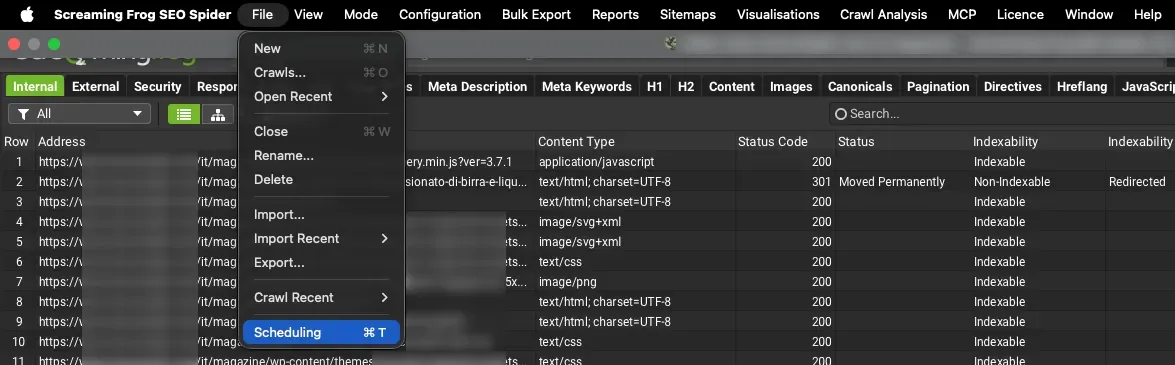
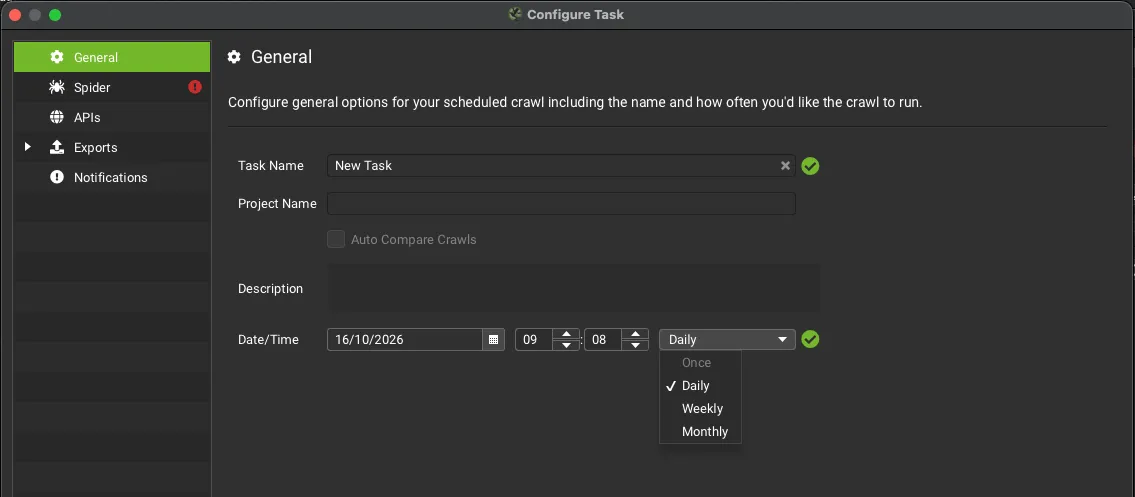
Click Add to create a new task. In the General tab you set the general aspects of the crawl:
- Task Name: a descriptive name for the crawl.
- Project Name: the project the crawl belongs to.
- Description: very useful to describe all the specifics and options of the crawl.
- Date/Time: the date and time of the crawl and how often it runs (once, daily, weekly or monthly).
Spider and Headless Mode
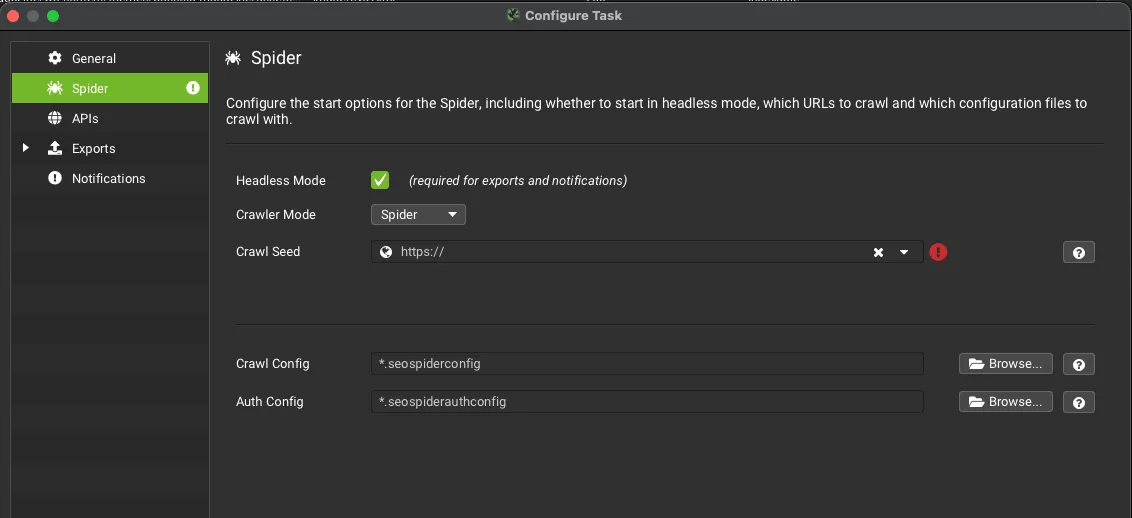
In the second tab, Spider, you can choose between Spider and List crawl mode, enter the root domain or subdomain in the Crawl Seed field and choose which configuration to apply by loading a saved configuration file (if you have one).
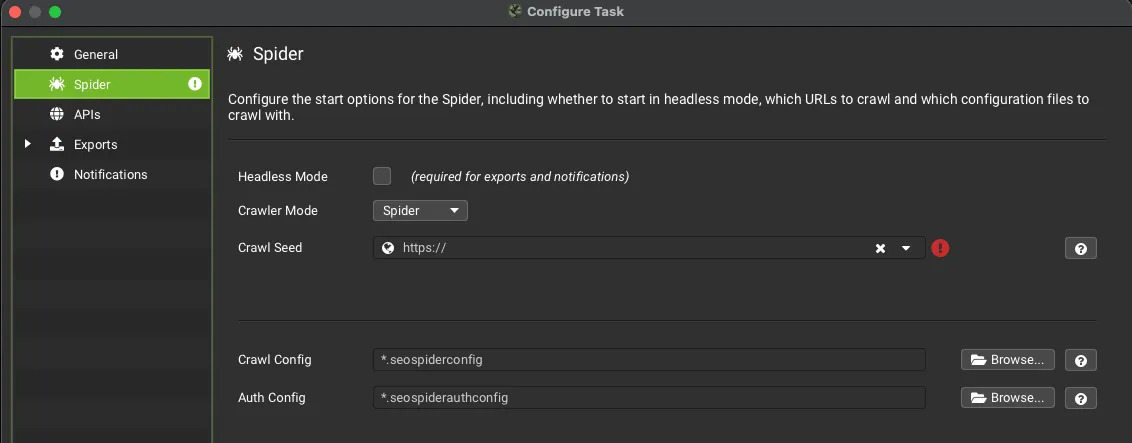
In the Spider tab you must select Headless Mode to export data for Data Studio and for notifications.
APIs
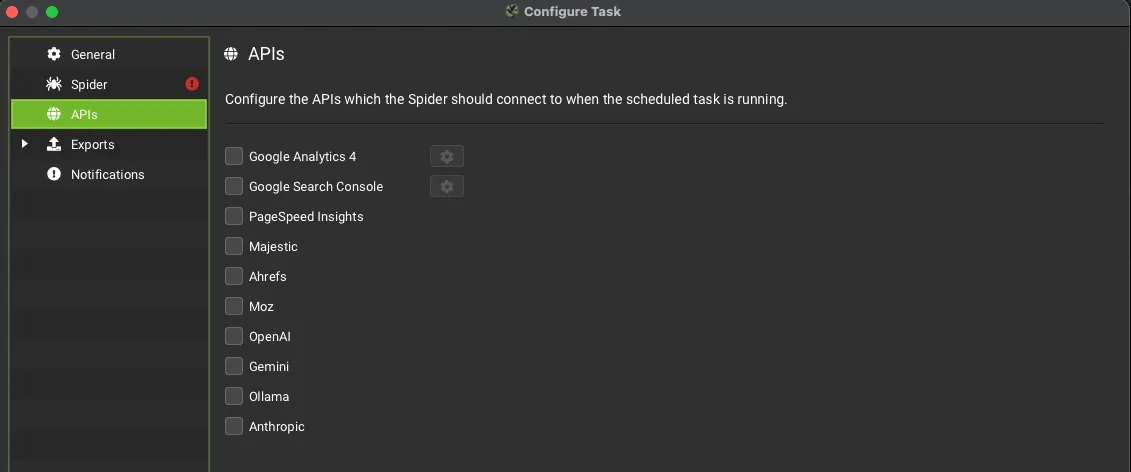
In the APIs tab you can also enrich the crawl with data from Google Analytics 4, Search Console and PageSpeed Insights, for a more granular view of the project and to find any Orphan Pages. Here you’ll also find link metrics from Majestic, Ahrefs and Moz and the AI model APIs (OpenAI, Gemini, Ollama and Anthropic).
Google account
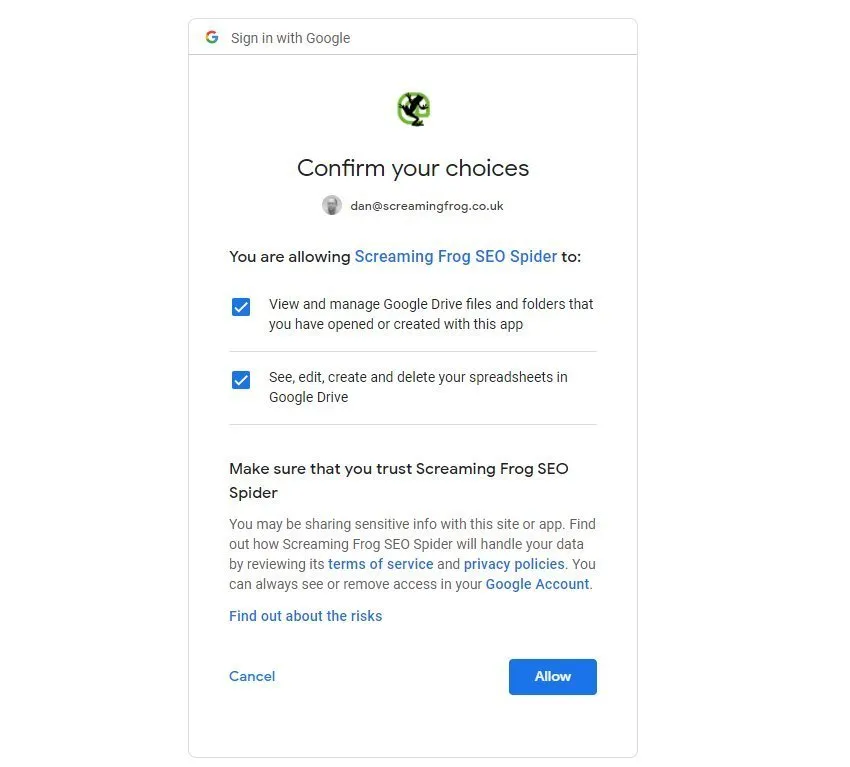
Select your Google account from the drop-down or, if you haven’t saved to Google Drive before, select Manage and Add. To complete this step you’ll need to authorise Screaming Frog to access your Google account.
Setting up the crawl for Data Studio
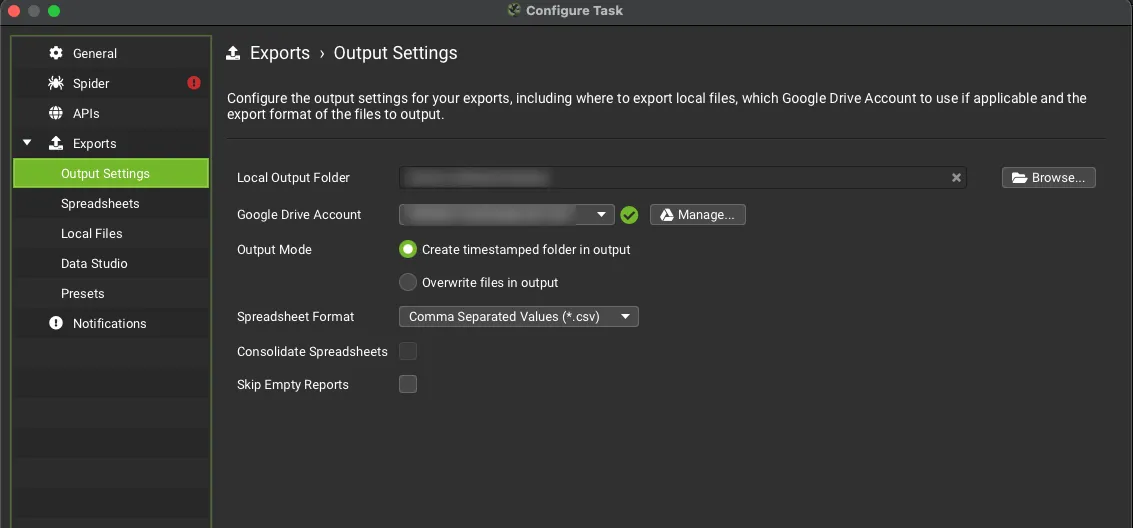
For automated reporting, open the Exports tab: here you’ll find the Output Settings, Spreadsheets, Local Files, Data Studio and Presets pages. Remember that exports only work with Headless Mode on.
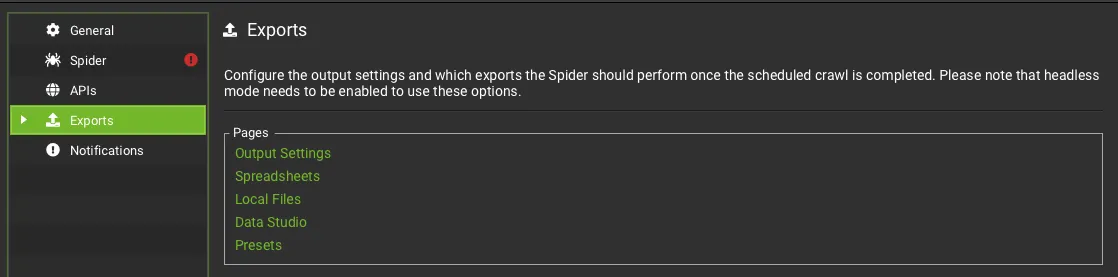
In Output Settings you choose the local folder, the Google Drive account to save the data to and the file format.
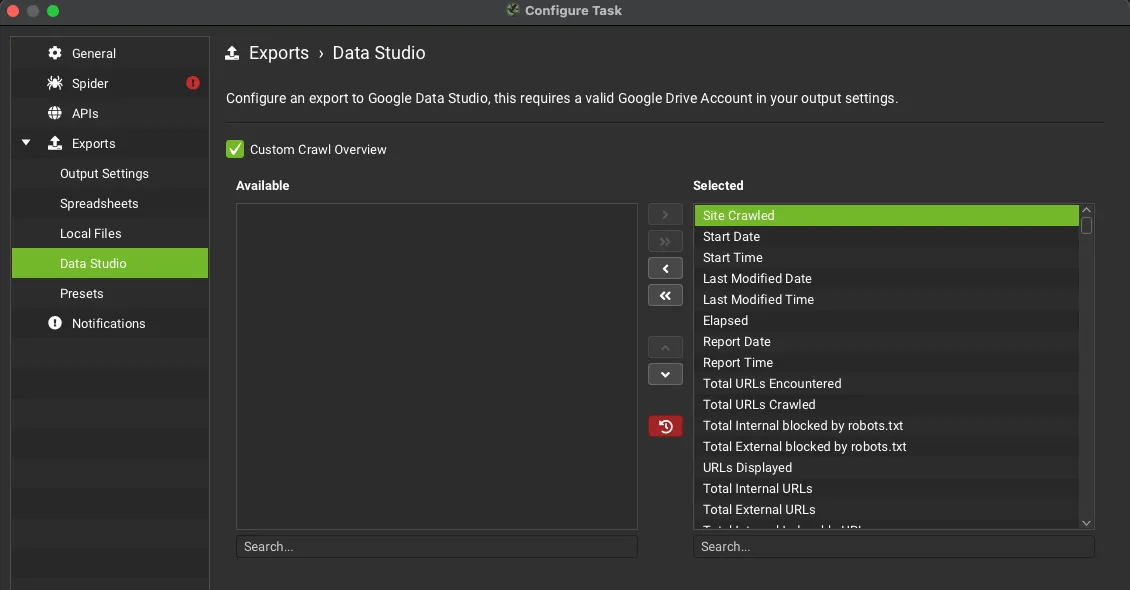
On the Data Studio page, tick Custom Crawl Overview and click Configure. In this panel you can customise which Overview report information to include in the Google Sheets export. I recommend selecting all available metrics and adding them to the box on the right: you can do it in one go by clicking the double right arrow.

Once SEO Spider is set up and the scheduled crawl has run, you’ll find the document in a Google Drive folder:
My Drive > Screaming Frog SEO Spider > Project Name > [task_name]_crawl_summary_reportAfter several crawls you’ll have a complete document like this one.
Connecting Data Studio
Copy the template
In Data Studio you can choose which metrics and dimensions to use for your report in a completely custom way but, if you prefer, you can start from the template provided by Screaming Frog. Download: Screaming Frog Data Studio template.
Let’s see how to use the template. First, make a copy.
Connect the data source
Once you’ve made your copy, Data Studio lets you create your new Data Source.
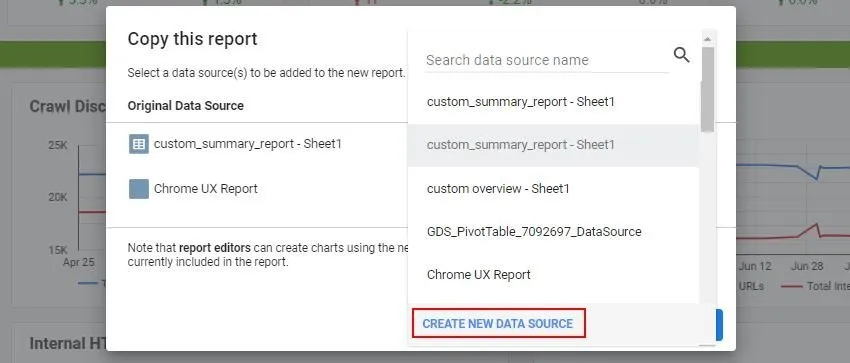
If you decide to start from scratch and design your own template, you can choose the new data source directly from the console’s main screen.
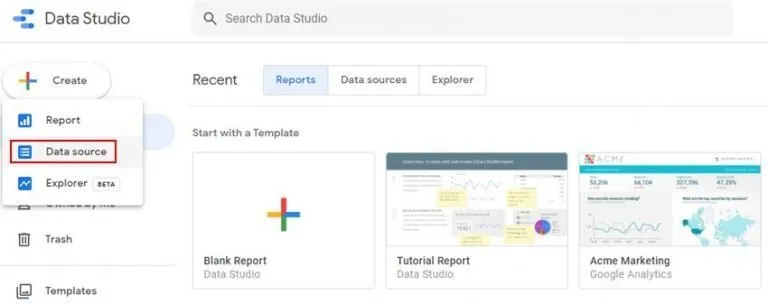
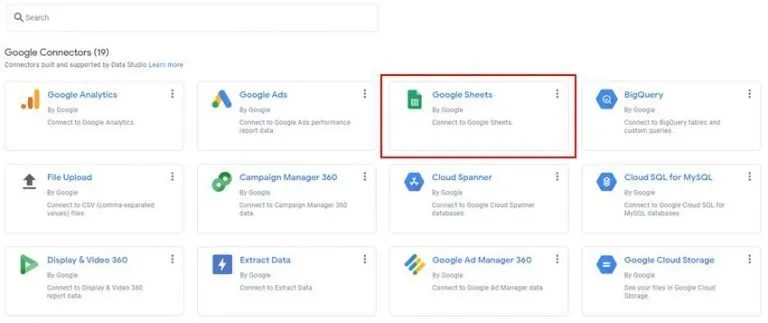
Either way, once you click Data Source, Google’s console shows you a list of connectors: choose Google Sheets and then the file from your scheduled crawl.
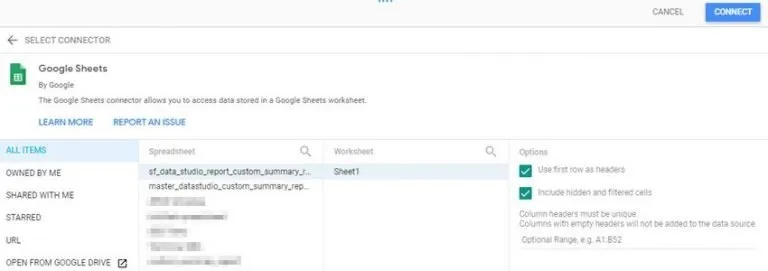
By default the file has this name:
[task_name]_crawl_summary_report[task_name] is the name you gave the scheduled crawl in SEO Spider.
Fix the fields
After loading the file, Data Studio shows you all the fields; I recommend renaming the connector (top left) so you have a clear reference to the data source later on. Sometimes Data Studio marks some fields as “Date” instead of “Number”: sort the fields by Type and set them all to “Number”, leaving only the date field as it is.
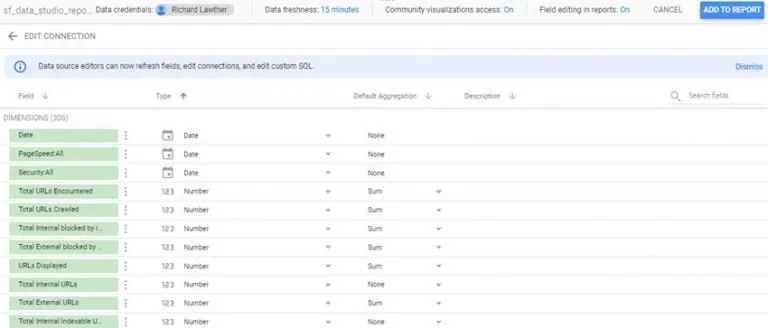
All that’s left is to click Add to Report at the top right and Copy Report to import the file into Google Data Studio for good.
The template pages
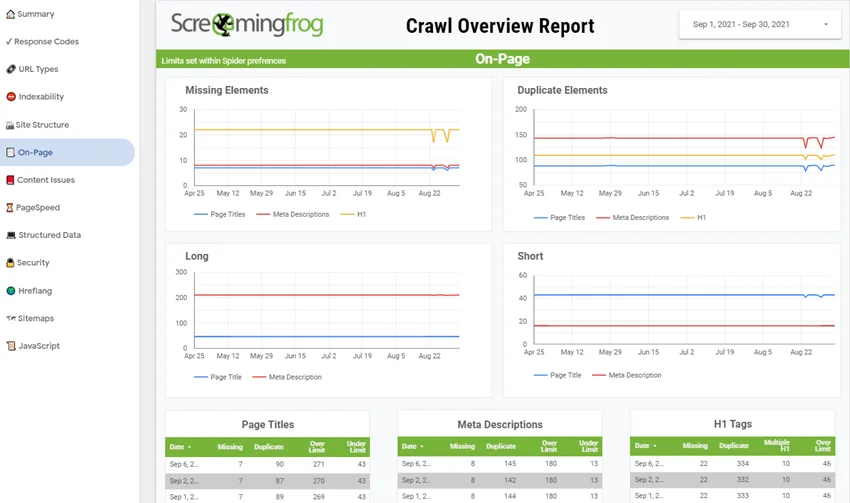
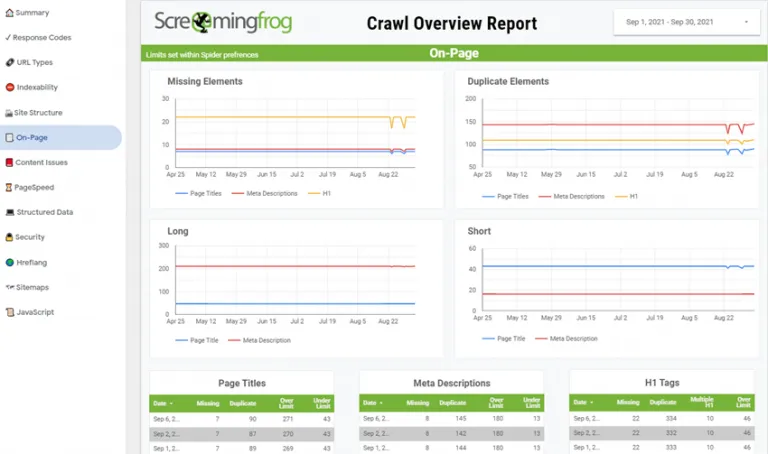
The template is very complete and includes the following analysis pages:
- Summary: an overall summary of the website’s health.
- Response Codes: shows response code counts and blocked URLs.
- URL Types: shows the number of HTML pages, images, JavaScript files and so on.
- Indexability: monitors the indexability of the whole site and makes it easy to spot trends or increases in non-indexable URLs.
- Site Structure: identifies changes in the website’s structure.
- On-Page: shows changes to meta tags or headings.
- Content Issues: spots changes to page content, the number of duplicate pages or spelling issues.
- PageSpeed: tracks Core Web Vitals performance and identifies opportunities to improve page experience.
- Structured Data: monitors validation issues and the use of structured data across the site.
- Security: analyses site-wide security issues and insecure use of HTTP.
- Hreflang: identifies the hreflang attribute and related issues.
- Sitemaps: shows Sitemap validation errors, orphan pages and URLs missing from the sitemap.
- JavaScript: analyses the use of JavaScript and its impact on metadata, content and internal links.
Email reminders
Schedule the delivery
Data Studio lets you schedule email alerts so you always stay up to date on your website’s health. To set this up, just turn on Schedule Email Delivery.
Share > Schedule Email Delivery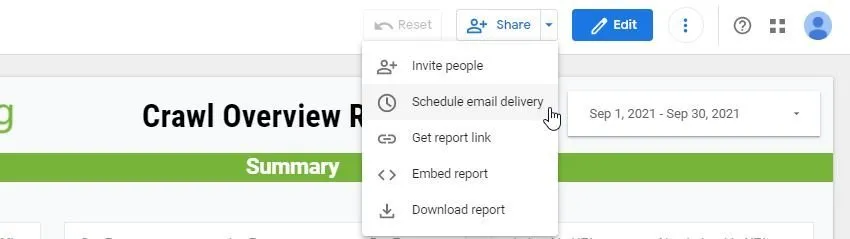
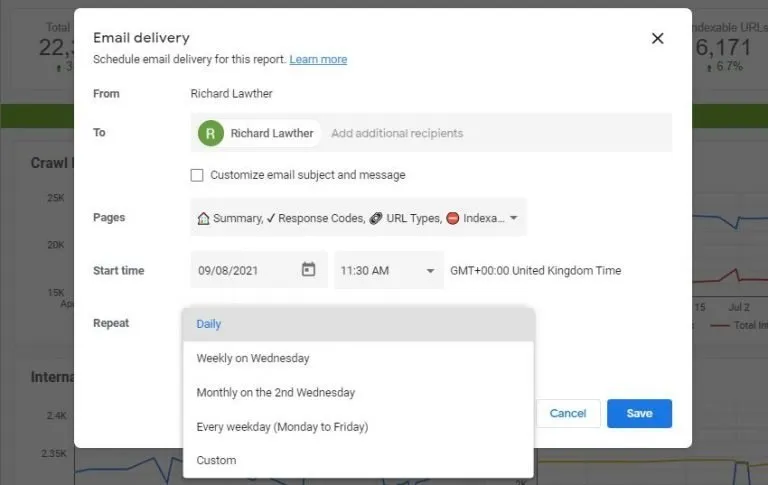
Scheduled Email Delivery lets you set the recipients, the date or frequency of delivery and the time you want to receive the information.
Instructions for use
- For recurring crawls, remember that the computer must be on and not in standby, otherwise the crawl won’t run.
- The PSI page requires you to change the source domain, which is set to Screaming Frog’s site when you copy the template. To do this, click the charts and edit the parameter.
- Sometimes some of the template’s custom fields aren’t carried over to the copy. For example, one custom field is “non 200 URLs”: in this case Data Studio may label the field “Record count”. Click the chart concerned and add a custom field with a tailored formula: go to “Add metric › Create field” and enter the formula below.

Automated crawls for Data Studio (video in Italian)
Questions about Automated Crawl Audits with Data Studio?
These guides come from real projects. If something in your crawl doesn’t add up, or you want to apply this process to your site, get in touch.
 Author.Raffaele Visintin.Search & Strategic Marketing Advisor