

Custom Extraction.
Discover Custom Extraction to collect custom data from the HTML code.
How to extract any data from page HTML with SEO Spider’s Custom Extraction, using XPath, CSS Path or Regex. See the difference between the extraction modes and practical examples, from Analytics to structured data.
Custom data extraction
Screaming Frog is a very versatile SEO tool that doesn’t just return predefined data and metrics but also allows advanced, customisable analyses. One of these is “Custom Extraction”, a very powerful feature that lets you collect any data from the HTML of every web page (text-only mode) or rendered data with the “JavaScript Rendering Mode” crawl mode.
SEO Spider offers 3 ways to extract data with “Custom Extraction”:
- XPath: XPath selectors;
- CSS Path;
- Regex: for more advanced data extraction (further reading: Java Pattern – Oracle).
If you use the first two options, “XPath” and “CSS Path”, you can choose which elements to extract with:
- Extract HTML Element: collects data from the selected elements and their inner content (“Inner HTML Content”).
- Extract Inner HTML: extracts the inner content of a selected element. If the HTML element contains other HTML elements, the sub-elements are available too.
- Extract Text: collects the text content of the selected element and the text content of its sub-elements.
- Function Value: returns the result of the function provided. For example, a function like “count(//h1)” gives you the number of <h1> on the page.
Setting up Custom Extraction
The feature is in 1Configuration›2Custom›3Custom Extraction.
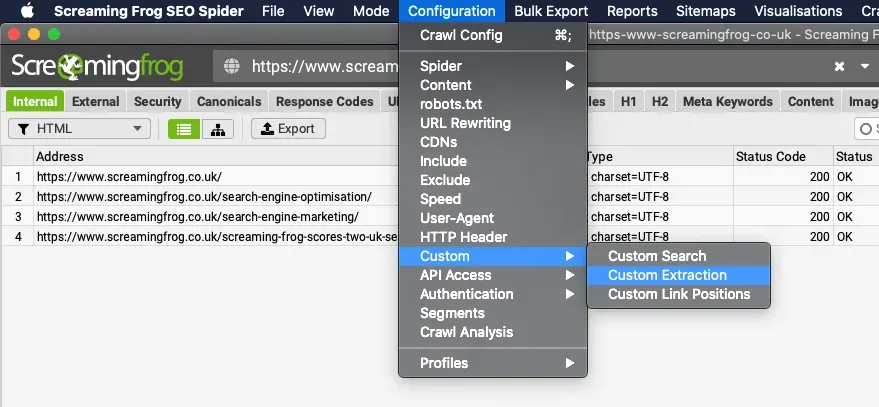
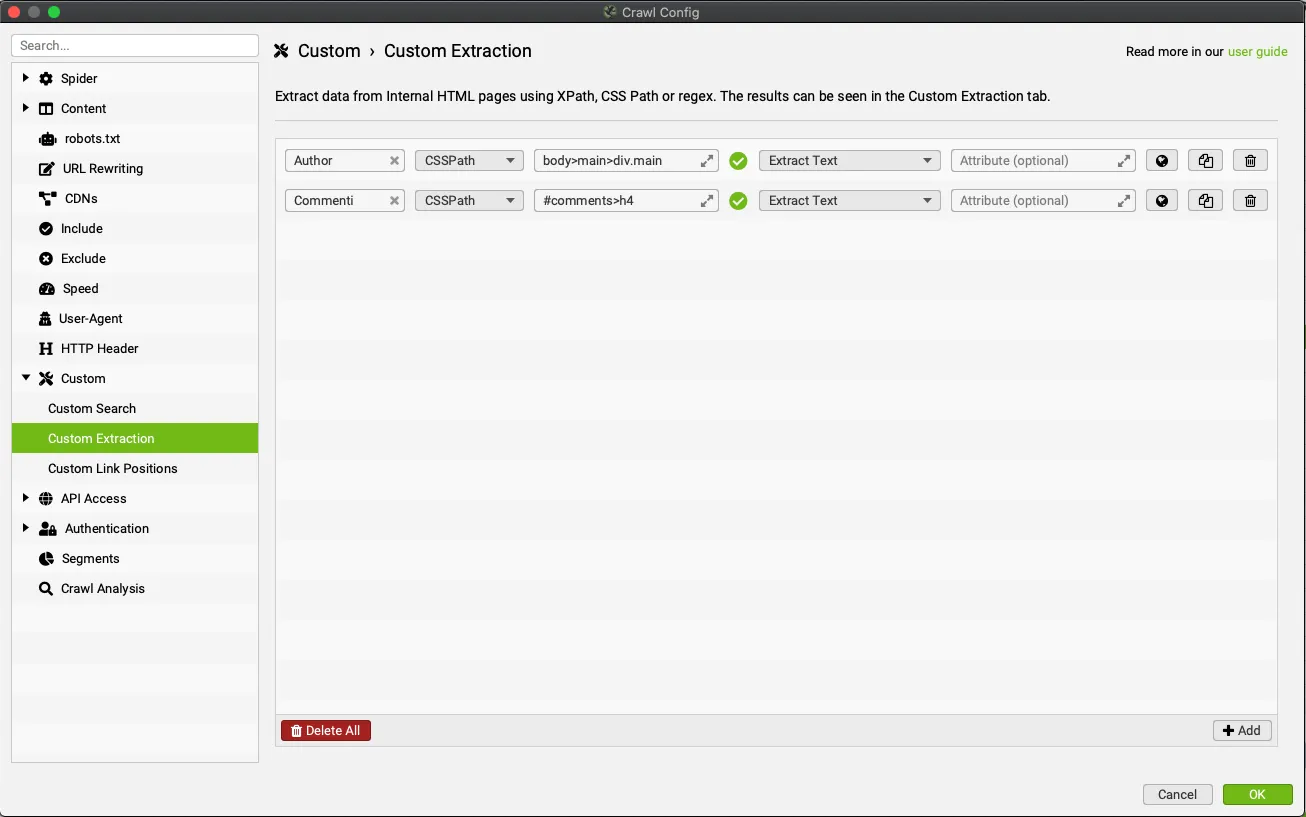
Once Custom Extraction is open, just click Add and enter your instructions for extracting the data.
You can also open 1Configuration›2Crawl Config and choose the item from the left-hand column.
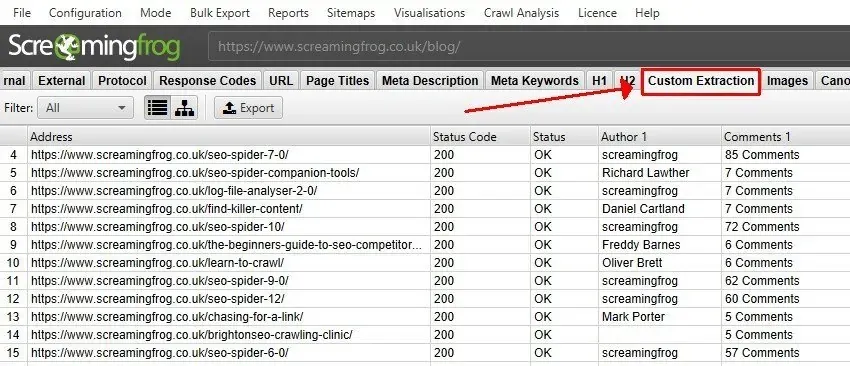
The data collected is available in the 1Custom Extraction tab and in a dedicated column in the “Internal” tab.
Now that you know how to set up “Custom Extraction” and understand its potential, let’s look at some examples that I think will come in handy on your technical SEO adventures.
Extraction with XPath
Here are some examples of extraction using XPath.
Headings and hreflang
By default SEO Spider only collects the page’s main headings (H1 and H2), but for a more specific and complete analysis you may need information on the other headings on the page too.
# All H3 headings
//h3

# The first H3 heading
(//h3)[1]

# The first 5 H3 headings
(//h3)[position() <= 5]

# The number of H3s on the page (Function Value)
count(//h3)

# The text length of the first H3 (Function Value)
string-length(//h3)

# The individual hreflang versions
//*[@hreflang]/@hreflang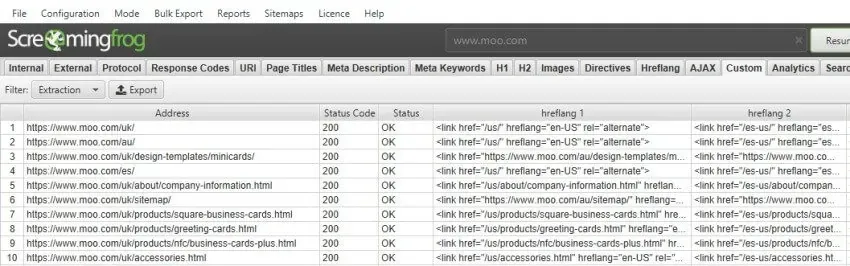
Structured data
Find and collect the different types (“Types”) of structured data in Microdata format.
//*[@itemtype]/@itemtypeNote: you don’t need a “Custom Extraction” to validate structured data; you can view the data in the “Structured Data” tab.
Open Graph and Twitter Cards
Collect Social Media tags, Open Graph tags and Twitter cards:
//meta[starts-with(@property, 'og:title')]/@content
//meta[starts-with(@property, 'og:description')]/@content
//meta[starts-with(@property, 'og:type')]/@content
//meta[starts-with(@property, 'og:site_name')]/@content
//meta[starts-with(@property, 'og:image')]/@content
//meta[starts-with(@property, 'og:url')]/@content
//meta[starts-with(@property, 'fb:page_id')]/@content
//meta[starts-with(@property, 'fb:admins')]/@content
//meta[starts-with(@name, 'twitter:title')]/@content
//meta[starts-with(@name, 'twitter:description')]/@content
//meta[starts-with(@name, 'twitter:account_id')]/@content
//meta[starts-with(@name, 'twitter:card')]/@content
//meta[starts-with(@name, 'twitter:image:src')]/@content
//meta[starts-with(@name, 'twitter:creator')]/@content
Twitter tags are usually declared with the name attribute rather than property: if your site also uses property for these, replace @name with @property.
Email and phone
Extract email addresses and/or phone numbers from a website’s links:
//a[starts-with(@href, 'mailto')]/@href
//a[starts-with(@href, 'tel')]/@href
Iframes
Extract specific iframes from the website, such as Google Tag Manager or YouTube videos.
# All iframes
//iframe/@src

# YouTube video iframes
//iframe[contains(@src, 'www.youtube.com/embed/')]/@src

# The Google Tag Manager noscript iframe
//iframe[contains(@src, 'www.googletagmanager.com/')]/@src
Divs and spans
Extract content from specific divs or spans by providing the class (replace “example”).
//div[@class="example"]
//span[@class="example"]
With the | operator you can chain several expressions into one extraction. This example collects the titles and number of comments of blog posts (for it to work you’ll need to adapt the classes to your website).
//div[contains(@class, 'main-blog--posts_single-inner--text--inner')]//h3 | //a[@class="comments-link"]
Extraction with Regex
Regex rules are a very powerful way to collect data with Screaming Frog; here are some examples you can use straight away in your next SEO audit.
Google Analytics and Tag Manager IDs
Extract the Google Analytics 4 ID (G-) and the Google Tag Manager ID (GTM-). Universal Analytics IDs (UA-) are no longer needed: the platform stopped collecting data in 2023.
["'](G-[A-Z0-9]+)["']
["'](GTM-[A-Z0-9]+)["']
JSON-LD structured data
We’ve seen that you can also extract structured data with XPath, but if it’s formatted as JSON-LD it’s better to use Regex syntax.
# Individual values from the JSON-LD script
"sku":\s*"(.*?)"
"ratingValue":\s*"?(.*?)"?[,}]
"reviewCount":\s*"?(.*?)"?[,}]

# The whole JSON-LD script
(?s)<script type="application/ld\+json">(.*?)</script>
Email addresses in the text
For email addresses written in the text, not just in mailto links, you can use this regex:
[a-zA-Z0-9._%+-]+@[a-zA-Z0-9.-]+\.[a-zA-Z]{2,}Video tutorial (in Italian)
Questions about Custom Extraction?
These guides come from real projects. If something in your crawl doesn’t add up, or you want to apply this process to your site, get in touch.
 Author.Raffaele Visintin.Search & Strategic Marketing Advisor
