

Custom Search.
Checking for any element in a website’s HTML with Custom Search.
How to check whether any text or code is present or missing on your pages with SEO Spider’s Custom Search. Practical examples: out-of-stock products and pages without Google Tag Manager.
Scraping source code
SEO Spider lets you check for any element in the source code of a website’s pages with the “Custom Search” feature. By default it searches the raw HTML, while switching to “JavaScript rendering” mode lets you search the rendered data too. You can set up to 100 custom searches, which return the URLs that contain or don’t contain the input you’re looking for.
Setting up Custom Search
The feature is in 1Configuration›2Custom›3Custom Search.
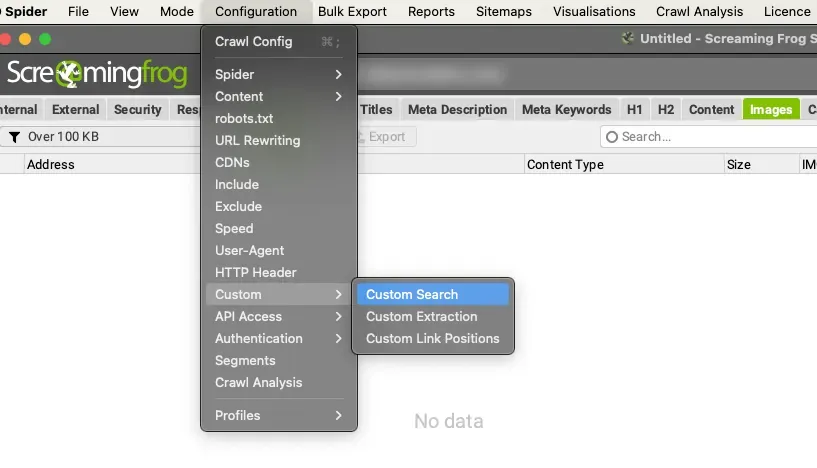
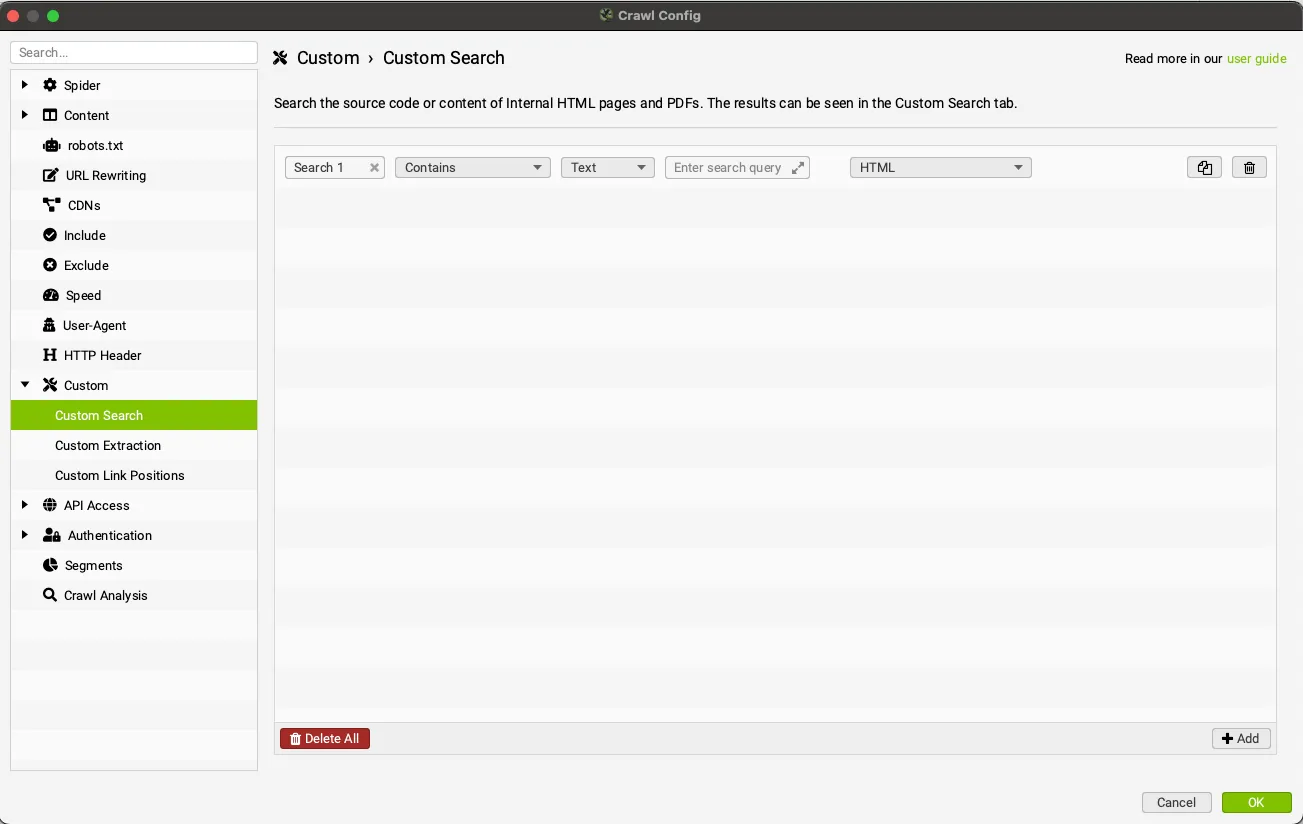
To use Custom Search, click Add, name the filter, choose “Contains” or “Does Not Contain”, pick text or regex search, enter the input to look for and choose where to search (HTML, page text, a specific element, XPath etc.).
In the next example we set up a custom search with two goals:
- finding an e-commerce store’s unavailable products by searching for “Out of Stock” on product pages (Contains).
- finding the pages missing the Google Tag Manager script (Does Not Contain).
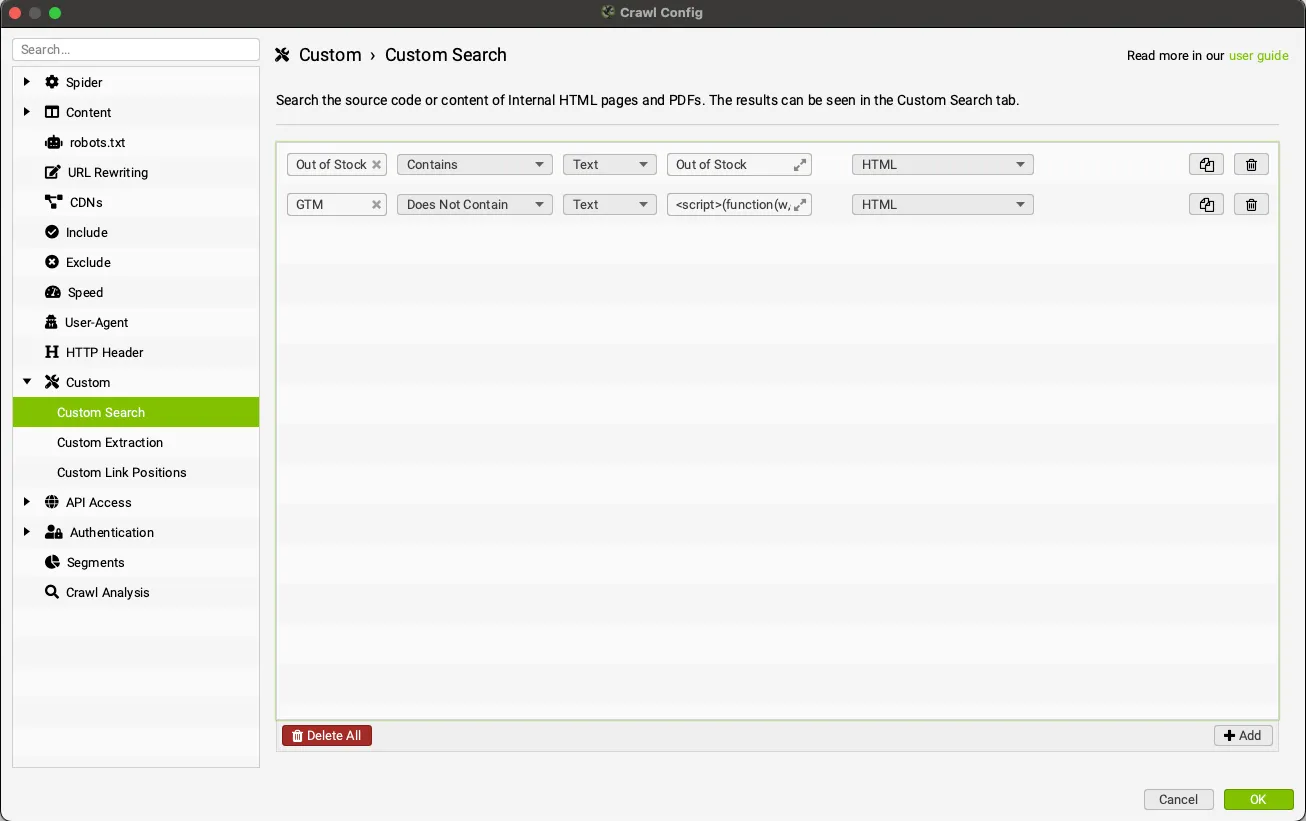
To collect the results, click “OK” and run the crawl.
Reviewing and exporting the results
Once the crawl runs, the data is filled in in real time and split into columns in the 1Custom Search tab.
You can isolate one search or the other with the drop-down filter on the left of the top window.

For convenience you can also check the same results in the sidebar under “Custom Search”.
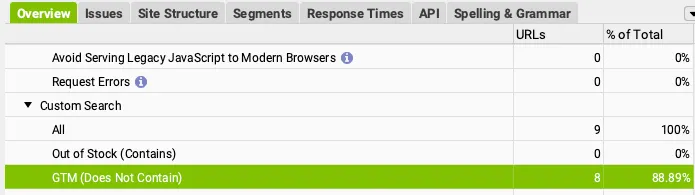
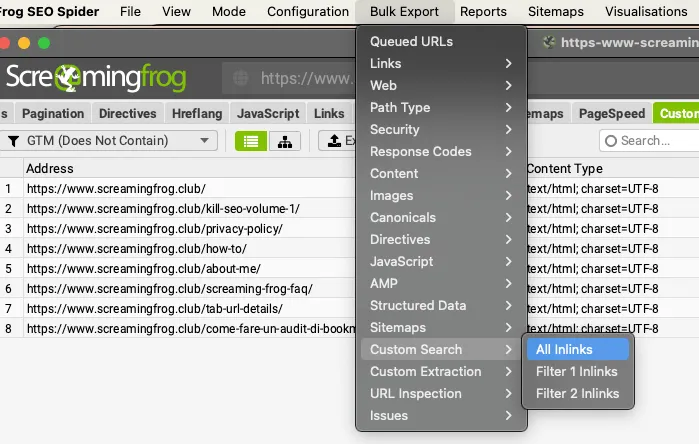
To complete the analysis, export the results with the tab’s “Export” button, or use 1Bulk Export›2Custom Search›3All Inlinks to get every inlink for your custom search.
Best practices for SEO audits
Now that you’ve seen how versatile Custom Search is, here are some best practices that are very useful in everyday SEO audits.
Misspellings
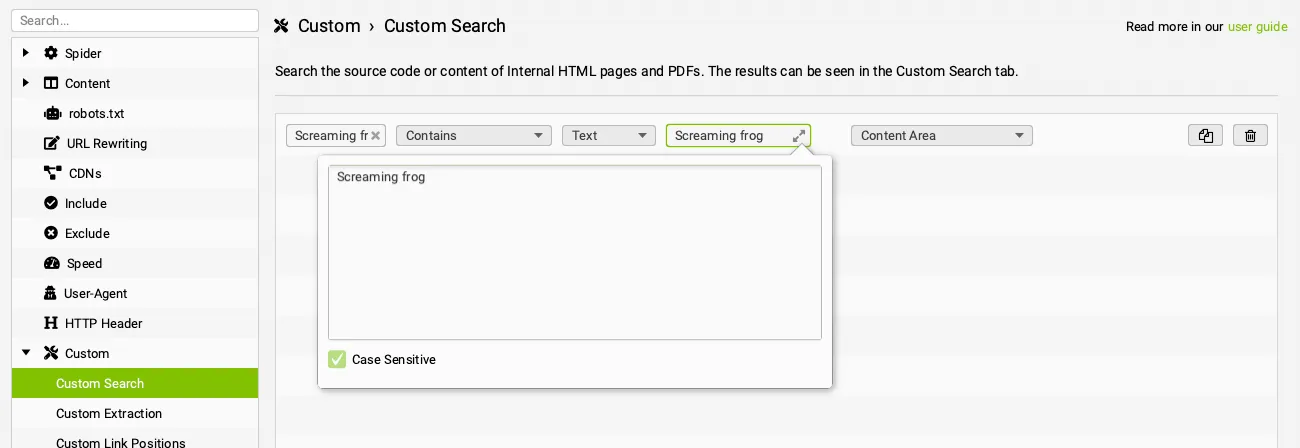
A first very interesting use in “Text” mode is finding misspellings, acronyms and so on, taking letter case into account (regex is case sensitive by default) by enabling the relevant option.
Searching for exact-match queries
Another use of Custom Search in regex mode is searching for specific queries (exact match). This lets you spot cannibalisation issues with strategic keywords used on several landing pages, which could undermine their search intent on Google.
\bquery\bYou can extend the search to several words in the same Custom Search by separating the regex with “|” (the pipe symbol). This lets you assess keyword density in the text and avoid keyword stuffing penalties.
\bquery1\b|\bquery2\b|\bquery3\bIn the next example we searched for the queries “natural”, “organic” and “free”.
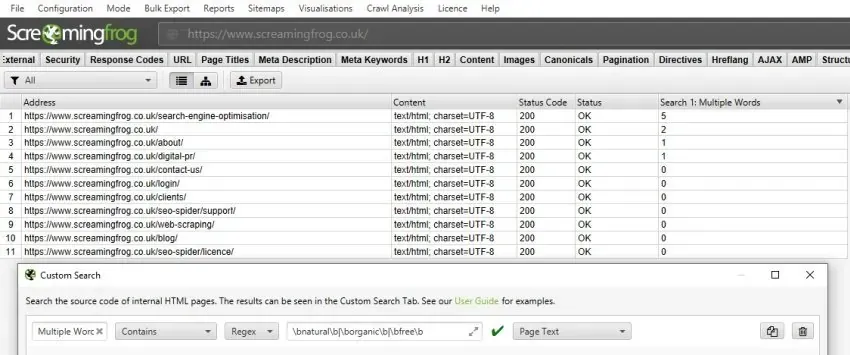
The crawl shows 5 occurrences of the three words in total on the first page.
Custom Search options
Custom Search offers 7 options to limit the search area:
- HTML: the whole HTML code.
- Page Text: only the page text, excluding all HTML elements.
- Page Text No Anchors: the page text, excluding any HTML and any text inside HTML anchor tags (also known as A elements). Useful when searching for words that also appear in link text in menus.
- HTML Head: the search is limited to the HTML head.
- HTML Body: the search covers the text and HTML elements of the body tag.
- XPath: lets you specify an XPath to define where in the HTML to search. For example, to limit the search to the text in h3 headings, enter //h3.
- Content Area: the search runs within the content area, the body element by default.
For example, we could check whether the name Screaming Frog is always written correctly in blog posts or has misspellings. Specifically, we asked SEO Spider whether the tool’s company name is written correctly or with a lowercase letter at the start of the second word: “Screaming frog”.
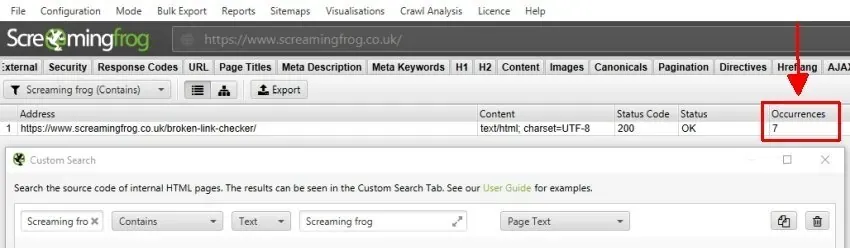
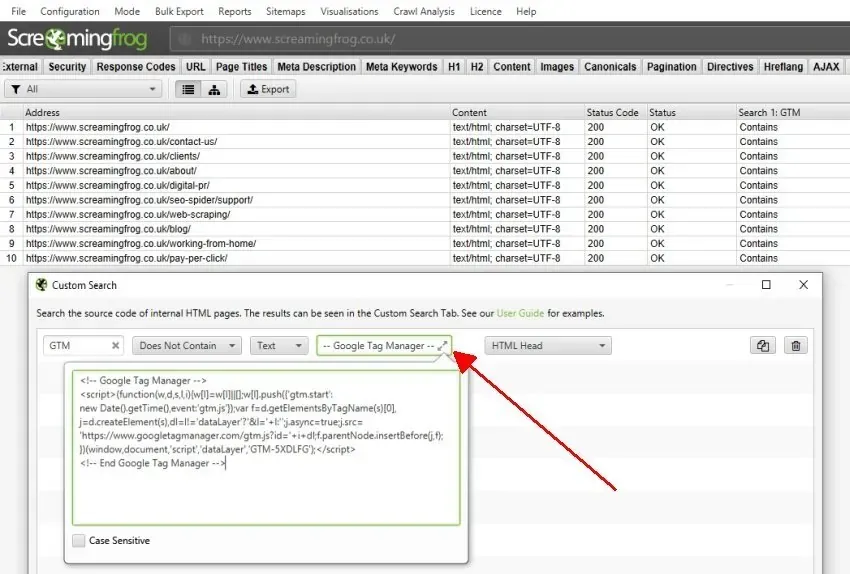
Note: the custom search settings screen has a single-line input field but, by clicking the two small arrows, you can expand it to enter several lines of code or whole sentences.
Video tutorial
Questions about Custom Search?
These guides come from real projects. If something in your crawl doesn’t add up, or you want to apply this process to your site, get in touch.
 Author.Raffaele Visintin.Search & Strategic Marketing Advisor