

Duplicate Content Analysis.
Analysis and best practices to avoid duplicate content and keep your search engine rankings.
How to use Screaming Frog to find both exact duplicates and near-duplicate content that risks cannibalising queries. You set the similarity threshold, read the Content tab filters and bulk export the URLs to fix.
Duplicate content
As Google has stated many times, content is one of the most important ranking factors, and handling duplication is one of the tasks to consider in every SEO optimisation.
Duplicate content is one of the problems that most often clips a project’s wings, and it should be kept to a minimum so as not to waste Crawl Budget.
An SEO specialist shouldn’t stop at understanding and optimising identical pages: the work should also cover “similar” content that could cause “query cannibalisation”, making the search engine’s crawling completely inefficient.
In this tutorial we’ll see how Screaming Frog lets you find both exact duplicate content (with the same hash) and similar content that might look like it has the same “Search Intent” in Google’s eyes.
-
- Enable ‘Near Duplicates’ via 1Configuration›2Content›3Duplicates.
By default, Screaming Frog automatically identifies exact duplicate pages (duplicate pages share the same “Hash”), while to identify similar content you need to enable the “Enable Near Duplicates” option. Once it’s on, SEO Spider treats as “similar” any document with a match of at least 90%.
You can also adjust this threshold to whatever suits your project best.
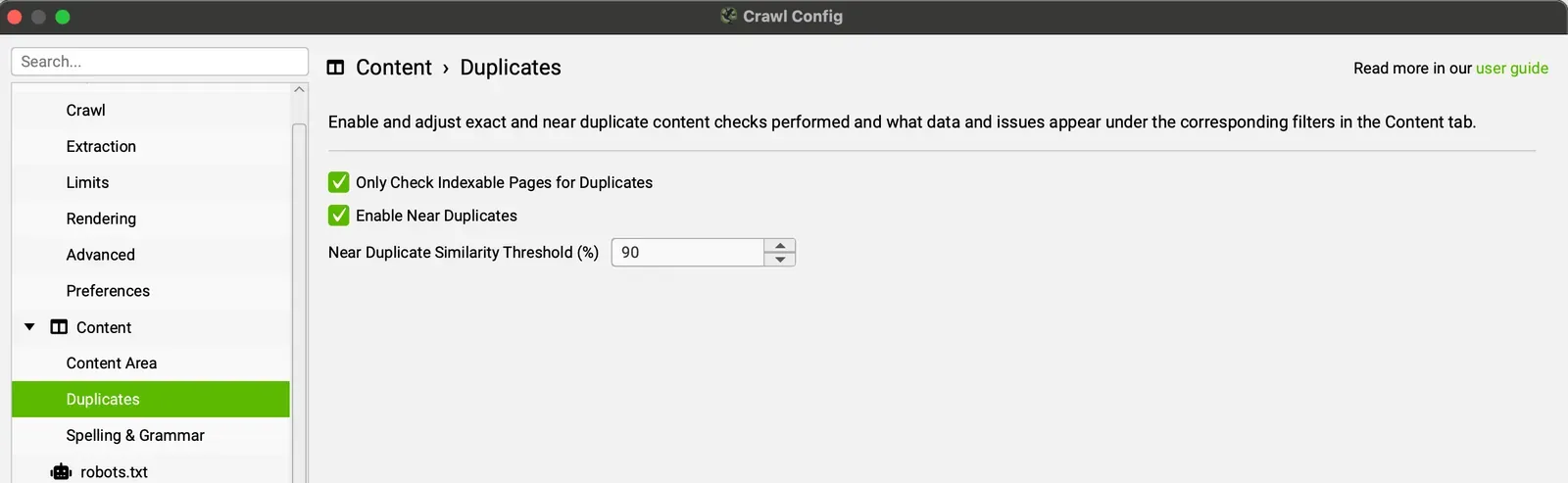
By default, SEO Spider only checks for similar or duplicate pages if they are ‘indexable’ and not “canonicalised”; my advice is to untick ‘Only Check Indexable Pages For Duplicates’, as this can help you find areas of potential Crawl Budget waste.
Note: as a rule, for new projects where you handle all the keyword research, I recommend setting the threshold to 50–60%, while on projects with some history at least 70%, to be sure that each Search Intent is always unique and clearly defined.
With Search Console you can regularly check the query–landing page relationship and, in case of cannibalisation, choose the most suitable landing page for that specific Search Intent (also checking GA data), then refresh the content of the secondary pages or, in some cases, remove them.
-
- Define the content area to analyse
For this task too, Screaming Frog is very flexible and lets you choose where to focus when looking for duplicate or similar content.
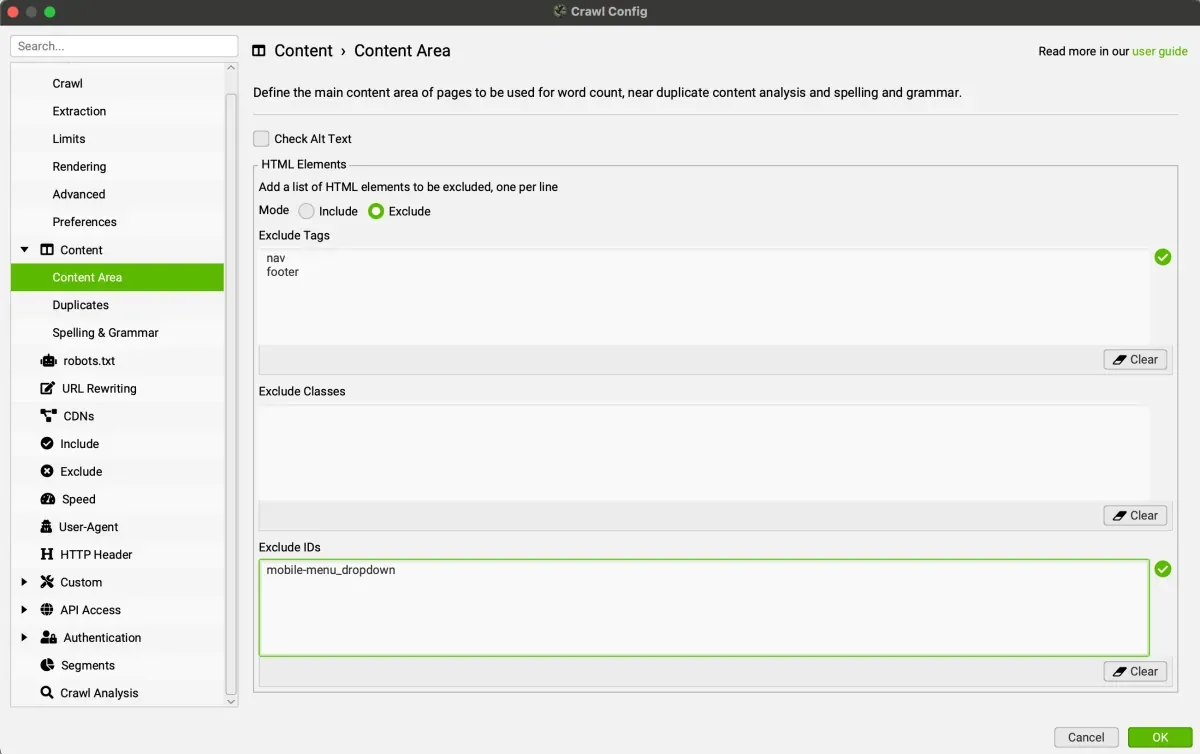
By default, SEO Spider automatically excludes the <nav> and
<footer> elements to focus on the main body content. However, not every website is built using these HTML5 elements, so SEO Spider lets you ‘include’ or ‘exclude’ specific HTML tags, classes or IDs from the analysis.
For example, if you crawl Screaming Frog’s website you’ll notice it has a mobile menu outside the “nav” element which, by default, is still included in the content analysis. In this case you could specify the menu class (‘mobile-menu__dropdown’) and exclude it to focus more on the main content.
-
- Crawl the website.
-
- View the duplicates in the “Content” tab
The “Content” tab gives you two filters:
- ‘exact duplicates’ (identical content).
- ‘near duplicates’ (similar content).
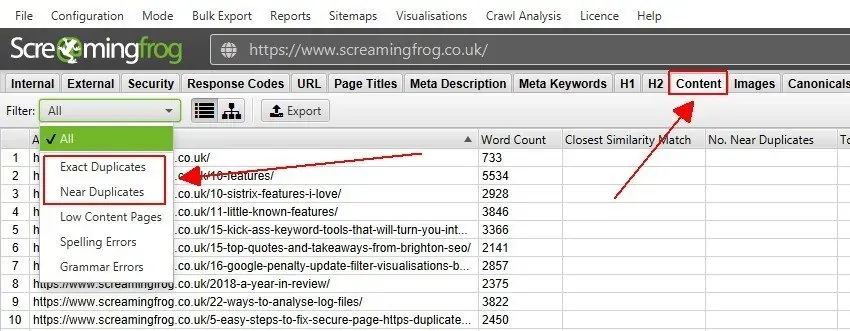
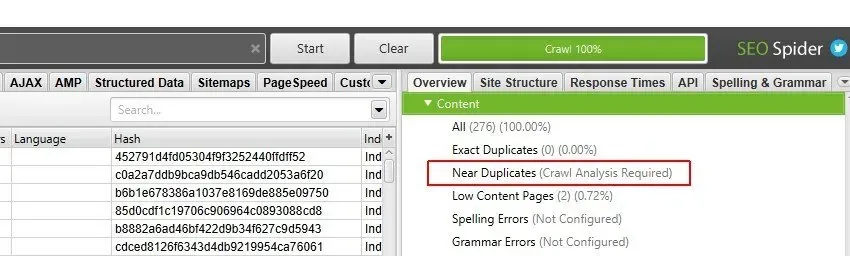
During the crawl this tab fills with data as the crawl progresses, but it only shows “exact duplicates”.
-
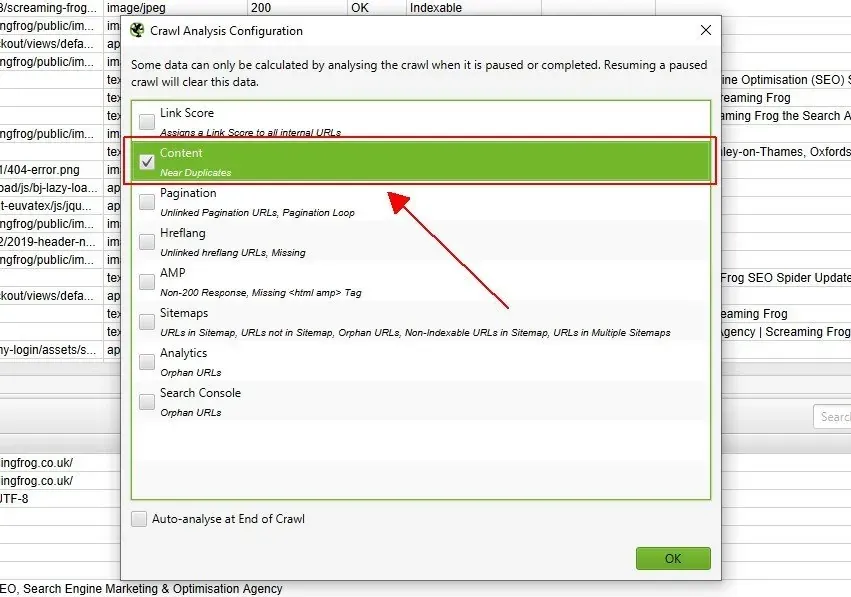
- Configure Crawl Analysis
To populate the ‘Near Duplicates’ filter and the “Closest Similarity Match” and “No. Near Duplicates” columns, you need to configure and run Crawl Analysis.
-
- View the ‘Content’ tab and the “Exact” and “Near” filters
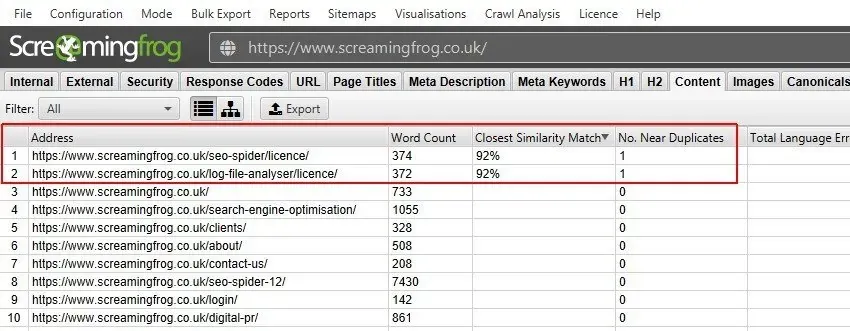
After running the post-crawl analysis, the “Near Duplicates” filter and the “Closest Similarity Match” and “No. Near Duplicates” columns will be populated.
Only URLs with content above the selected similarity threshold will contain data; the others will stay blank.
In the case below, Screaming Frog’s site has only two resources at a 92% threshold that need optimising.
For a more precise assessment, you can sort the data by the two filters:
- Exact Duplicates: identifies pages with an identical “hash”.
Very useful for managing main pages and pages to “canonicalise”. - Near Duplicates: identifies pages with a “similarity” above 90%, or a different value if you changed it via “Config > Content > Duplicates”.
In short, the “Closest Similarity Match” column shows the similarity percentage, while “No. Near Duplicates” shows the number of pages involved.
-
- View duplicate URLs in the ‘Duplicate Details’ tab
For “exact duplicates”, just go to the “hash” column and sort it by clicking the header to find all the matches.
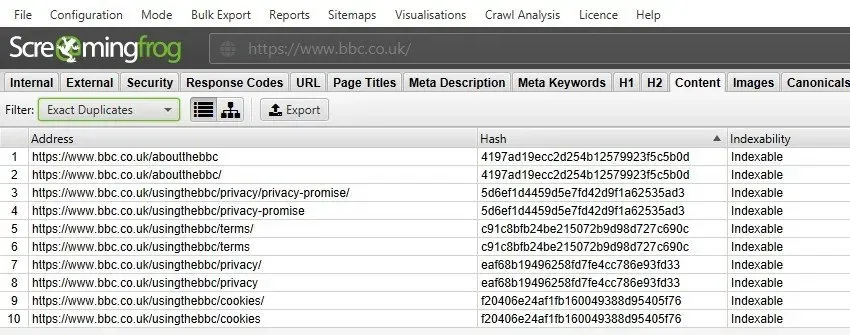
In the BBC website example, every URL has an exact duplicate because it exists in two versions, one with the “/” and one without.
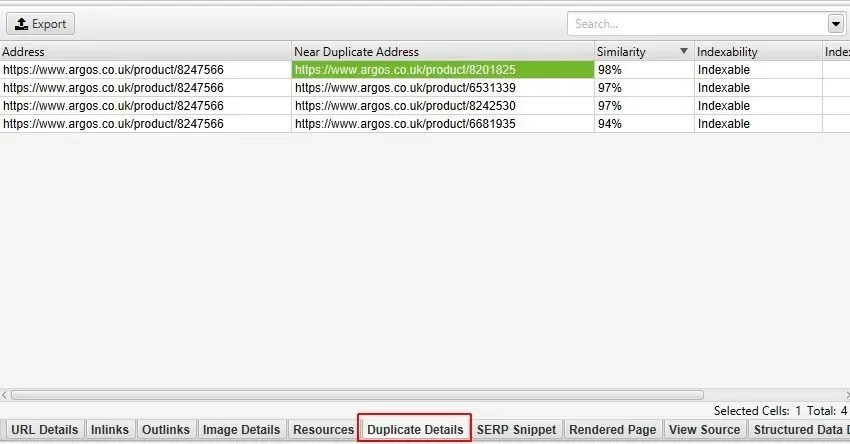
To find “near duplicates (similar)”, just click the “Duplicate Details” tab in the bottom window.
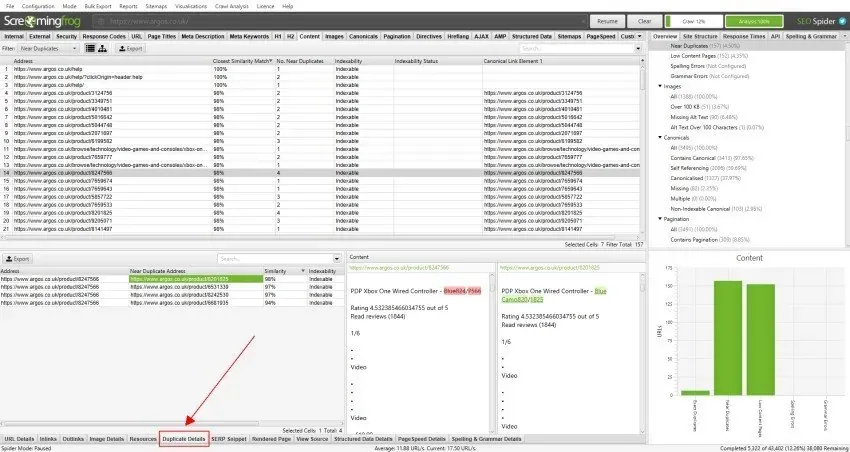
In the case above, clicking a URL in the top window shows 4 pages above the 90% similarity threshold.
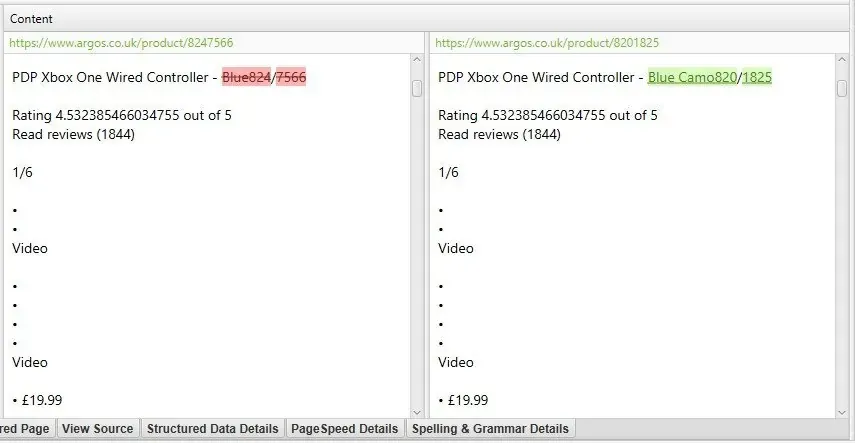
SEO Spider also offers a preview of near-duplicate content in the “Duplicate Details” tab, giving a very intuitive view of the text that differs between the pages being compared.
-
- Bulk export duplicate URLs
Both exact duplicates and near duplicates can be bulk exported.
1Bulk Export›2Content›3Exact Duplicates / Near Duplicates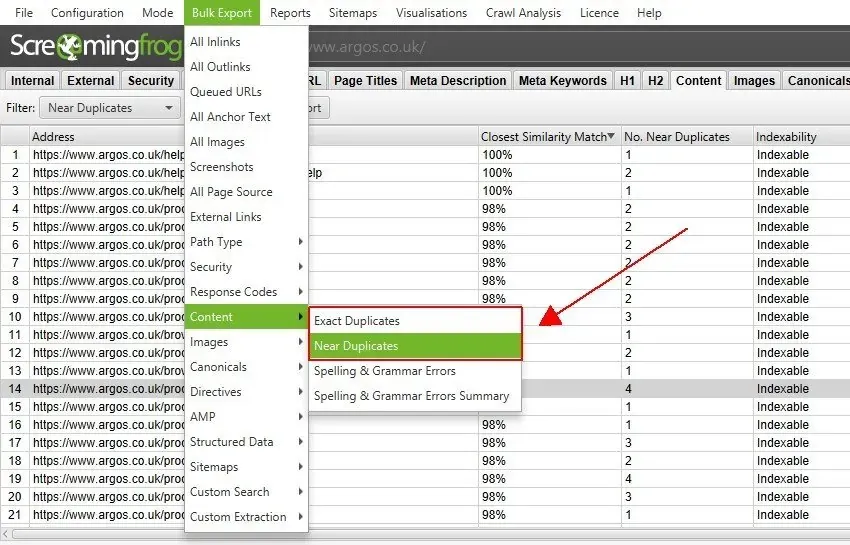
Related tabs: Content | Side panel | Reports
Duplicate content analysis video (in Italian)
Query cannibalisation (in Italian)
Questions about Duplicate Content Analysis?
These guides come from real projects. If something in your crawl doesn’t add up, or you want to apply this process to your site, get in touch.
 Author.Raffaele Visintin.Search & Strategic Marketing Advisor