

IMAGES TAB.
Analysing image issues: file size, alt text, image sets and file format.
Guide contents 5 sections
●Brief01.Images tab overview02.Columns03.Images tab filters04.Video tutorialWhat you’ll find in SEO Spider’s Images tab and which image aspects to check for SEO: file size, file name and alt text. With the filters for heavy images or images without alt text.
Images tab overview
Images are one of the most common resources on websites and e-commerce stores, used to showcase products and services. Search engines pay a lot of attention to them, and poorly managed images can be a real pain point that leads to penalties in the SERPs.
Among the factors to optimise, pay attention to:
- Image file size: image weight can affect page load time and can also eat into crawl budget. Since images are by nature among the largest elements of an HTML page (in terms of the space they take up), if they aren’t configured correctly they can hurt LCP (Core Web Vitals). The SEO Spider uses kilobytes as the unit of measurement.
- Image file names: an appropriate file name helps the bot index the image correctly and include it in image search results, for related queries too.
- Alt text: this attribute is very important because it lets the crawler understand the content of the image immediately. Together with the file name and its position in the text, it allows correct indexing in image search and protects the site from potential soft penalties. Alt attributes should provide relevant, descriptive alternative text about an image’s purpose, and appear in the HTML source like this:
<img src="screamingfrog-logo.jpg" alt="Screaming Frog" />The images tab shows the data for every image found during a crawl. This includes both internal and external images, found via “img src” or “a href” tags. Image alt attributes (often wrongly called “alt tags”) can be viewed by clicking an image URL and then the ‘Image Details’ tab in the bottom window.
Decorative images should have empty alt text (alt="") rather than a missing one, so assistive technologies such as screen readers can ignore them.
<img src="decorative-frog-space.jpg" alt="" />Columns
The available columns are:
- Address: the crawled URL.
- Content: the image content type (jpeg, gif, png etc.).
- Size: the image size in kilobytes. When you export image data, size is in bytes, so divide by 1,024 to convert to kilobytes.
- Indexability: whether the image URL is indexable or non-indexable.
- Indexability Status: the reason an image URL is non-indexable, for example because it’s canonicalised to another URL or has a “noindex” tag.
Images tab filters
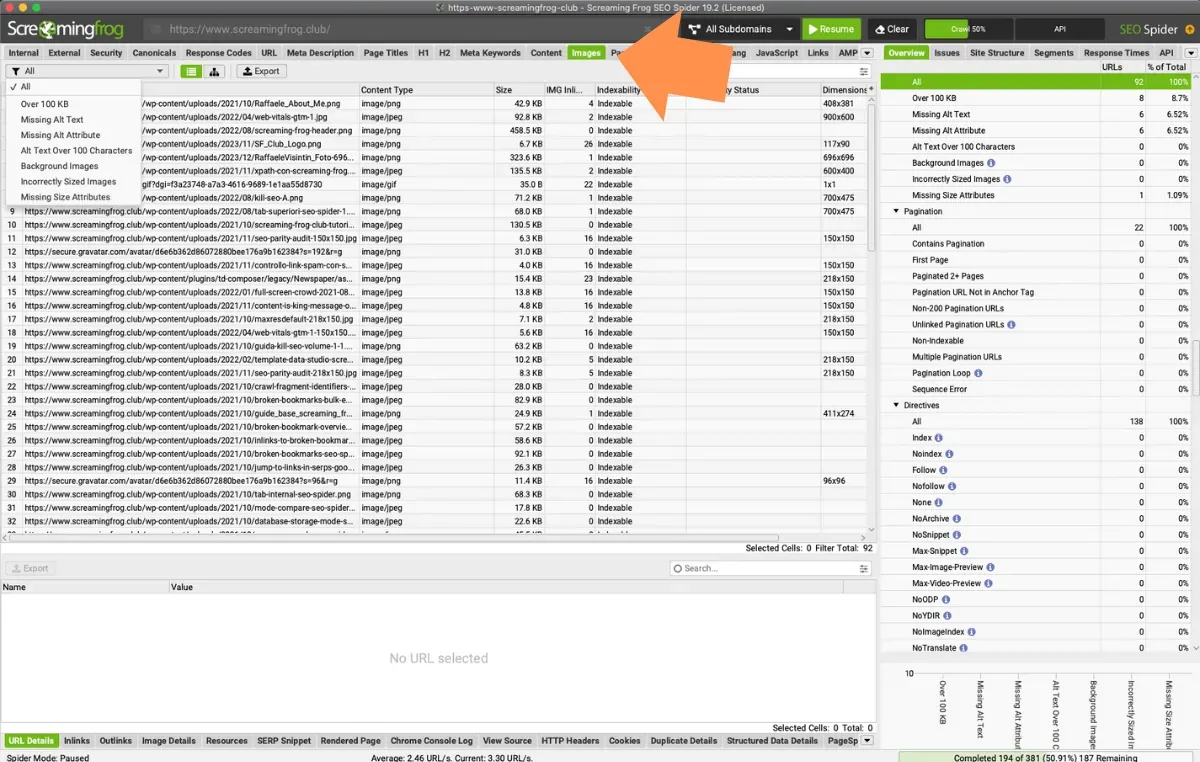
The available filters are very useful:
- Over 100kb: images over 100 KB. Page speed is extremely important for users and SEO, and large resources such as images are often one of the most common causes of slow pages. This filter simply acts as a rule of thumb to help identify images with a fairly large file size that may take longer to load. They should be considered for optimisation, together with the opportunities in the PageSpeed tab, which uses the PSI API and Lighthouse to check speed.
This can help find images that haven’t been resized, that load offscreen, that aren’t optimised and so on. You can also customise this filter in 1Configuration›2Spider›3Preferences to set a threshold other than the default 100 KB. - Missing Alt Text: images that have an alt attribute in the HTML but no text in it. Click the image address (URL) and then the “Image Details” tab. Images should have descriptive alt text, optimised both to describe the image semantically and to help the screen readers used by blind and partially sighted people.
- Missing Alt Attribute: images with no alt attribute at all.
- Alt Text Over 100 Characters: images whose alt text is longer than 100 characters. Avoid stuffing keywords into this attribute and prefer text that makes semantic sense in the context where the image appears.
- Background Images: images loaded as CSS backgrounds, discovered with JavaScript rendering and Crawl Analysis.
- Incorrectly Sized Images: images served larger than the size at which they’re displayed on screen (requires JavaScript rendering and Crawl Analysis).
- Missing Size Attributes: images without width and height attributes, a frequent cause of CLS.
Video tutorial
Questions about IMAGES TAB?
These guides come from real projects. If something in your crawl doesn’t add up, or you want to apply this process to your site, get in touch.
 Author.Raffaele Visintin.Search & Strategic Marketing Advisor