

List Crawl Mode.
How to make the most of Screaming Frog’s “List” crawl mode
How to use SEO Spider’s List mode to crawl only a list of URLs, uploaded from a file, pasted or taken from a sitemap. See how it differs from Spider mode and how to follow redirect chains to the end.
List mode
SEO Spider has two main crawl modes: the standard Spider mode, which crawls a whole website, and List mode, which limits the crawl to a specific list of URLs you upload.
Let’s see how to make the most of the second option. First, switch the crawl mode from 1Mode›2List in the main menu.
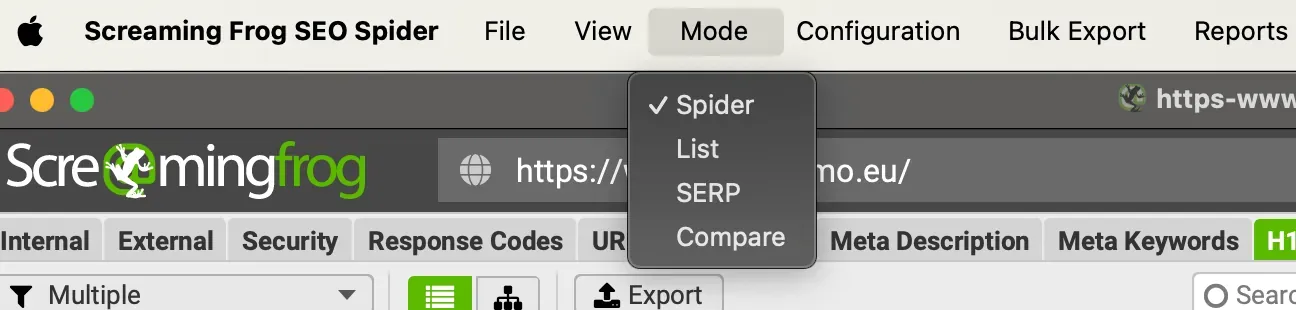
In terms of configuration, there are two key differences between List mode and Spider mode:
- Interface: instead of the address bar you get an Upload button to load your URLs.
- Crawl depth: in List mode Limit Crawl Depth is automatically set to 0. Only the uploaded URLs are crawled, while Spider mode also follows images, external links and so on.
The only exception is JavaScript rendering: SEO Spider has to crawl the page’s resources to render it correctly in its Chrome browser.
Uploading and exporting URLs
Uploading the list
With List mode selected, click Upload and choose whether to load URLs from a file, enter them manually, paste them or download an XML sitemap.
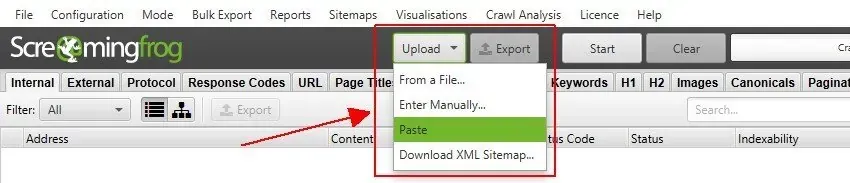
Things to keep in mind with this mode:
- the URLs must include the “http” or “https” protocol, otherwise SEO Spider won’t find any URL to crawl;
- Screaming Frog normalises URLs on upload and deduplicates them during the crawl.
For example, say you upload these 4 URLs:
- www.screamingfrog.co.uk/
- www.screamingfrog.co.uk/#fragment-this-wont-be-crawled
- www.screamingfrog.co.uk/seo-spider/
- www.screamingfrog.co.uk/seo-spider/
SEO Spider works out automatically how many unique URLs there are to crawl. In the example it counts only 2 unique URLs: the “#” fragment isn’t a separate URL and the /seo-spider/ page is duplicated. It looks trivial, but with lists of thousands of URLs it’s less obvious.
After the upload, SEO Spider reports finding 4 URLs, normalises them and crawls 2.
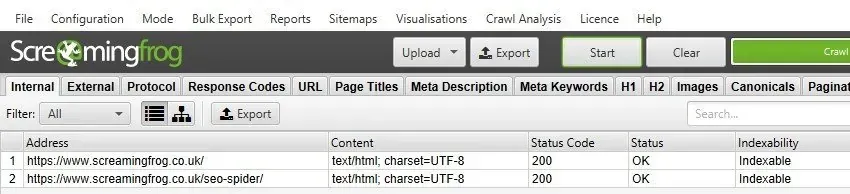
Exporting the data
Once you have the crawl data, use Export from any tab to export the report.
In the export, the original URLs stay as a reference (Original URL column), next to the URLs normalised by the crawler (Address column), in the same order you uploaded them.

Best practices
Knowing how SEO Spider works in this mode, let’s look at some advanced uses that help you focus your analysis and save time.
A list of URLs and linked elements
A first use is a targeted crawl of the uploaded URLs together with one or more linked elements, such as images, canonicals or hreflang.
To do this, remove the crawl depth limit (Limit Crawl Depth), which is set to 0 by default:
1Configuration›2Spider›3Limits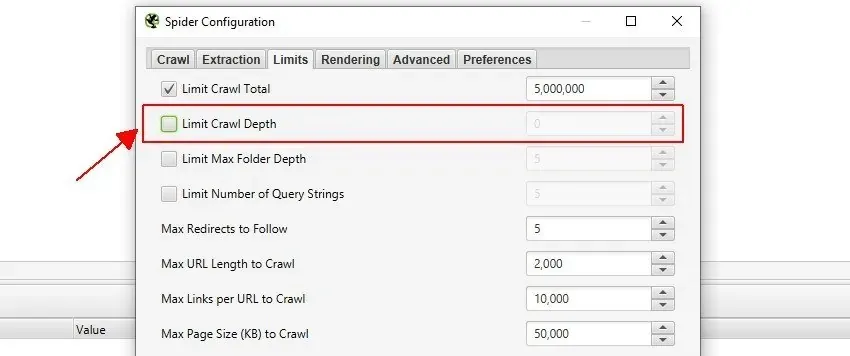
Without a limit, SEO Spider crawls your list of URLs plus every URL on the same subdomain they link to, which isn’t exactly what we want.
The next step is to choose exactly which resources to crawl: go to 1Configuration›2Spider›3Crawl and disable all the Resource Links and Page Links you don’t need, keeping only those relevant to your analysis.
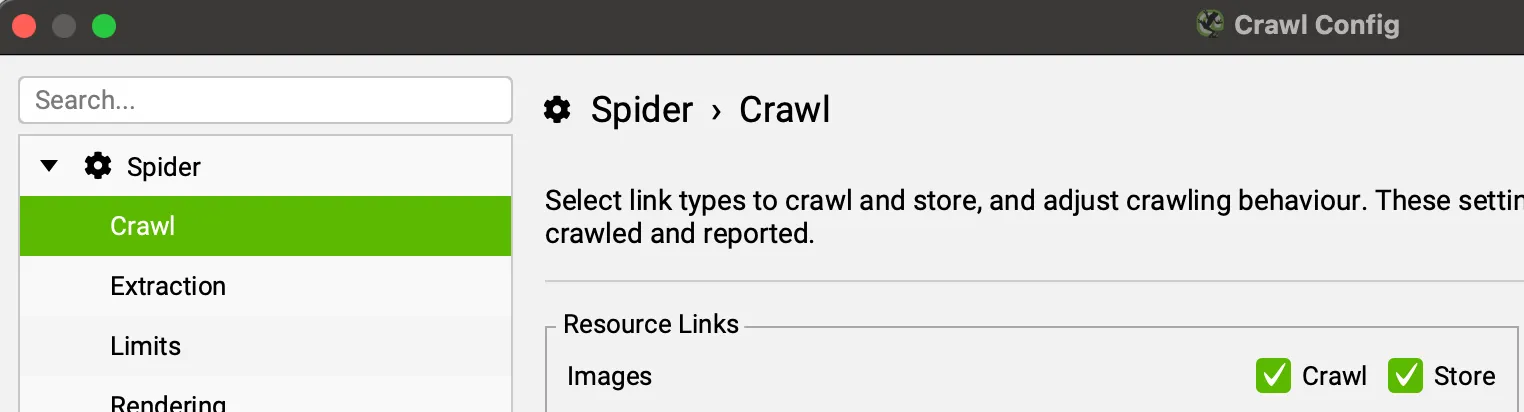
This way you focus exactly on the URLs to analyse and the elements that matter most to you, without wasting time.
Redirect audits
If you’re checking redirects for a migration, it’s especially useful to also crawl the destination URLs and every redirect chain you meet.
For this audit, enable Always Follow Redirects in 1Configuration›2Spider›3Advanced.
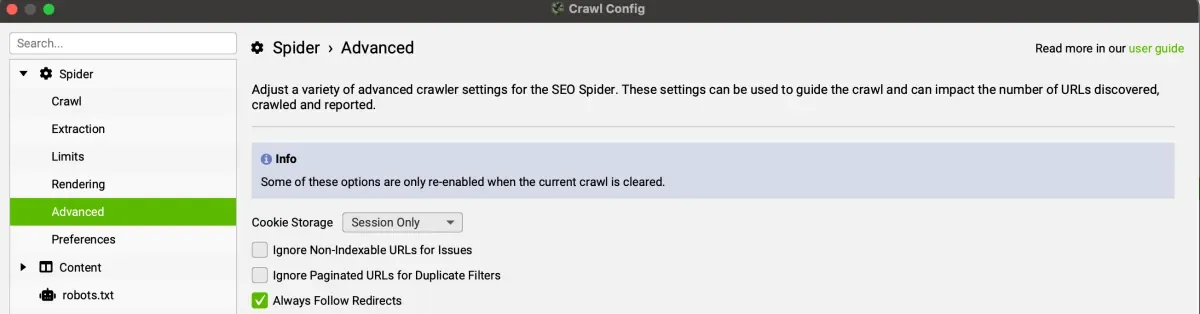
With this option the depth limit is ignored and redirects are followed until a non-3xx response, or up to the Max Redirects To Follow limit set in 1Configuration›2Spider›3Limits. That way you don’t have to upload several lists of destination URLs to reach the end of the chain.
At the end of the crawl, use the All Redirects report (1Reports›2Redirects›3All Redirects), which maps the whole redirect chain in a single report.
Further readingRedirect SEO audit.How to analyse a site’s redirects, chains and loops with SEO Spider, in Spider and List mode.Read the guideQuestions about List Crawl Mode?
These guides come from real projects. If something in your crawl doesn’t add up, or you want to apply this process to your site, get in touch.
 Author.Raffaele Visintin.Search & Strategic Marketing Advisor