

Log Files and SEO.
How to use log files to optimise a website’s SEO
Guide contents 7 sections
●Brief01.Log files and SEO02.Log File Analyser03.Crawl frequencyHow to analyse log files with Screaming Frog’s Log File Analyser to see what bots really crawl. Find low-value URLs, crawl frequency, errors, redirects, fake bots and the differences between crawl and logs.
Log files and SEO
What are log files?
In 2026 SEO can no longer rely on crawls alone: it’s time to dive into log files. Web logs aren’t just technical traces: they powerfully reveal how real search bots behave, not simulated ones (unless they’re spoofed). With Screaming Frog Log File Analyser, analysing log files becomes accessible to every SEO, and lets you discover:
- which URLs Googlebot actually crawls (and which it ignores);
- where crawl budget is wasted and which 404 errors or redirects deserve priority;
- orphan pages, unindexed content and structural anomalies that were previously invisible.
With this tool, SEO professionals can turn logs from raw text into strategic insights that are essential for optimising site architecture and ensuring consistent, targeted crawling. At a time when SEO is increasingly technical and driven by real data, log file analysis is no longer optional but a necessity.
When we talk about analysing web server logs, we mean access logs (Access Log).
Web servers also produce other log files, such as error logs, but for SEO analysis we only need a website’s access logs.
Typically the file has one line per request, including some or all of the following data:
- Time of the request;
- URL requested;
- User agent supplied with the request;
- Website response code;
- Response size;
- IP address of the client that made the request;
- Time taken to serve the request;
- Referrer, the page that provided the link for the request.
Having an accurate record of every request a web server receives is extremely useful, because it allows very efficient, versatile analysis to find errors and issues and to assess the project’s architecture.
Why analyse log files?
Log files are an incredibly powerful, yet still underused, way to gain valuable insight into how each search engine crawls your site.
That’s why every SEO should analyse them, even though access logs can be hard to get from the client (and/or from the hosting provider, server and development team).
Log file analysis can help you:
- Check exactly what can or can’t be crawled. A crawl is a simulation, while log files show exactly what was crawled (the full story).
- See the responses search engines met while crawling (and compare data across crawls over time). With log file analysis, problems can be qualified. If you find several 404s during a crawl, it’s hard to know which matter most; analysing the log files shows how often they occurred, helping you prioritise fixes.
- Identify crawl gaps, which may have wider site-level implications (such as hierarchy or internal link structure).
- See which pages search engines prioritise and consider most important, and which could be optimised for a more suitable crawl frequency. This is underrated, but the strategic view of the website often doesn’t match the search engine’s behaviour.
- Uncover areas of wasted crawl budget.
- Find orphan URLs. If a URL isn’t linked internally, it won’t be found by crawling the site. URLs linked only externally (or historically) will show up in the logs, so you can manage, optimise or remove them.
- See changes over time. A crawl is a snapshot, while log files give historical information on every resource.
By analysing this precious data you can preserve crawl budget and identify which elements are hurting the bot’s navigation.
Here are some very common issues:
- Faceted navigation and session identifiers.
- Duplicate content on the site.
- Soft error pages.
- Hacked pages.
- Infinite spaces and proxies.
- Low-quality content and spam.
So it’s worth not letting the bot waste time and energy crawling URLs like these, as it reduces crawl activity and delays the crawling of your most important pages.
Log File Analyser
Importing logs and verifying bots
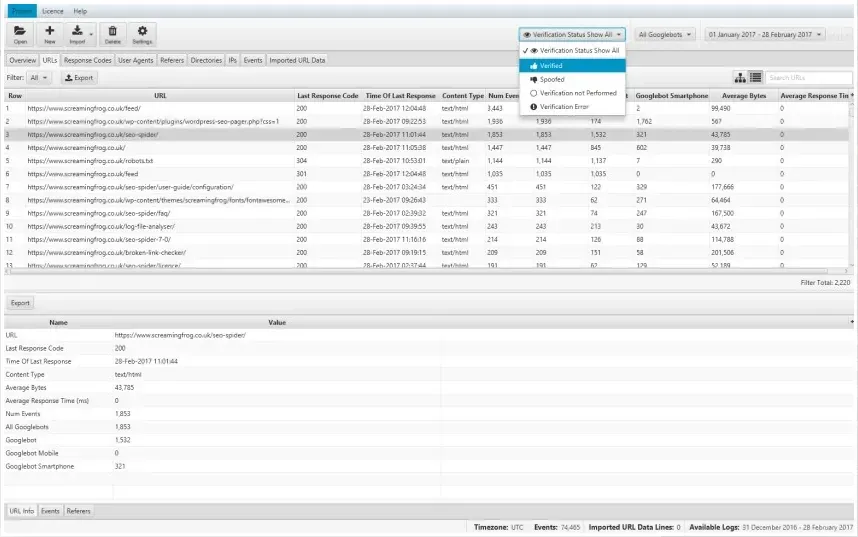
The basis of log file analysis is being able to check exactly which URLs were crawled by search engine bots. With Log File Analyser you can import your log files simply by dragging and dropping them into the interface, and search engine bots are verified automatically.
After importing, use the “Verification Status” filter to show only verified bots and the “User-Agent” filter to see “all bots” or isolate a specific one such as “Googlebot” or “Googlebot Smartphone” for granular analysis.
After this very simple, intuitive setup you’ll get exactly the URLs crawled by the bot, filtered in the “URLs” tab and ranked by the number of events generated in a given period.
Identifying low-value URLs
Content is one of the most important SEO ranking factors, and understanding which URLs are crawled and how often can help you find potential areas of crawl budget waste, such as faceted navigation, session IDs or duplicate content.
For example, using the tool’s search bar you could look for a question mark (?) in the URL path (common on e-commerce sites with filters), which helps you identify parameterised URLs that may not be canonicalised and are frequently crawled by Googlebot.
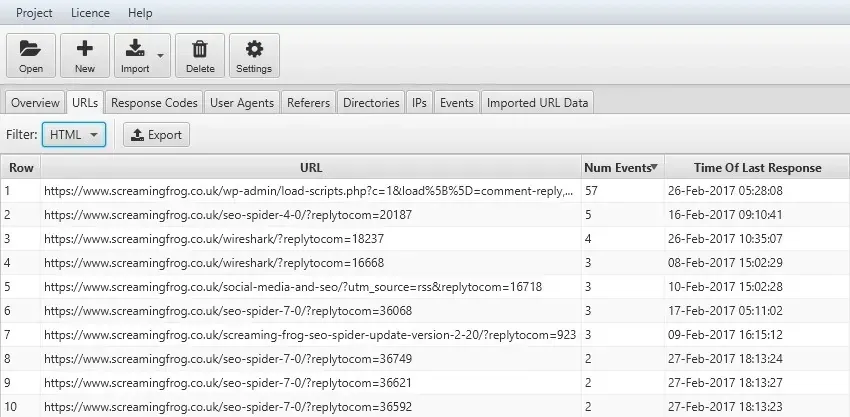
As you can see in the example above, the first entry generated 57 events, corresponding to WordPress comments: not exactly a high-value resource. In this case simply disabling comments fixes the issue and protects crawl budget.
Clicking the “URL” column header sorts URLs alphabetically, revealing URLs that differ only by session ID or by parameters that shouldn’t be available to the bot.
Clicking “Num Events” shows you the resources crawled most and least often over a given period.
Crawl frequency
Analysing crawl frequency
How often Googlebot requests a page depends on several factors, such as content freshness or the importance Google assigns to a resource relative to others. Simplistic as it is, the number of events per URL is a very useful indicator for spotting underlying issues between resources.
Using the filters in the main bar menu you can also choose which events come from each spider, including bots such as Bing, Yandex or others that might skew the data and create “false positives” in strategic analyses, or put a heavy load on the server.
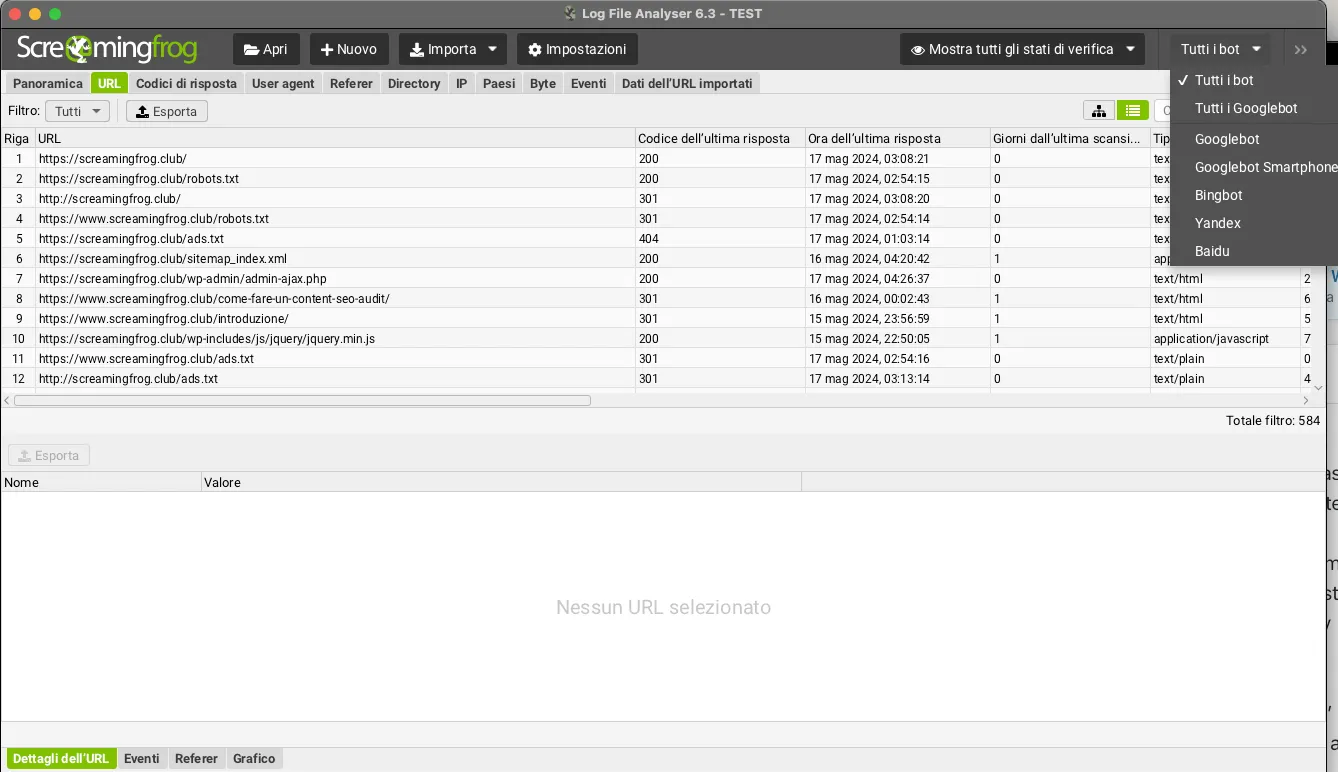
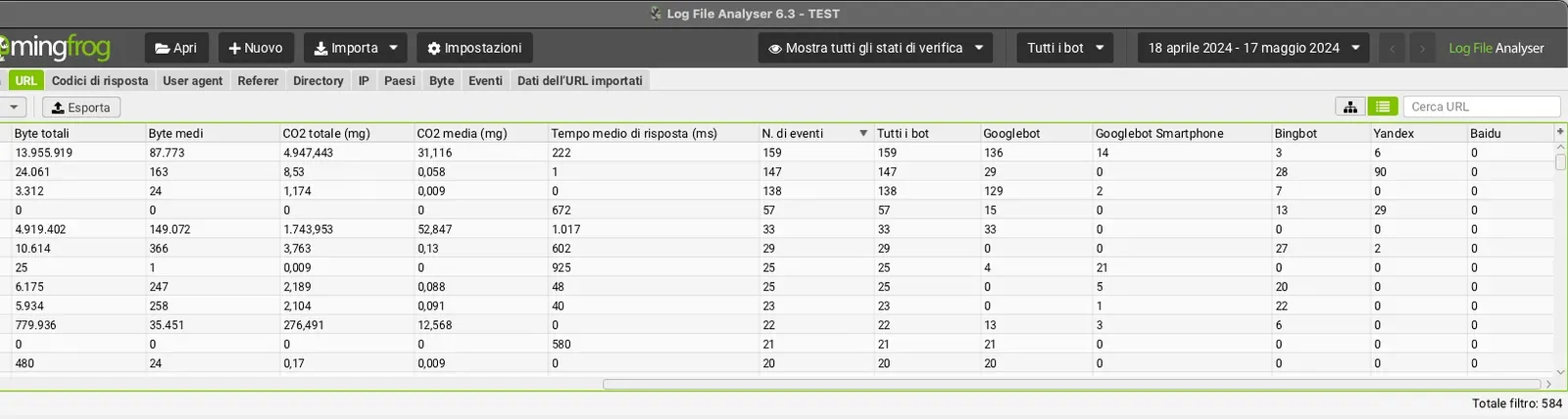
If you keep the default “All Bots” setting, you get an overview of events per URL, with a breakdown by spider as you scroll right in the tab.
Frequency by subdirectory
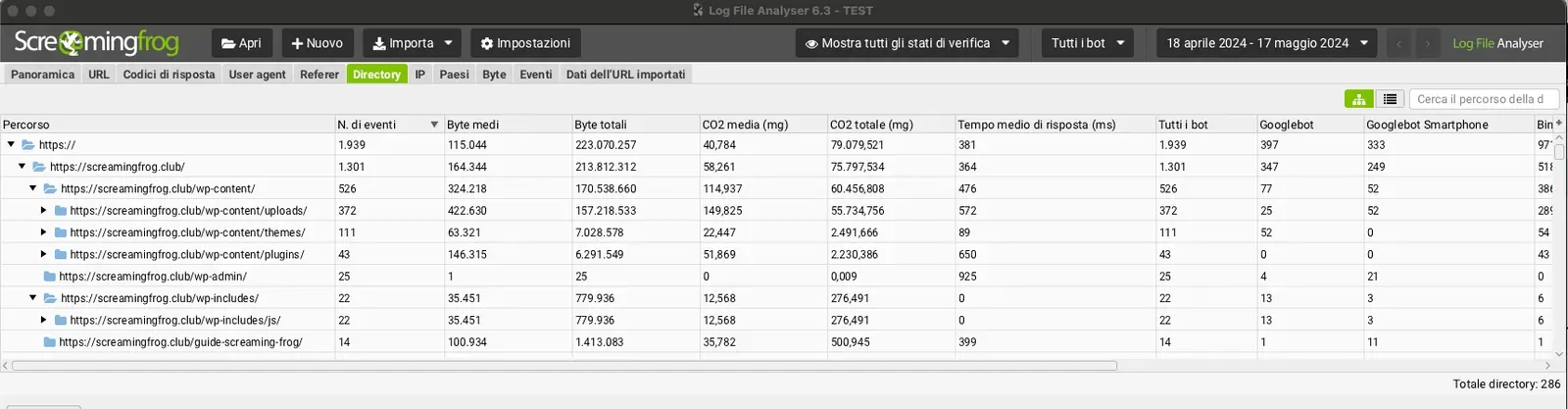
The next step in log file analysis is to look at subdirectories (Directories tab).
This shows which areas perform well and which need optimising, perhaps because of issues that stop the crawler from navigating smoothly.
Focusing on subfolders helps you uncover “waste areas”.
Frequency by content type
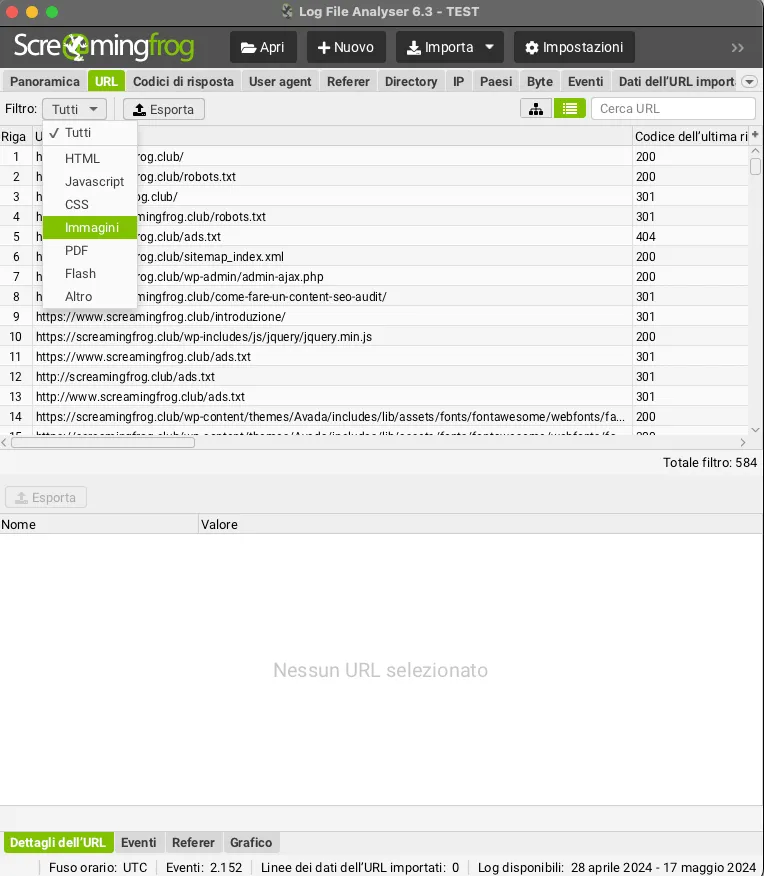
Log files don’t include a content type themselves, but Log File Analyser parses URLs for the most common formats and lets you easily filter crawl frequency by content type: HTML, images, JavaScript, CSS, PDF and so on.
This lets you see how much time Google spends, proportionally, crawling each type of content.
Frequency by user agent
Another angle is crawl frequency by user agent, which helps you understand how each search engine performs.
From this you can work out the number of unique URLs crawled in the period analysed, giving a rough indication of how long each search engine might take to crawl all the site’s URLs. This gives you an overview of the crawl budget (crawl rate) devoted to your site.
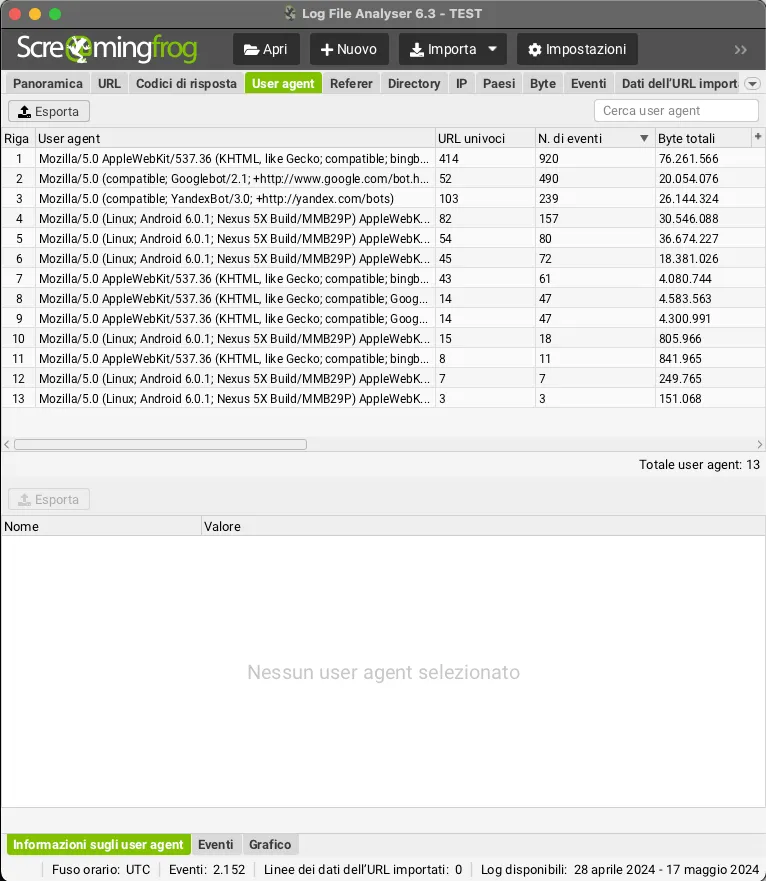
It’s very interesting to understand how the various bots behave, but above all it’s vital to see whether “Googlebot” and “Googlebot Smartphone” behave differently. For example, you can tell whether there are bottlenecks in the mobile version, or whether the site is on mobile-first indexing.
URLs crawled per day, week and month
The “Overview” feature gives you a precise summary of total events for the selected period, in a very visual, intuitive dashboard.
Another angle in log file analysis is the total number of unique URLs crawled, and the number of unique URLs crawled each day. From this you can estimate how many days search engines might need to fully re-crawl all your URLs.
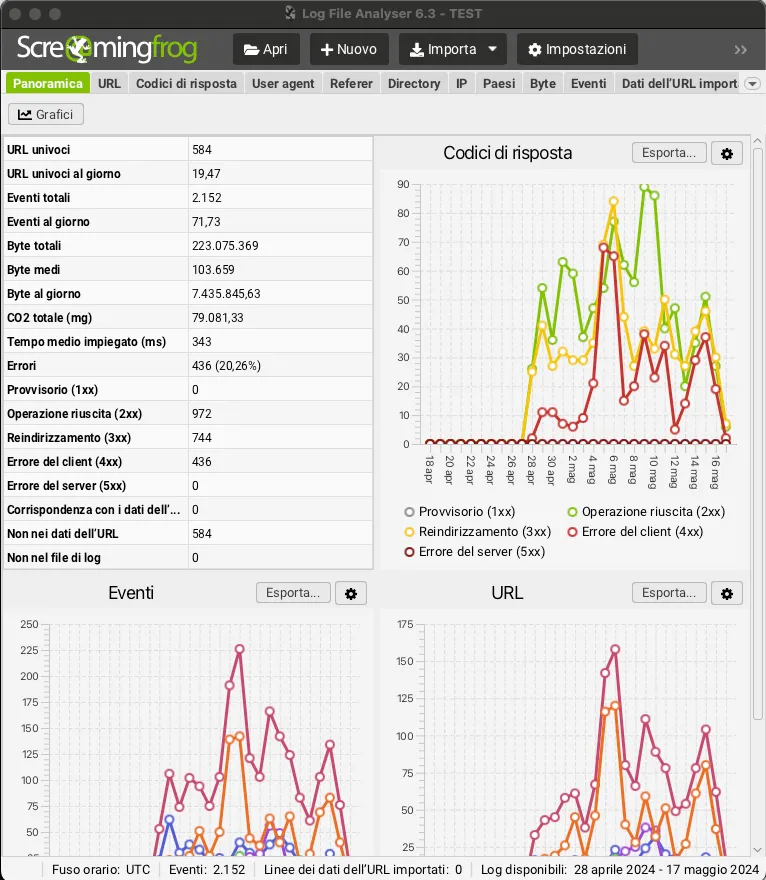
The dashboard lets you export the chart data as “.csv” and, by hovering over the chart nodes, see detailed log results by user agent or status code.
Errors and server responses
Analysing 404s and server errors
Logs let you quickly analyse the last response code search engines received for every URL crawled.
In the “Response Codes” tab, you can use the filter to show 4XX client errors to find broken links, or 5XX server errors.
You can also see which URLs are potentially most important to fix, as they’re sorted by crawl frequency.
Analysing 404s: Screaming Frog or log files?
Screaming Frog lets you analyse all existing links and any 404 errors in internal links or links to external resources, but that’s where it stops.
With log files you can also find URLs that no longer exist on the site but may have been indexed in Google’s database from earlier versions of the website (not covered by previous SEO migrations).
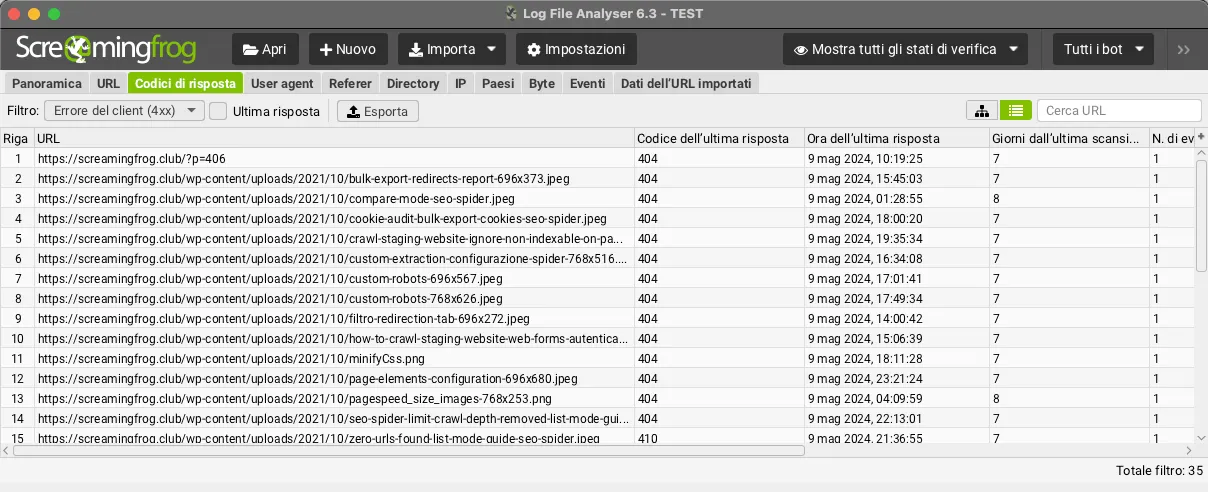
At this stage, remember to tick the “Last Response” box next to the 4xx filter, otherwise Log File Analyser will show every URL with a matching event over time (rather than only the last response), which can be misleading since the error may already have been fixed since the first day of logging.
Inconsistent responses
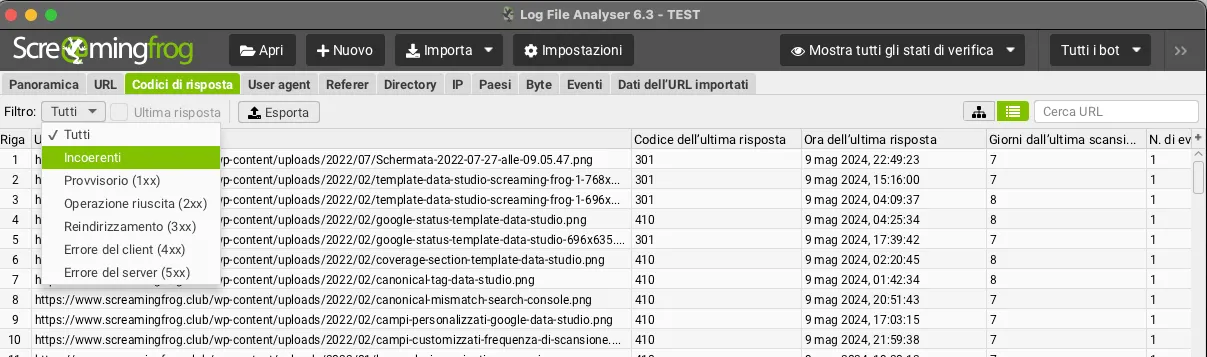
A very interesting filter, building on the previous point, is “Inconsistent”, which helps you find resources with inconsistent responses: for example because a broken link was later fixed, or because the site returns more internal server errors under load and there’s an intermittent problem to investigate.
Redirect audit
Log records show all the URLs search engines request that return a redirect.
This includes not only the redirects currently on the site, but also historical ones that are still requested from time to time, perhaps from earlier migrations.
To see URLs with 3xx status codes, just use the relevant tab with the “Redirection (3XX)” filter, together with the “Last Response” box.
Security and performance
Spoofed bots
The IPs tab, with the “Verification Status” filter set to “Spoofed”, quickly shows the IP addresses of requests that mimic search engine bots by using their user-agent string, but aren’t verified. With this data you can block those crawls and lighten the load on the server.

If you change the “Verification Status” filter to “Verified”, you can see all verified search engine bot IPs. This is useful for websites with localised pages that serve different content by country.
Identifying large pages
Another very important element in log file analysis is how long individual resources take to respond to bot requests.
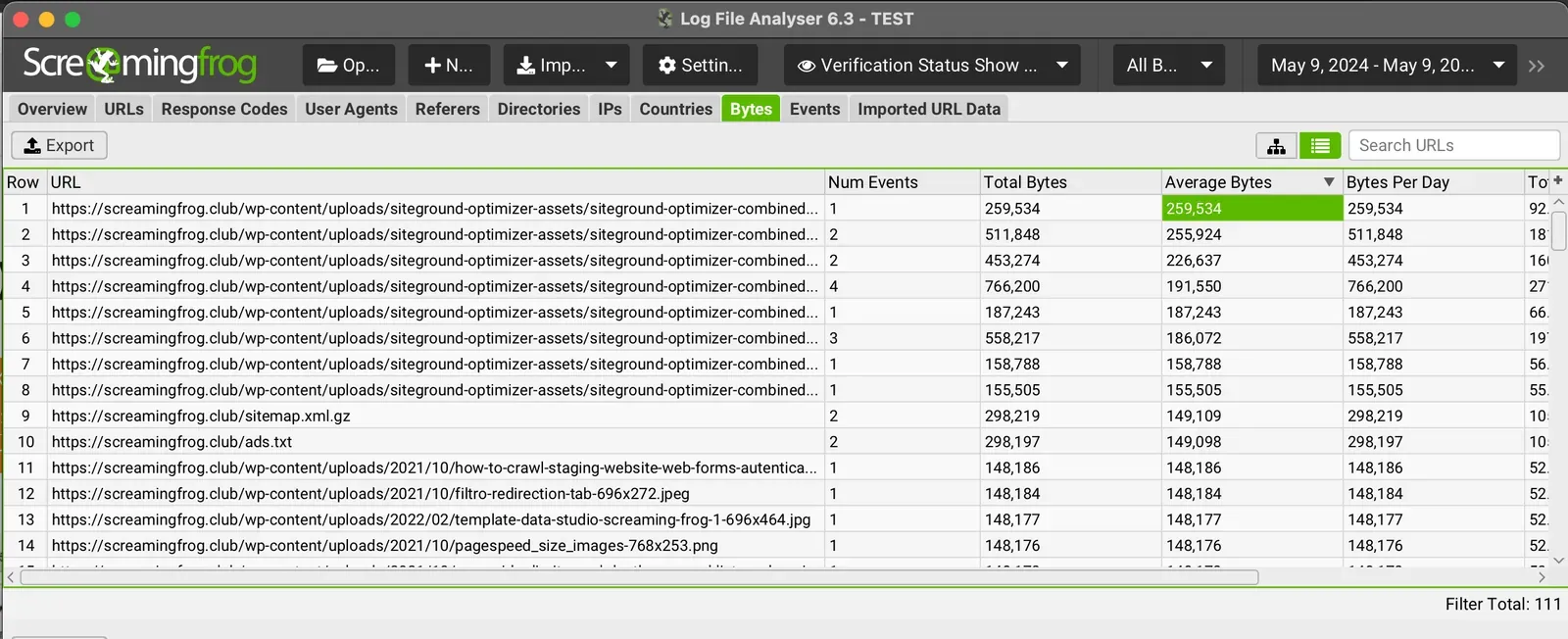
Very heavy, slow pages have a big impact on crawl budget, so by analysing URLs’ “average bytes” you can quickly identify the areas that need optimising.
Hacking and log files
Log files become essential if your site is hacked or infected with malware. Often a site is found to be compromised too late, through Search Console warnings or a sharp drop in the SERPs due to manual penalties.
In this case, crawling and removing the compromised URLs (“410” gone) may not be enough (a quick fix), and log files show you the real damage the attack has done in the search engine’s eyes, with a complete view of the pages or folders created that would keep doing harm if not removed completely.
A very common case is a “.php” or other code file that intermittently generates new spammy resources; here a crawl alone wouldn’t be enough, whereas log files would give you several alerts over time, with time to fix the issue.
Logs and SEO strategy
Crawl vs log file analysis
One of the most interesting log analyses is comparing logs with crawl data. This comparison shows whether some URLs, or whole areas of your site, aren’t being crawled by the spider.
Just export the URLs from a Screaming Frog crawl as “.csv” and import them into Log File Analyser: with the “Not in Log File” filter in the URLs tab you can easily find the areas to work on to improve the bot’s navigation, for example internal linking.
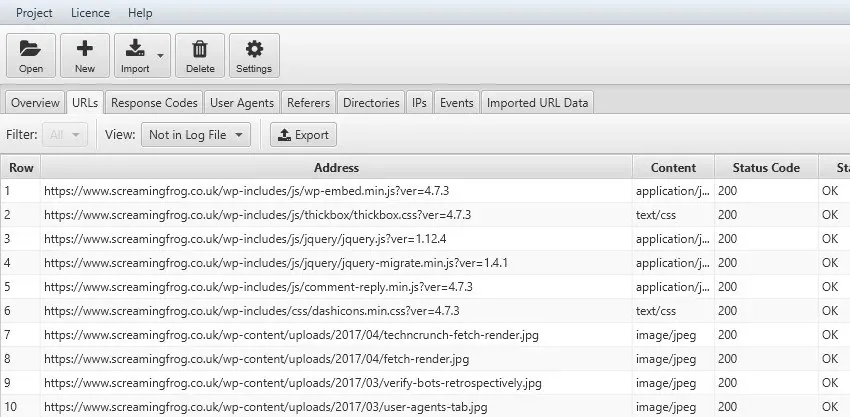
Flipping the analysis, “Not in URL Data” shows URLs in the bots’ activity but not in the Screaming Frog crawl; here you’ll find all the events generated by addresses that no longer exist, or orphan pages that aren’t linked but exist on the site. You can also analyse this with the GA4 and Search Console APIs, which let you find resources that get impressions or visits without being linked internally (e.g. pages with links from external sites).
Top crawled pages
By now you’ll have understood how important log files are, but I’d like to draw your attention to another aspect besides simply finding errors.
Knowing your logs gives you a 360° view of the website’s strategy and architecture. You could compare the top pages for search engines (by events) with what should be your most visited pages. If there are mismatches, you can immediately change your internal linking or restructure your architecture or the crawl depth of individual resources, then submit a new sitemap and wait for the bot’s response.
Questions about Log Files and SEO?
These guides come from real projects. If something in your crawl doesn’t add up, or you want to apply this process to your site, get in touch.
 Author.Raffaele Visintin.Search & Strategic Marketing Advisor
