

Crawling Large Websites.
How to crawl large websites with "Database Storage" mode and a few tricks.
How to crawl sites with millions of URLs without freezing your computer: Database Storage mode, memory allocation, choosing what to crawl, exclusions, include rules and sampling.
Database Storage mode
To crawl a site with millions of URLs, “Memory Storage” mode, which stores data in RAM, isn’t the recommended choice, so my first tip is to switch to “Database Storage” from 1File›2Settings›3Storage Mode (on Mac the Settings menu is under Screaming Frog SEO Spider).
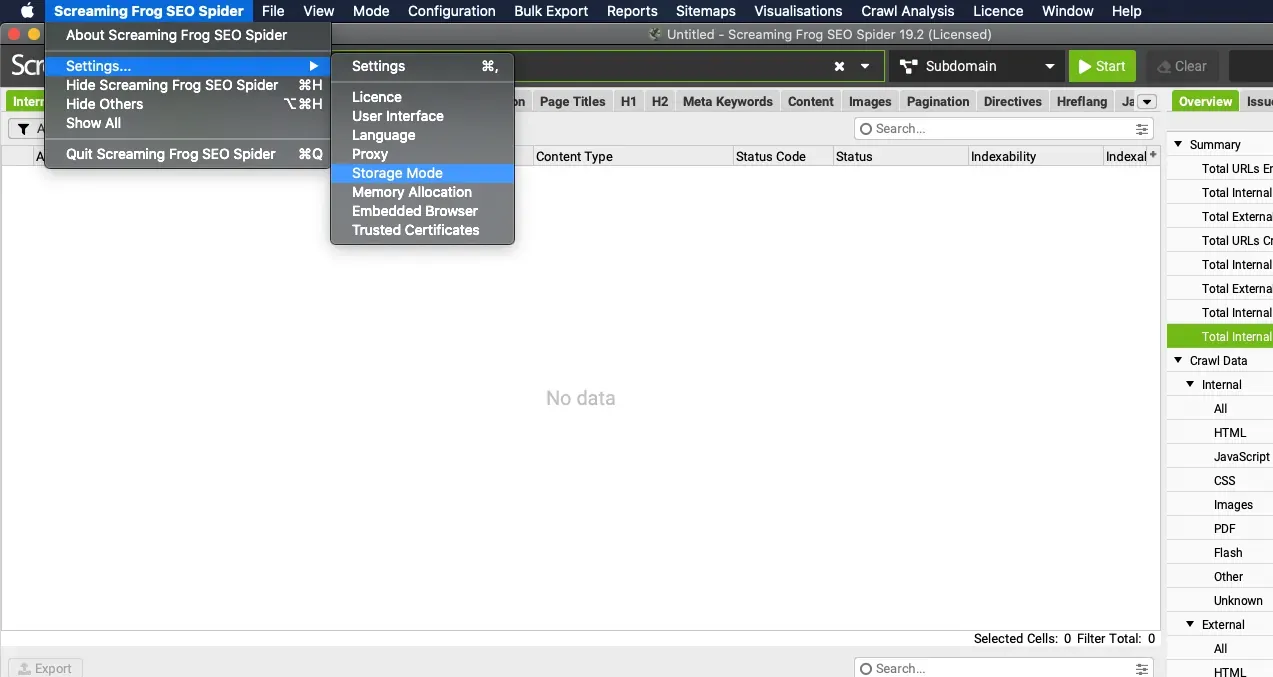
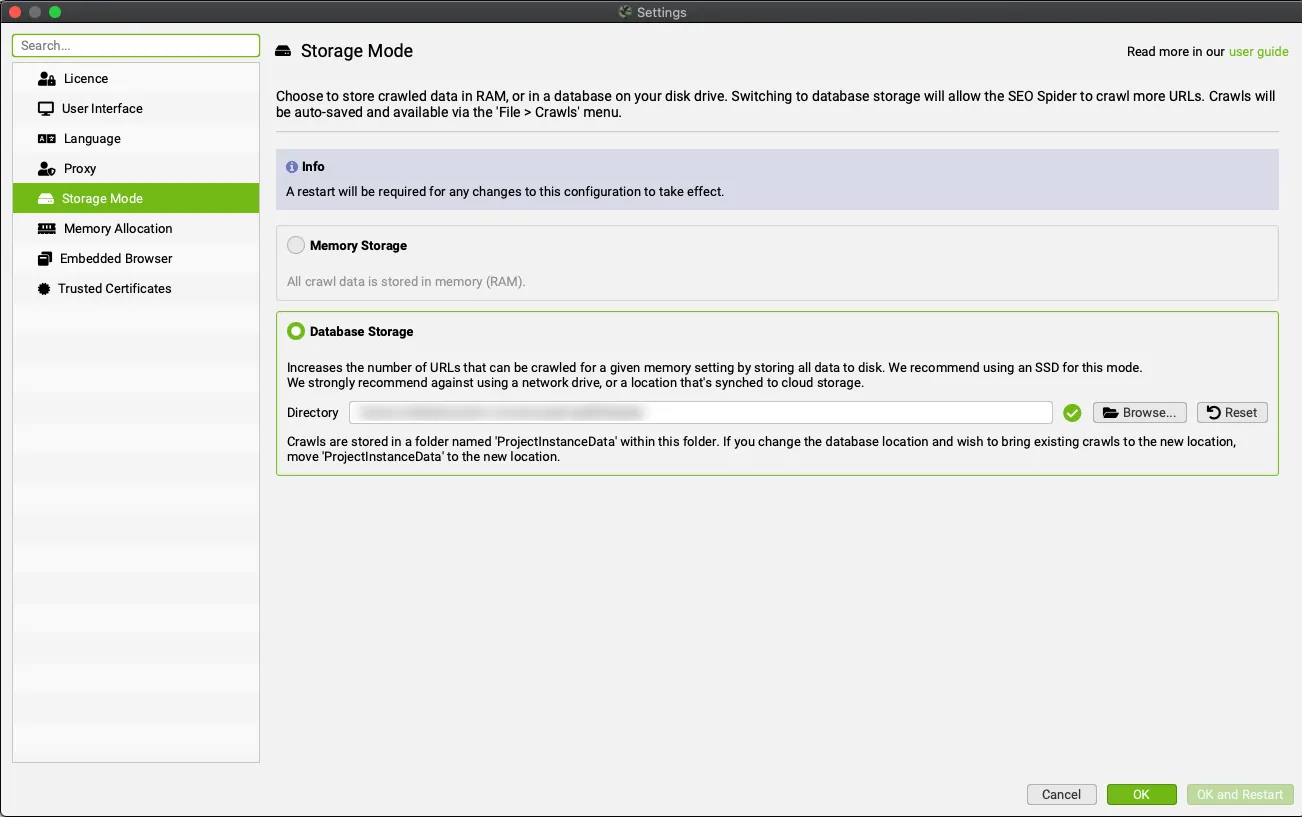
To get the best performance from SEO Spider in this mode, you should use an internal SSD, or an external one if your system supports UASP.
Memory allocation
Once you’ve chosen “Database Storage”, the second step is to increase the allocated memory from 1File›2Settings›3Memory Allocation.
Here’s a performance comparison based on the maximum number of URLs that can be crawled.
| Allocated memory | RAM mode | Database Storage |
|---|---|---|
| 4 GB | 2–3 million URLs | |
| 8 GB | 200,000 URLs (minimum requirement for large sites) | 5 million URLs |
| 16 GB | 10 million URLs |
These figures are only a guide: always assume that the more memory you allocate, the better SEO Spider will perform.
Reducing the data to crawl
Attributes to crawl
You don’t always need to crawl an entire site, so it’s good practice to tailor the crawl to the specific focus of your analysis. Remember: the more data you collect, the more RAM you’ll need.
To choose which metrics to crawl and which to leave out, you can change SEO Spider’s settings directly in 1Configuration›2Spider›3Crawl.
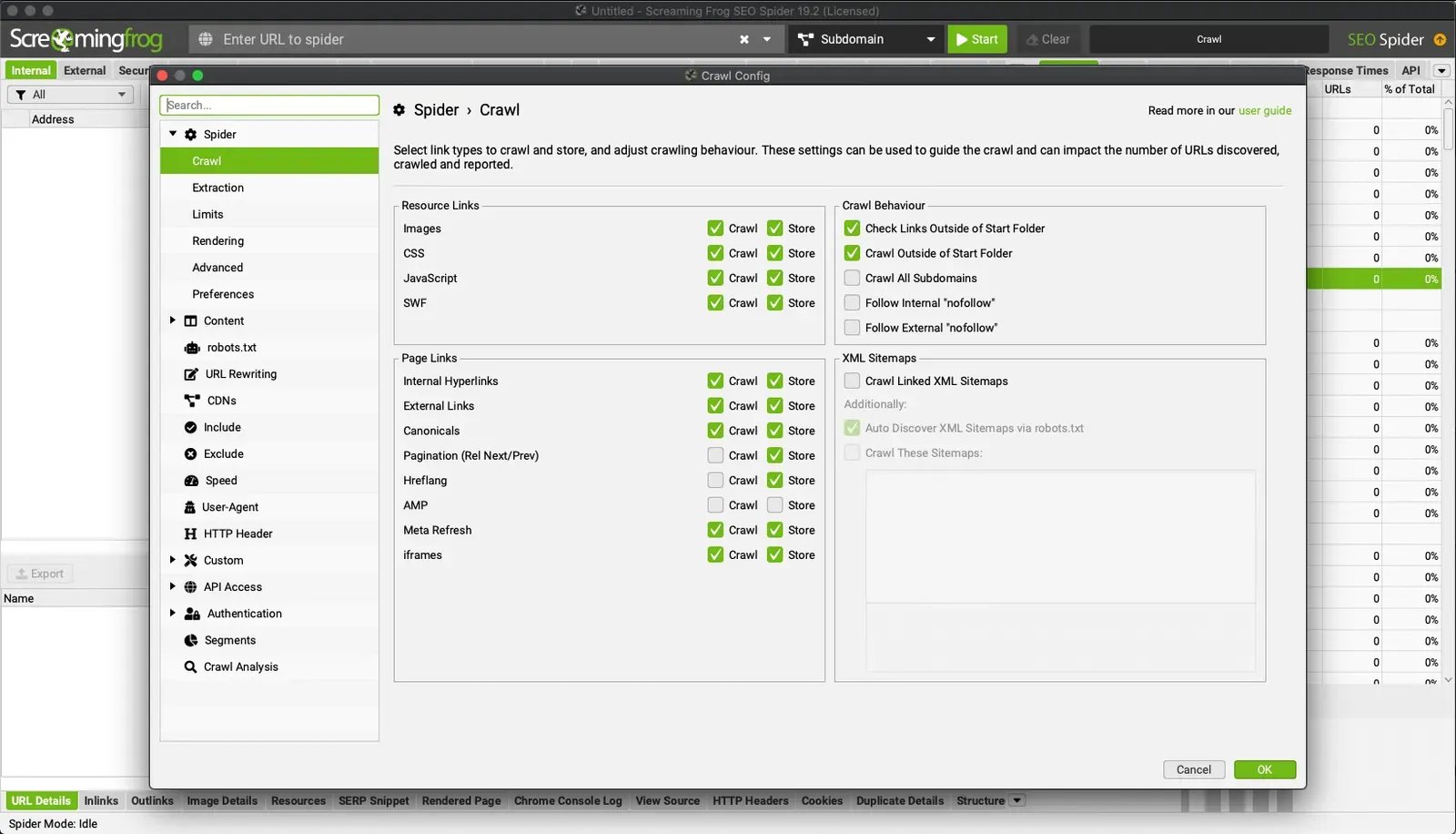
Depending on the type of analysis, you can disable crawling and storing of the following elements:
- Images*;
- CSS*;
- JavaScript*;
- SWF*.
*In terms of memory it makes a lot of sense to disable these resources, but if you use JavaScript rendering mode you’ll need to keep them enabled so as not to hamper rendering.
- External Links;
- Canonicals;
- Pagination;
- Hreflang;
- AMP.
You can also disable the extraction of some non-essential elements, such as “Meta Keywords” or other attributes you don’t strictly need for the analysis, from 1Configuration›2Spider›3Extraction, choosing among “Page Details” (e.g. page title, word count, headings), URL details, directives or structured data.
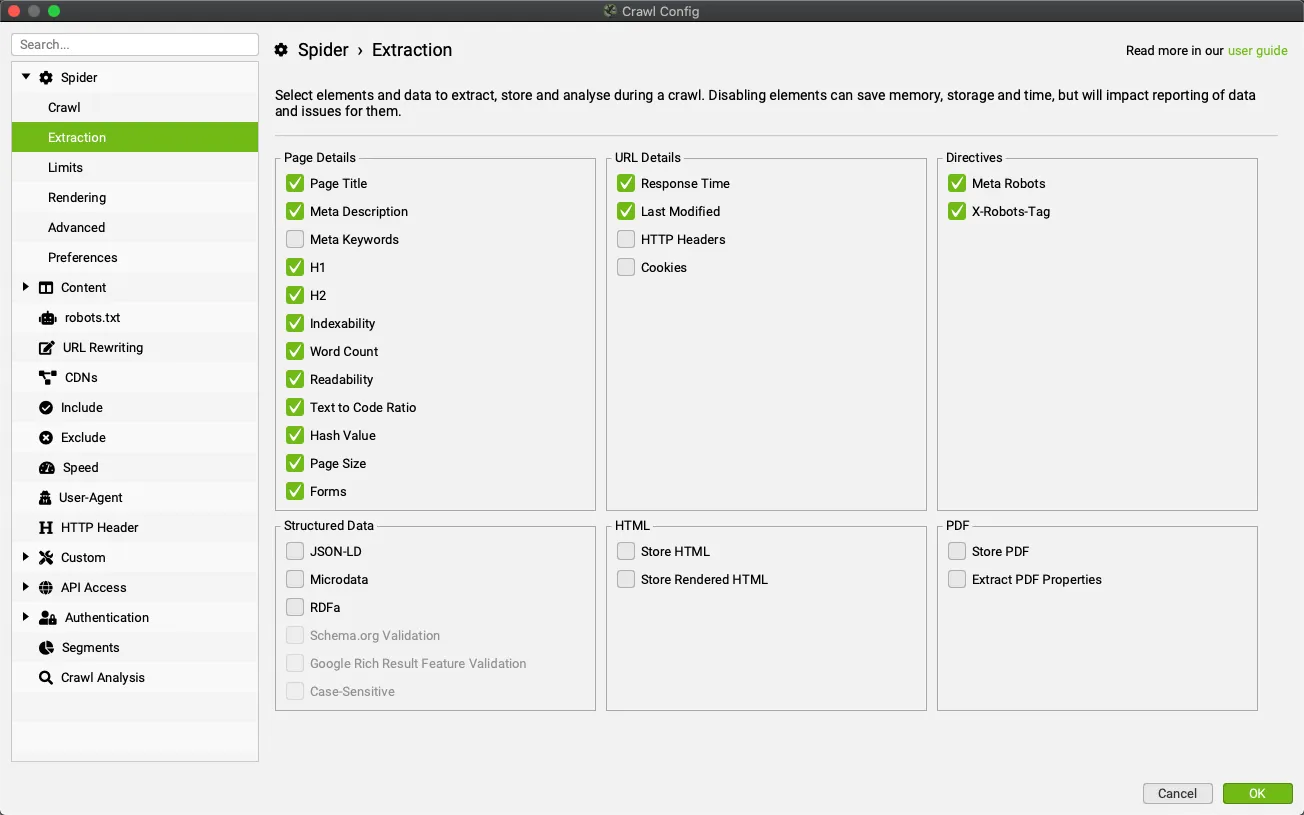
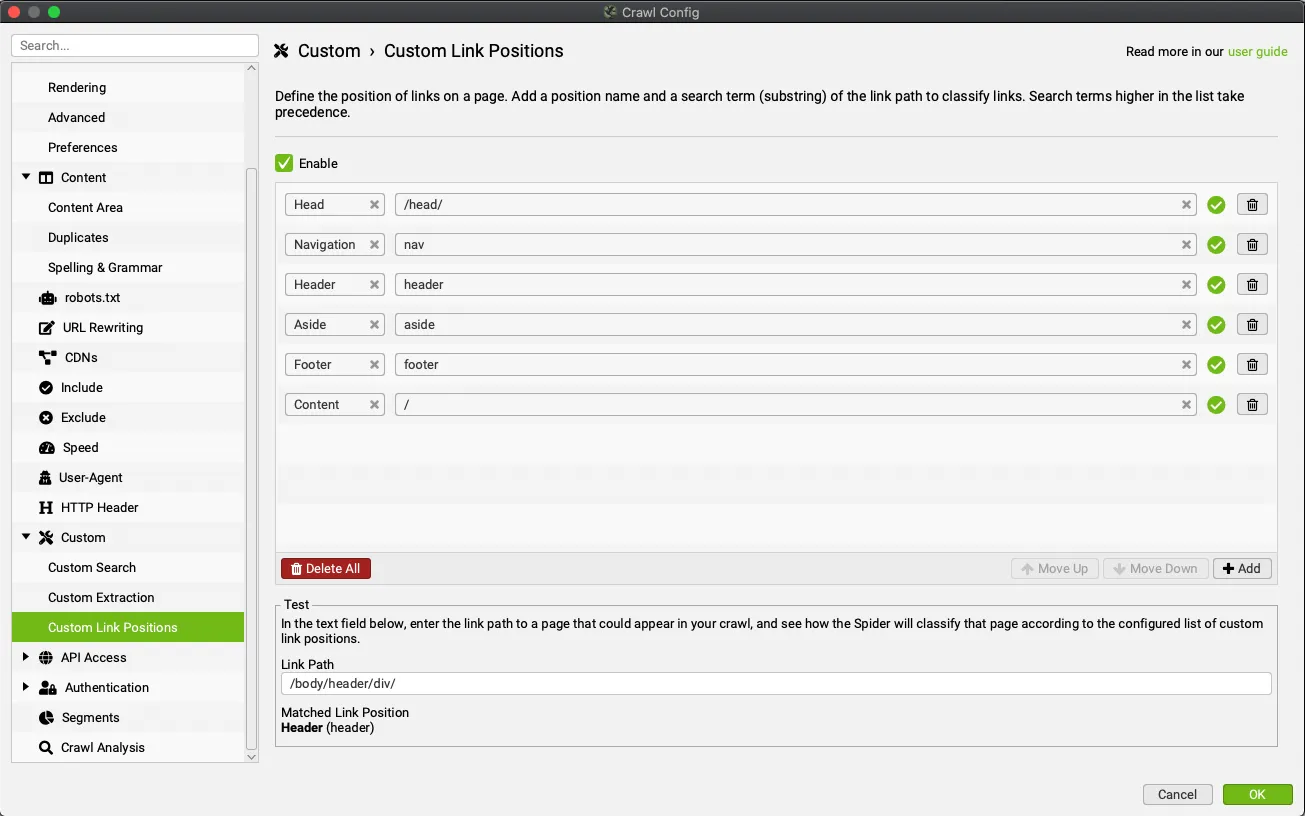
Besides the elements above, I recommend disabling the link position feature in 1Configuration›2Custom›3Custom Link Positions.
Another best practice is to avoid crawling with advanced features such as these, which you can add in a second phase of analysis:
- Custom Search.
- Custom Extraction.
- Google Analytics integration.
- Google Search Console integration.
- PageSpeed Insights integration.
- Spelling & Grammar.
- Link Metrics integration (Majestic, Ahrefs and Moz).
Excluding URLs
To make the crawl leaner and lighter on memory, you can limit it to specific areas of the website and exclude elements such as sort orders generated by “faceted navigation”, specific URL parameters or infinite URLs with repeated directories, using the 1Configuration›2Exclude feature.
With Regex expressions this feature lets you exclude the URLs you don’t want to crawl. Be careful, though: if the excluded URLs contain links to other pages, those pages won’t be crawled either.
To understand how important the “Exclude” feature is, let’s look at a real scenario: the John Lewis website.
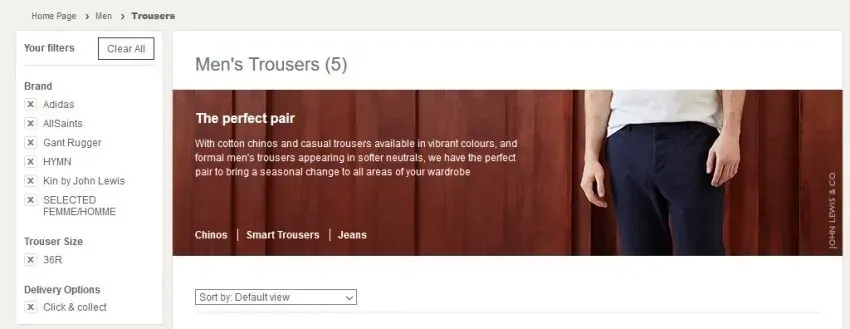
With SEO Spider’s default settings, because of the many sort orders, the crawl would include an endless series of URLs like the one below:
https://www.johnlewis.com/browse/men/mens-trousers/adidas/allsaints/gant-rugger/hymn/kin-by-john-lewis/selected-femme/homme/size=36r/_/N-ebiZ1z13ruZ1z0s0la1This is very common on e-commerce sites that use “faceted navigation” for brands, colour, trouser fit and more, creating endless combinations and inevitably weighing down the crawl.
In this specific case, just run a sample crawl of the website to spot this kind of parameterised URL pattern and exclude it.
Limiting the crawl area
Subfolders and subdomains
If the website is very large, you can consider crawling subdomains separately, or go even more granular with specific subfolders.
By default, SEO Spider only crawls the subdomain you enter, and any other subdomains it finds are treated as external links and appear in the ‘External’ tab.
You can choose to crawl all subdomains, but this will obviously need more memory.
SEO Spider can also be set to crawl a single subfolder: enter the subfolder URL with its path and, in 1Configuration›2Spider›3Crawl, disable the Check Links Outside of Start Folder and Crawl Outside of Start Folder options.
For example, let’s say you only want to crawl the blog section of Screaming Frog’s website.
The first step is to identify the subfolder and run the crawler; in our case it’s: https://www.screamingfrog.co.uk/blog/.

Note: to crawl a subfolder, remember to add the trailing slash “/blog**/**”, otherwise SEO Spider won’t recognise it as one. You may have the same problem if the version with the “/” redirects to the version without.
In that second case you can use the “include” feature with a Regex rule for the crawl (for example “.*blog.*”).
Further readingCrawling subfolders.How to limit the crawl to one or more subfolders with the folder settings and the Include feature.Read the guideThe Include feature
As well as excluding areas and/or disabling elements to crawl and store, you can use the 1Configuration›2Include feature to limit the URLs to crawl with Regex expressions.
For example, if you only want to crawl pages with “search” in the URL, just add the Regex “.*search.*” to the “include” feature.
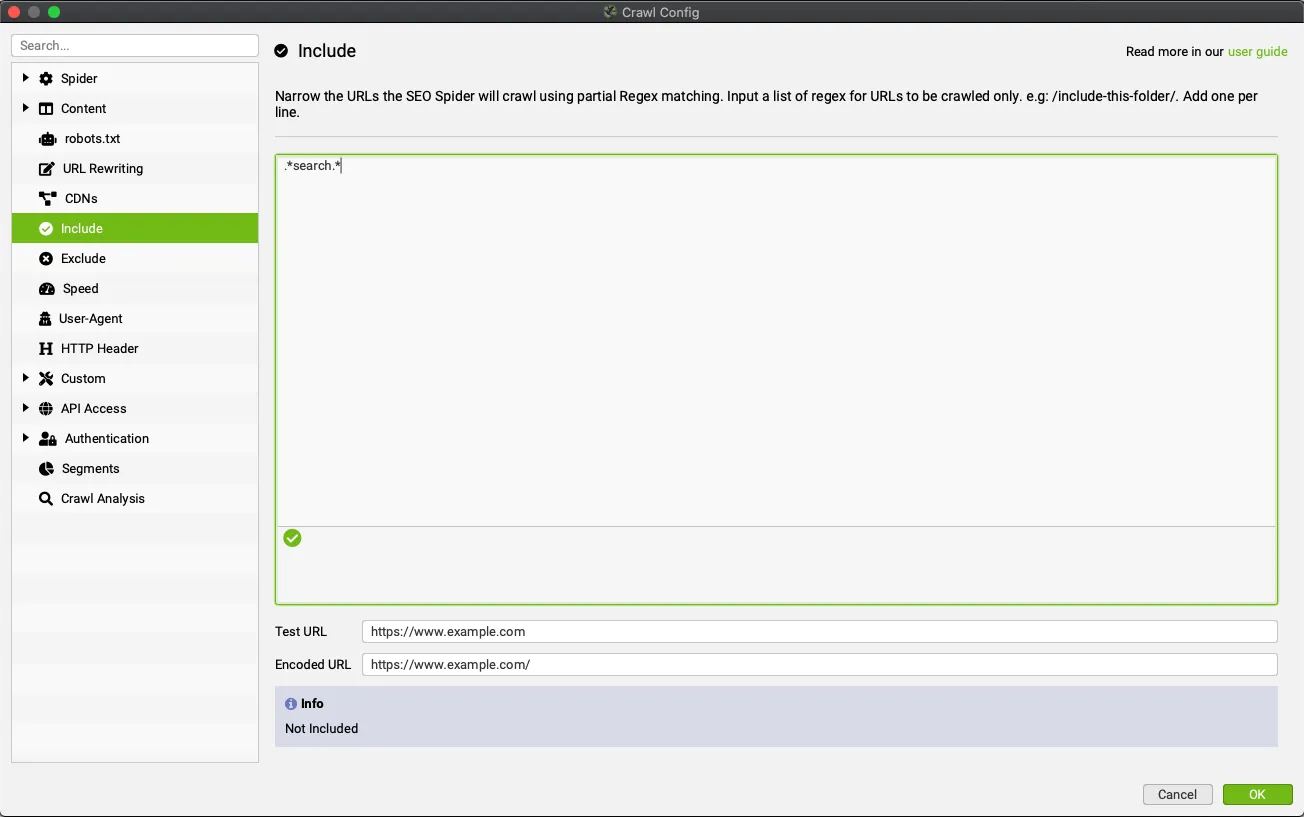
On Screaming Frog’s site you’d get the following results.

Sampling
Another way to save time and make the crawl lighter on memory is to work on samples of the website using the limits in 1Configuration›2Spider›3Limits:
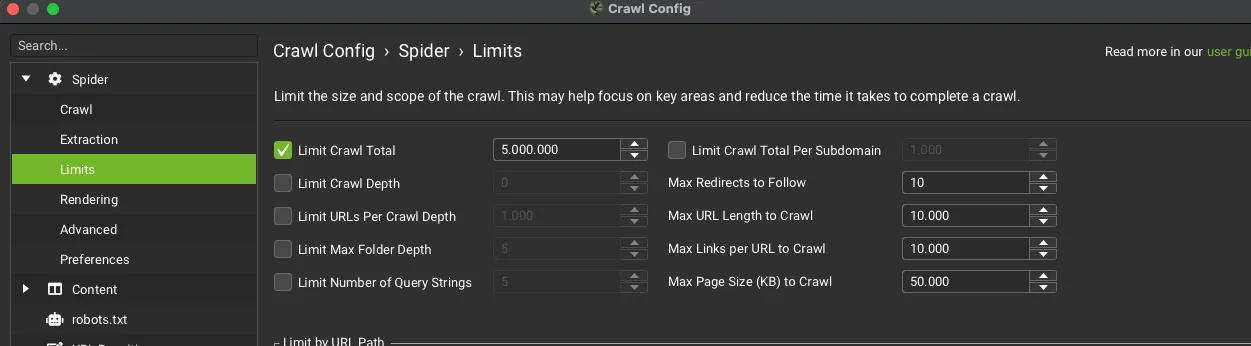
Limit Crawl Total: sets the maximum number of pages to crawl overall.
Limit Crawl Depth: limits crawl depth to the pages closest, in clicks, to the start page (or home page) to get a sample of all templates.
Max URL Length to Crawl: only crawls URLs up to a maximum number of characters, avoiding very deep URLs.
Limit Max Folder Depth: limits the crawl by folder depth.
Limit Number of Query Strings: limits crawling of parameters by number of query strings. If you set the query string limit to ‘1’, SEO Spider will crawl URLs with at most one parameter (?=colour, for example), avoiding endless combinations.
Video tutorial (in Italian)
Questions about Crawling Large Websites?
These guides come from real projects. If something in your crawl doesn’t add up, or you want to apply this process to your site, get in touch.
 Author.Raffaele Visintin.Search & Strategic Marketing Advisor