

Crawling Password-Protected Sites.
Learn how to analyse staging sites or sites that require a password to view and crawl them.
How to crawl staging or password-protected sites safely with SEO Spider’s web form authentication. See how to set up read-only credentials and exclude the areas that could change the site during the crawl.
Protected sites
In an SEO’s working life you often need to analyse staging websites or crawl private sites that require a password to view and crawl them.
Screaming Frog helps you with this kind of diagnosis: since SEO Spider version 7.0 it has offered “web form authentication”.
Before starting the crawl, though, let’s look at the potential pitfalls of this feature and how to avoid them for an error-proof crawl.
Crawling a password-protected site
1. Managing credentials for SEO Spider
This option is very powerful but must be handled with complete responsibility: if the Spider is logged in as a site admin, it will click every link on the pages, and while logged in those clicks could trigger a logout, create posts, install plugins or, in the most extreme case, delete data.
That’s why it’s essential to set up authentication with restricted credentials, with read-only permissions and no permission to write to the site.
If you’re analysing common CMSs such as WordPress, Drupal or Joomla, the best idea is to create a dedicated user with “subscriber” permissions.
2. Using the Exclude feature
It’s also good practice to use 1Configuration›2Exclude on folders that could change the live or private site; with WordPress you could exclude anything under “/wp-admin/” from the crawl.
For example, to exclude the admin folder and the logout you can set these regex rules in SEO Spider.
http://example.com/wp-login\.php\?action=logout.*
http://example.com/wp-admin/.*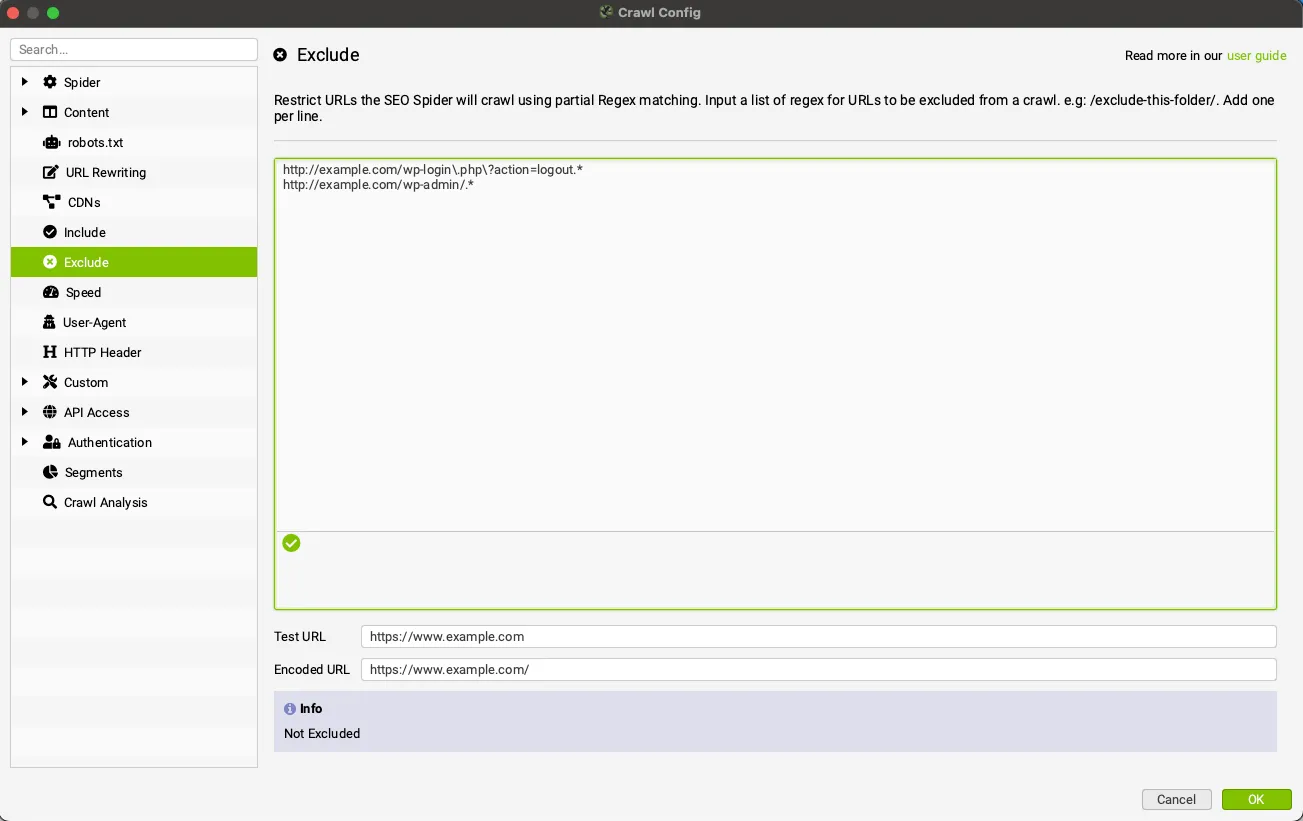
3. Setting up authentication
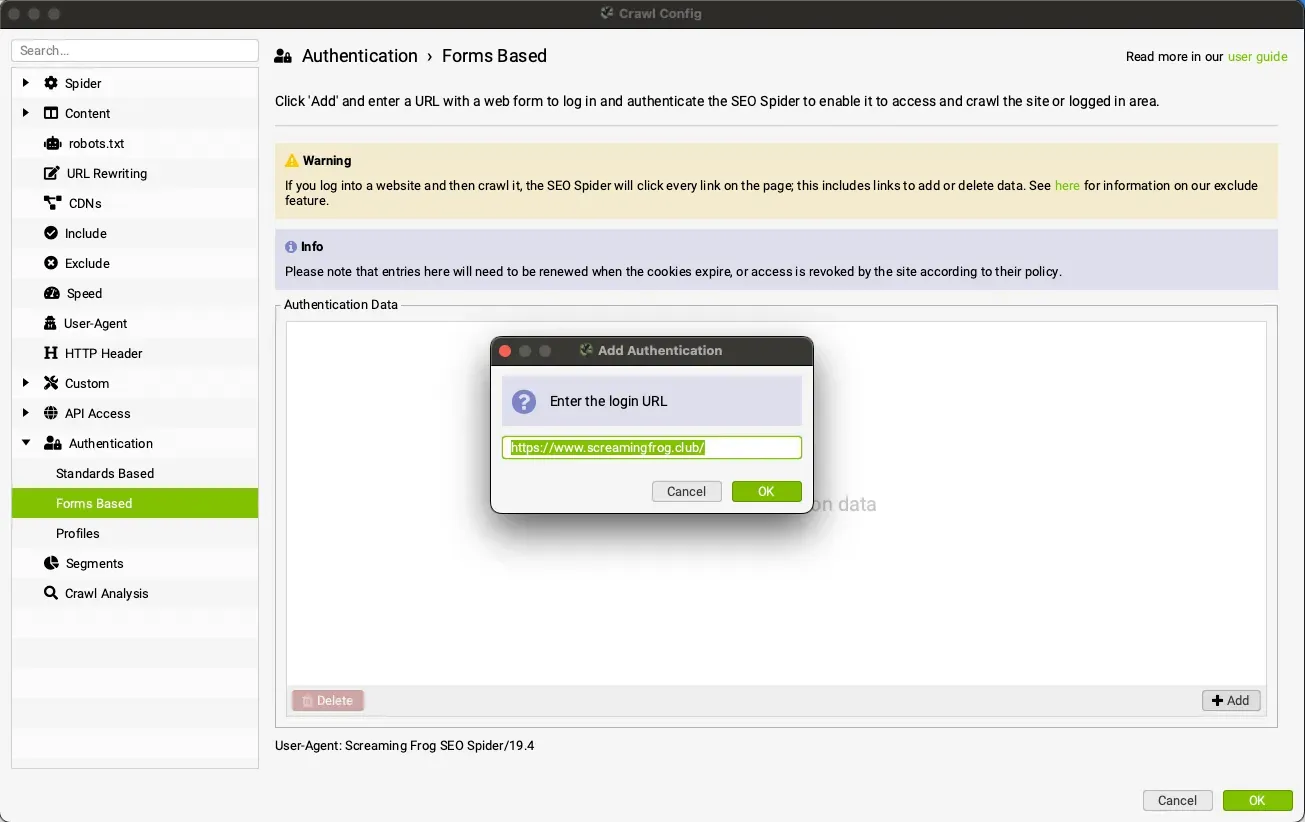
Once the site is secured and the exclusions are set, you can log in from 1Configuration›2Authentication›3Forms Based by clicking the Add button.
As you go on, you’ll be asked for the URL to crawl, and a browser will open automatically so you can enter your credentials.
With this option you can, for example, fix every issue you find before go-live but, as I said at the start of the article, pay the utmost attention to the site’s security and avoid uncontrolled crawls running wild!
Questions about Crawling Password-Protected Sites?
These guides come from real projects. If something in your crawl doesn’t add up, or you want to apply this process to your site, get in touch.
 Author.Raffaele Visintin.Search & Strategic Marketing Advisor