

URL Inspection API.
Discover the URL Inspection API for ever more efficient and granular reports.
Guide contents 7 sections
●Brief01.The URL Inspection API02.URL Inspection API and Screaming Frog03.Lazarina Stoy’s Looker Studio template04.Reading the template dataHow to use the Google Search Console URL Inspection API with Screaming Frog to check indexing status URL by URL. Then bring the data into Lazarina Stoy’s Looker Studio template, with quota limits and use cases.
The URL Inspection API
For anyone who, like me, loves SEO and the Google world, 31 January 2022 is a date to remember: the search engine finally released its URL Inspection API, letting us SEO enthusiasts go wild designing ever more precise and interesting reports, both for our own internal analysis and for presenting data to clients. After reading the Google developer forum I came across the blog of fellow SEO Lazarina Stoy, who not only reported the news but also built a comprehensive template for Google Data Studio (now Looker Studio) that pulls the data from Search Console and presents it beautifully.
How the URL Inspection API works
The URL Inspection API uses a method called “index.inspect” that shows the status of a URL and whether it’s “indexed” or “not indexed”. To get these results you make a request with two parameters: the first is the URL you want to analyse, the second is the URL of the property set up in Search Console.
The request structure is as follows:
JSON representation:
{
  "inspectionUrl": "string",
  "siteUrl": "string",
  "languageCode": "string"
}
The API checks the version of the URL in Google’s index: it doesn’t let you test a live URL. Google has also set quotas: 2,000 queries per day and 600 per minute per property.
URL Inspection API and Screaming Frog
Enabling URL Inspection in SEO Spider
Screaming Frog can connect to Google Search Console via API, letting you work with the data from this release in a simple yet very powerful way, for ever more advanced analyses presented clearly and intuitively.
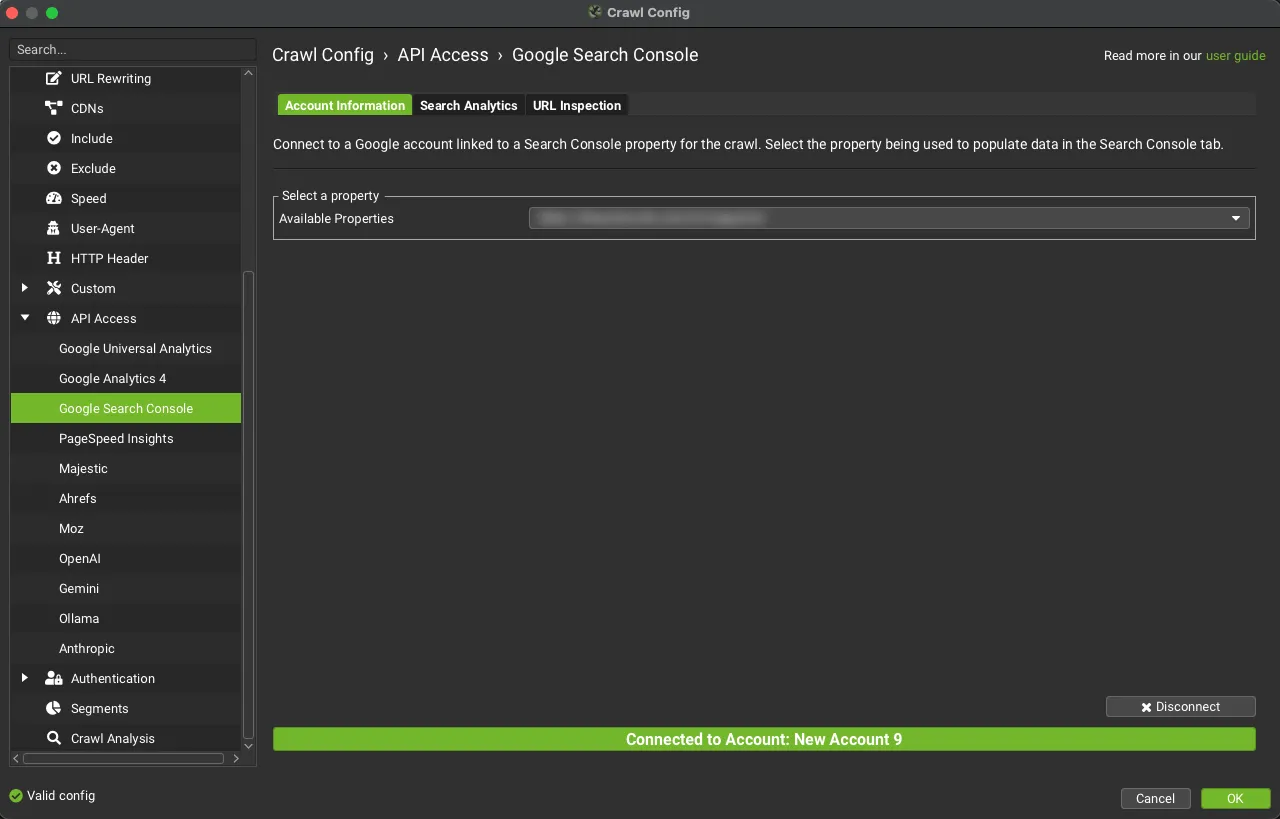
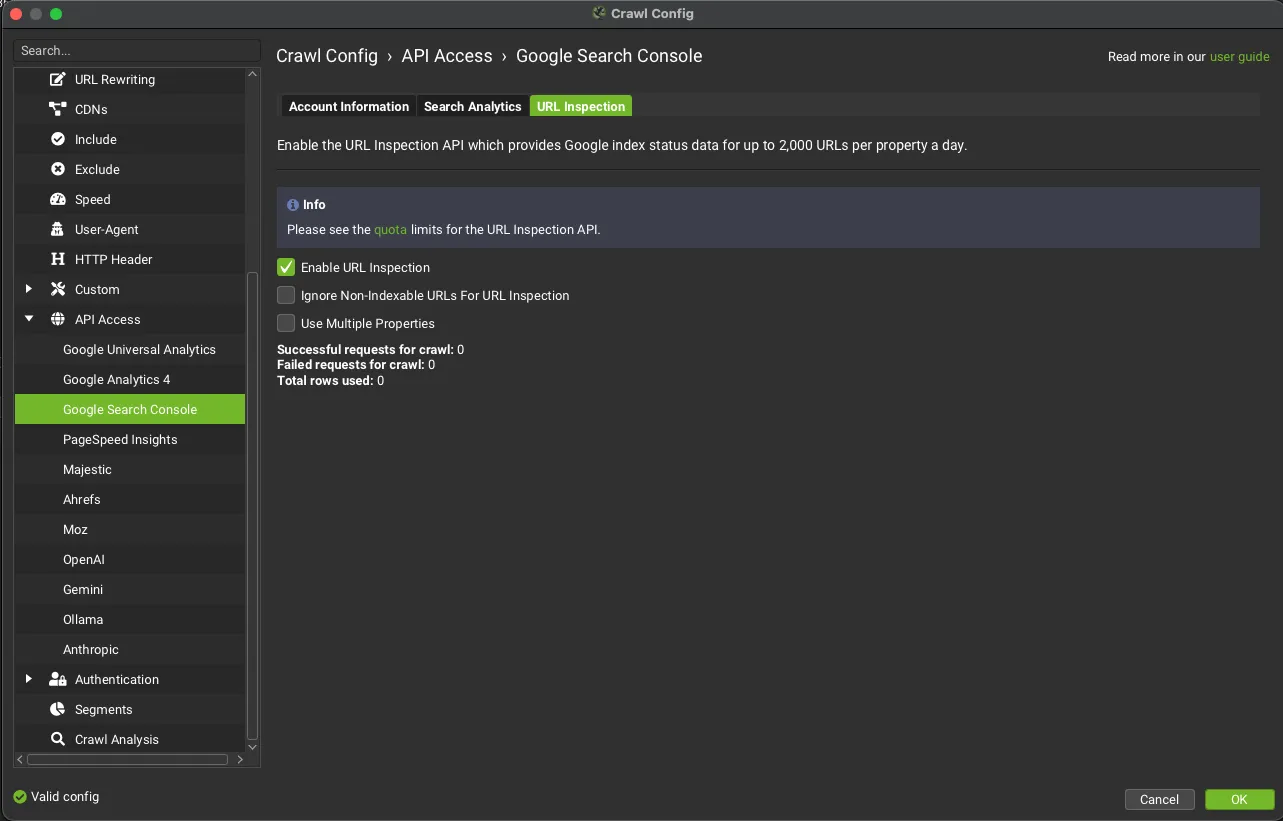
Go to 1Configuration›2API Access›3Google Search Console, connect your account and, in the URL Inspection tab, turn on Enable URL Inspection. When the crawl ends you’ll find the data in the 1Search Console tab.

Lazarina Stoy’s Looker Studio template
From Screaming Frog data to the template
Once you have the data from SEO Spider, you can use Lazarina Stoy’s template as a dashboard (the link is at the end of the article): open the template, make a copy and use the data exported from Screaming Frog as the source for your new template.
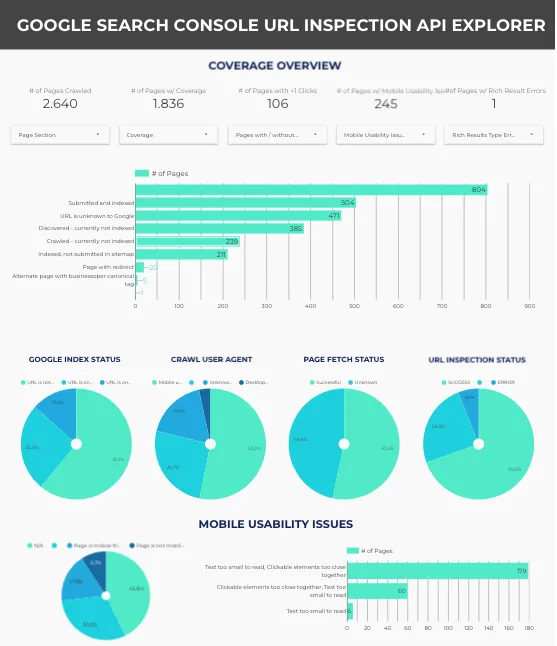
Note: the template only works if you use Screaming Frog in English. With the interface in another language, the exported column names are different and Looker Studio can’t find the data.
Custom fields and filters
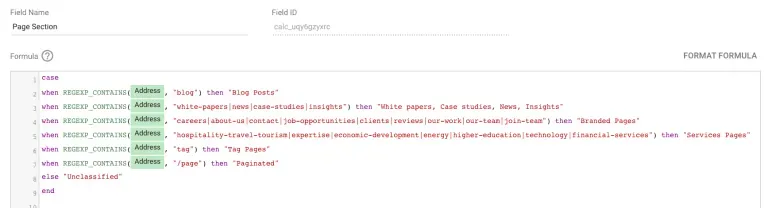
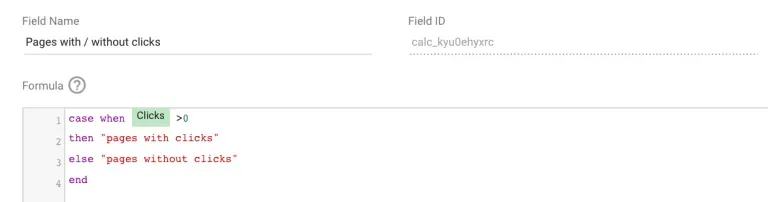
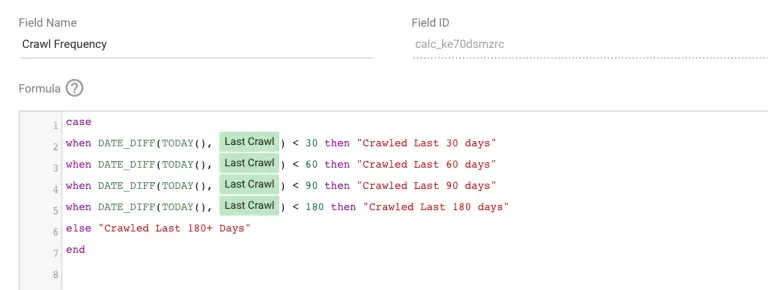
As with any Looker Studio template, there may be glitches when cloning fields, filters and specific filter applications. To help you fix any issues, here are all the elements that make up the template, so you can sort out any bugs.
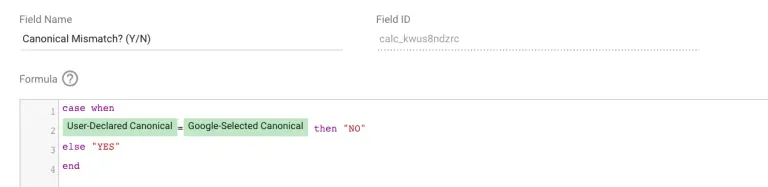
Canonical Mismatch? (Y/N)
Page Section
Pages with and without clicks
Crawl frequency
The template includes these filters:
- Excluding pages without mobile usability errors.
- Excluding pages with 0 clicks.
- Excluding URLs without a summary.
- Excluding URLs with a “null” status.
- Pages where crawling isn’t allowed.
- Page fetch failed.
- Status code 404.
Reading the template data
What the data means
Before diving into the template data, a few considerations about the data itself. Keep in mind that the status “URL is on Google” doesn’t mean the page actually appears in search results; actually appearing in the SERPs requires the page and its data to comply with quality and safety guidelines. The URL Inspection tool also doesn’t take into account manual actions, content removals and temporarily blocked URLs. So a URL might not be on Google while the tool still reports it as indexed. Only a dedicated analysis will reveal the reason for the discrepancy.
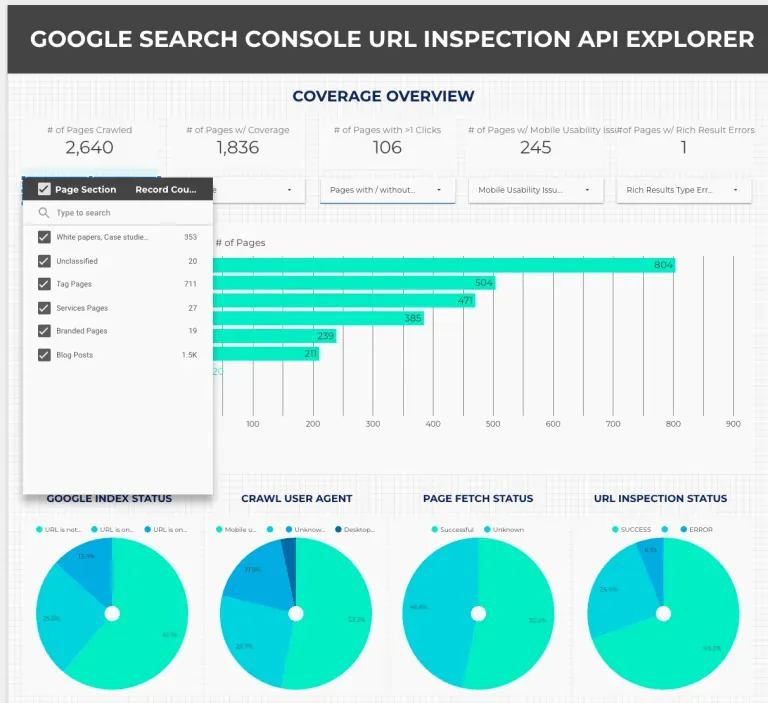
Coverage Overview
In the Coverage Overview section you’ll find:
- how many pages were crawled, and how pages are distributed by section;
- how many pages have a coverage status according to the inspection API, including the distribution by status;
- how many pages get clicks;
- how many pages have mobile usability issues and how the issues are distributed;
- how many pages have “rich snippet” issues and how the errors are distributed;
- a summary of the Index Status distribution (the options are: URL is on Google, URL is on Google but has issues, and URL is not on Google);
- a summary of the user agent distribution – is your site crawled mainly by a mobile, desktop or unknown agent?
- a summary of the “page fetch” distribution – were the pages in the crawl fetched successfully by Google?
- a summary of URL Inspection Status – were there any errors?
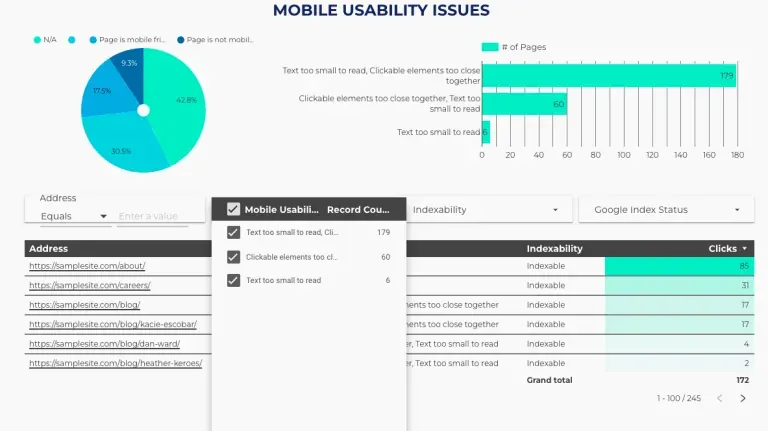
Mobile Usability
In the Mobile Usability Issues section you can:
- check whether your pages are mobile-friendly or have errors;
- get an overview of the main types of errors on the site, and how many pages are causing them;
- filter URLs by error type, indexability and Google index status.
Since December 2023 Google has retired the mobile usability report and data in the API too: with new data this section stays empty.
Rich Result Snippet Issues
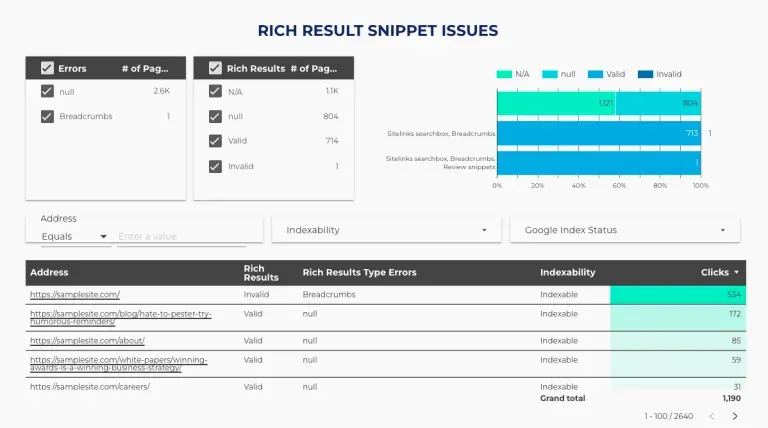
In the Rich Result Snippet Issues section you can:
- get an overview of the main rich snippet errors;
- get an overview of the number of pages with valid structured data;
- see the main schema types implemented;
- filter and explore URLs by indexability, clicks and Google index status to help prioritise fixes.
Google Status
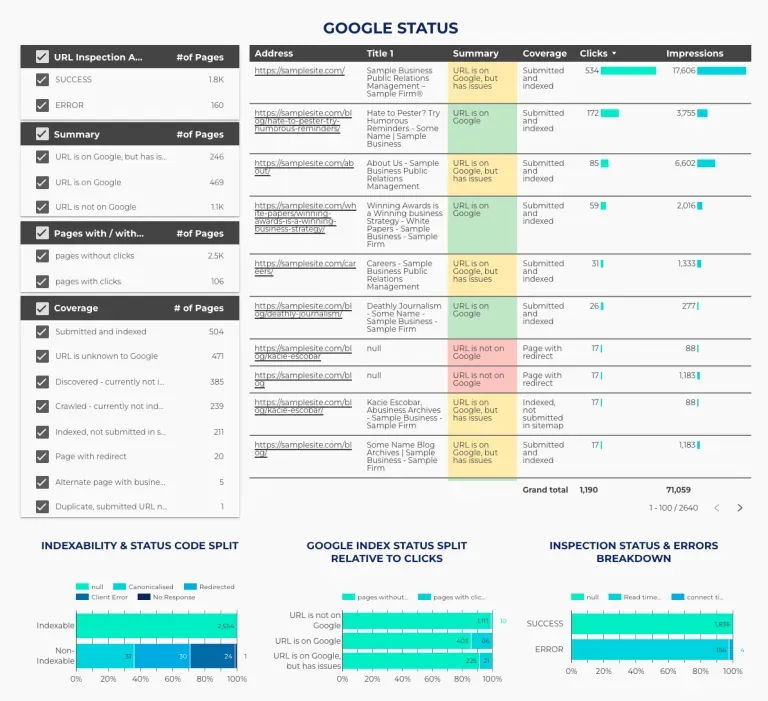
In the Google Status section (page 2 of the template) you can:
- filter and explore URLs by URL Inspection API status, summary, pages with/without clicks and coverage;
- get an overview of the relationship between indexability and status code – do all the pages you declared indexable return a 200 status code?
- get an overview of the relationship between Google index status and clicks – do pages with issues get clicks? Prioritise optimising them.
- get an overview of the relationship between inspection status and the error breakdown – when an inspection error is returned, what’s the reason? Read timeout, connection time?
Crawling
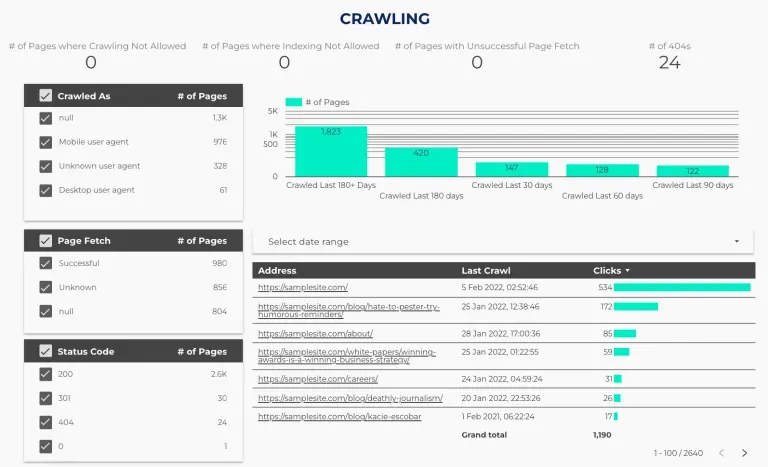
In the Crawling section you’ll find summary statistics on:
- pages where crawling isn’t allowed;
- pages where indexing isn’t allowed;
- URLs where page fetch isn’t allowed;
- pages with a 404 status code.
You can also:
- filter URLs by crawl agent (mobile, desktop, unknown);
- filter by last crawl date with the date range filter;
- filter by page fetch status;
- filter by status code;
- get an overview of crawling behaviour on the site – how often are URLs crawled?
Canonical Tags
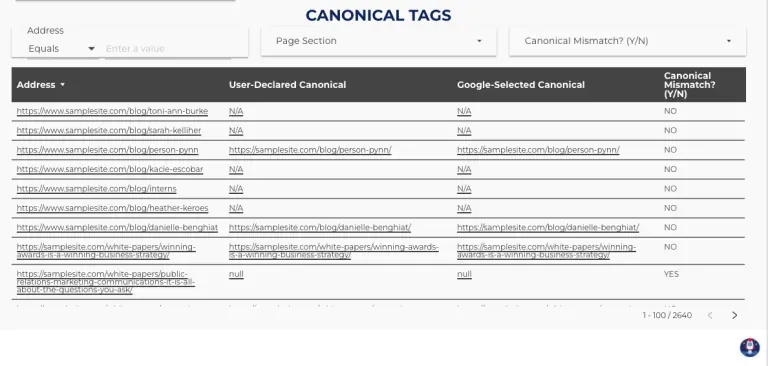
In the Canonical Tags section you can check discrepancies between the canonical tags you declared and those selected by Google. You can also combine these dimensions with further filters to uncover error patterns.
Use cases
Let’s wrap up with some practical cases where the template comes in handy.
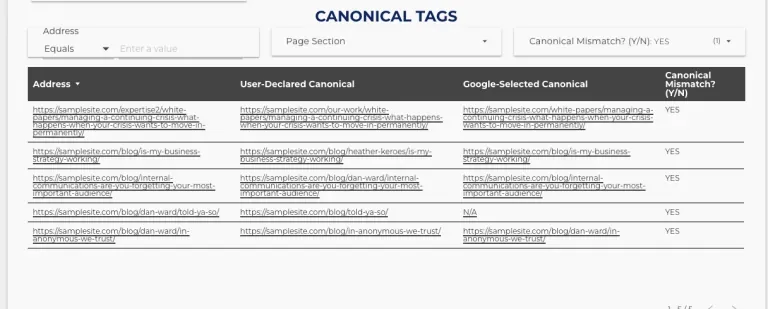
Which pages does Google ignore your canonical on?
Go to the second page of the template, in the “Canonical tags” section, and filter the table by Canonical Mismatch? (Y/N) with the “YES” option. You can review all the mismatches straight away.
Which pages with clicks haven’t been crawled for a while?
Go to page 2 and, in the Google Status section, set the Pages with/without clicks filter to show only pages with clicks.
Then scroll down to the next section and use the date bar to set the time range you want to review. You’ll see the result in the table below, with the URLs, Last Crawl (Date) and number of clicks.
Which URLs with clicks have structured data issues?
Go to page 1, in the Mobile Usability Issues and Rich Result Snippet Issues sections, and use the indexing filters to answer these questions.
Download the Looker Studio template
Credits: Lazarina Stoy’s article on the template.
Video tutorial
Questions about URL Inspection API?
These guides come from real projects. If something in your crawl doesn’t add up, or you want to apply this process to your site, get in touch.
 Author.Raffaele Visintin.Search & Strategic Marketing Advisor