

Web Scraping.
Learn how to use web scraping and the Custom Extraction feature for advanced analysis.
How to scrape the web with SEO Spider’s Custom Extraction using CSS Path, XPath and regex. With practical examples for search intent analysis and for extracting People Also Ask questions.
Web scraping with Custom Extraction
Let’s see how to use Screaming Frog for web scraping with the Custom Extraction feature.
This feature lets you collect any HTML data from a web page using CSS Path, XPath and regex.
Extraction runs on the static HTML of URLs crawled by SEO Spider that return a 200 ‘OK’ status code.
If you want to extract rendered data, you can enable JavaScript rendering (1Configuration›2Spider›3Rendering).
Setting up Custom Extraction
To set up your custom extraction, go to 1Configuration›2Custom›3Custom Extraction.
With this feature you can set up to 100 custom data extraction requests.
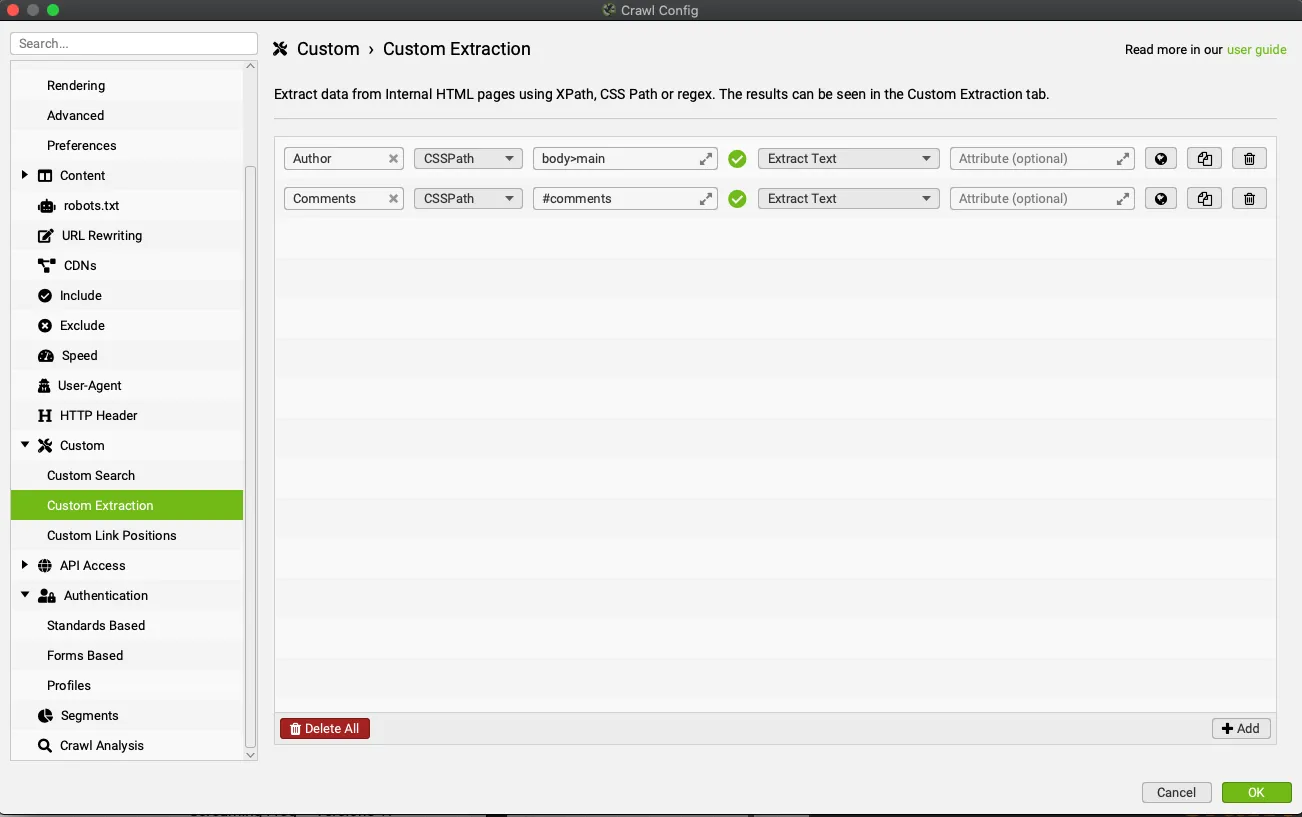
CSS Path, XPath and regex
SEO Spider offers three ways to scrape data from websites:
- XPath: XPath lets you select nodes in a document to query with XPath selectors, attributes included.
- CSS Path: the fastest of the three methods, it lets you scrape with CSS Path selectors.
- Regex: this method uses regular expressions and is recommended for advanced uses such as scraping HTML comments or inline JavaScript.
When you use XPath or CSS Path to query the HTML, you can choose between several extraction types:
- Extract HTML Element: collects the selected element and all its inner HTML content.
- Extract Inner HTML: collects the inner HTML content of the selected element. If the element contains other HTML elements, they’re included too.
- Extract Text: collects the text content of the selected element and its sub-elements.
- Function Value: returns the result of a function, for example the total count of an element: to find out how many h3 are on a page you can use “count(//h3)”.
A practical example: blog author and comments
Finding the selector
Once you’ve chosen the scraping method, all that’s left is to define the extraction syntax. To find the CSS path or XPath, open the page in Chrome, inspect the element you want, right-click it and copy the selector path provided.
Let’s take the Screaming Frog blog as an example.
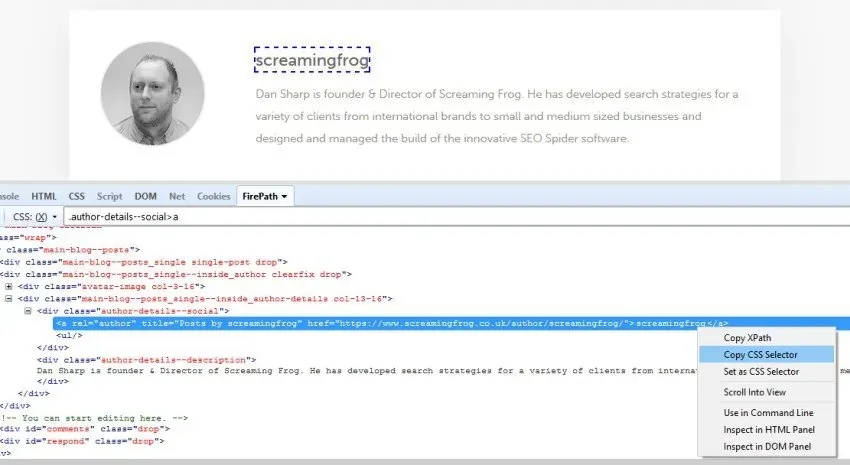
Open any blog post in Chrome, right-click the author’s name and choose “Inspect”.
Right-click the relevant HTML line (with the author’s name), copy the CSS path or XPath and paste it into the matching field in SEO Spider.
Entering the syntax in SEO Spider
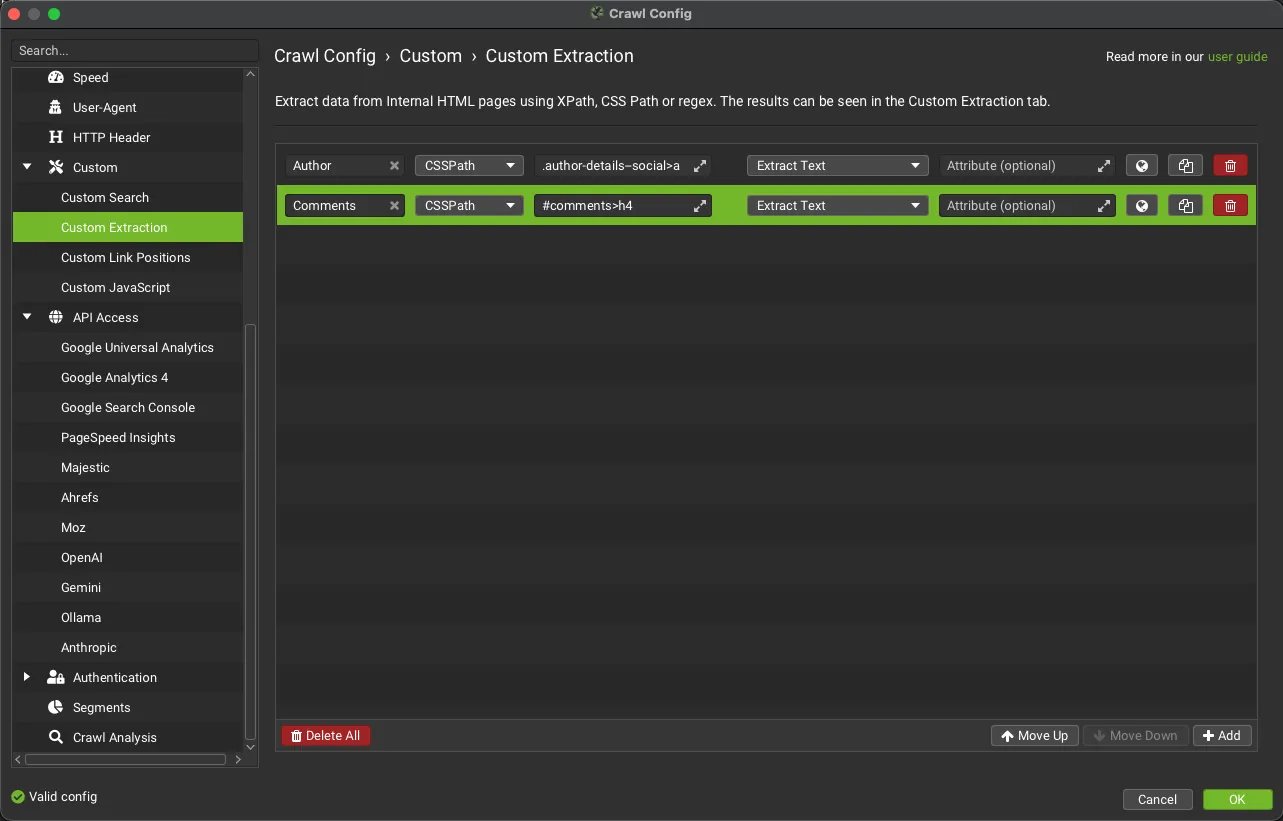
If the syntax you entered is valid (.author-details--social>a) you’ll see a green tick next to your input; otherwise you’ll see a warning with a red cross showing the syntax isn’t considered correct.
Once that’s done, just click OK and start the crawl.
To learn more about CSS selectors and XPath, I recommend the w3schools documentation.
Crawling the site and reading the results
With the syntax entered and validated, all that’s left is to crawl the website to start scraping.
The scraped data is available in real time during the crawl, in the 1Custom Extraction tab and in the Internal tab.
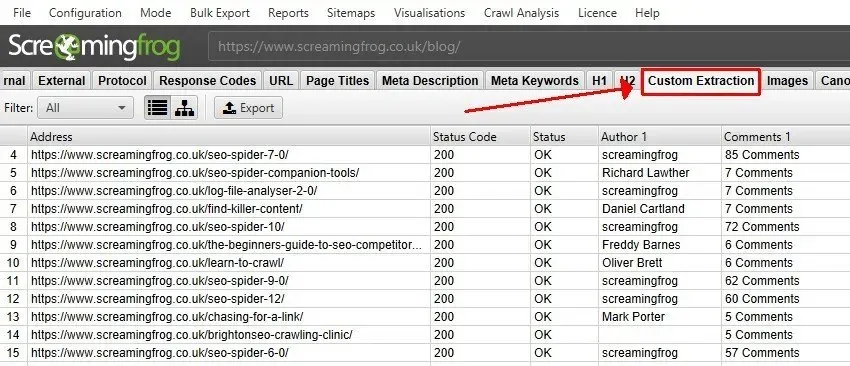
In our example we ran a full crawl of a website, but if you want to scrape a specific list of URLs you can use 1Mode›2List crawl mode.
The uses are endless and depend on the analysis at hand: this feature can be very handy for collecting Analytics or GTM IDs, social meta tags, hreflang values, e-commerce product prices, discounted prices and so on.
Further readingCustom Search and Extraction tabs.How to read the results of custom searches and extractions in the dedicated tabs.Read the overviewVideos
Questions about Web Scraping?
These guides come from real projects. If something in your crawl doesn’t add up, or you want to apply this process to your site, get in touch.
 Author.Raffaele Visintin.Search & Strategic Marketing Advisor