

Cookie SEO Audit.
Learn how to analyse cookies and monitor the reports with Screaming Frog.
How to find the cookies a site sets without user consent. Enable cookie extraction with JavaScript rendering, read the dedicated tab and report, and compare the crawl with and without accepting the banner.
Cookie analysis
With privacy laws growing in importance and constantly evolving, it’s increasingly important to understand which cookies your website sets and why, so you stay compliant and avoid fines. With Screaming Frog you can identify the cookies set automatically, without the user’s explicit consent, across the whole project.
Setting up SEO Spider
Cookie extraction
First, enable cookie extraction in 1Configuration›2Spider›3Extraction by selecting Cookies under URL Details. SEO Spider will then store every cookie found during the crawl.
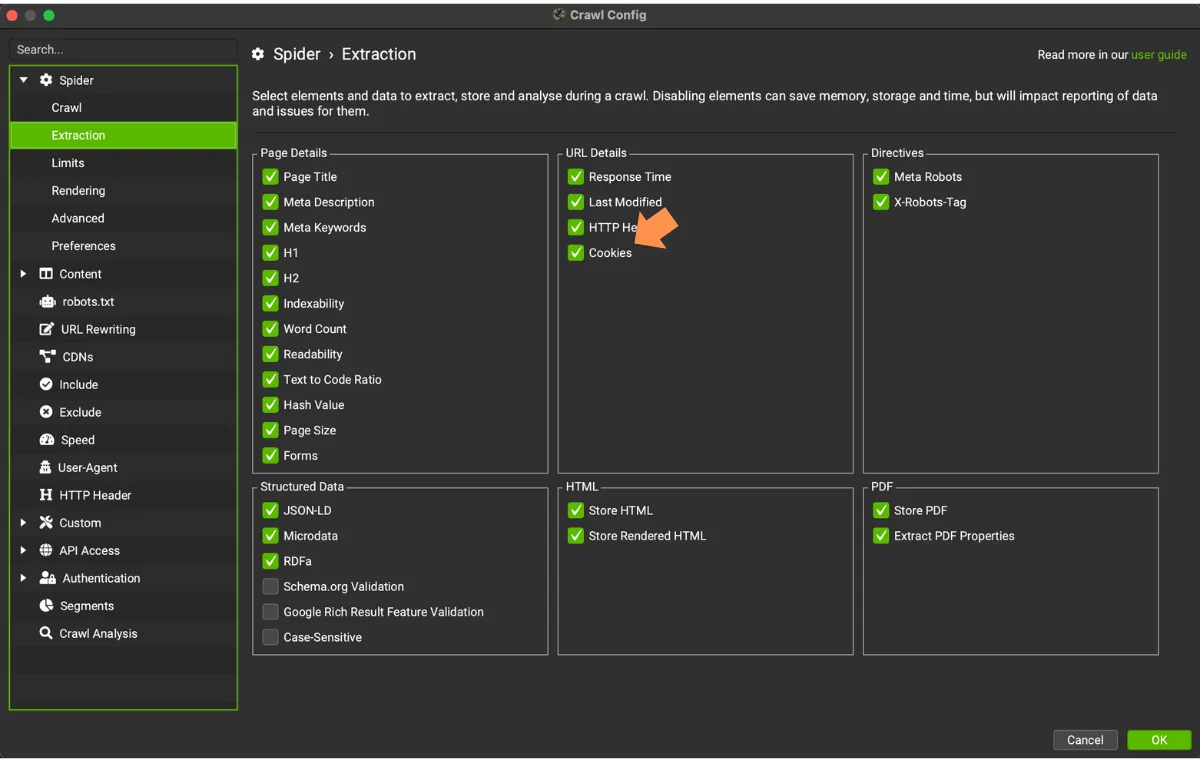
When you choose to store cookies, SEO Spider’s automatic exclusion of Google Analytics tracking tags is disabled, to give an accurate view of every cookie set: the crawl will, however, pollute your GA data.
JavaScript rendering
Many cookies are set by JavaScript, and SEO Spider only sees them if it renders the pages. So set rendering to JavaScript in 1Configuration›2Spider›3Rendering.
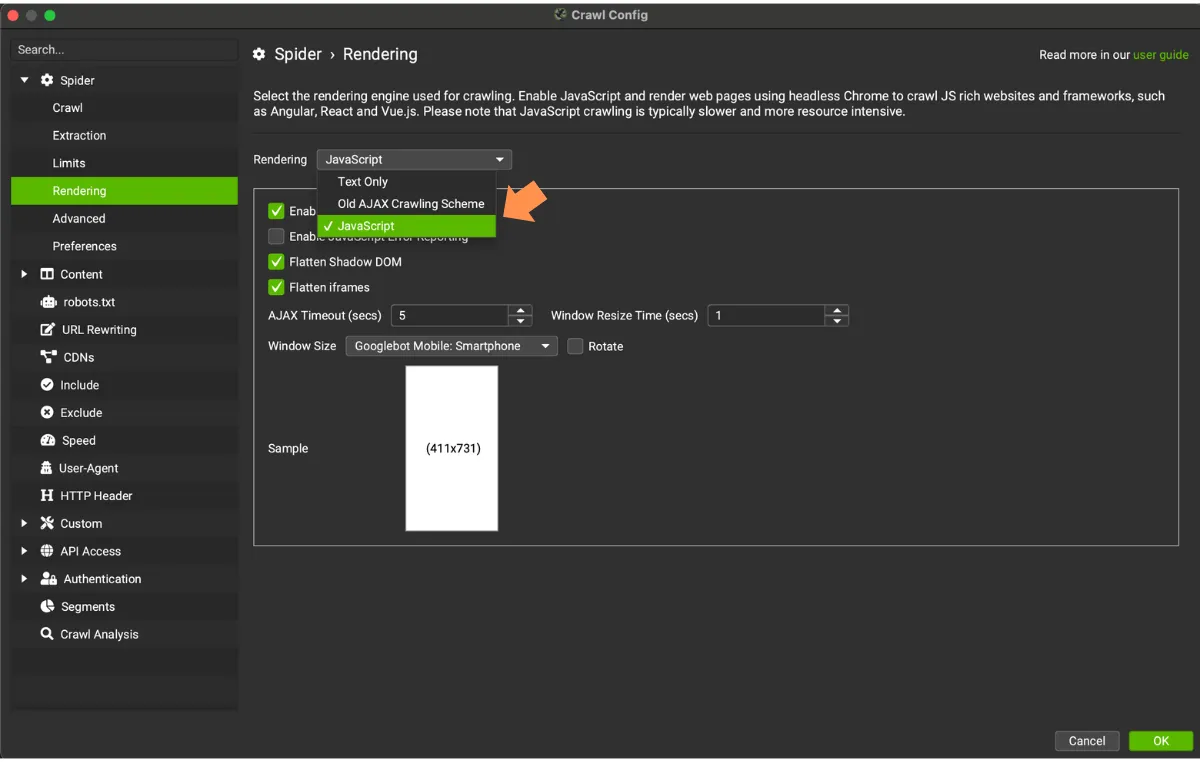
The default window size is Googlebot Smartphone, but you can switch to desktop if the site sets cookies differently on the two versions.
Setting the user agent
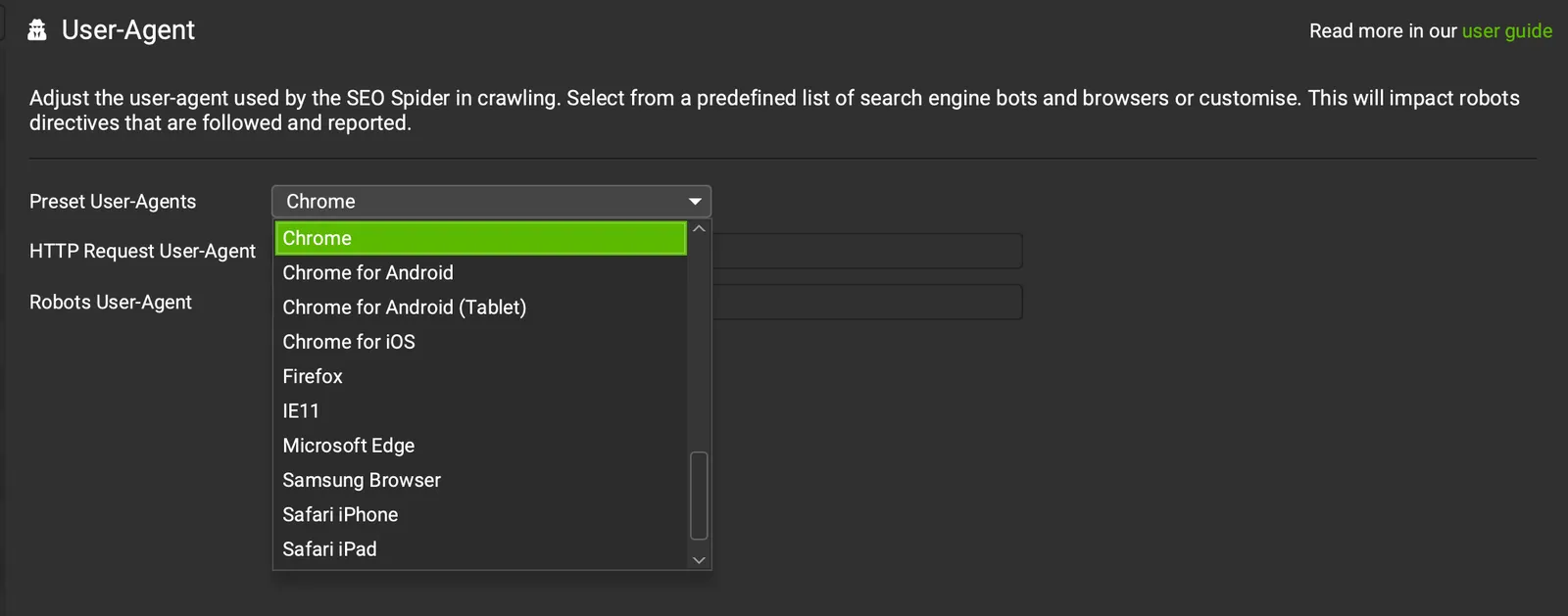
To best simulate a real user rather than a bot, set the user agent to Chrome in 1Configuration›2User-Agent.
Handling robots.txt
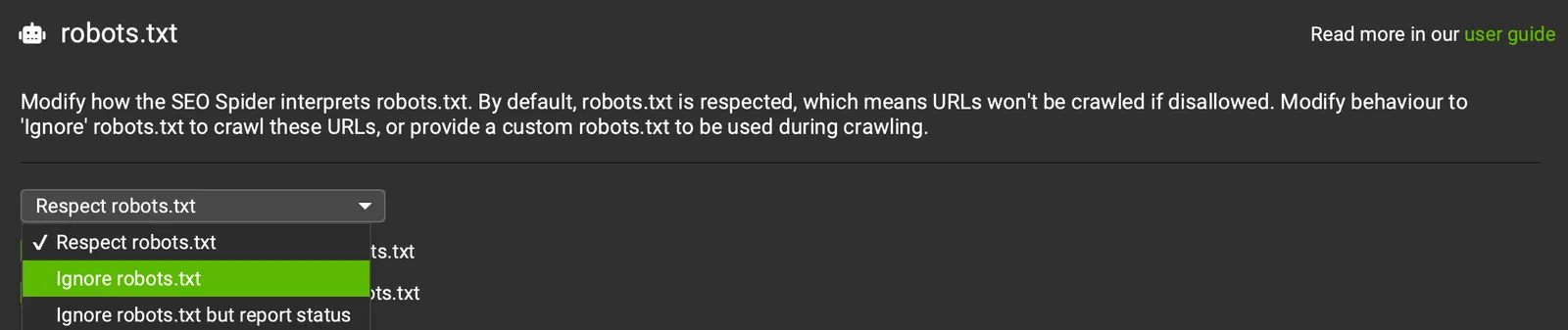
Click 1Configuration›2robots.txt and select Ignore robots.txt or Ignore robots.txt but report status. SEO Spider will then load every resource, and its cookies, without any being blocked during the crawl.
Analysing cookies
Cookies per URL
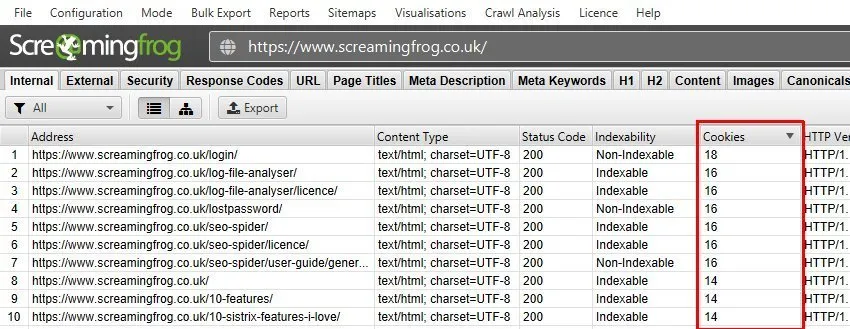
Start the crawl. When it finishes, you’ll see how many cookies were found for each URL in the Internal tab, Cookies column.
Cookies tab
Now you can see which cookies were found during the crawl: click one or more URLs in the top window and you’ll find all the details in the Cookies tab of the bottom pane.
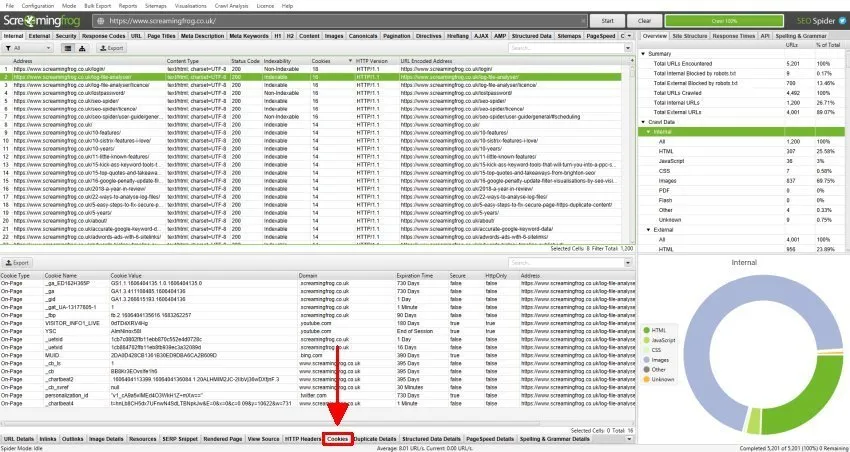
Here’s an example of the Cookies tab filled with details.
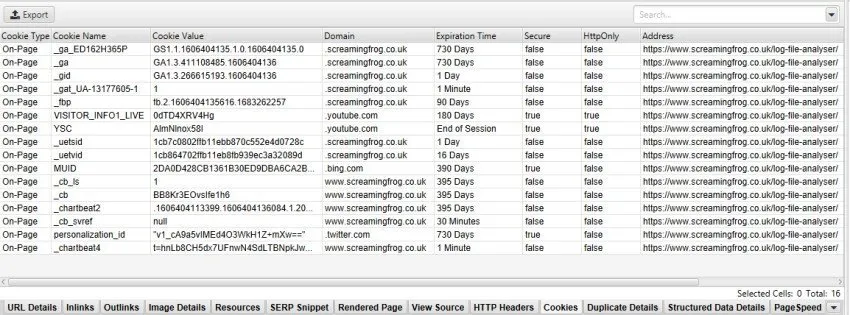
The available columns are:
- Cookie Type: where the cookie was found (“HTTP”, “On-Page” etc.).
- Cookie Name: the cookie’s name.
- Cookie Value: the cookie’s value.
- Domain: the domain that set the cookie, first or third party.
- Expiration Time: when the cookie expires.
- Secure: details of the cookie’s Secure attribute.
- HttpOnly: details of the cookie’s HttpOnly attribute.
- Address: the URL where the cookie was found.
Exporting cookies
Cookie report
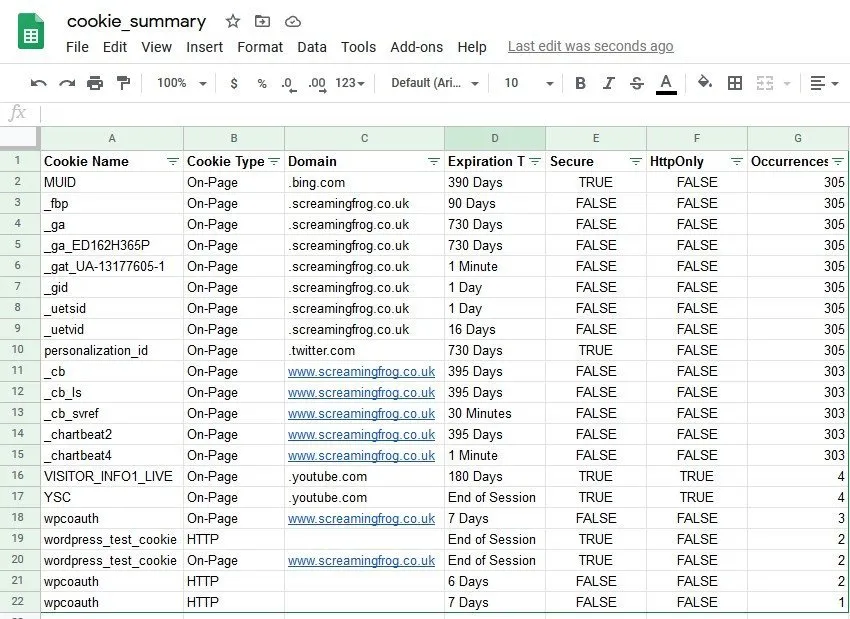
You can export a very valuable aggregated summary of the cookies found:
1Reports›2Cookies›3Cookie Summary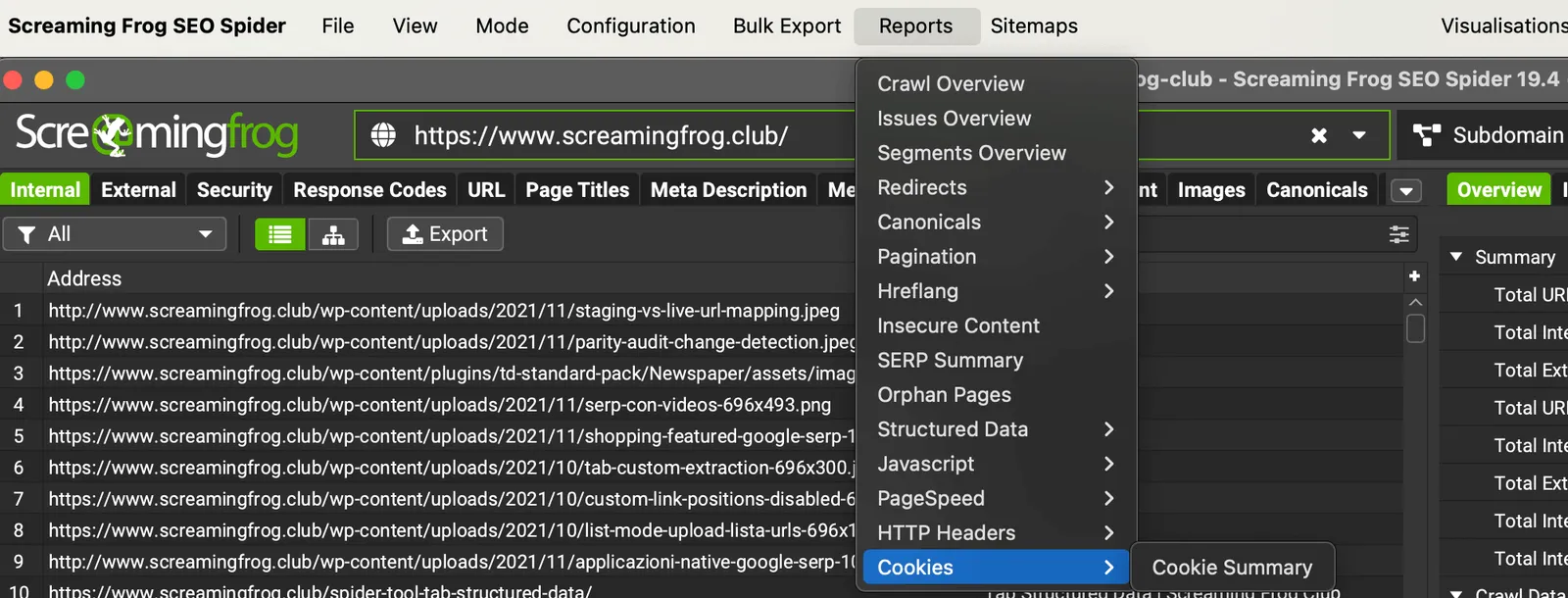
The report gives an aggregated view of the unique cookies found during a crawl, based on name, domain, expiry, and Secure and HttpOnly values. For each unique cookie you also see the number of URLs that set it.
Bulk export
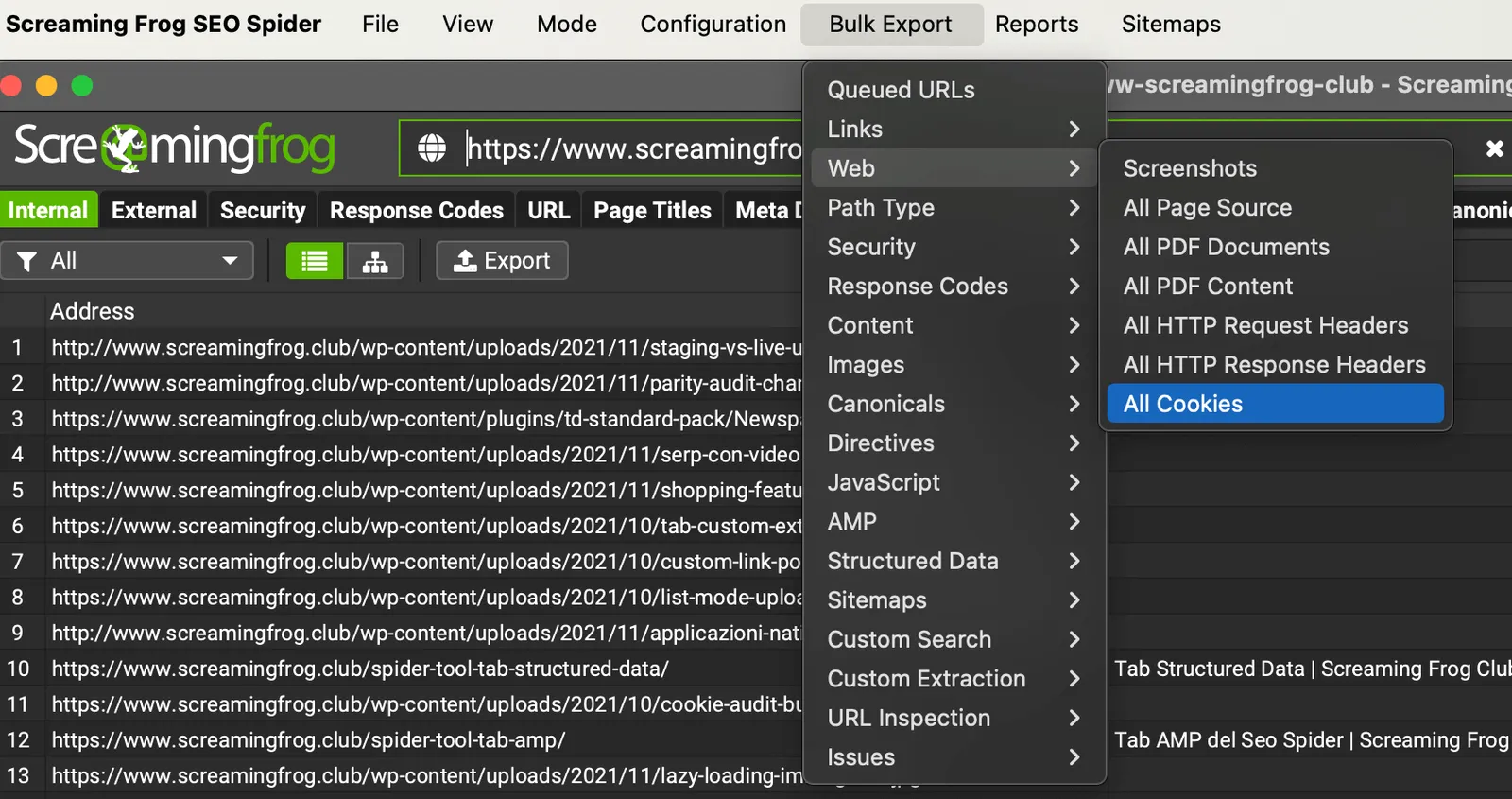
For a more detailed analysis, use 1Bulk Export›2Web›3All Cookies to get the cookies and their attributes for every single URL.
Authentication: forms based
To be sure you find every cookie on a website, it’s worth checking them after accepting the consent banner too.
You can do this with Screaming Frog’s Forms Based authentication: accept the cookie pop-up in the built-in browser and SEO Spider crawls as if you’d accepted it. Go to 1Configuration›2Authentication›3Forms Based, click Add, enter the website URL and click OK.
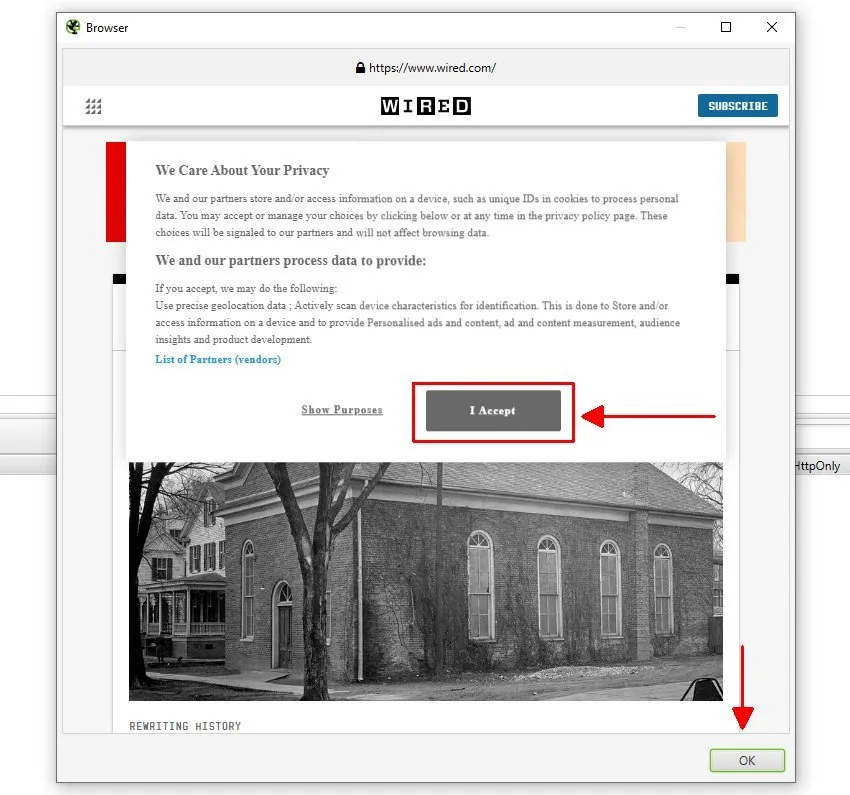
By following these steps you can compare the cookies found with and without accepting the banner.
Cookie audit video
Questions about Cookie SEO Audit?
These guides come from real projects. If something in your crawl doesn’t add up, or you want to apply this process to your site, get in touch.
 Author.Raffaele Visintin.Search & Strategic Marketing Advisor