

Crawling Alt Text.
Analysing image alt text to avoid search engine penalties.
How to find images without alternative text, or with overly long alt text, using SEO Spider’s Images and Image Details tabs. See also how to trace the pages that use each image.
Alt text
Alt text (alternative text) is used in a website’s HTML to describe an image in words.
It’s essential for web accessibility (for blind and partially sighted people) and provides alternative text if the image can’t be loaded.
Search engines use it a lot to understand image content, although its role has diminished now that Google interprets images on its own with artificial intelligence.
Further reading: HTML img alt attribute – W3Schools.
Finding images without alt text
Let’s go through the main steps to find images missing this attribute.
1. The Images tab
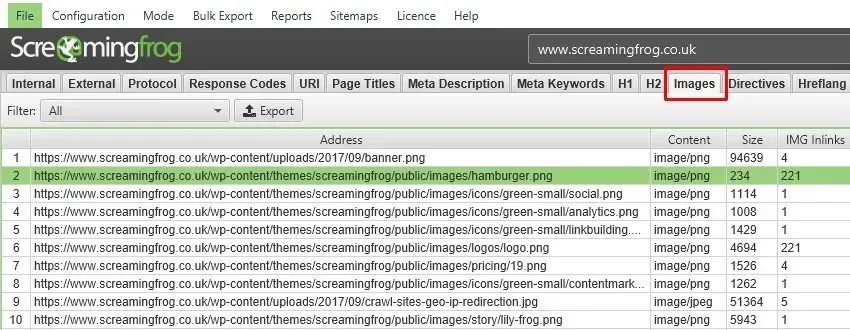
After crawling a subdomain, click the 1Images tab, which lists every image URL, its size and the number of IMG inlinks.
2. Image Details
Click the Image Details tab in SEO Spider’s bottom window to see all the source pages that reference the image (the ‘From’ URL) and the alt text of each image element found, plus a preview on the right.
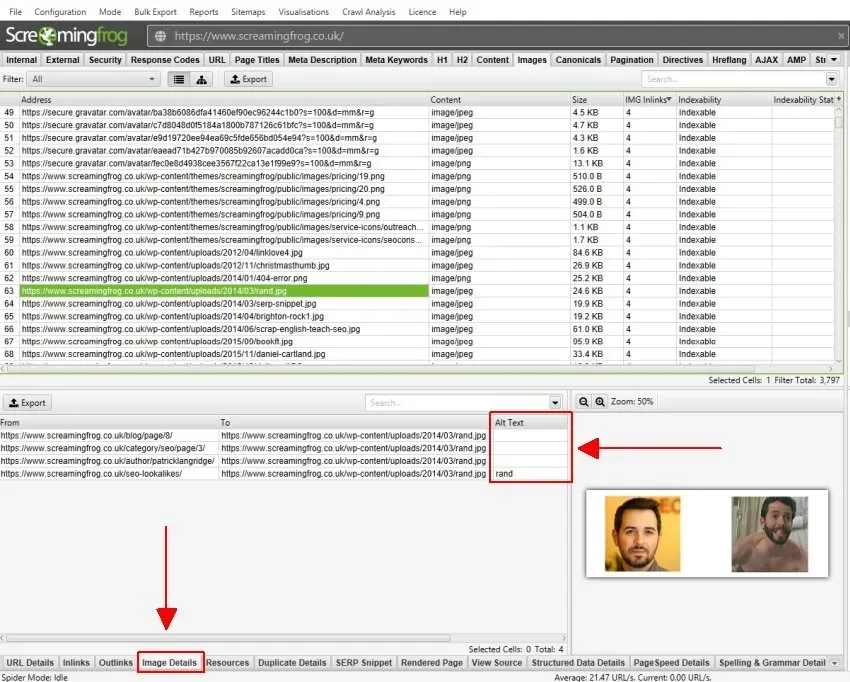
In the example above, four pages of the Screaming Frog website (listed in the ‘From’ column) use the same image (https://www.screamingfrog.co.uk/wp-content/uploads/2014/03/rand.jpg).
The inconsistency is that only one of the four HTML pages has alt text (‘rand’); the others are empty, meaning they lack alt text.
Images can be referenced by many different URLs and so have many different alt texts to optimise. Even if the image appears on several pages, those pages likely have different search intents, so when optimising I recommend writing different versions of the alt text to fit each context.
3. Missing Alt Text and Missing Alt Attribute
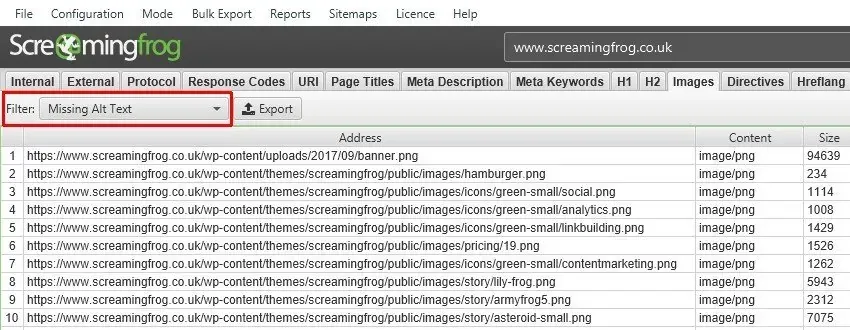
Use the Missing Alt Text or Missing Alt Attribute filters.
The ‘Missing Alt Text’ filter includes every image that has an alt attribute that’s empty or only contains white space.
<img src="screamingfrog-logo.jpg" alt="" />The ‘Missing Alt Attribute’ filter includes images with no alt attribute at all.
<img src="screamingfrog-logo.jpg" />Screaming Frog keeps these two filters separate because of decorative images, which as a best practice should have empty alt text rather than none, so they don’t cause problems for screen readers. A good practice is to serve decorative images as CSS background images.
Exporting the data
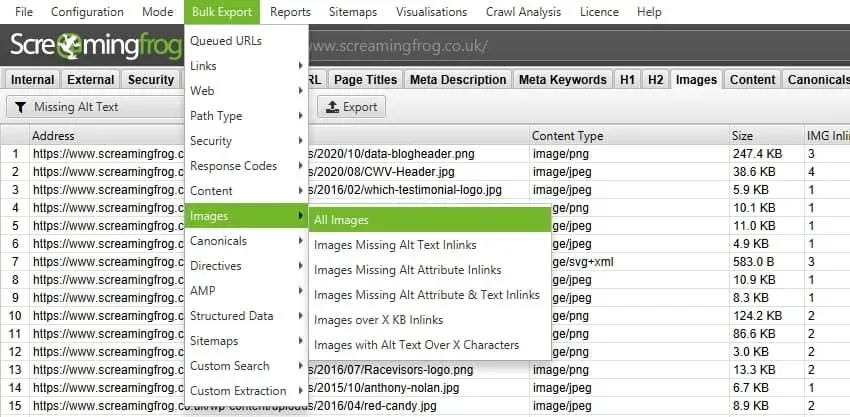
Once collected, you can export the data for each filter directly from the tab, or in bulk with 1Bulk Export›2Images›3Images Missing Alt Attribute & Text Inlinks.
These files also show the source pages, the image paths and the alt text, for a more accurate view of any issues.
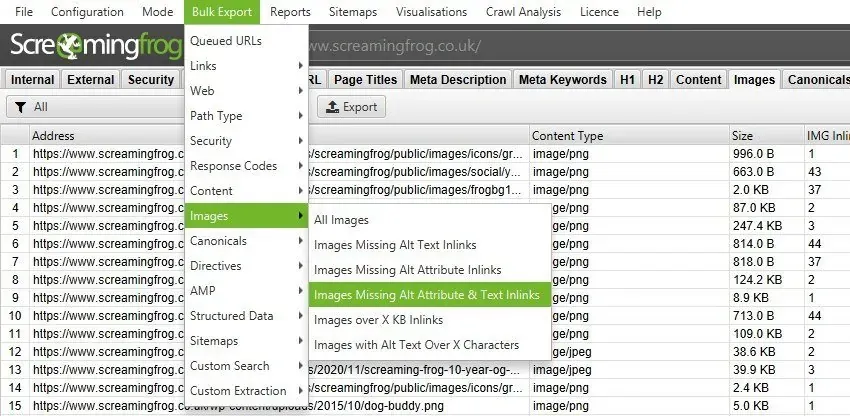
When optimising images it can be very useful to export every resource (including those missing alt text) in one go from 1Bulk Export›2Images›3All Images.
Images not found
Some images may not be discovered by SEO Spider. In most cases it’s because robots.txt blocks them, or they’re loaded with JavaScript or CSS (such as a CSS ‘background-image’).
In the first case you can customise the robots.txt from 1Configuration›2robots.txt›3Custom; in the second, enable JavaScript rendering in 1Configuration›2Spider›3Rendering and recrawl.
Video tutorials
Alt text analysis
Image SEO audit
Questions about Crawling Alt Text?
These guides come from real projects. If something in your crawl doesn’t add up, or you want to apply this process to your site, get in touch.
 Author.Raffaele Visintin.Search & Strategic Marketing Advisor