

How to Debug Invalid HTML in the Head?.
Learn how to debug invalid HTML in the head
How to find invalid HTML elements in the head that make Google close the head early and ignore the metadata that follows. See which elements are allowed, how to use SEO Spider’s Validation tab and how to check errors with the rendered HTML and Search Console.
What invalid HTML in the head is
In 2026, SEO requires ever stricter control of HTML code, especially the <head> section, the hub that passes essential metadata to search engines and AI systems. The quality and validity of what’s in the <head> is no longer a technical detail: it’s essential to make sure titles, descriptions, canonicals and SEO markers aren’t ignored or compromised, especially when advanced tools such as Screaming Frog SEO Spider reveal errors that can stop the document being interpreted correctly.
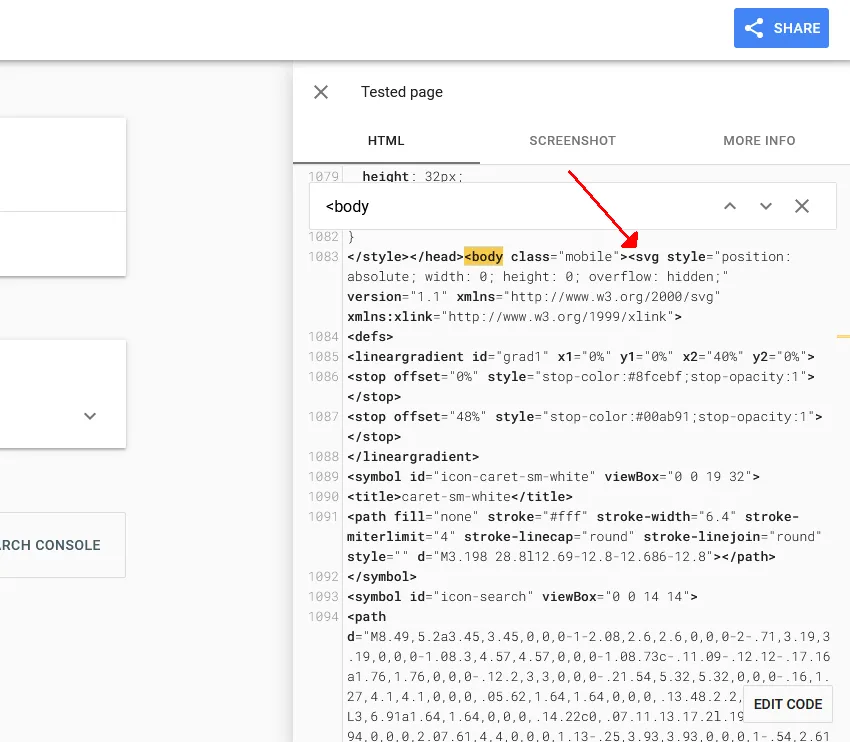
This guide to debugging HTML elements in the <head> pinpoints the danger of including non-compliant tags such as <img>, <svg>, <iframe> or <div> in the <head>: they make Google assume the head has closed early, so it ignores everything that follows.
At a time when AI and advanced ranking systems favour smart, consistent, valid content, and when rich results, featured snippets and entity-based search are decisive, valuable content isn’t enough: it also has to be technically readable and perfectly structured.
So this article isn’t just a technical tutorial: it’s an essential resource for anyone who wants to ensure maximum SEO effectiveness, accessibility and correct interpretation by search engines and AI systems. You’ll see how to use Screaming Frog not only to find pages with errors in the <head>, but also for effective diagnosis (crawl, “Validation” tab, raw vs rendered HTML, Search Console tools) and targeted fixes.
This tutorial explains how to use Screaming Frog SEO Spider to find invalid HTML elements in the head, see which metadata may be affected and how to fix the cause of the error.
Using valid HTML for a page’s metadata ensures search engines such as Google can use it to index each page.
Although search engines try to understand the markup even when there are errors, some elements in the head can cause problems in how the crawler handles the information.
If invalid HTML elements are used in the head (“<head>”), Google assumes the head has ended and starts the body in its analysis.
That means any metadata appearing after the invalid HTML element may be ignored by Google.
Valid HTML elements in the head
The head should only contain these HTML elements:
- title
- meta
- link
- script
- style
- base
- noscript
- template
Other elements may cause crawling and indexing problems:
- iframe
- img
- svg
- div
- noscript containing an “img”.
As a rule, also bear in mind that <body> elements placed before the <head> element can affect all the metadata in the head.
For example, a stray <div> tag before the opening <html> element will make Google automatically open and close an empty <head> element, meaning all the metadata ends up in the <body> and may be ignored.
According to Google, if you still need to put “invalid” elements in the head, they should be placed after the elements the crawler must take into account.
Finding invalid HTML with Screaming Frog
Finding invalid HTML elements in or before the head at scale across a website is hard, and that’s where Screaming Frog can do the heavy lifting.
SEO Spider flags any pages with invalid <html> elements that could be a problem, and any meta tags such as titles, canonicals or meta robots that are outside the head.
Crawling the website
The first step is very simple: you don’t need to configure anything in SEO Spider except JavaScript rendering, so that elements inserted after scripts run are analysed too. You’ll find it in 1Configuration›2Spider›3Rendering.
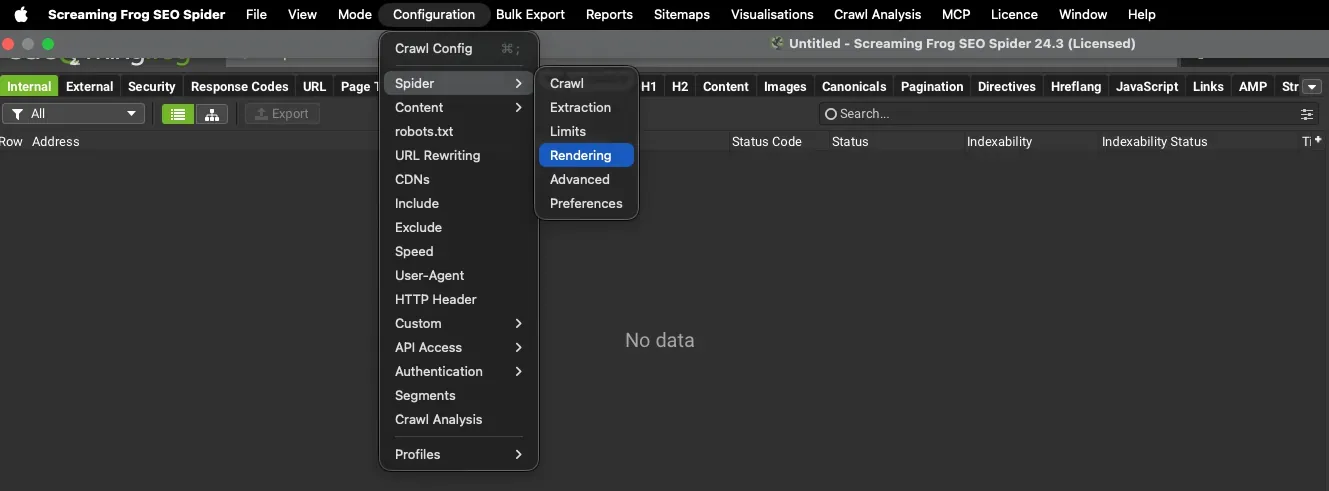
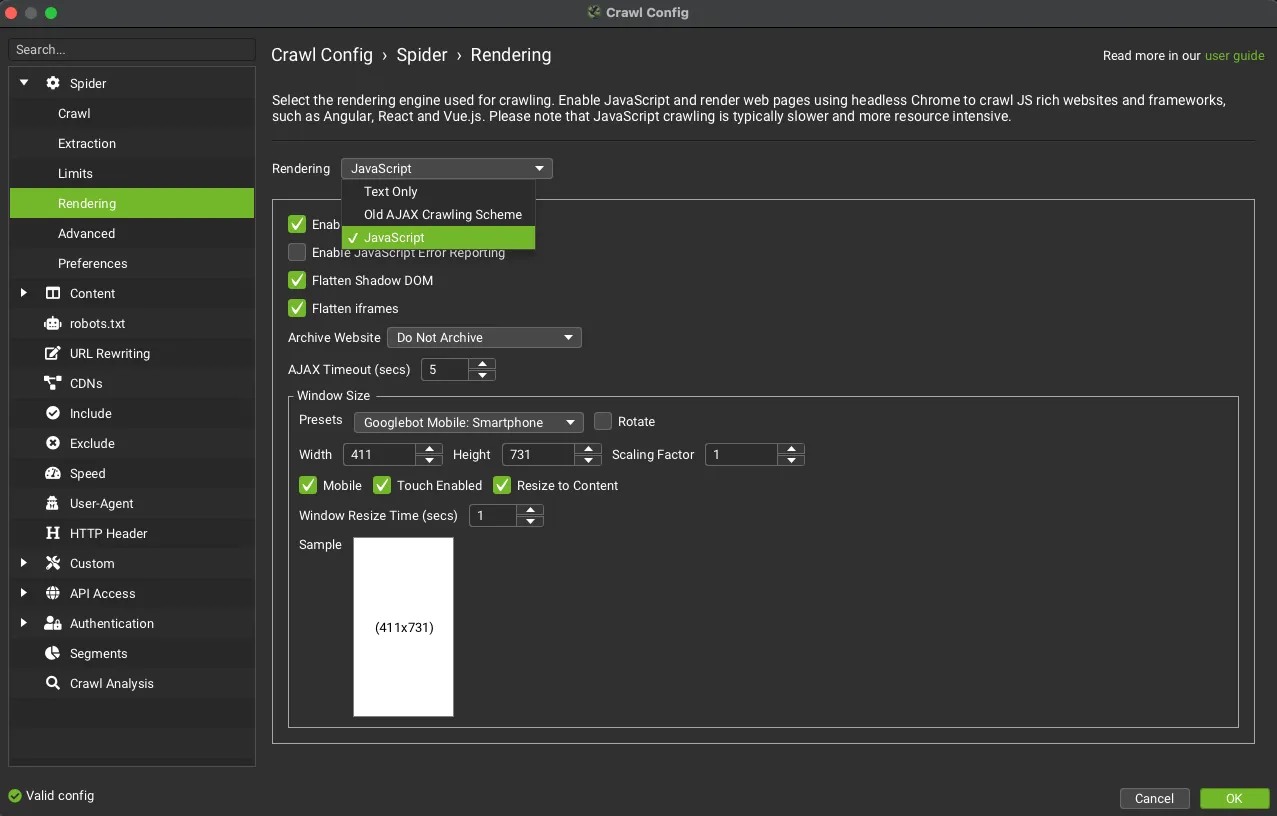
Then enter the domain or subdomain to analyse and start the crawl.

Analysing the Validation tab
During the crawl you can already see the data in real time, or wait until the end for a complete picture of the affected URLs.
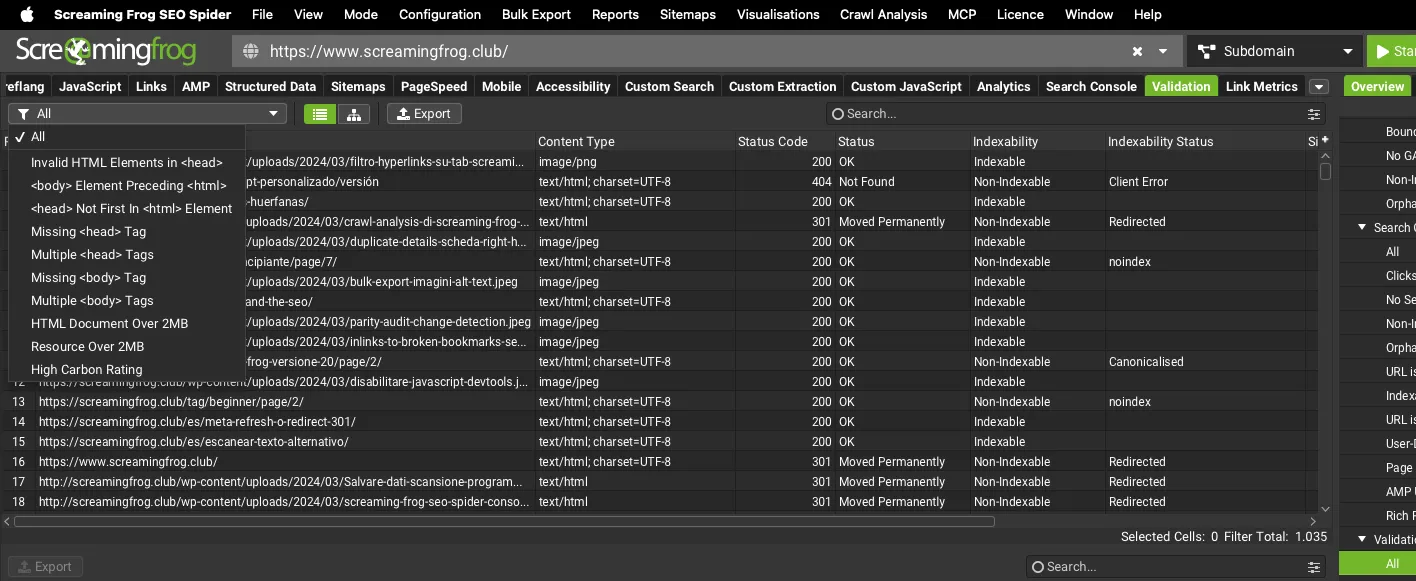
The tab to check is 1Validation, which has several filters:
- Invalid HTML Elements in Head: pages with invalid HTML elements in the head. When an invalid element is used in the head, Google assumes the <head> element has ended and ignores any elements after the invalid one. That means critical head elements appearing after it won’t be seen.
- “<body>” Element Preceding “<html>”: URLs with a body element before the opening html element. Browsers and Googlebot automatically assume the body has started and generate an empty head element before it. That means the intended head and its metadata are seen in the body and ignored.
- “<head>” Not First in “<html>” Element: the <head> element should be the first element in the <html>. Browsers and Googlebot automatically generate a <head> element if it isn’t first.
- Missing “<head>” Tag: pages missing a <head> element in the HTML.
- Multiple “<head>” Tags: pages with several <head> elements in the HTML.
- Missing “<body>” Tag.
- Multiple “<body>” Tags.
- HTML Document Over 2MB.
- Resource Over 2MB.
- High Carbon Rating.
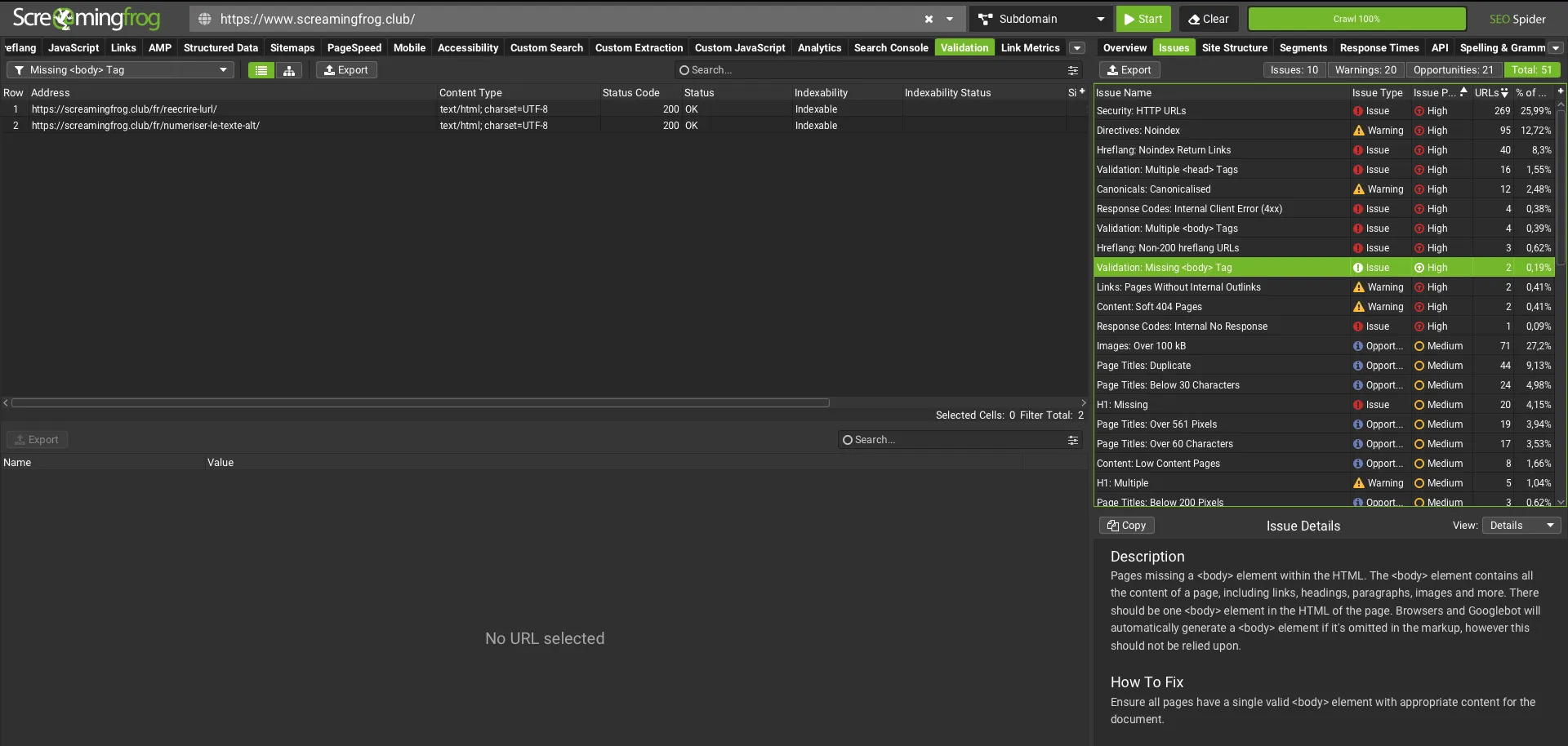
The detailed analysis is in the dedicated tab; for an overview, monitor the data in the right-hand sidebar, where in the 1Issues tab every validation issue is labelled high priority.
Debugging the head
Once you’ve found every affected URL, you can analyse them thoroughly in three ways:
- Raw HTML: analyse the head in the raw HTML by right-clicking and choosing “View page source”. This analysis will be partial, because some elements may be inserted by JavaScript.
- Rendered HTML: analyse the page after JavaScript has rendered. Just use Chrome’s “Inspect” and check the “Elements” tab.
- Search Console: you can also check for invalid elements in the head with Search Console’s URL Inspection tool.
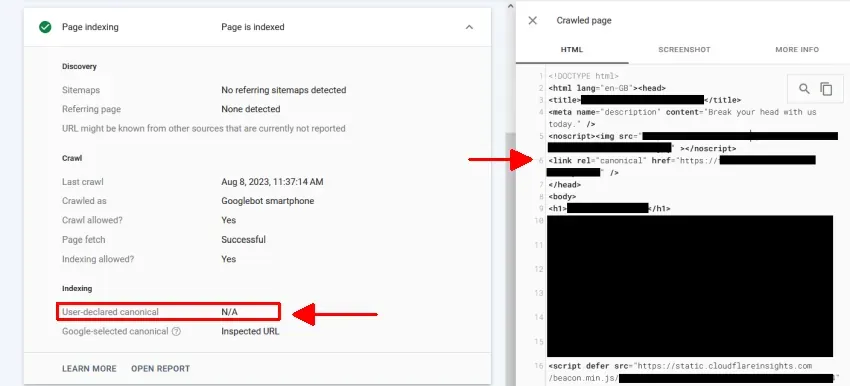
Example: canonical ignored by Google
To show how important this topic is for SEO, here’s an example.
The rendered HTML on the right looks correct, but the “User-declared canonical” is ignored because of a <noscript> tag containing an image above it, which closes the head.
Questions about How to Debug Invalid HTML in the Head?
These guides come from real projects. If something in your crawl doesn’t add up, or you want to apply this process to your site, get in touch.
 Author.Raffaele Visintin.Search & Strategic Marketing Advisor
