

Screaming Frog – Version 19 Peel.
Peel, Screaming Frog’s new version 19.0: discover the upgrades and bug fixes.
What’s new in SEO Spider version 19 (“Peel”): a refreshed interface, configuration unified in a single window, segments to split the crawl and visual custom extraction.
Version 19.0 Peel
The new version 19.0 of Screaming Frog SEO Spider, internally called “Peel”, is out.
This update contains several significant upgrades, new features and improvements based on user feedback.
Design update
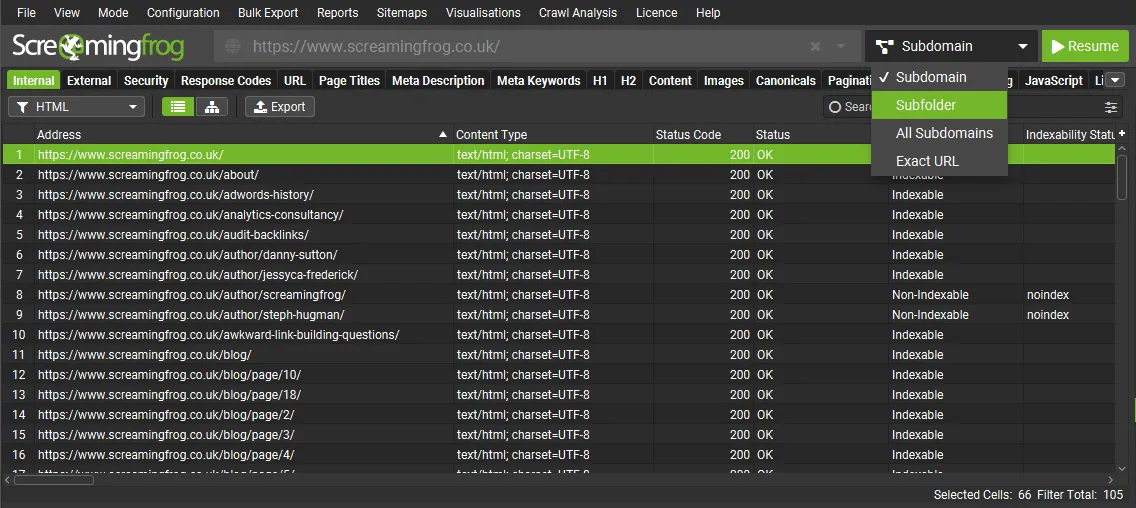
A small update to the interface, with a new filter to choose the crawl scope (subdomain, subfolder, all subdomains) moved into the main navigation bar for ease of use.
Improved UX
The main configuration (“Crawl Config”) has been unified into a single dialog, with links to each section. This makes setting up an SEO audit more efficient than opening and closing each tab separately.
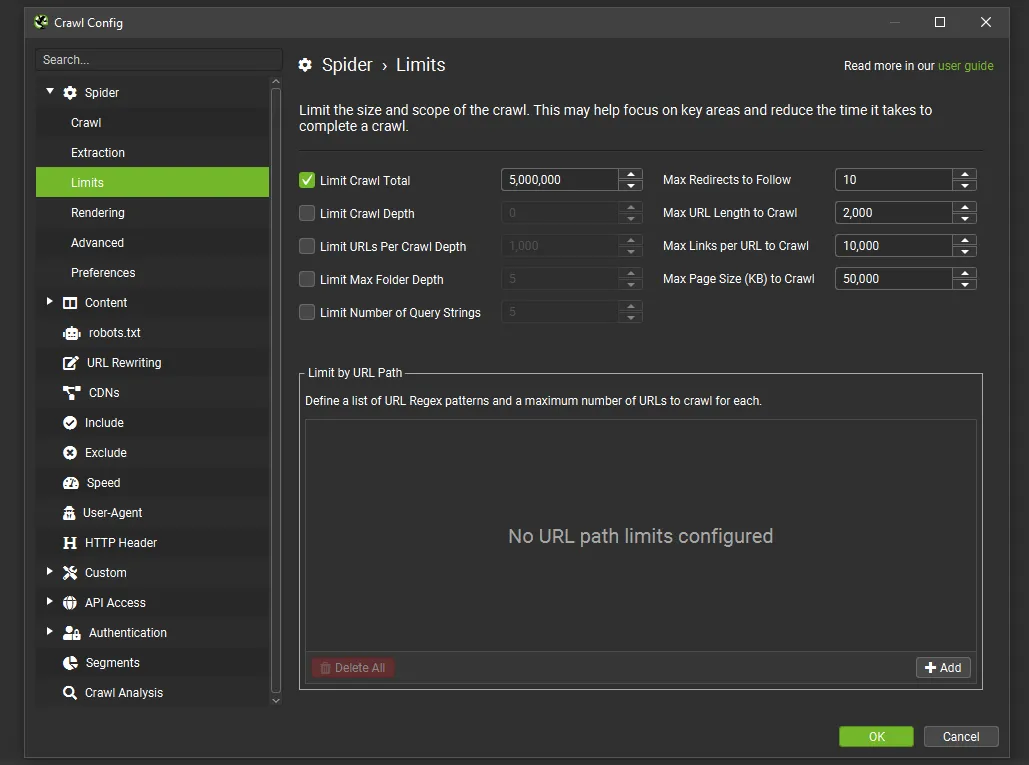
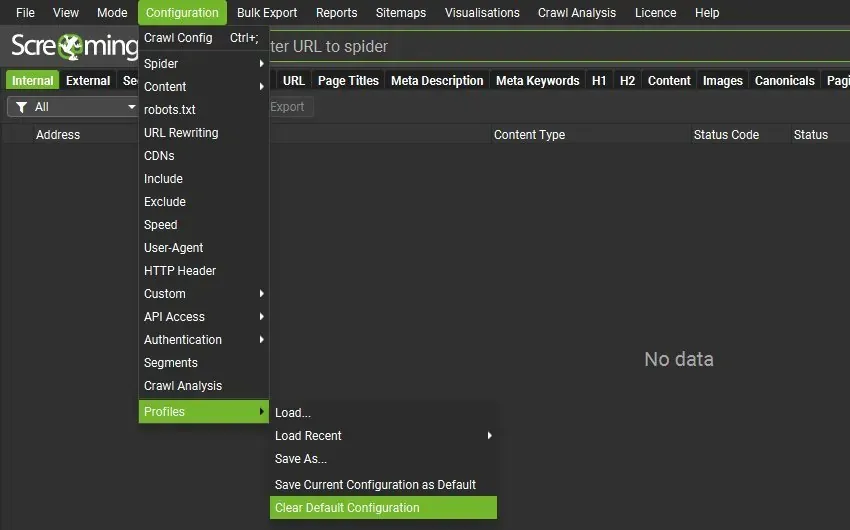
This new dialog also includes features such as saving and loading configuration profiles, which used to be in the “File” menu.
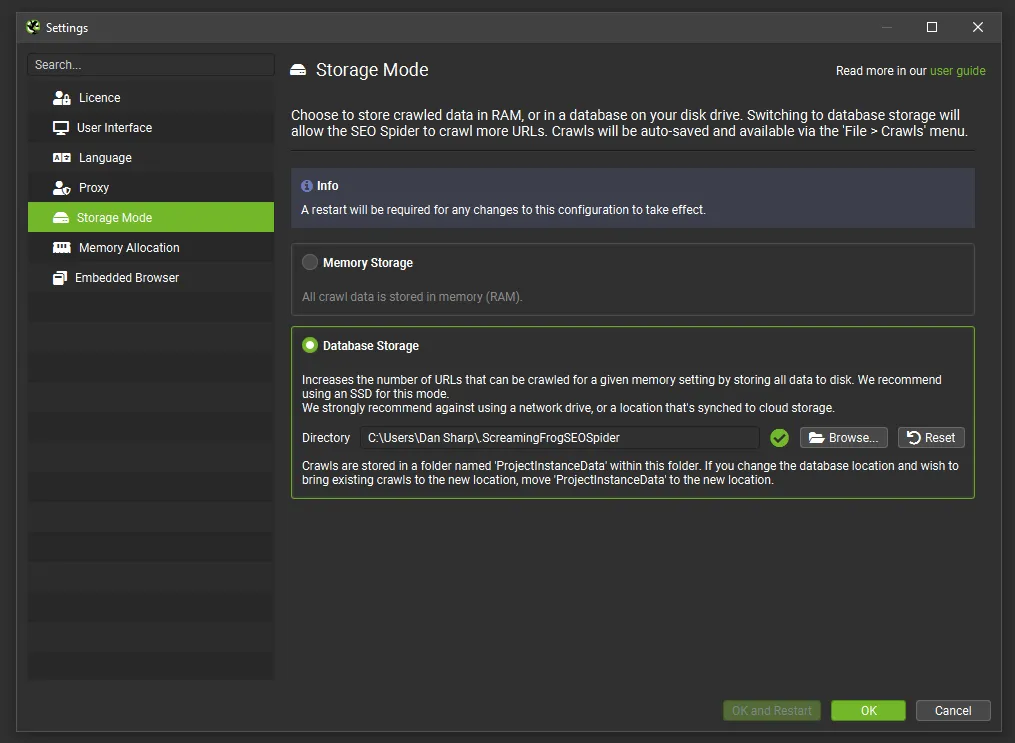
System settings such as user interface, language, storage mode and more are now in 1File›2Settings on Windows and Linux, or 1Screaming Frog SEO Spider›2Settings on macOS.
Segments
From this version you can also segment a crawl to better identify and monitor issues and opportunities by template, page type or priority area.
The segmentation configuration is available from the configuration menu or the “Segments” tab on the right, and lets you split URLs into segments based on any data found in the crawl, including data from APIs such as GA or GSC, or post-crawl analysis.
You can set up a segment at the start, during or at the end of a crawl.
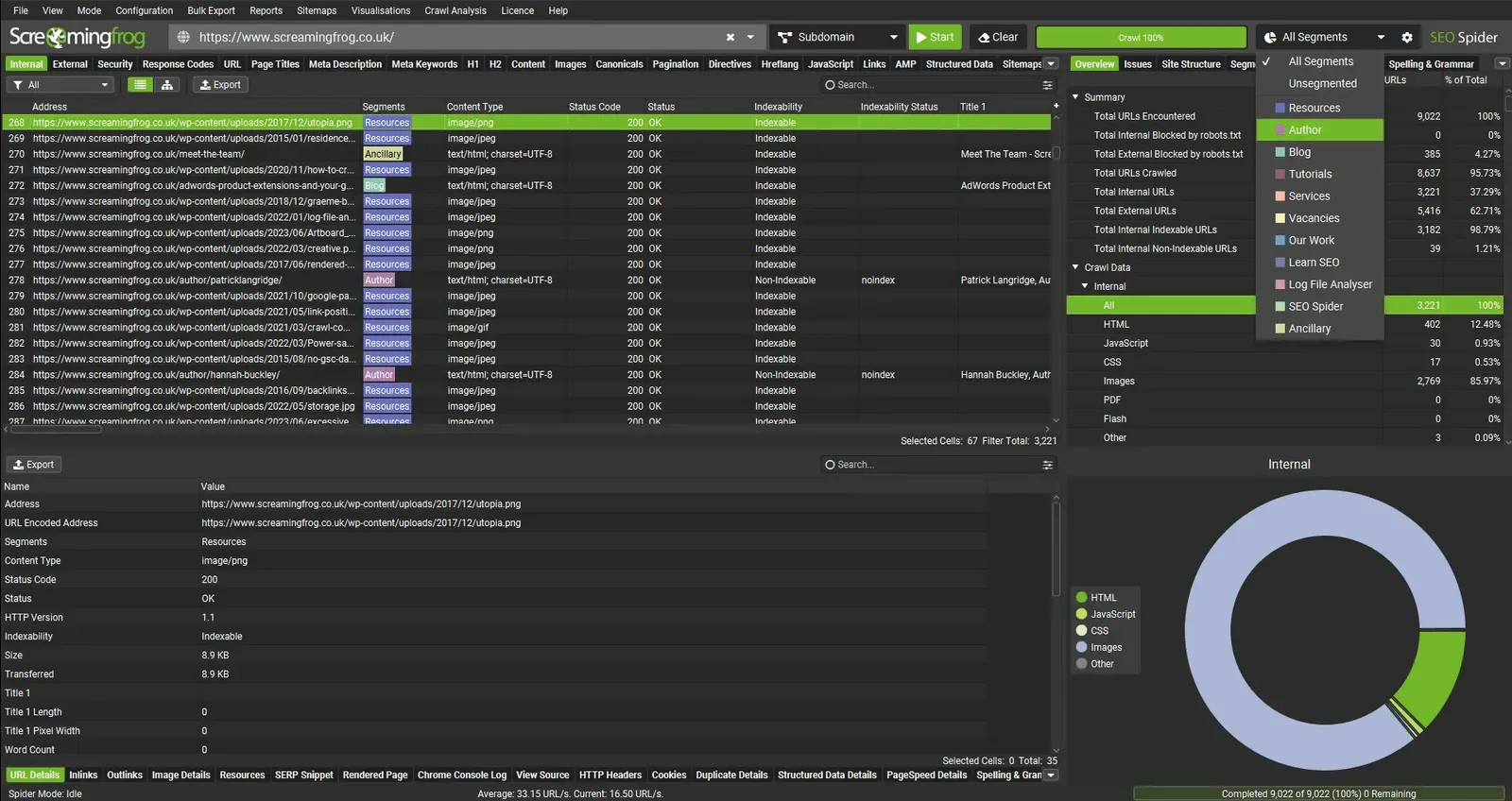
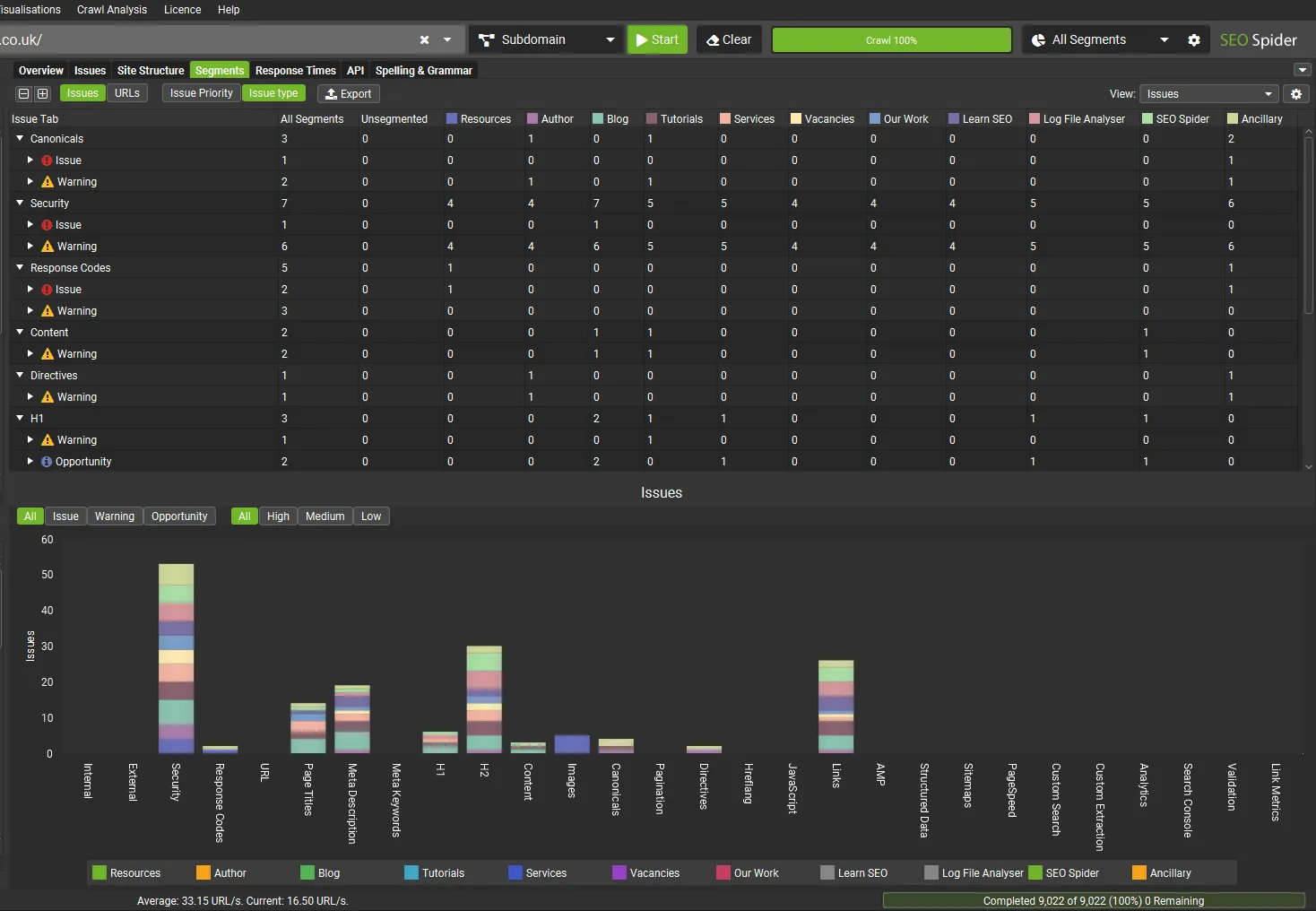
Once segments are set, the “Issues” tab in the right-hand sidebar includes a segments bar, so you can see at a glance where on the site the issues are.
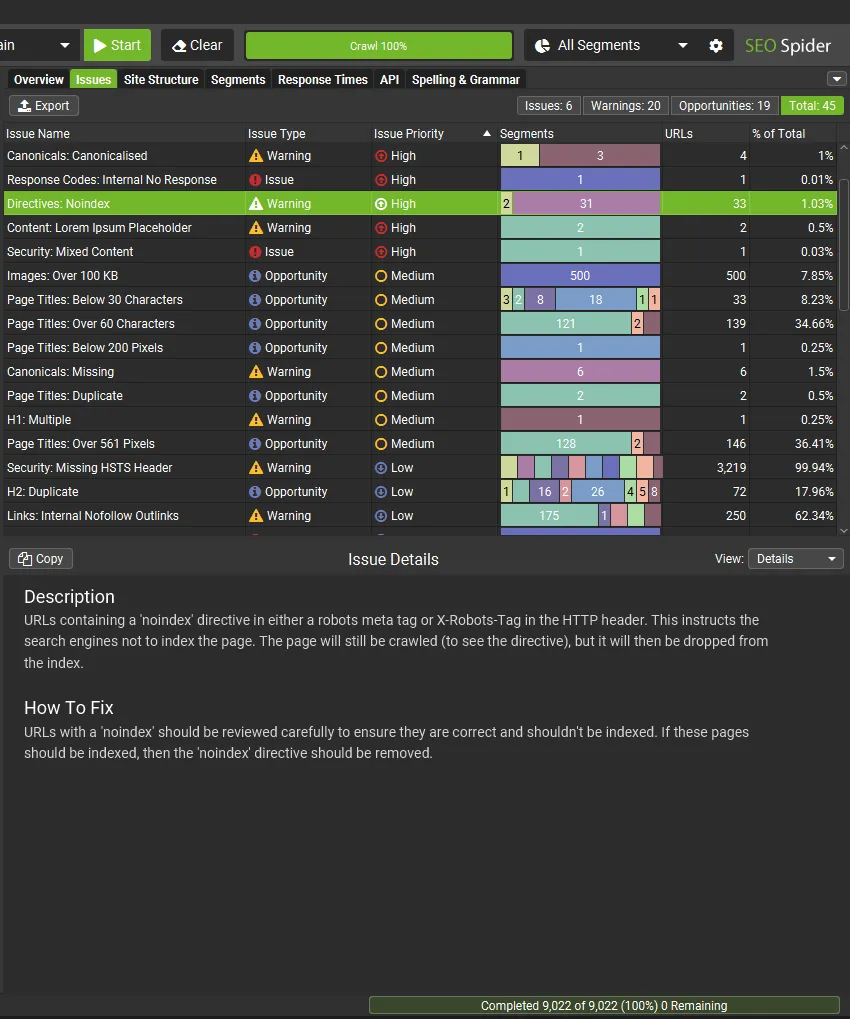
You can then use the segment filter on the right to view individual segments in detail.
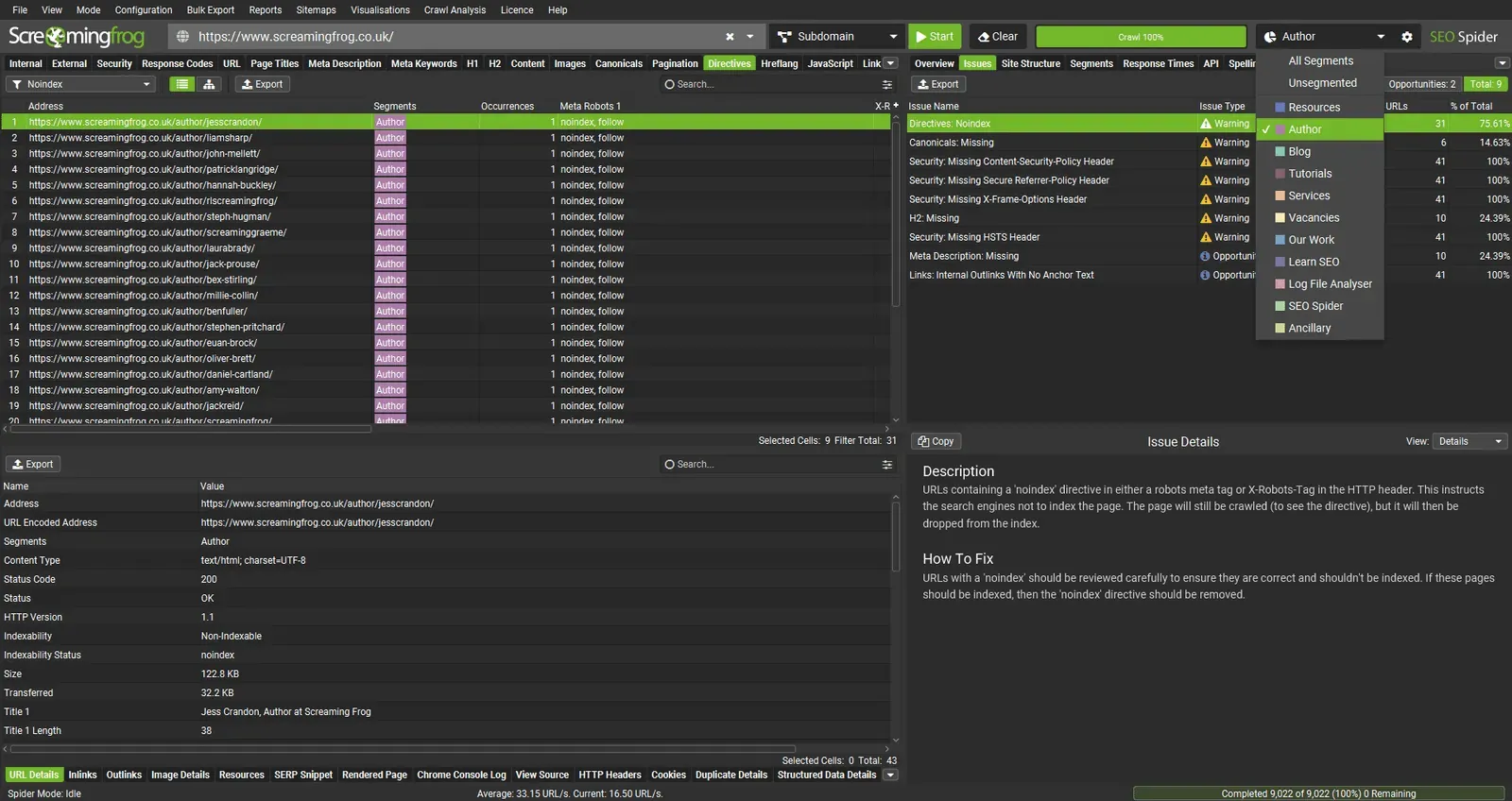
A new “Segments” tab on the right gives an aggregated view, so you can quickly see where issues are by segment.
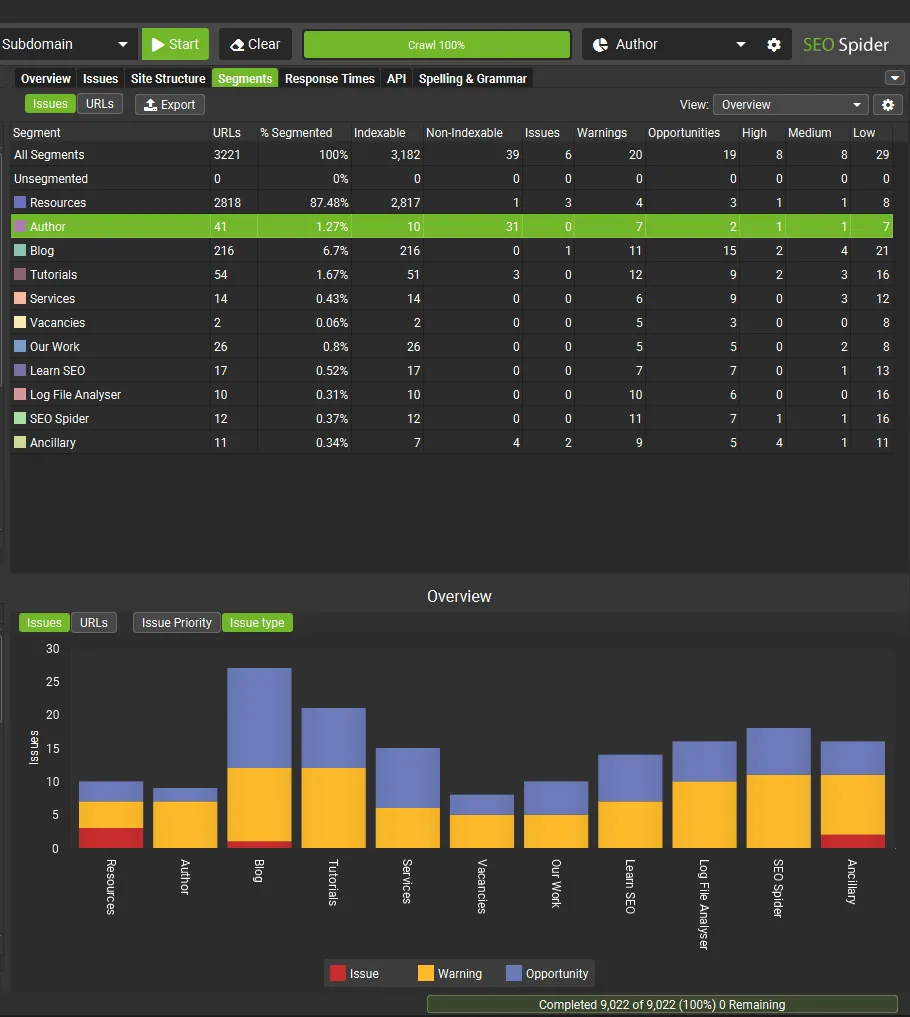
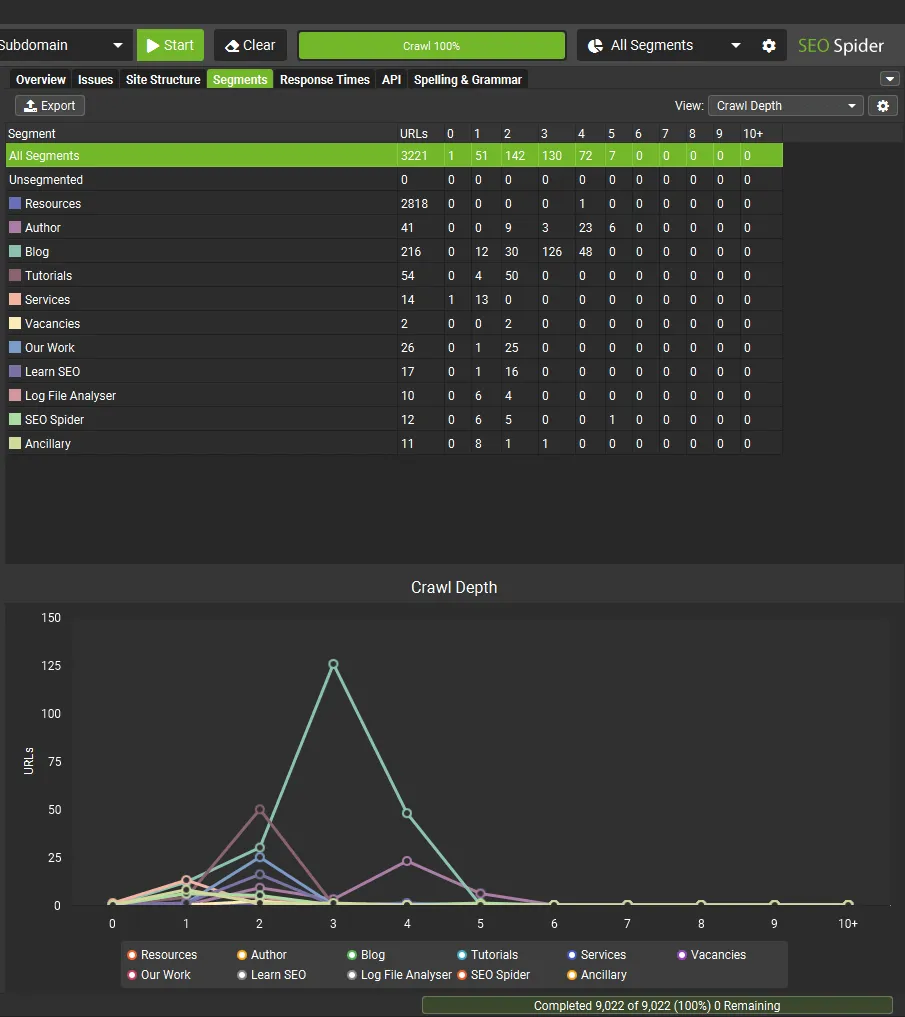
Use the Segments tab’s “View” filter to analyse elements such as crawl depth by segment.
Or which segments have different types of error.
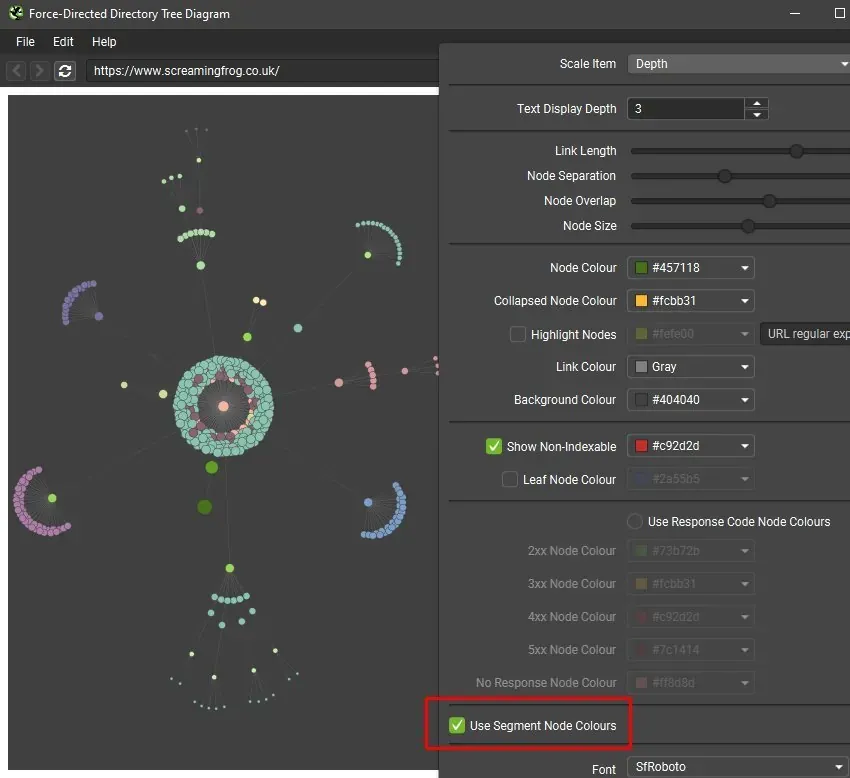
Segments are integrated into several other SEO Spider features: for example, in crawl visualisations you can colour nodes by segment.
You can also create XML sitemaps by segment, and SEO Spider will automatically create a sitemap index file referencing each segmented sitemap.
In the Looker Studio export for automated crawl reports, a separate sheet is also created automatically for each segment. That means you can monitor issues by segment in a Looker Studio crawl report too.
Visual Custom Extraction
Custom Extraction is a super powerful SEO Spider feature, but it’s also fairly advanced, and many users can struggle with XPath or CSSPath.
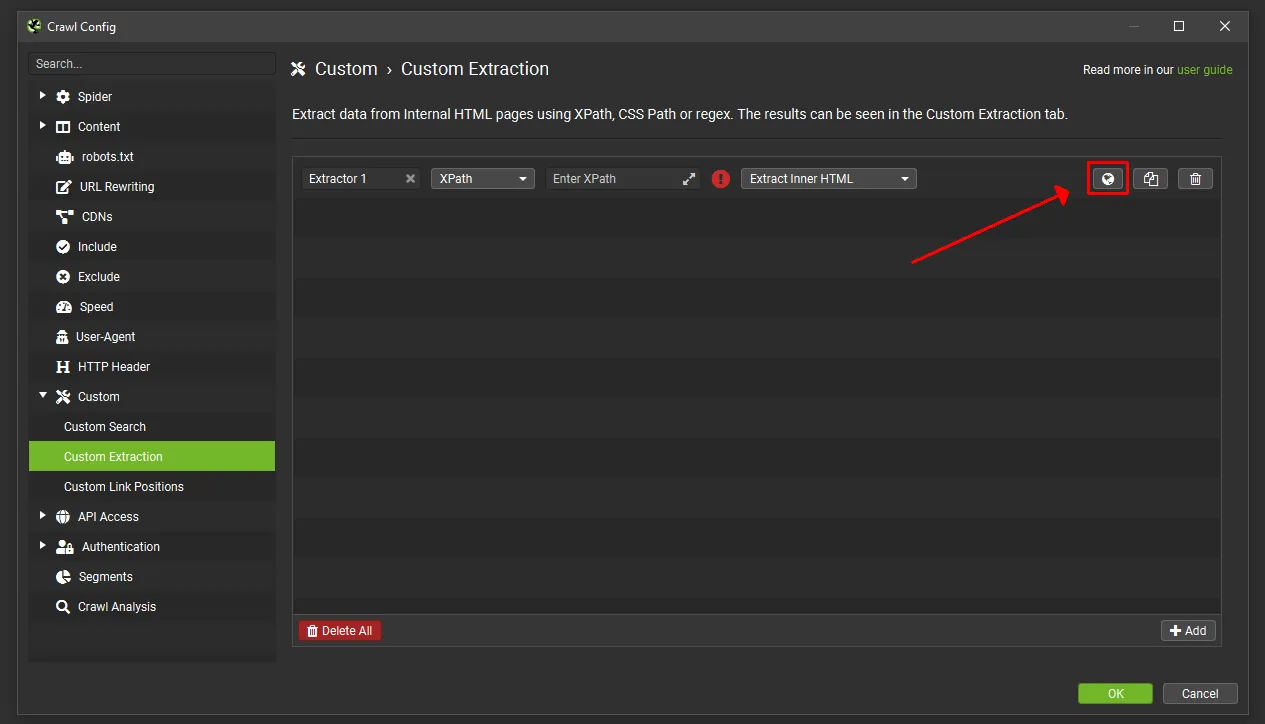
To make it easier, from version 19.0 you can open a web page in the built-in browser and select the elements you want to extract from the page, the raw HTML or the rendered HTML. SEO Spider builds the right XPath/CSSPath for you and offers a range of other options.
Just click the web page icon next to an extractor to open the browser.
Enter the URL you want to fetch, then select the element on the page. SEO Spider highlights the area you want to extract and builds an expression for you, with a preview of what will be extracted from the raw or rendered HTML.
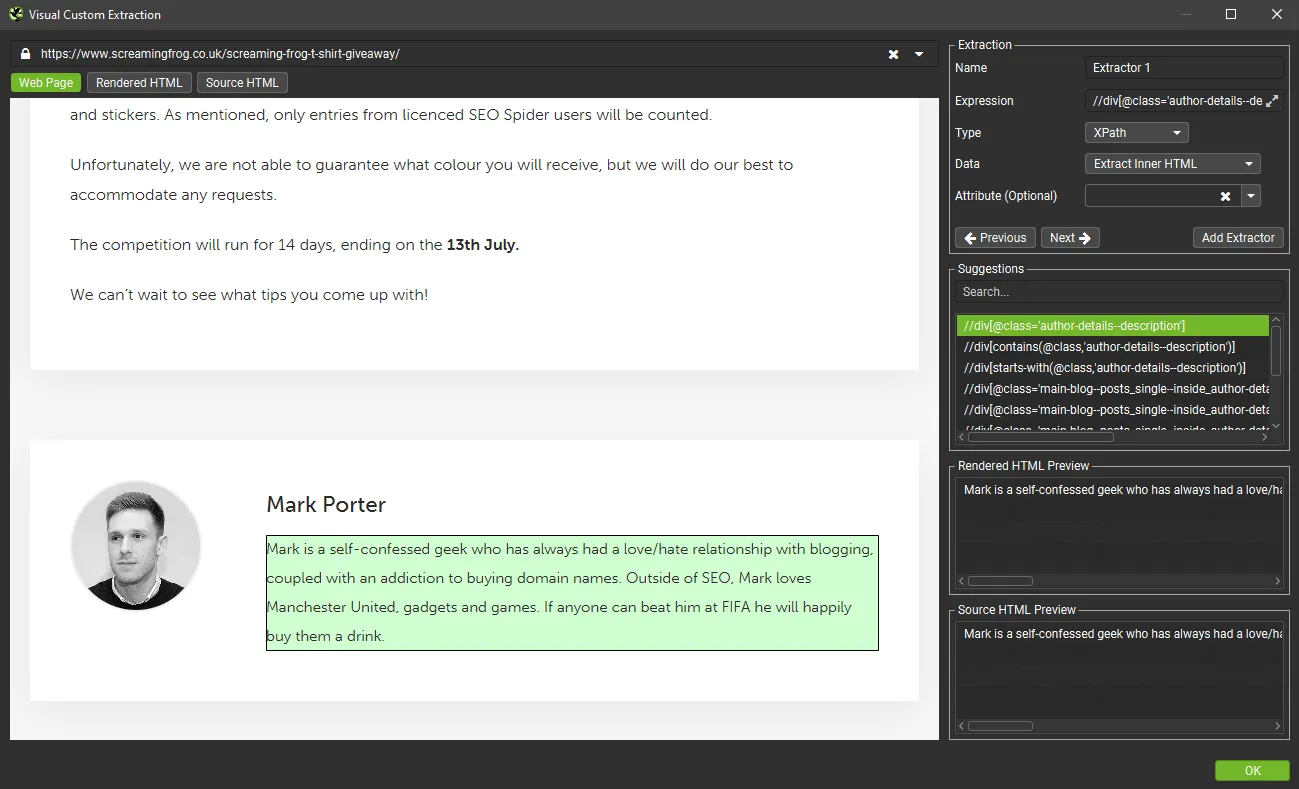
You can switch to the rendered or source HTML view and pick a line of HTML too. For example, if you want to extract the “content” of an OG tag:
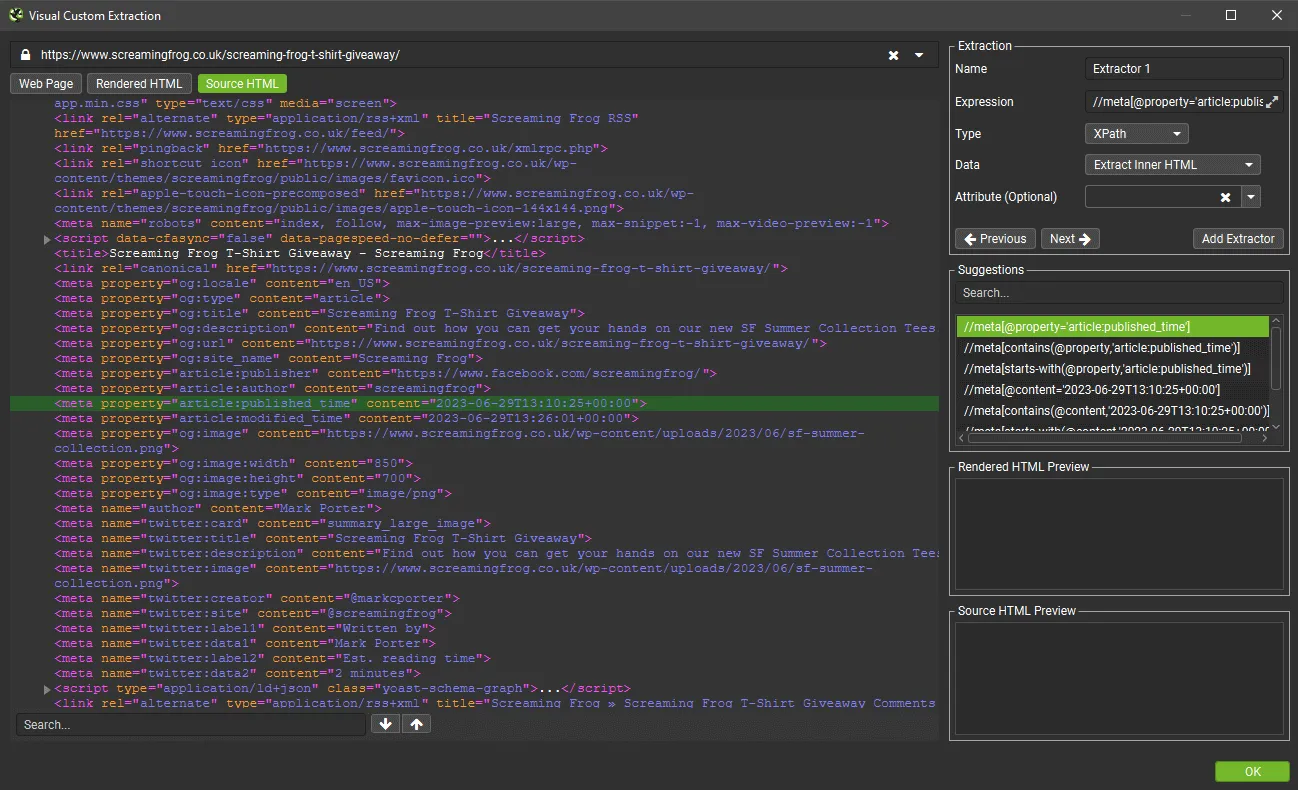
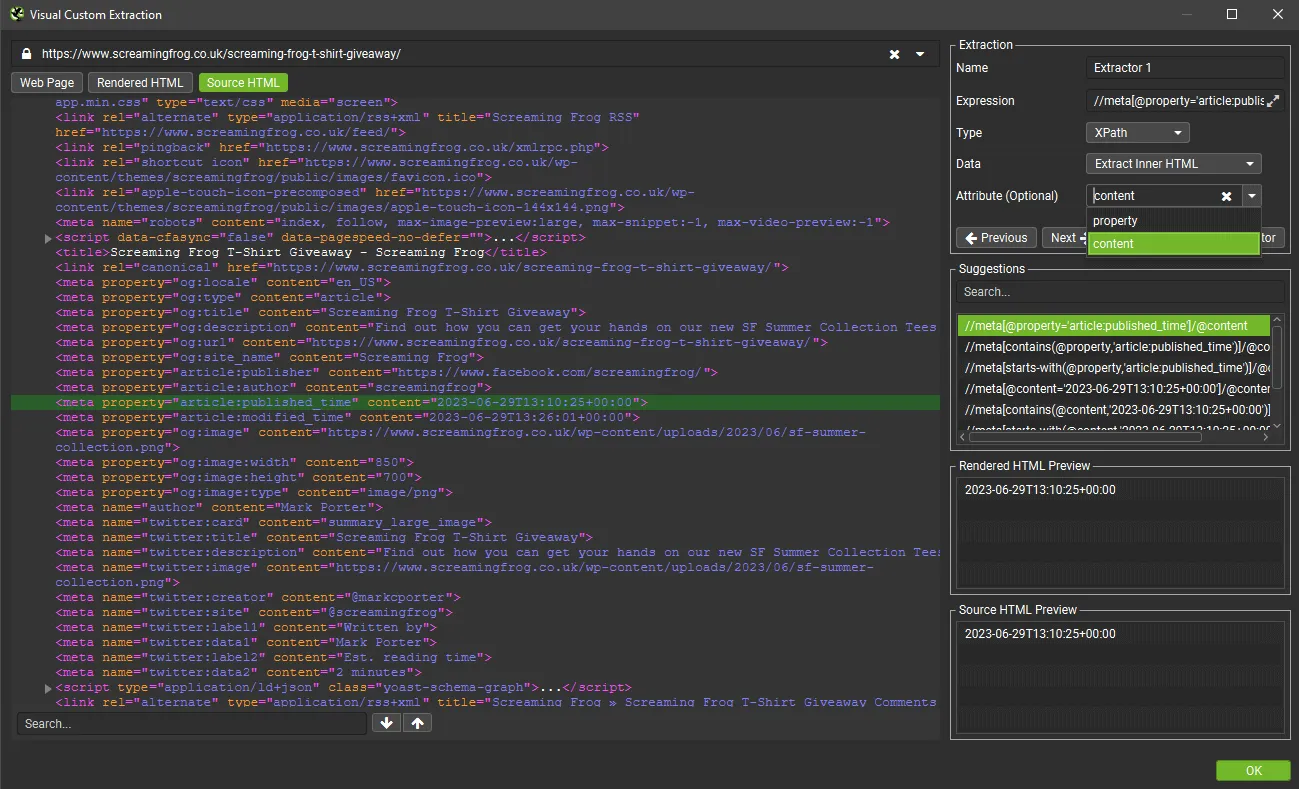
Then select the attribute you want to extract from the drop-down and Screaming Frog builds the expression for you.
In the case below it fetches the publication time, shown in the source and in the HTML previews after selecting the “content” attribute.
If you’re fluent in XPath, CSSPath and regex, you can keep entering your own expressions as before.
For now this feature doesn’t help with JS extraction, but the Screaming Frog team plans to extend it to help extract anything from the HTML.
SEO Spider version 19.0
Questions about Screaming Frog – Version 19 Peel?
These guides come from real projects. If something in your crawl doesn’t add up, or you want to apply this process to your site, get in touch.
 Author.Raffaele Visintin.Search & Strategic Marketing Advisor