

CONTENT TAB.
Checking issues with duplicate content, similar pages and low-value elements.
What you’ll find in SEO Spider’s Content tab: word count, exact and near duplicates, low content pages, spelling and grammar errors.
Content tab overview
The “Content” tab shows data on the content of the URLs discovered during the crawl: word count, exact and near duplicates, and spelling and grammar errors.
-
Address: the URL address.
-
Word Count: the total number of “words” crawled inside the body tag, excluding HTML markup.
The count is based on the content area defined by SEO Spider, but you can customise it in 1Configuration›2Content›3Content Area.
By default, <nav> and <footer> elements are excluded.
For a finer analysis you can include or exclude HTML elements, classes and IDs. Screaming Frog’s numbers may differ from a manual count. These differences are due to the parser making some corrections when it finds invalid HTML. Your rendering settings can also affect which HTML is considered. Screaming Frog counts words by splitting the text on spaces, without considering whether the content is visible (such as text inside a hidden div). -
Closest Similarity Match: shows how similar pages are, to help you avoid duplication. With the default threshold, SEO Spider flags content as a “near duplicate” at a 90% match or higher. You can customise the threshold in 1Configuration›2Content›3Duplicates by enabling Enable Near Duplicates and setting Near Duplicate Similarity Threshold. To populate this column you need to run Crawl Analysis. Only URLs above the chosen similarity threshold will have data; the others stay empty. In short, by default this column only has data for URLs that are 90% or more similar.
-
No. Near Duplicates: the number of near-duplicate URLs found in a crawl that meet or exceed the ‘Near Duplicate Similarity Threshold’, a 90% match by default. You can adjust this in 1Configuration›2Content›3Duplicates. To populate this column, enable near duplicates and run Crawl Analysis.
-
Total Language Errors: the total number of spelling and grammar errors found for a URL. To populate this column, select “Enable Spell Check” and/or “Enable Grammar Check” in 1Configuration›2Content›3Spelling & Grammar.
-
Spelling Errors: the total number of spelling errors found for a URL. To populate this column, enable “Enable Spell Check”.
-
Grammar Errors: the total number of grammar errors found for a URL. To populate this column, select “Enable Grammar Check”. In the settings you can set the language, the grammar rules and the reference dictionary.
To see the grammar and spelling errors in SEO Spider’s bottom tab, just select the URLs in the dedicated column of the “Internal” tab (top window).
A great feature for copywriters to catch typos or grammar mistakes. As well as the list of errors, it offers suggestions for fixing them and shows where on the site they were found, with a preview. For languages other than English the suggestions can be less reliable, but the dictionary is very useful for catching typos. -
Language: the language chosen for spelling and grammar checks. It’s based on the language attribute set in the HTML. The language can also be set in 1Configuration›2Content›3Spelling & Grammar.
-
Hash: the MD5 hash value of the URL. It’s a check for exact duplicate content, unlike “Closest Similarity Match”, which uses a similarity threshold. If two hash values match, the pages have exactly the same content. If even one character differs, they have unique hash values and won’t be flagged as duplicates. Exact duplicates can be viewed under ‘URL > Duplicate’.
-
Sentence Count, Average Words per Sentence, Flesch Reading Ease and Readability: the number of sentences, the average words per sentence, the Flesch readability score and its rating (from Easy to Very Hard). The Flesch score is designed for English, so read it with caution on texts in other languages.
-
Indexability: whether the URL is indexable or non-indexable.
-
Indexability Status: the reason a URL is non-indexable. It may be canonicalised to another URL or have a “noindex” tag.
Content tab filters
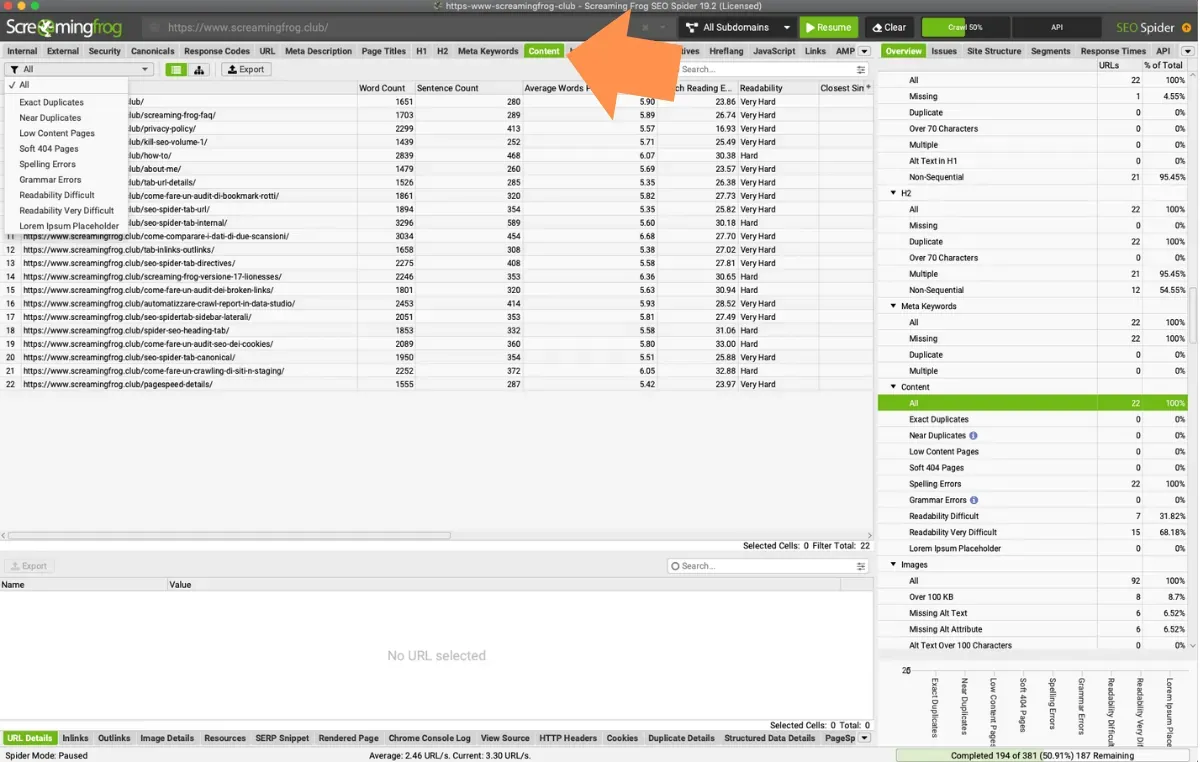
The following filters are available:
- Exact Duplicates: every page with the same hash, which search engines may treat as duplicates, hurting PageRank.
This filter lets you isolate duplicate pages and fix them by setting the canonical and canonicalised versions correctly. - Near Duplicates: every similar (not identical!) page, based on a similarity threshold that defaults to 90% and can be customised in the settings.
The “Closest Similarity Match” column shows the highest similarity percentage with another page.
The “No. Near Duplicates” column shows how many pages are similar to the page based on the similarity threshold. The algorithm runs on the page text rather than the whole HTML, as exact duplicates do.
The content used for this analysis can be configured in 1Configuration›2Content›3Content Area.
Remember that pages can show 100% similarity but only be ‘near duplicates’ because of rounding: 99.5% or higher is shown as 100%.
To populate this column, enable “Enable Near Duplicates” in 1Configuration›2Content›3Duplicates and run Crawl Analysis.
- Low Content Pages: every page with fewer than 200 words. The word count is based on the content area settings used in the analysis, which can be configured in 1Configuration›2Content›3Content Area.
Search engines have never stated a minimum number of words for content to be considered valid but, as the saying goes, “content is king”: descriptive content is one of the most important elements for organic ranking.
A great analysis I recommend is comparing Search Console impressions with the “Low Content Pages” filter, to see whether thin pages are held back and their content needs expanding. Of course this depends on the website: e-commerce sites may not need very long texts and can perform well with shorter content.
You can adjust the low content threshold with Low Content Word Count in 1Configuration›2Spider›3Preferences.
- Soft 404 Pages: pages that return 200 but whose content suggests a page not found (for example “page not found” or “0 products”).
- Spelling Errors: every HTML page with spelling errors.
- Grammar Errors: every HTML page with grammar errors.
- Readability Difficult and Readability Very Difficult: pages whose text is difficult or very difficult to read according to the Flesch score.
- Lorem Ipsum Placeholder: pages that still contain “lorem ipsum” placeholder text.
Video tutorial
Questions about CONTENT TAB?
These guides come from real projects. If something in your crawl doesn’t add up, or you want to apply this process to your site, get in touch.
 Author.Raffaele Visintin.Search & Strategic Marketing Advisor
