

Blocked by robots.txt?.
Learn how to analyse the effects of robots.txt directives
How to find out which URLs and resources are blocked by robots.txt, a common mistake in migrations. Use the Blocked by Robots.txt filter and the Matched Robots.txt Line column to trace the exact directive blocking the crawl.
robots.txt and SEO
The robots.txt file is crucial for SEO because it tells search engines which parts of the site they shouldn’t crawl, so their attention goes to the most relevant content. A correct robots.txt configuration can directly affect how the site ranks, giving you better control over how search engines crawl and index it. Mismanaging this file, however, can accidentally exclude important pages and damage the site’s overall rankings. This happens a lot in SEO migrations: at go-live, the staging robots.txt is still far too often left fully closed and blocks the crawler completely.
User-agent: *
Disallow: /Analysing robots.txt with Screaming Frog
Setting up robots.txt in SEO Spider
As we’ve seen in our guides, Screaming Frog lets you check the robots.txt meticulously and test individual paths straight from the app, in 1Configuration›2robots.txt.
From here you can respect the file (Respect robots.txt) or ignore it (Ignore robots.txt) during the crawl, depending on the goal of your analysis, and write a custom robots.txt to use in the crawl.
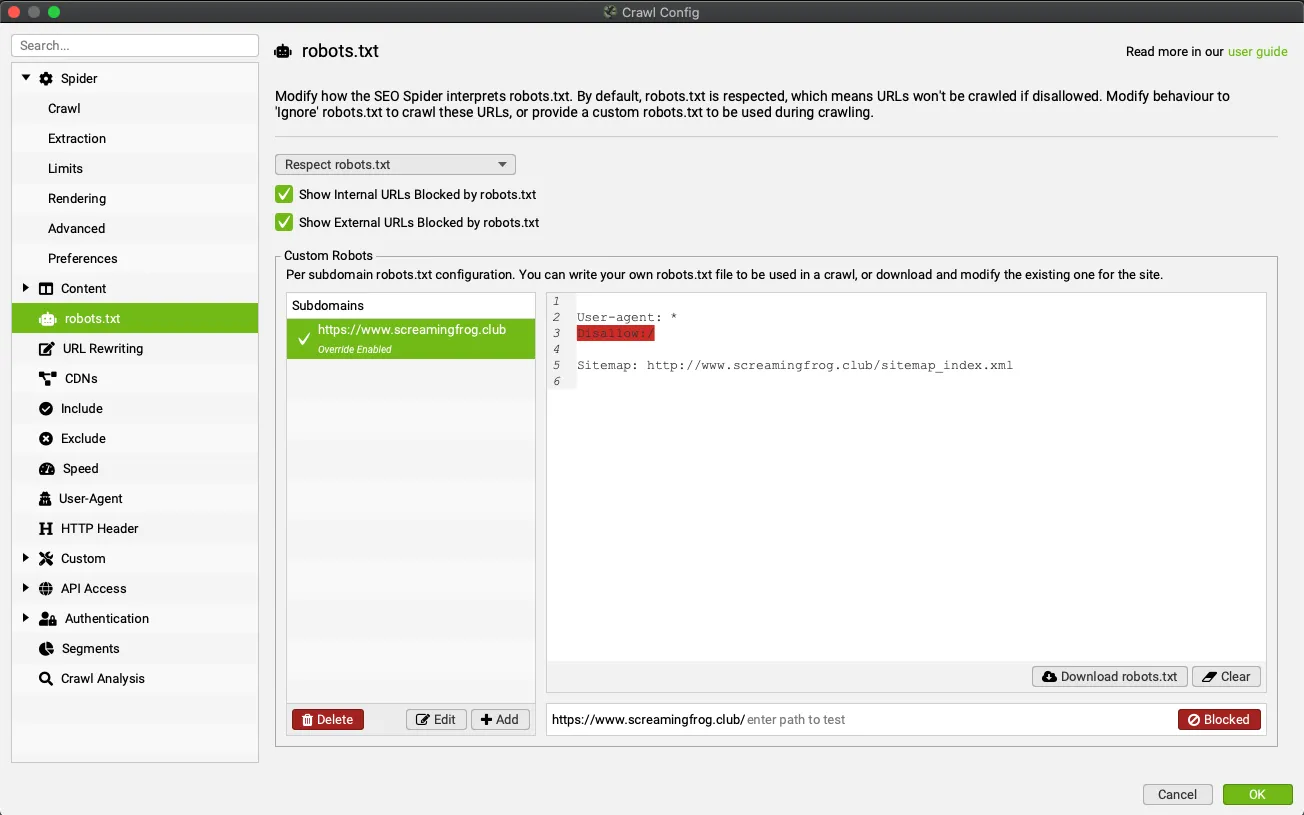
This feature lets you check folders and paths one by one, but not in bulk, which is very limiting.
The Blocked by Robots.txt filter
With the Blocked by Robots.txt filter in the 1Response Codes tab, Screaming Frog shows every URL blocked by the file; with Export you download the list for your checks.
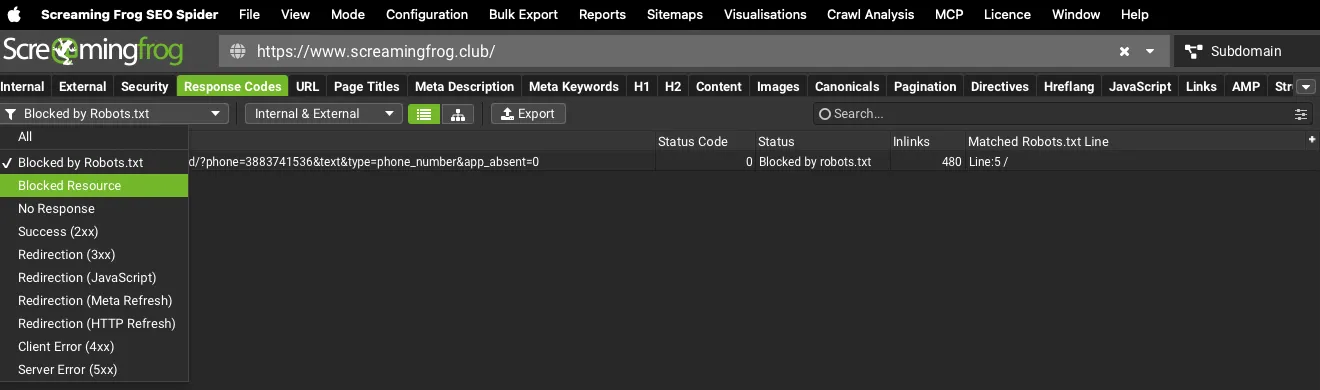
You probably already knew this filter, but maybe you’ve never looked at one of its columns: Matched Robots.txt Line.
The Matched Robots.txt Line column
If everything in the robots.txt is configured correctly, the filter above will only show the resources you really meant to block. But what if it includes important pages you wanted indexed? And above all, how do you find the robots.txt mistake in an e-commerce site with hundreds of thousands of URLs?
The Matched Robots.txt Line column helps here: for each URL it shows the rule (the line of the directive in the file) that blocks it from being crawled.
For a much simpler view, click the column header to sort everything by the matching line, so that even on large websites or e-commerce stores, fixing any misconfiguration becomes much easier.
Further readingResponse Codes tab.All the columns and filters of the response codes tab: blocked URLs, redirects, 4xx and 5xx errors.Read the overview Further readingCrawl issues.What to do when SEO Spider only crawls one page or gets stuck: robots.txt, DNS, timeouts and server errors.Read the guideQuestions about Blocked by robots.txt?
These guides come from real projects. If something in your crawl doesn’t add up, or you want to apply this process to your site, get in touch.
 Author.Raffaele Visintin.Search & Strategic Marketing Advisor