

Finding Spam Links.
How to find spam links on your site with SEO Spider after a hack.
How to use SEO Spider to find spam links injected by a hack. Set up a crawl of external links only, exclude legitimate domains, analyse a real case and set up a periodic check with Compare mode.
Link spam attacks
As CMSs such as WordPress, Joomla and Drupal have spread, so have spam attacks, with millions of links flooding forums, blogs and websites. It’s a well-known, growing problem that affects a large share of sites, compromising both security and organic rankings.
Let’s go through a simple process to find every spam link on a website with Screaming Frog.
Setting up SEO Spider to find spam links
Crawl only the links that matter
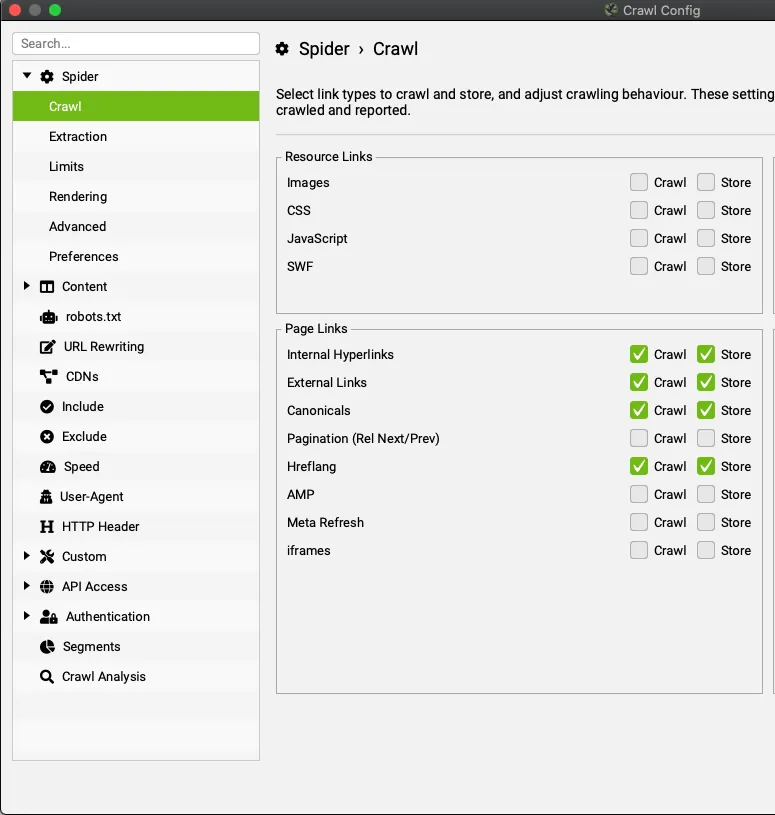
First, configure SEO Spider to crawl only the following elements, in 1Configuration›2Spider›3Crawl:
- External Links.
- Check Links Outside of Start Folder.
- Canonicals.
- Hreflang.
Exclude legitimate domains
- Disable Follow External “Nofollow”.
- Set up an exclusion filter (1Configuration›2Exclude): in this list you can enter all the websites it’s normal to link to, such as X (Twitter), Wikipedia, Facebook or other sites you’ve approved. This filter lightens the crawl and saves you checking an endless list of external links.
- Start the crawl.
Case study: an institutional site with spam links
Finding spam links in the External tab
To test this simple tutorial we searched Google for “Comune Italiano sex, viagra” (an Italian municipality plus spam keywords) and found an institutional website among the results: civicheraccoltestoriche.mi.it.
Treating it as a potential case study, we crawled it with SEO Spider set up as described above. These were the results (the screenshots show the Italian interface, where the External tab is “Esterni”):
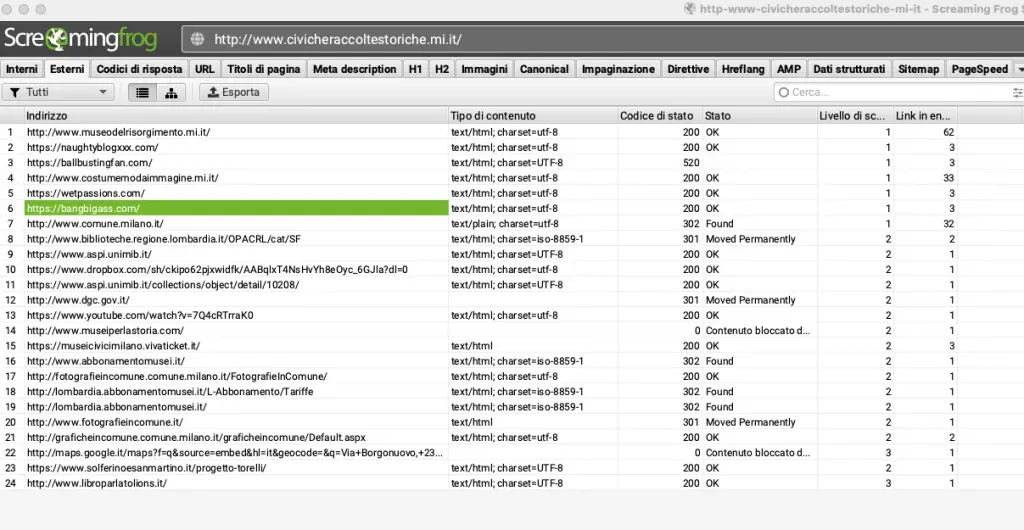
As you can see, several records point to adult sites.
Tracing the pages that contain the link
At this point, by selecting these spam links and checking the Inlinks tab in SEO Spider’s bottom window, we isolated where the links come from.
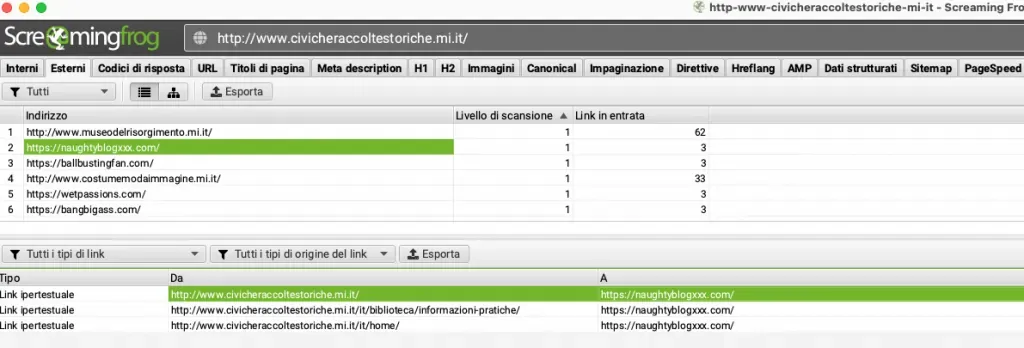
We then scrolled right in the Inlinks tab to check where the link sits in the HTML.

With these few steps it was really easy to uncover several spam links on the analysed site. Of course, on sites with thousands of pages there could be tens of thousands of malicious or spammy URLs, but by understanding the link position and exporting the inlinks you’ll always keep everything under control.
This process lets you check for these unwanted guests, but it isn’t the cure. You’ll still need to patch the CMS or put a suitable firewall in place.
Keeping the site under control
One last tip for a site that stays secure and free of spam links: crawl the clean site with no unwanted links, set up an automated periodic crawl and compare the “clean” crawl with the live one every week or two with 1Mode›2Compare mode.
Further readingScheduled crawls.How to schedule periodic SEO Spider crawls with automatic exports.Read the guide Further readingComparing two crawls.How to compare two crawls with Compare mode and find out what has changed.Read the guideQuestions about Finding Spam Links?
These guides come from real projects. If something in your crawl doesn’t add up, or you want to apply this process to your site, get in touch.
 Author.Raffaele Visintin.Search & Strategic Marketing Advisor