

Screaming Frog for Teams.
Learn how to share Screaming Frog data with your team
Guide contents 7 sections
●Brief01.Screaming Frog: teamwork02.Exporting data03.Exporting the crawl04.Exporting data with Google DriveHow to share Screaming Frog data and crawls with colleagues and clients: tab exports, Bulk Export, full crawl files, Google Drive, shared folders and cloud use.
Screaming Frog: teamwork
Collaboration is often essential to reach your goals, especially in SEO. By the nature of the job, you often work with different parts of a company, such as developers, designers and copywriters, to share knowledge and coordinate the project.
Even though Screaming Frog is a desktop crawler, there are several ways to collaborate and make sure everyone is on the same page and up to date on each stage of the project.
Exporting data
One of the most used features is exporting data to spreadsheets. It’s handy if you want to share data with someone who doesn’t use SEO Spider, or if you don’t want to send a whole crawl file.
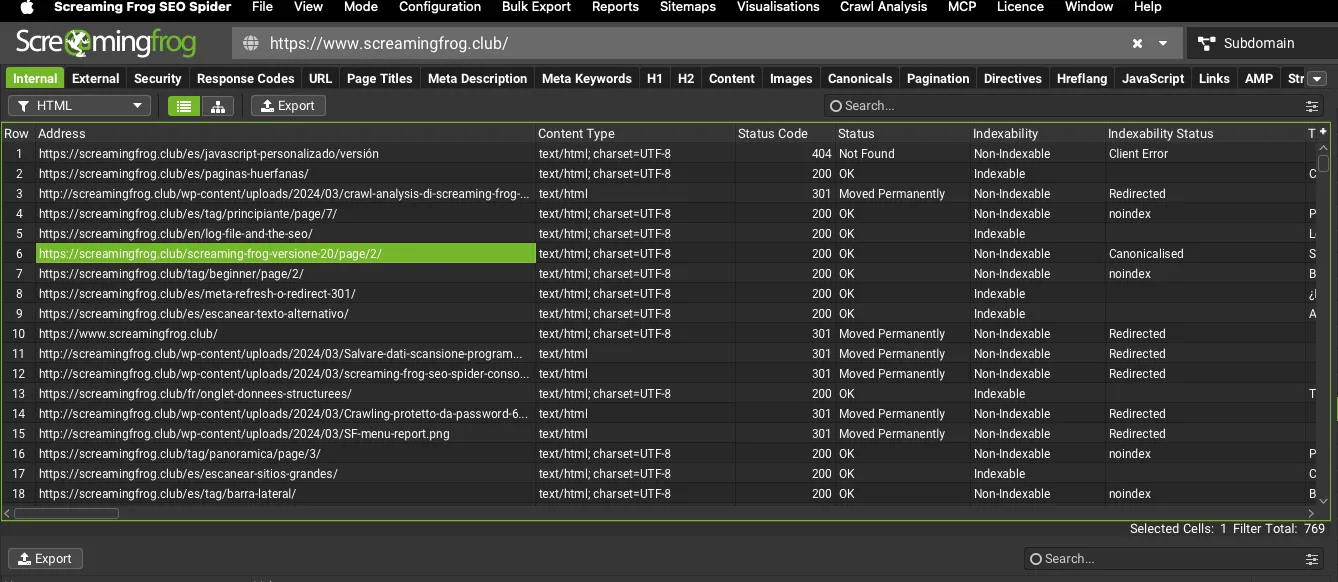
Just click the Export button to export the data from the tabs and filters of the main window.
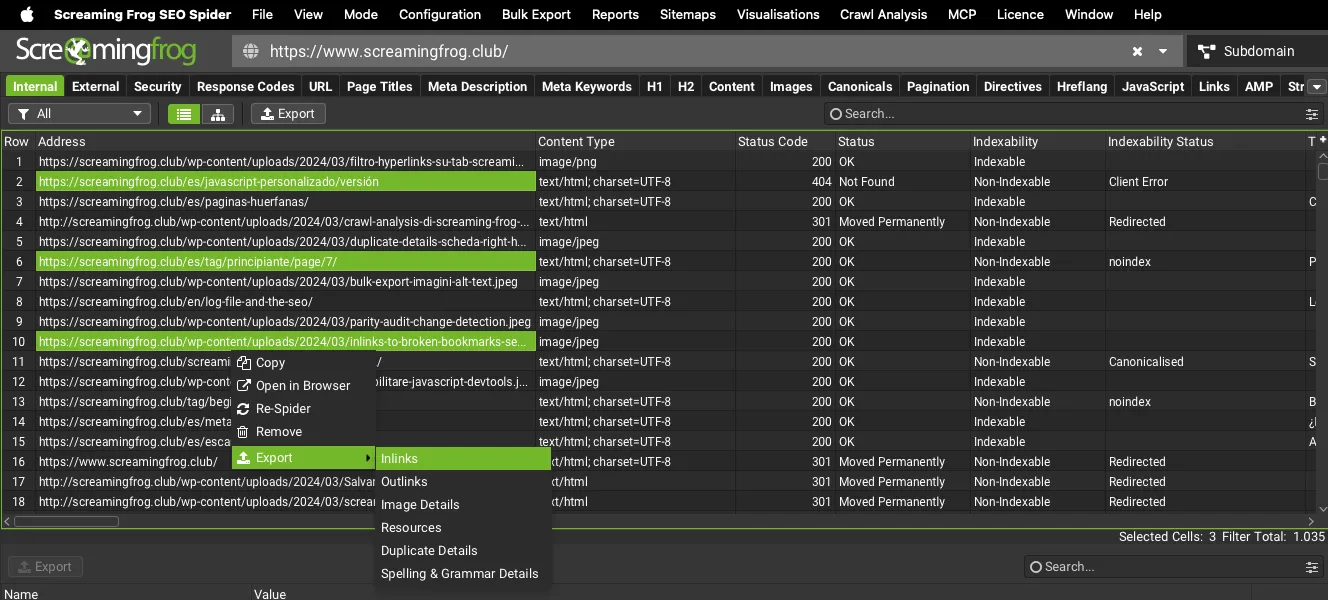
For bottom window data, select the items you want in the main window, right-click and choose which data to export (in the example we export the “Inlinks”).
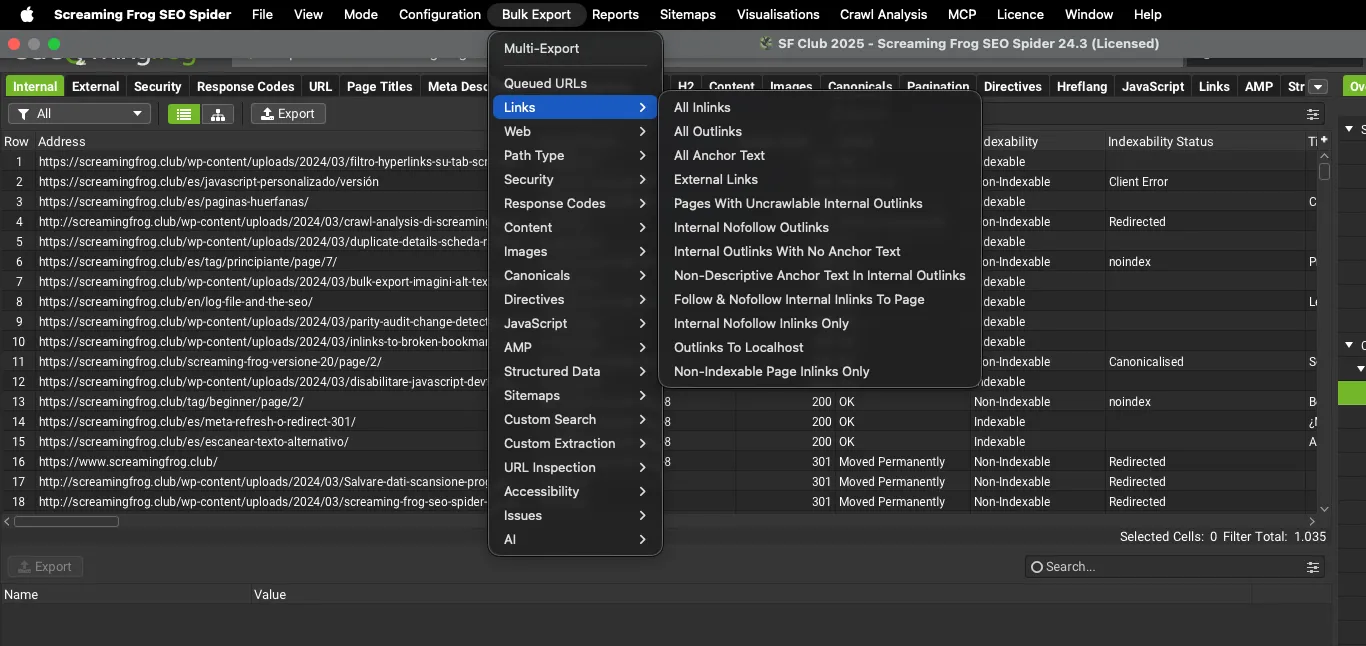
The third option is the 1Bulk Export menu in the main bar.
Exporting the crawl
My favourite method is exporting the full crawl data, which lets me share the state of play with colleagues and also show them every setting used to get certain data from the crawl.
This kind of collaboration has huge technical advantages, because every aspect of the SEO audit can be seen in detail, but one big drawback: the other person needs to know SEO Spider well, which isn’t always the case in web agencies. Compared with the previous method it makes it easier to move a larger amount of data rather than report by report, but expertise becomes essential.
In “Memory Storage” mode (not recommended) you can save the crawl data with 1File›2Save As… and reopen it with 1File›2Open….
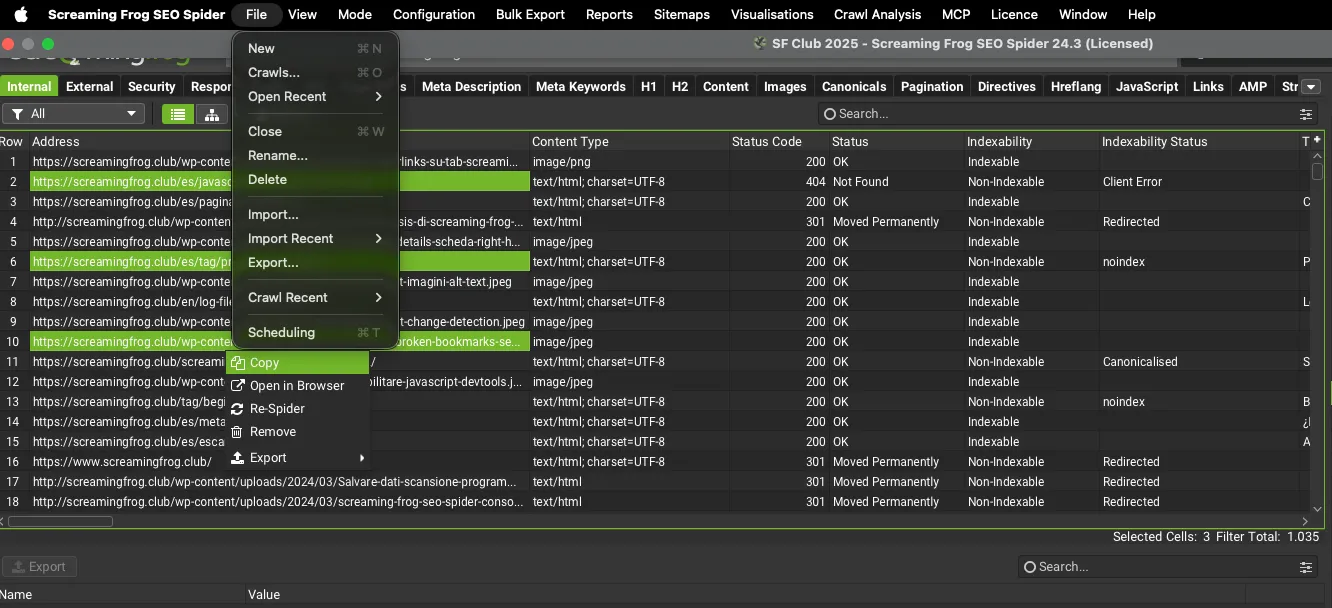
In “Database Storage” mode crawl data is saved automatically and you can reopen it from 1File›2Crawls…. To swap crawls with a colleague use 1File›2Export… and, on their side, 1File›2Import….
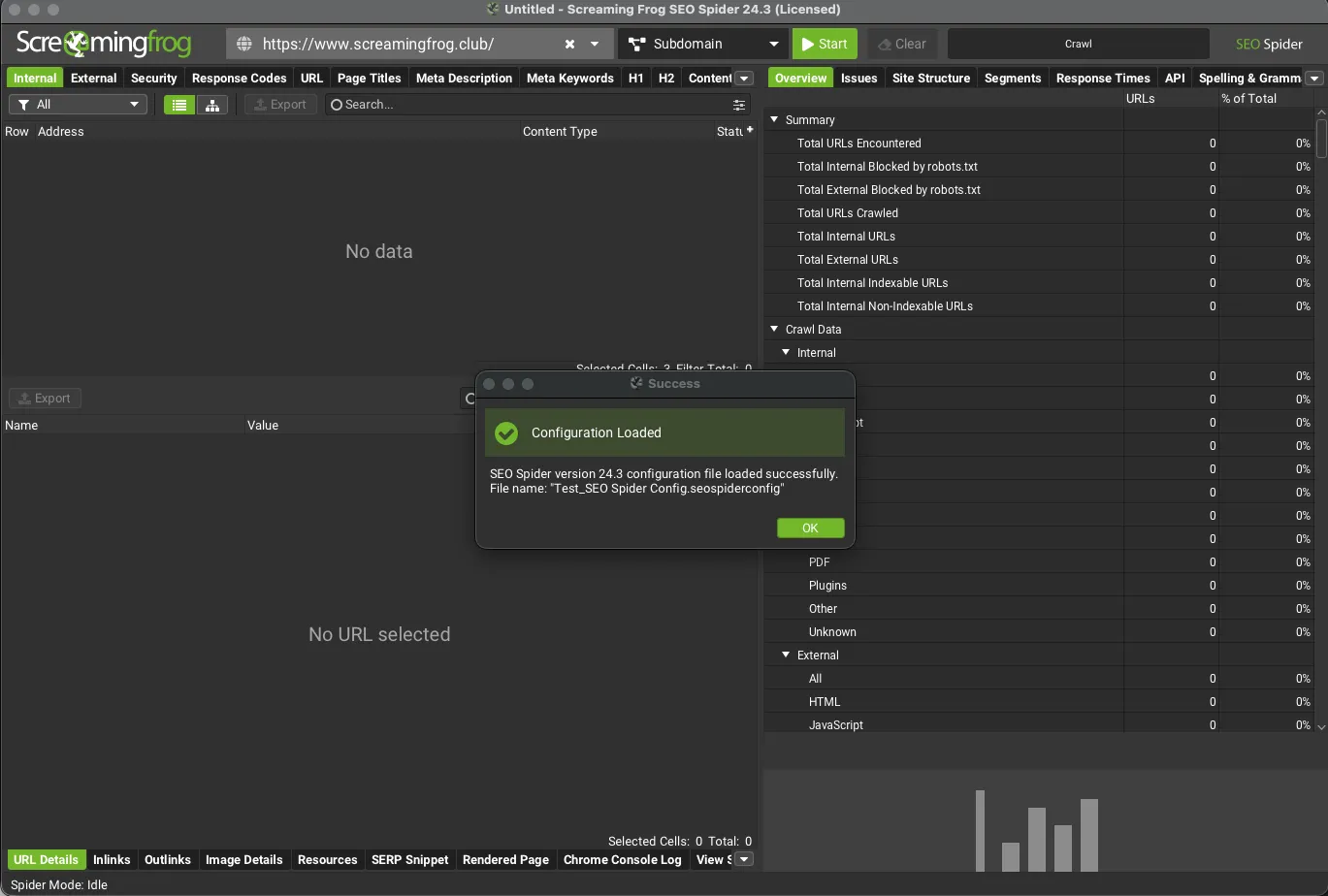
Alternatively, if you don’t want to hand over the crawl data, just send the configuration you used, so your colleague can run a crawl with the same settings. To do this, click 1Configuration›2Profiles›3Save As….
Whoever receives it can load it before crawling from 1Configuration›2Profiles›3Load….
In 99% of cases the results will be identical, but if time passes between the two crawls there may be slight differences, such as temporary server errors.
Exporting data with Google Drive
Google Drive is a great ally for collaborating with Screaming Frog. Once you’ve connected your Google Drive account to SEO Spider you have two options.
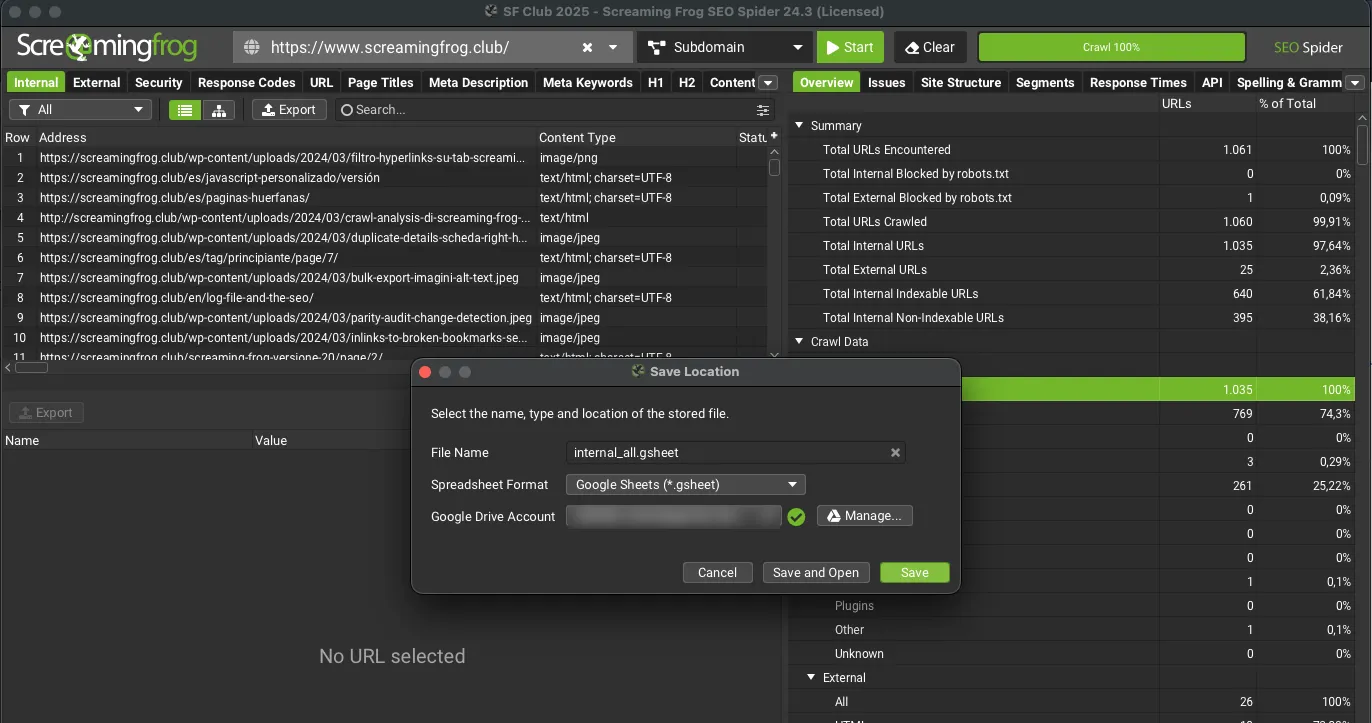
Exporting individual reports to Google Sheets
Export the data as shown at the start of this guide and, in the Save Location window, choose Google Sheets (*.gsheet) as the format and the Google Drive account to save to.
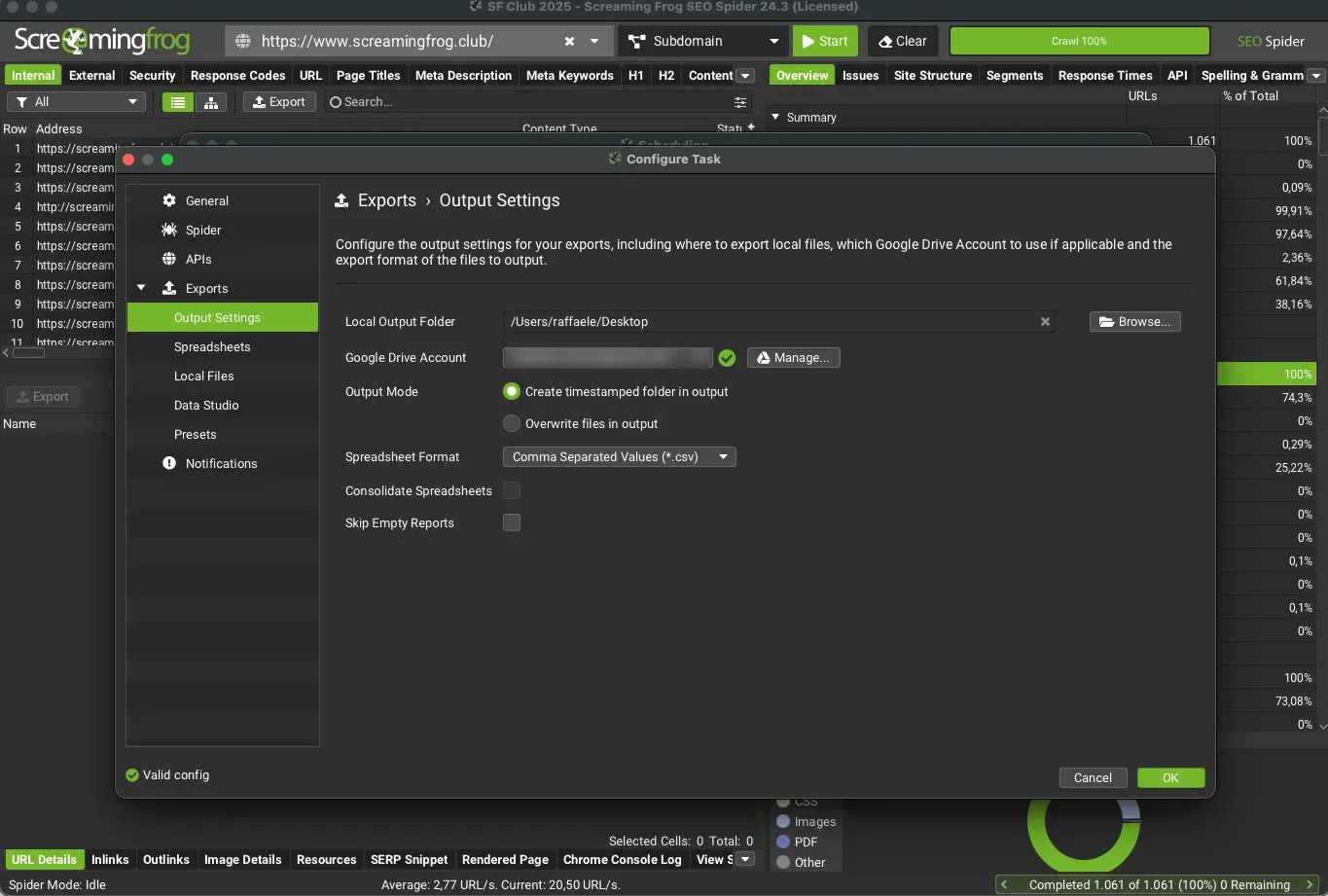
Exporting automatically with scheduled crawls (recommended)
Set up a scheduled crawl from 1File›2Scheduling and, in the 1Exports›2Output Settings section, choose the Google Drive account and file format: every crawl shares the reports automatically. From here you can also export data to Looker Studio, a great option for sharing analyses with colleagues and clients.
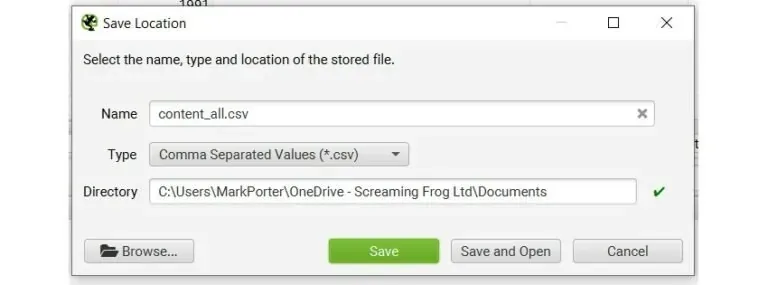
Exporting data to a shared location
Just as with exporting to Google Sheets, you can of course export to a shared network drive such as Dropbox or OneDrive. It’s as simple as choosing the network drive when saving crawls, configuration files, exports and more.
If you’re using database storage mode, a network drive isn’t supported as the database location, because it would be too slow and the connection unreliable.
Screaming Frog in the cloud
As you know, SEO Spider needs your device to be switched on when a scheduled crawl is due. With the cloud you can get around this: you can quickly spin up virtual machines for daily tasks, run simultaneous crawls and use Compute Engine’s advanced scheduling to automate without tying up local resources.
Running it in the cloud also lets you and your colleagues access ongoing or finished crawl data from anywhere, so you can easily get the information you need. For a step-by-step setup, read the official guide Screaming Frog in the cloud.
Questions about Screaming Frog for Teams?
These guides come from real projects. If something in your crawl doesn’t add up, or you want to apply this process to your site, get in touch.
 Author.Raffaele Visintin.Search & Strategic Marketing Advisor