

Screaming Frog MCP Server.
How to connect SEO Spider to Claude and other AI assistants and run crawls and analysis by simply asking
Guide contents 9 sections
●Brief01.What the Screaming Frog MCP Server is02.Setting up the MCP server in SEO Spider03.Connecting Claude04.Connecting LM Studio and local models05.First prompts to tryA hands-on walkthrough of the official MCP Server in SEO Spider 24: switching it on, picking STDIO or Streamable HTTP, wiring it into Claude Desktop, Claude Code or LM Studio, the first prompts worth trying, every tool it exposes and the security points to weigh before you let an AI loose on your crawls.
What the Screaming Frog MCP Server is
SEO Spider 24.0, codenamed “bolus” and released on 19 May 2026, shipped the feature many of us had been waiting years for: an official MCP server. MCP is short for Model Context Protocol, an open standard that lets an AI assistant such as Claude call outside tools. Here, the tool is SEO Spider itself.
The practical upshot: you stop pasting exports and CSV files into a chat window. The assistant starts the crawl, opens saved crawls, produces reports and bulk exports, merges data sets and processes them with Node.js scripts, and you drive the whole thing in plain language. As Chris Long put it in his launch-day post, the real gain is owning the process end to end, from crawl to analysis, with no manual hand-offs along the way.
Before you start
- SEO Spider 24.0 or later. Check your version under 1Help›2About (on a Mac, 1Screaming Frog SEO Spider›2About Screaming Frog SEO Spider) and update if needed: your existing licence keeps working.
- An active licence: MCP is a paid feature and is not available in the free version.
- Database Storage mode, which is the default anyway: you can confirm it in 1File›2Settings›3Storage Mode.
- An MCP client: Screaming Frog documents Claude Desktop and LM Studio, but any MCP-capable client will do, Claude Code included.
- Node.js, only if you go for Streamable HTTP mode (more on that below).
What the AI can do with SEO Spider
Almost everything you can reach in the interface is available to the model: reports, bulk exports, the filters of every tab, single-URL data, stored screenshots and page content. On top of that, the server bundles two families of tools that make it self-sufficient:
- Node.js tools: the model can write and run scripts and pull in whatever npm packages it needs to crunch data, draw charts or build HTML pages.
- File tools: it reads, writes and organises files inside a dedicated folder, so heavy reports land on disk rather than in the conversation.
In other words, you don’t need to bolt on separate MCP servers for scripting or file access: it’s all in the box.
Screaming Frog is clear on one point, and I agree: an AI doesn’t replace an experienced SEO. It takes the grind out of repetitive work, but reading the data and deciding what matters is still your job.
Setting up the MCP server in SEO Spider
The MCP Server settings
Everything lives under 1File›2Settings›3MCP Server (on a Mac, 1Screaming Frog SEO Spider›2Settings›3MCP Server).
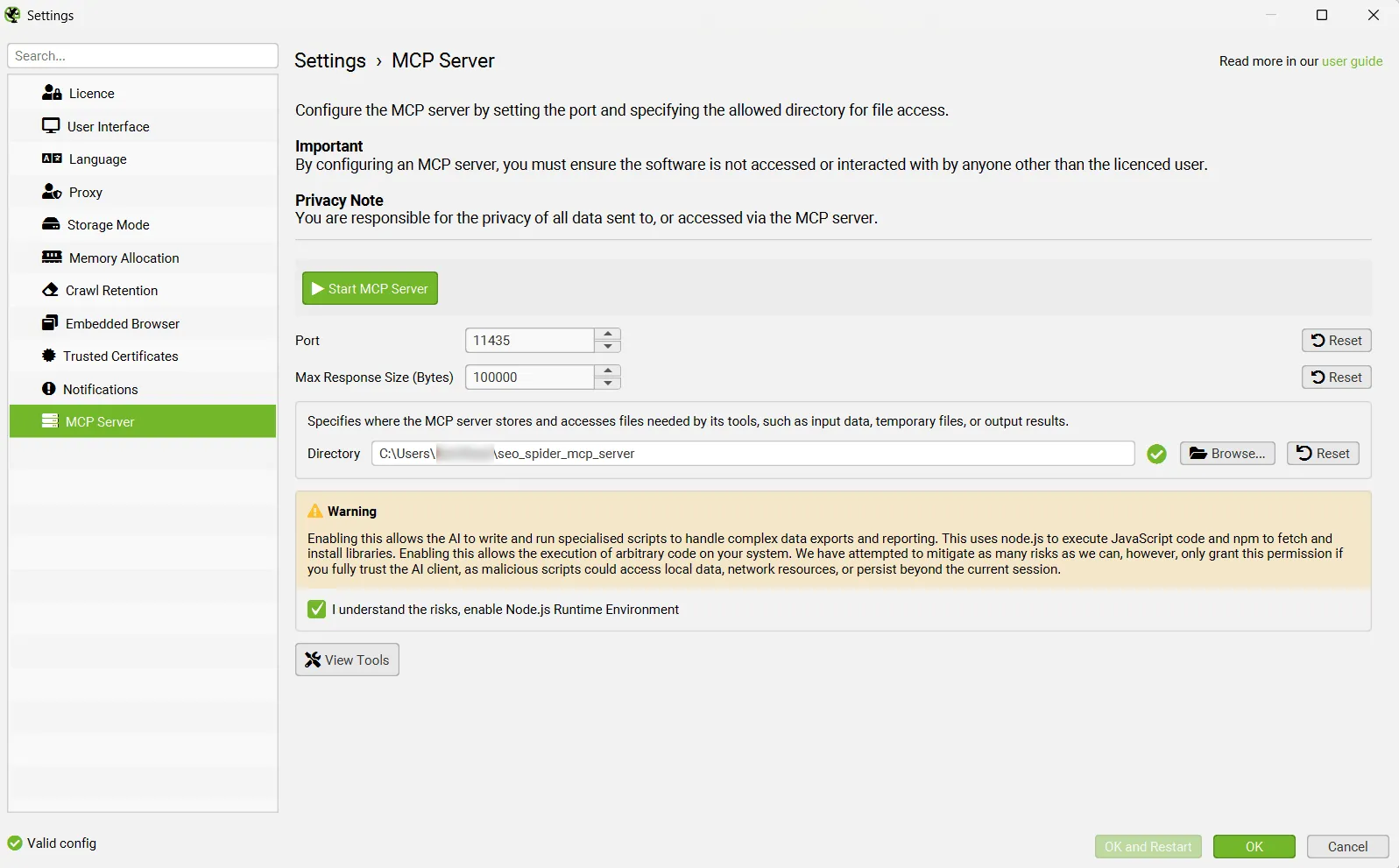
Here’s what each option does:
- Start MCP Server: fires up the server while the interface is open (Streamable HTTP mode). Once it’s running, “MCP Server Active” shows in the bottom-left corner. From 24.1 you can also have it start automatically every time the app opens, which is handy when SEO Spider runs on a cloud machine.
- Port: the port the server answers on, 11435 out of the box.
- Max Response Size (Bytes): the biggest single answer sent back to the model, 100,000 bytes by default. It caps how much data lands in the chat in one go.
- Directory: where the model keeps scripts, temporary files, exports and results. It can’t touch anything outside this folder.
- I understand the risks, enable Node.js Runtime Environment: lets the AI execute JavaScript and install libraries with npm. It’s off by default and you need it on in both modes.
- View Tools: opens the full list of tools the server offers.
Don’t skim past the yellow warning: turning Node.js on means allowing arbitrary code to run on your machine. Only do it for an AI client you trust.
STDIO or Streamable HTTP: which mode to pick
The server runs in one of two modes, and the choice shapes how you work:
| STDIO | Streamable HTTP | |
|---|---|---|
| Who launches SEO Spider | The AI client, in the background (headless) | You, with the interface open |
| Interface visible | No | Yes: you watch crawls and data the AI opens, live |
| Server start | Automatic | Start MCP Server, or the MCP menu at the top |
| What you need | Node.js enabled in settings + STDIO extension | Node.js enabled + Node.js installed + Streamable extension |
| Best for | Automation and “set and forget” use | Keeping an eye on every step the AI takes |
In STDIO mode the model won’t load anything on its own: ask it to list recent crawls, or give it the ID of a saved crawl, which you’ll find by right-clicking the crawl in 1File›2Crawls.
If you like watching the data in the interface while Claude works on it, Screaming Frog suggests Streamable HTTP. It’s my default too: seeing what the AI is actually doing saves a lot of surprises.
Connecting Claude
The quickest way in is Claude Desktop, Anthropic’s app for Windows and macOS, using the official extension (a .mcpb file) Screaming Frog provides for each mode. Claude does a great job but gets through tokens fast, so free plans hit their limits early.
STDIO mode
- In SEO Spider open 1File›2Settings›3MCP Server, tick the Node.js Runtime Environment consent and confirm. No need to start the server: Claude will do that.
- Download the STDIO extension (
spider-mcp.mcpb) from the MCP Server section of Screaming Frog’s user guide, using the Download STDIO MCP Extension button. - Open Claude Desktop, go to 1Settings›2Extensions and click Advanced settings.
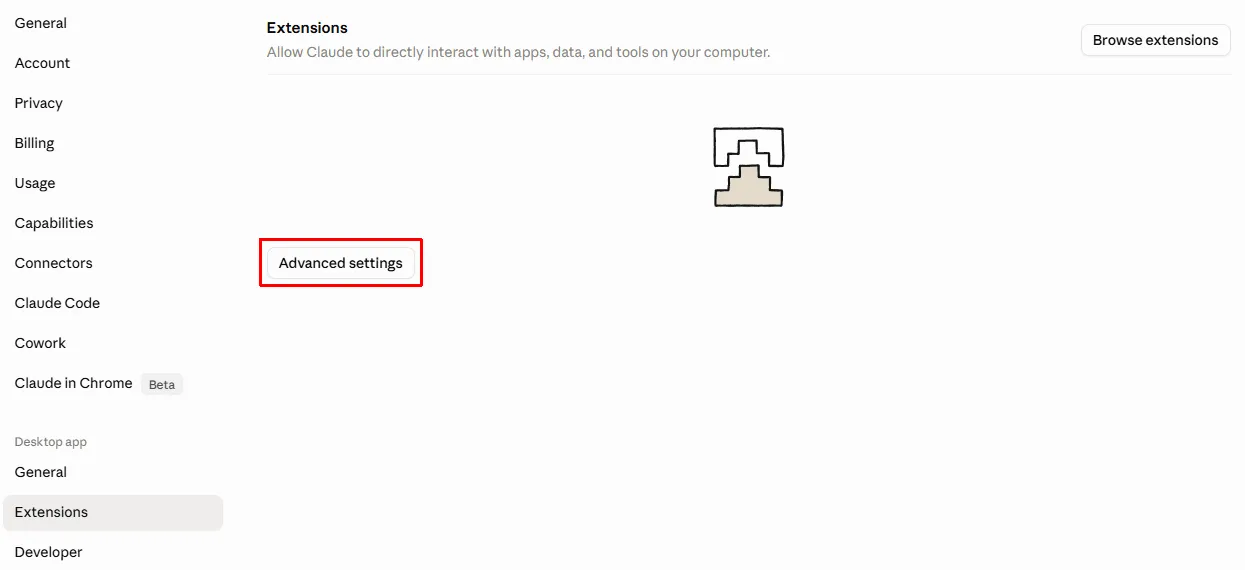
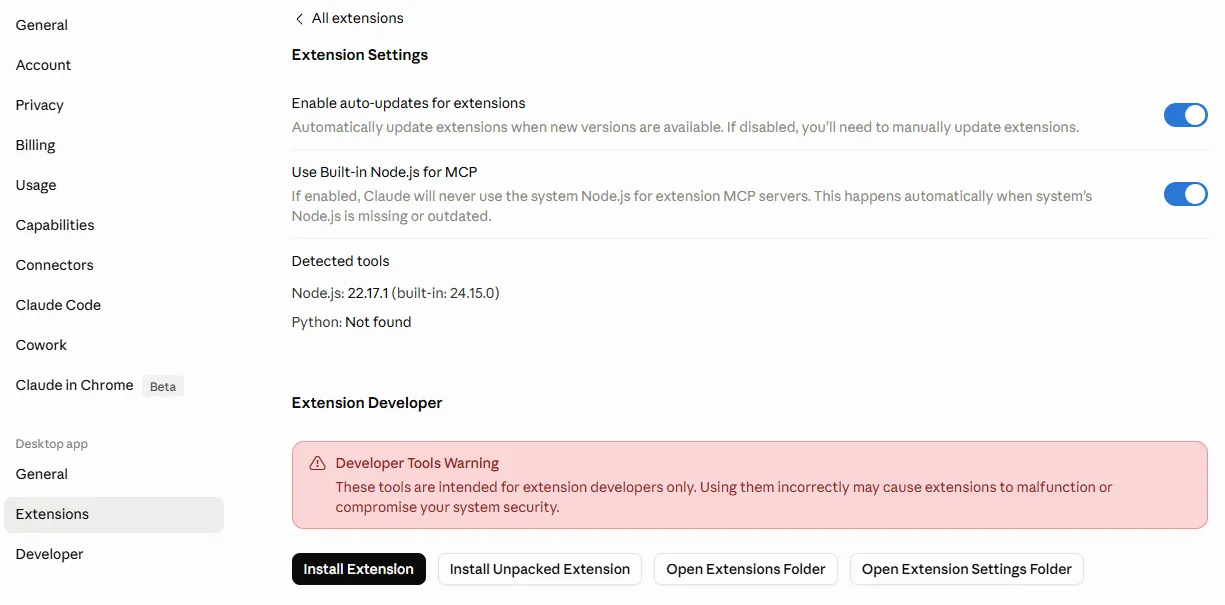
- Click Install Extension and pick the
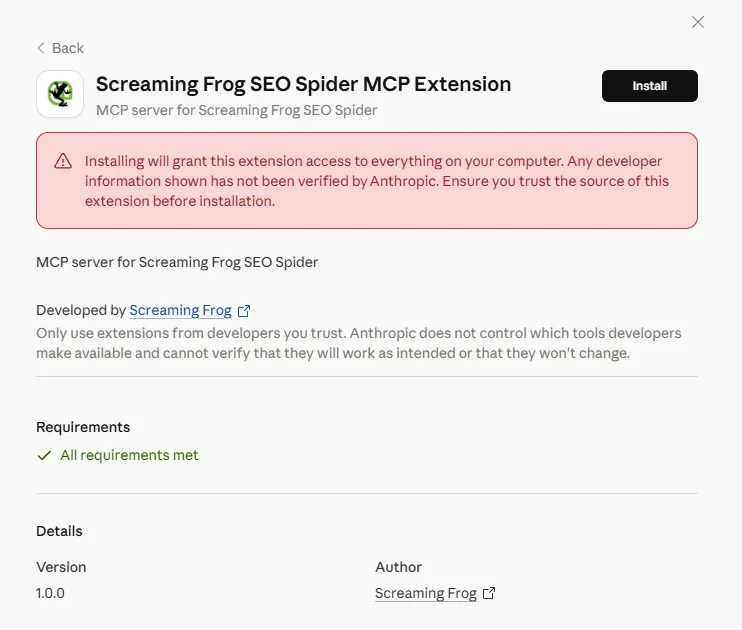
spider-mcp.mcpbfile you downloaded. Leave Use Built-in Node.js for MCP switched on, so Claude falls back on its own Node.js if the system one is missing or out of date.
- In the confirmation dialog, check that the author is Screaming Frog and that all requirements are met, then click Install.
- Quit Claude completely and reopen it. On Windows, closing the window isn’t enough: find Claude’s icon in the notification area next to the clock, right-click it and pick Quit, or kill the process from Task Manager. Otherwise Claude and the MCP server keep running in the background.
The extension assumes a standard install of SEO Spider, in C:\Program Files (x86)\ on Windows or /Applications/ on macOS. If you installed it somewhere else, edit the path inside the .mcpb file.
Streamable HTTP mode
- In 1File›2Settings›3MCP Server click Start MCP Server and tick the Node.js Runtime Environment consent. “MCP Server Active” appears in the bottom-left corner. In this mode you can also start and stop the server from the MCP menu at the top.
- Install Node.js on your computer: the Streamable extension relies on a small Node.js bridge (a shim).
- Get the Streamable extension (
spider-streamable-mcp.mcpb) from the Download Streamable MCP Extension button in the user guide and install it in Claude Desktop exactly as above: 1Settings›2Extensions›3Advanced settings›4Install Extension. - Quit Claude completely and reopen it.
From now on, every action the AI takes, such as opening a crawl, also shows up in the SEO Spider interface.
Checking the extension is running
Once Claude is back up, go to 1Settings›2Developer: under Local MCP servers you should see the Screaming Frog SEO Spider MCP Extension tagged running.
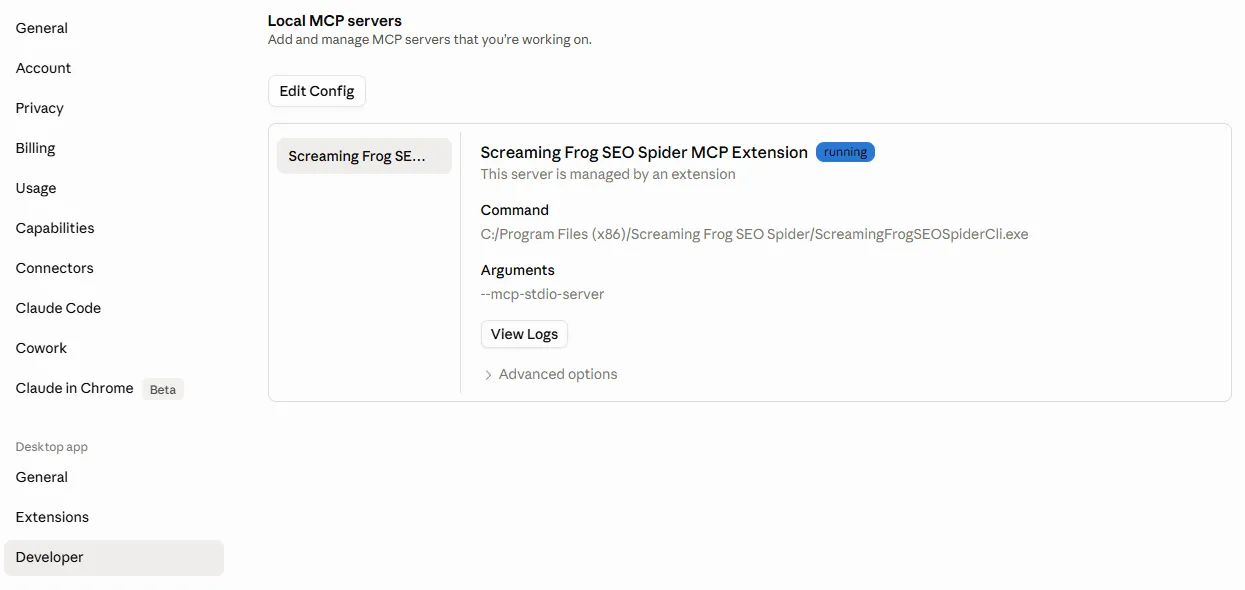
If it isn’t running, open View Logs first: the usual suspects are a non-default SEO Spider install path, an inactive licence or Node.js not enabled in the settings.
Claude Code
If you live in the terminal with Claude Code, Anthropic’s developer assistant, you don’t need an extension at all: it talks to the server directly over Streamable HTTP.
- In SEO Spider open 1File›2Settings›3MCP Server, click Start MCP Server and enable Node.js.
- Register the server from your terminal with a single command:
claude mcp add --transport http screaming-frog http://localhost:11435/mcp- Start Claude Code and type
/mcp:screaming-frogshould be listed as connected.
Screaming Frog doesn’t document this setup, but it uses the same address as the Streamable HTTP server. If you changed the port, change it in the command too. The bonus with Claude Code is that generated scripts and reports land straight in your project folder, ready to version or reuse.
Connecting LM Studio and local models
LM Studio with a model running on your own machine is the free alternative to Claude. Crawl data never leaves your computer, but the quality of the analysis depends heavily on the model and the hardware.
Editing mcp.json
LM Studio connects in Streamable HTTP mode, so click Start MCP Server in SEO Spider first. Then:
- In LM Studio click the Developer icon in the left sidebar and open the Local Server tab.
- Hit the mcp.json button at the top centre and add the Screaming Frog server under
mcpServers:
{
  "mcpServers": {
    "screaming-frog-mcp-server": {
      "url": "http://localhost:11435/mcp"
    }
  }
}- Save, close the dialog and flip the status from Status: Stopped to Status: Running.
- Restart LM Studio, open a chat and choose a model. Click the Tool icon at the bottom right and switch on mcp/screaming-frog-mcp-server.
If you changed the port in SEO Spider, update the URL as well.
Hardware for local models
- A MacBook Pro with 64 GB of unified memory copes with models of up to roughly 40 GB.
- With a smaller GPU or less memory, expect some trial and error before you find a model that works.
- The model must support tool calling, or it simply can’t use the MCP server.
- Bigger models and reasoning (thinking) models give better answers, especially to complex prompts.
- Overall, Claude is still more dependable than a local model.
First prompts to try
Crawl and summarise the issues
Start simple: ask Claude to crawl a site and rank the main problems by priority.
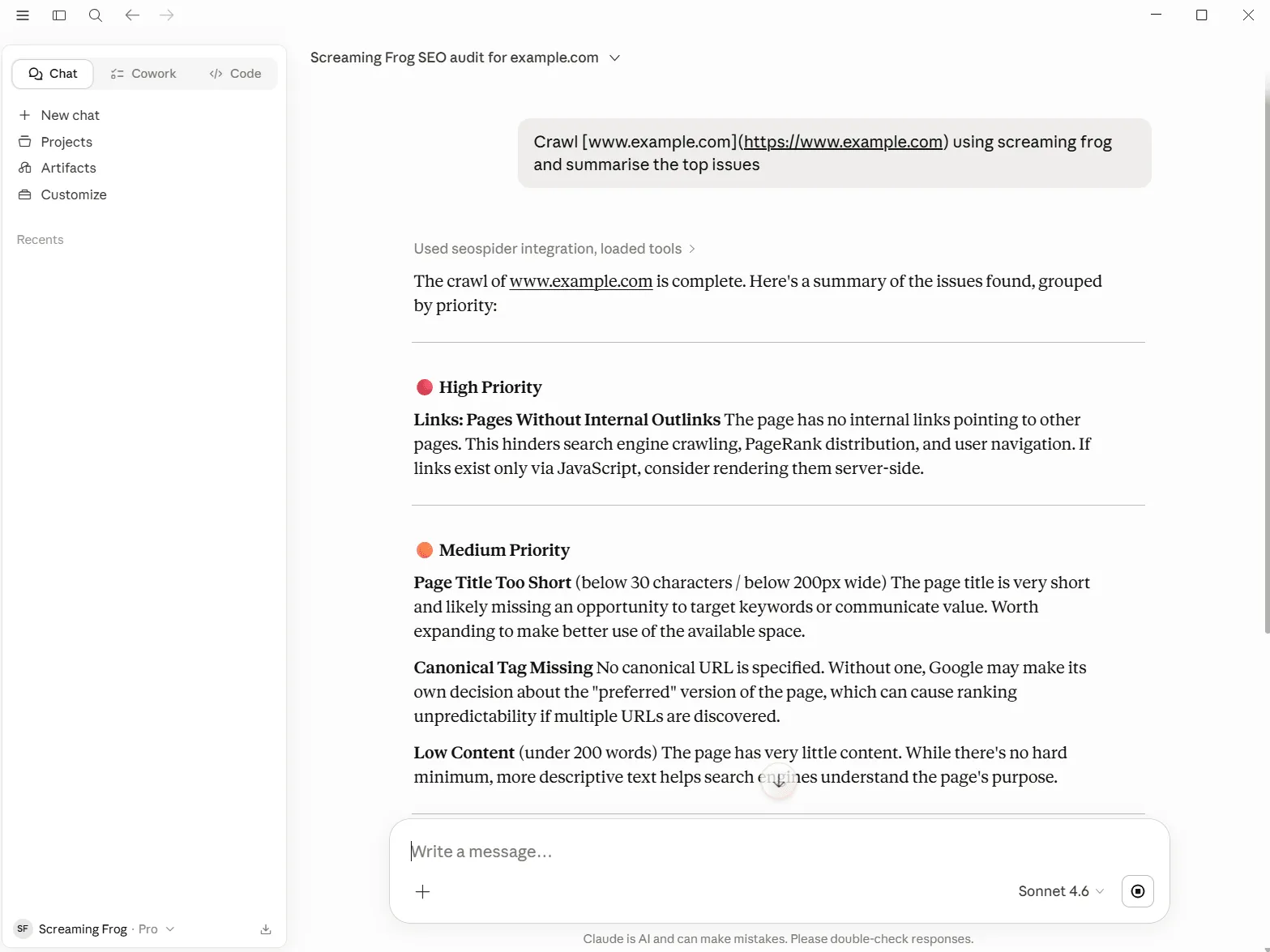
Use Screaming Frog to crawl www.example.com, then give me the most important issues it found, ordered from highest to lowest priority.Keep tab, filter and report names exactly as they appear in the interface: the model maps them straight onto the right tools.
Exports, scripts and an HTML report
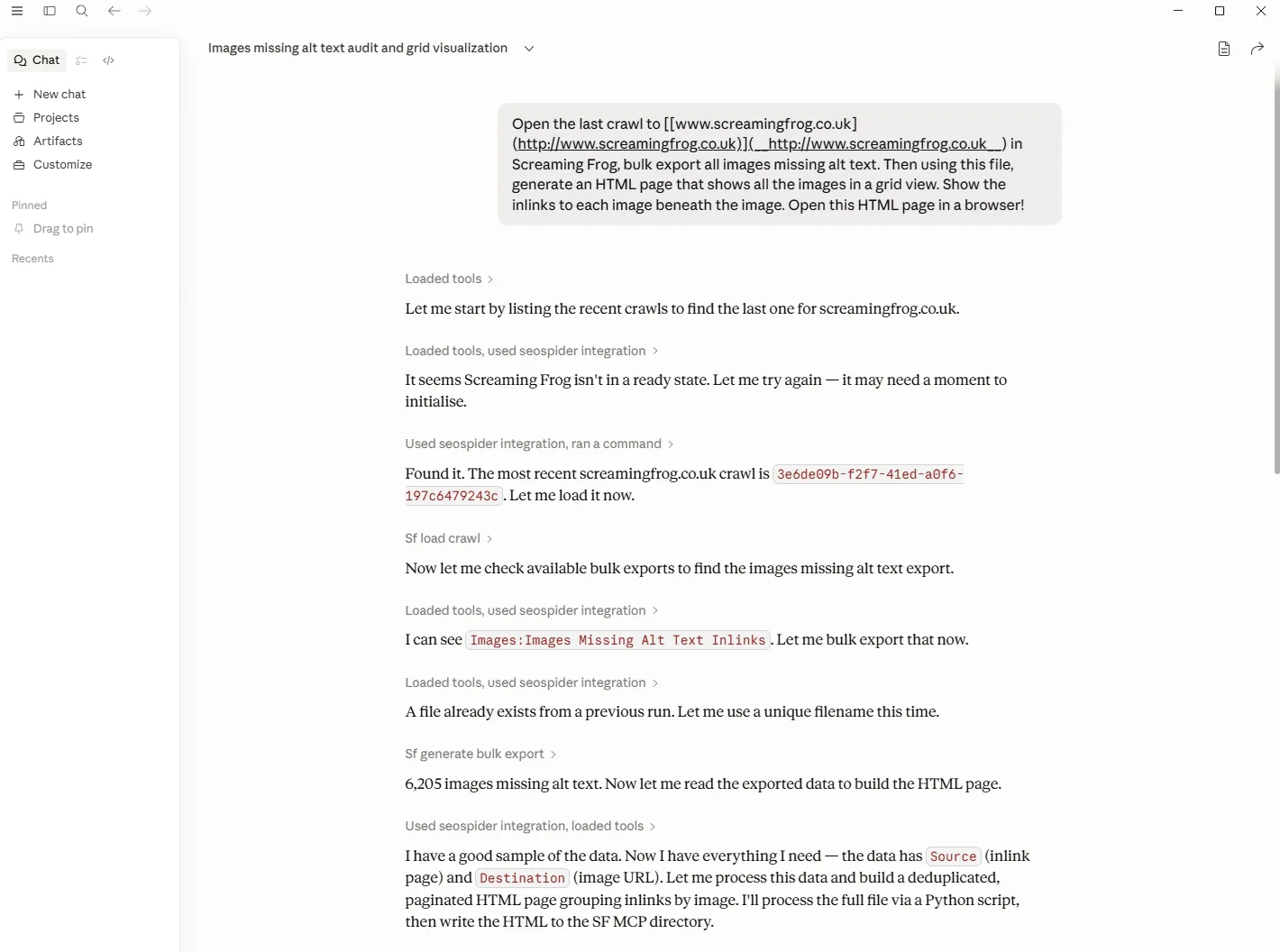
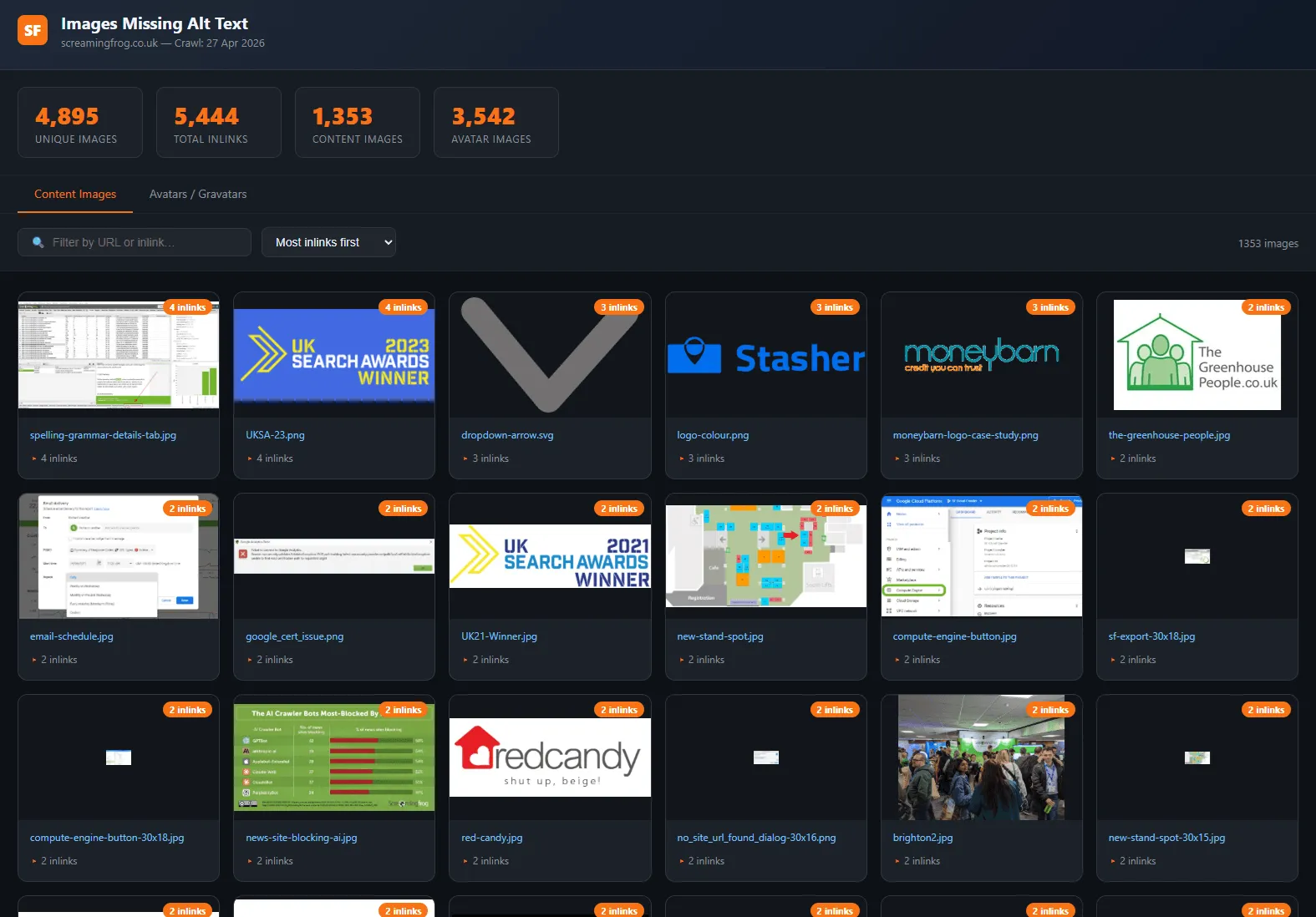
Things get interesting when the job takes several steps. In Screaming Frog’s demo, Claude opens the latest crawl of a site, finds the bulk export for images missing alt text, runs it and builds an HTML page showing every image in a grid.
The output is an interactive HTML page, saved in the MCP folder and opened in the browser, with totals, tabs, a filter and the inlink count for every image.
Going further: internal link equity
The showpiece of the launch was an internal link equity analysis. Starting from a crawl that already had Ahrefs metrics pulled in as columns, Claude builds the internal link graph, calculates a weighted internal PageRank, rolls the scores up by site section and draws an interactive chart of how equity flows between them.
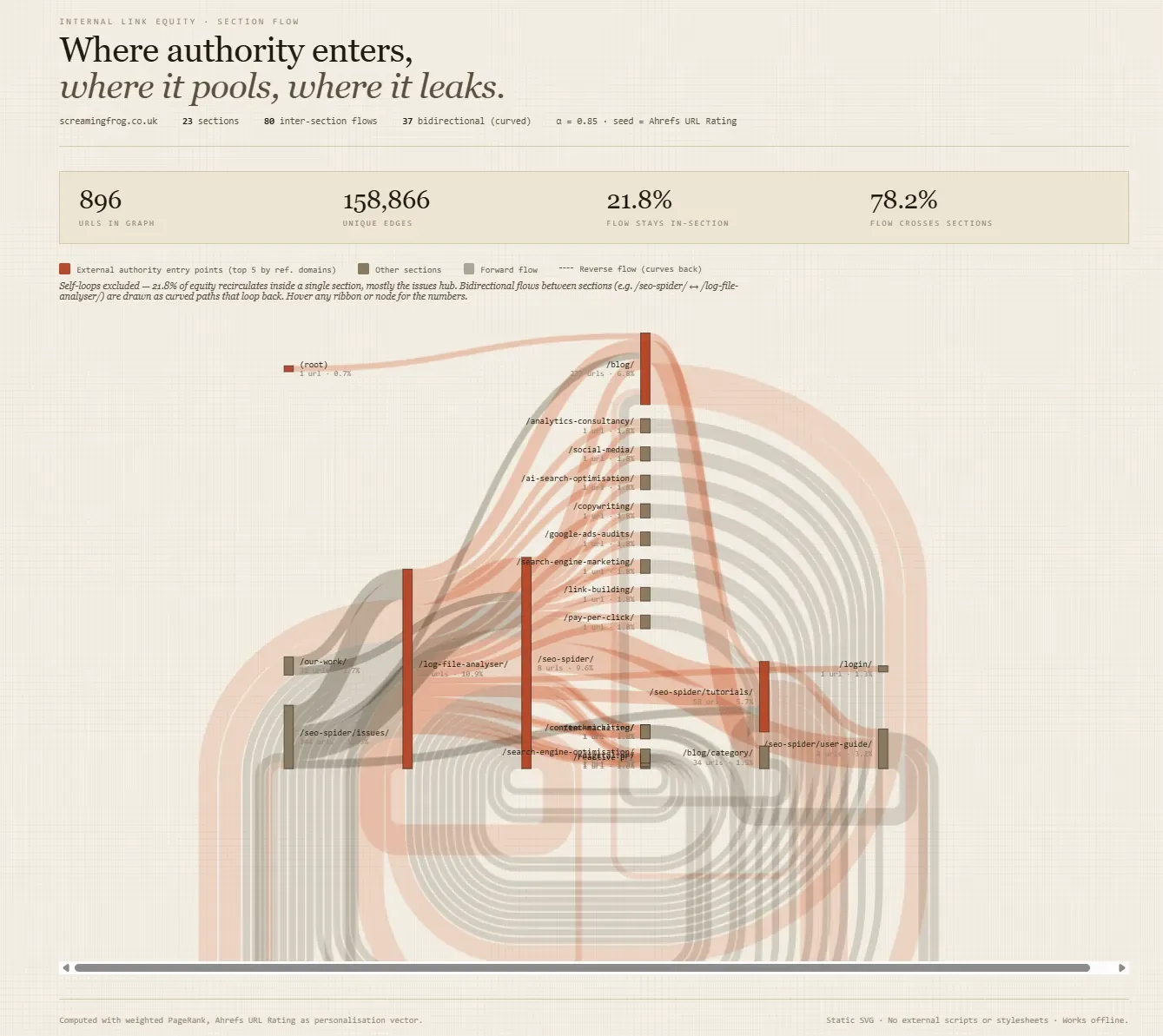
Load my saved Screaming Frog crawl called 'example', which already includes Ahrefs URL Rating, Backlinks and Referring Domains columns. Build the internal link graph, run a weighted internal PageRank, group the results by site section and produce an interactive chart showing how link equity moves between sections.More prompts to adapt
A few more ideas, written my way, to tweak for your own site:
Crawl www.example.com, work through the Issues Overview report, rank the problems against current technical SEO best practice and turn everything into a detailed HTML report backed by the relevant bulk exports.

Export the broken internal links (client errors) and cross them with the Internal tab, using GA Sessions, Search Console Clicks and Unique Inlinks to decide which fixes come first.

Load the two most recent crawls of www.example.com, compare their main issues and tell me what changed that actually matters.

Export every image heavier than 100 KB and build an HTML gallery from that file, with each image's URL underneath, a title and a short intro explaining the page. Open it in my browser.

Create the Redirect Chains report and visualise the chains, flagging any whose final destination is non-indexable.

Put every non-200 URL, together with its inlinks, into a single CSV file.

From the Internal tab, HTML filter, export only Address and Unique Inlinks to all_urls.json, find the 20 URLs with the most inlinks and chart them as a bar graph in an HTML page.

Export Address and CO2 (mg) for all HTML URLs to co2.csv, then use a script to list the 10 pages with the highest CO2 values.

List the images that are missing width and height attributes.
Early community tests have added a few more angles: spotting duplicate H1s across a site, finding orphan pages with internal linking opportunities, and checking crawl depth against organic landing pages from Search Console. Pair the MCP with the API integrations (Search Console, Analytics, Ahrefs) and you get complete workflows for audits, internal linking and content monitoring.
Further readingOrphan pages.How to find orphan pages by combining the crawl, XML sitemap, Analytics and Search Console: a method you can now hand to an AI too.Read the guideThe tools the MCP exposes
This is the vocabulary the AI uses to talk to SEO Spider. Some clients, LM Studio among them, show tool calls as they happen, and reasoning models even explain why they picked a given tool, which helps when something goes wrong. The up-to-date list is always one click away under View Tools in the settings.
Crawls and saved crawls
| Tool | What it does |
|---|---|
sf_list_crawls | Lists recent crawls, newest first (10 by default) |
sf_load_crawl | Loads a saved crawl by its ID |
sf_crawl | Starts a crawl from a URL, with optional config, project and name |
sf_crawl_progress | Reports progress on the running crawl |
sf_pause_crawl / sf_resume_crawl | Pauses and resumes the crawl |
sf_clear_crawl | Clears a paused crawl |
sf_export_crawl | Exports the loaded crawl to a file |
Reports, exports and URL data
| Tool | What it does |
|---|---|
sf_list_available_reports / sf_generate_report | Lists and generates reports, as CSV or NDJSON |
sf_list_available_bulk_exports / sf_generate_bulk_export | Lists and generates bulk exports |
sf_export_seo_element_urls | Exports the URLs of a tab and filter, with the fields you choose |
sf_list_available_filters_for_seo_element | Lists the filters available for each tab |
sf_list_available_data_fields_for_seo_element_and_filter | Lists the exportable columns for a tab and filter |
sf_bulk_export_page_content | Exports visible text or raw HTML for every page |
sf_export_embeddings | Produces a CSV of URLs and embeddings |
sf_url_info / sf_url_content / sf_url_links | Data, content and inbound or outbound links for one URL |
sf_get_url_screenshot | Retrieves a page’s stored screenshot |
sf_open_url_in_browser | Opens a URL or a file in the browser |
Node.js and file system
| Tool | What it does |
|---|---|
sf_run_node_js_script | Runs a Node.js script |
sf_npm_install | Installs an npm package |
sf_read_text_file / sf_write_text_file | Reads and writes text files (writing overwrites without asking) |
sf_list_allowed_base_directory | Shows the folder the server is allowed to use |
sf_list_directories / sf_create_directory | Lists and creates folders |
The Node.js tools stay off until you give consent in the settings. If you work with embeddings, sf_export_embeddings saves you a lot of effort.
Security, privacy and limits
Licence terms and data privacy
By running an MCP server you commit to making sure nobody other than the licensed user uses the software: don’t expose the server to other people or to your network. Whatever data flows through the MCP, in either direction, its privacy is on you. With Claude, crawl data goes through Anthropic’s servers, so think twice before analysing client sites with confidential data. With LM Studio and a local model it stays on your machine.
Scripts and Node.js
Letting a language model run arbitrary scripts is hugely powerful and genuinely risky: a malicious script could read local data, reach the network or keep running after the session ends. Screaming Frog limits file access to the MCP folder, but the advice stands: enable Node.js only for an AI client you trust, and only install extensions from the official site.
Context window: one job per chat
Large reports and big crawls blow through a model’s context window quickly. That’s exactly why the MCP can write reports to files and process them with scripts instead of dumping everything into the chat. Two habits that help:
- start a fresh chat for each job, so the conversation doesn’t fill up with stale data;
- ask the AI to save exports to files and work on them with a script, especially past a few thousand URLs.
What it can’t do (yet)
Not every SEO Spider feature is reachable through the MCP yet: Screaming Frog plans to add more based on user feedback. And the AI does make mistakes, so always check the numbers in the interface before they go into a report or in front of a client.
Further readingScheduled crawls.Need recurring crawls without AI? Scheduling, automatic exports and, since version 24, automatic comparison of the last two crawls.Read the guideVideo tutorial
A five-minute walkthrough of the Claude Desktop setup by Usman Akram. You can also watch it on YouTube.
Questions about Screaming Frog MCP Server?
These guides come from real projects. If something in your crawl doesn’t add up, or you want to apply this process to your site, get in touch.
 Author.Raffaele Visintin.Search & Strategic Marketing Advisor