

INTERNAL TAB.
The Internal tab, the first and most complete tab in Screaming Frog SEO Spider.
Guide contents 7 sections
●Brief01.Internal tab overview02.Status code03.Meta tags04.Links05.Content06.HTTP & moreWhat you’ll find in SEO Spider’s Internal tab, the first and most complete one: every internal URL with status code, meta tags, links, content and HTTP information.
Internal tab overview
In SEO Spider the first tab available is “Internal”, which brings together every URL on the same subdomain as the crawl’s start page. It includes all of SEO Spider’s metrics, except the data collected in the “External”, “Hreflang” and “Structured Data” tabs. Other subdomains can be treated as internal (rather than as external referrals) if you use the “crawl all subdomains” setting, list mode or the CDNs feature.
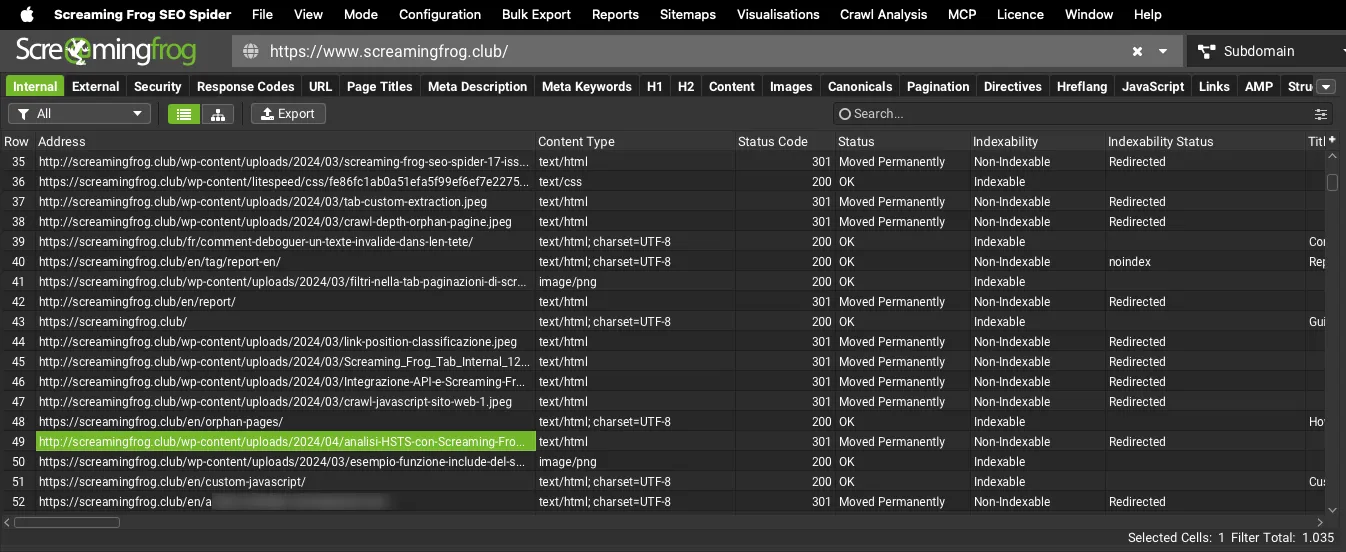
Status code
In this tab you’ll find the following data:
-
Address: the address (URL) of the crawled resource (HTML, JavaScript, CSS, images, PDF, Flash, other).
-
Content: the type of element at the URL:
- HTML;
- JavaScript;
- CSS;
- Images;
- PDF;
- Flash;
- Other.
-
Status Code: the server’s HTTP response:
- code 200;
- code 301;
- code 302;
- code 404;
- code 500;
-
Status: the HTTP header response when a URL is requested:
- code 200: OK;
- code 301: Moved Permanently (permanent redirect);
- code 302: Moved Temporarily (temporary redirect);
- code 404: Not Found;
- code 500: Server Error (a server-side problem);
- Connection Timeout
-
Indexability: whether a URL is “Indexable” by search engines or “Non-Indexable”.
-
Indexability Status: the reason a URL can’t be indexed. For example because it’s “Canonicalised” to another resource, has a status code other than 200, or shows “Connection Timeout” and is therefore treated as “No Response”.
Meta tags
- Title 1: the meta title (page title) Google uses in its search results.
- Title 1 Length: the length of “Title 1” in characters. A title of 30 to 55 characters is recommended to avoid the snippet being truncated in the SERP.
- Title 1 Pixel Width: the width of “Title 1” in pixels.
It serves the same purpose as the previous one, but I recommend always thinking in pixels, because the different widths of characters can be misleading.
Example:
A letter “M” and a letter “i” both count as 1 character, but they use different numbers of pixels, with the capital “M” taking up more room in the snippet. My advice is to always check the pixel width to avoid truncation in the SERP.
- Meta Description 1: the description used in Google’s snippet.
- Meta Description Length: the number of characters in the meta description. Between 70 and 155 characters is recommended.
- Meta Description Pixel Width: the meta description width in pixels. Staying between 400 and 1,011 pixels is recommended.
- Meta Keyword 1: the keywords set for the URL. Meta keywords are optional: Google has said it doesn’t use them to assess content or for ranking.
- Meta Keywords Length: the number of characters in the meta keywords.
- H1-1: the URL’s first H1 heading (the page’s main heading).
- H1 Length-1: the length in characters of the first H1.
- H2-1: the first H2 heading (subheading).
- H2-Length-1: the length in characters of the first H2.
Example:
SEO Spider only collects the first two H2 headings it finds in the source code. To extract other headings (h3, h4 etc.) I recommend the “Custom Extraction” feature.
- Meta Robots 1: the meta robots directives (e.g. max-image-preview:large)
- X-Robots-Tag 1 – HTTP X-Robots-Tag: the header directives for the URL (e.g. noindex).
- Meta Refresh 1: checks whether a URL’s code contains a “refresh” string.
- Canonical Link Element: the canonical link element data.
- rel="next" 1: SEO Spider collects these HTML link elements, designed to show the relationship between URLs in a paginated series; this one points to the next page. This element and the next are common on blogs, forums and e-commerce sites. Although Google has said it can crawl a site fully without them, I think they’re still worth considering for other bots. “next” indicates the relationship with the next page.
- rel="prev" 1: SEO Spider collects these HTML link elements, designed to show the relationship between URLs in a paginated series. “prev” indicates the relationship with the previous page.
Links
- Unique Inlinks: the number of “unique” internal links pointing to the URL.
Example:
If ‘page A’ links to ‘page B’ 3 times, there will be 1 unique inlink (and 3 inlinks).
- % of Total: the percentage of unique internal inlinks (only counting 200 HTML pages) to the URL.
- Outlinks: the number of internal links to other URLs on the same subdomain.
- Unique External Outlinks: the number of unique links in anchor elements from a URL to another subdomain.
Example:
If ‘page A’ links to ‘page B’ on a different subdomain 3 times, that counts as 3 external outlinks and 1 unique external outlink to ‘page B’.
- External Outlinks: the number of links from the URL to external subdomains (other than the crawled one).
Content
-
Size: the size in kilobytes. It’s taken from the Content-Length header if provided, otherwise set to zero. For HTML pages it’s the (uncompressed) HTML size in KB. On export, size is given in bytes: 1 kilobyte = 1,024 bytes.
-
Word Count: the total number of “words” crawled inside the body tag, excluding HTML markup. The count is based on the content area, excluding nav and footer elements. You can customise this by defining a different area: for a finer diagnosis you can include or exclude HTML elements, classes and IDs. Remember that, although SEO Spider is very accurate, its numbers may differ from a manual count, because the parser makes some corrections when it finds invalid HTML. Your rendering settings can also affect which HTML is examined. Screaming Frog counts words by splitting the text on spaces, regardless of whether the content is visible (such as text in a hidden div).
-
Closest Similarity Match: shows how similar pages are, to help avoid duplication. With SEO Spider’s default thresholds, pages are flagged as “near duplicates” at a 90% match or higher. You can customise the thresholds too.
To populate this column, run Crawl Analysis at the end of the crawl. Only URLs above the chosen similarity threshold will have data; the others stay empty. So by default this column only has data for URLs that are 90% or more similar. The threshold is set in 1Configuration›2Content›3Duplicates. -
Hash: SEO Spider calculates an MD5 hash value of the URL. If two values are identical, the content is considered duplicate and may be penalised by search engines. Unlike “Closest Similarity Match”, this is a check for exact duplicates.
Note: if two hash values match, the pages have exactly the same content. If even one character differs, they’ll have unique hash values and won’t be flagged as duplicates. You’ll find exact duplicates in 1Content›2Exact Duplicates. -
No. Near Duplicates: the number of near-duplicate URLs found during the crawl that meet or exceed the ‘Near Duplicate Similarity Threshold’ (90% by default). You can change this in 1Configuration›2Content›3Duplicates.
To populate this column you need to have enabled near duplicates and run Crawl Analysis.
-
Spelling Errors: the total number of spelling errors found for a URL. To populate this column, select ‘Enable Spell Check’ in 1Configuration›2Content›3Spelling & Grammar.
-
Grammar Errors: the total number of grammar errors found for each URL. To populate this column, select “Enable Grammar Check”. In the settings you can choose the language, the grammar rules and the reference dictionary.
To review grammar and spelling errors, check the dedicated columns in the “Internal” tab, select the URLs with errors and see the details in the “Spelling & Grammar Details” tab in SEO Spider’s bottom window. A great feature for copywriters to catch typos or grammar mistakes. As well as the list of errors, it suggests corrections and shows where they were found, with a preview. For languages other than English the suggestions can be less reliable, but it’s very useful for catching typos.
HTTP & more
- Response Time: the time in seconds to download the URL, calculated from sending the HTTP request to receiving the complete HTTP response from the server. It doesn’t include the time to download additional resources in JavaScript rendering mode.
- Last Modified: read from the “Last-Modified” header in the server’s HTTP response. If the server doesn’t send it, the value is empty.
- Redirect URL: if the URL redirects, this column contains the destination URL.
- Redirect Type: SEO Spider identifies:
- HTTP Redirect: triggered by an HTTP header.
- HSTS Policy: a redirect from an HSTS header.
- JavaScript Redirect: a redirect triggered by JavaScript execution (only possible in JavaScript rendering mode).
- Meta Refresh Redirect: triggered by a meta refresh tag in the HTML.
- HTTP Version: the HTTP version the crawl used. Useful to check whether the server responds over HTTP/1.1 or HTTP/2.
Questions about INTERNAL TAB?
These guides come from real projects. If something in your crawl doesn’t add up, or you want to apply this process to your site, get in touch.
 Author.Raffaele Visintin.Search & Strategic Marketing Advisor