

Screaming Frog – Version 25.0.
A JSON config your AI assistant can edit, custom dashboards, configurable issues, auto throttle and the new Social tab: everything new in SEO Spider 25, plus the community’s first reactions.
Guide contents 9 sections
●Brief01.SEO Spider version 25 update02.Automation and AI: JSON Config and MCPWhat’s new in SEO Spider version 25 (“eaten your lunch”, 3 November 2026): JSON config and MCP debugging, custom dashboards, issues with editable type and priority, excluding links by their position in the DOM, auto throttle on 429/503 responses, export filename patterns, the Social tab and Markdown export. At the end: the community’s first feedback and why you should install 25.1 straight away.
SEO Spider version 25 update
On 3 November 2026 Screaming Frog shipped SEO Spider version 25.0, internal codename “eaten your lunch”. A day later came 25.1, a bug-fix release we cover at the end of this article.
After v24, which introduced the official MCP server, this release pushes in three directions:
- automation and AI: the configuration moves to JSON, and your AI assistant can edit it and debug the crawl;
- an audit shaped around you: custom dashboards, and issues whose type, priority and visibility you decide;
- cleaner, more polite crawls: excluding links by where they sit on the page, and slowing down automatically when the server pushes back.
On top of that you get the new Social tab, filename patterns for exports, page export to Markdown and a long list of smaller improvements. Let’s go through them one by one.
Further readingScreaming Frog – Version 23.0.Lighthouse 13, Ahrefs API v3, Crawl Retention and embedding rules: what came in the previous release.Read the guideAutomation and AI: JSON Config and MCP
The configuration becomes a JSON file
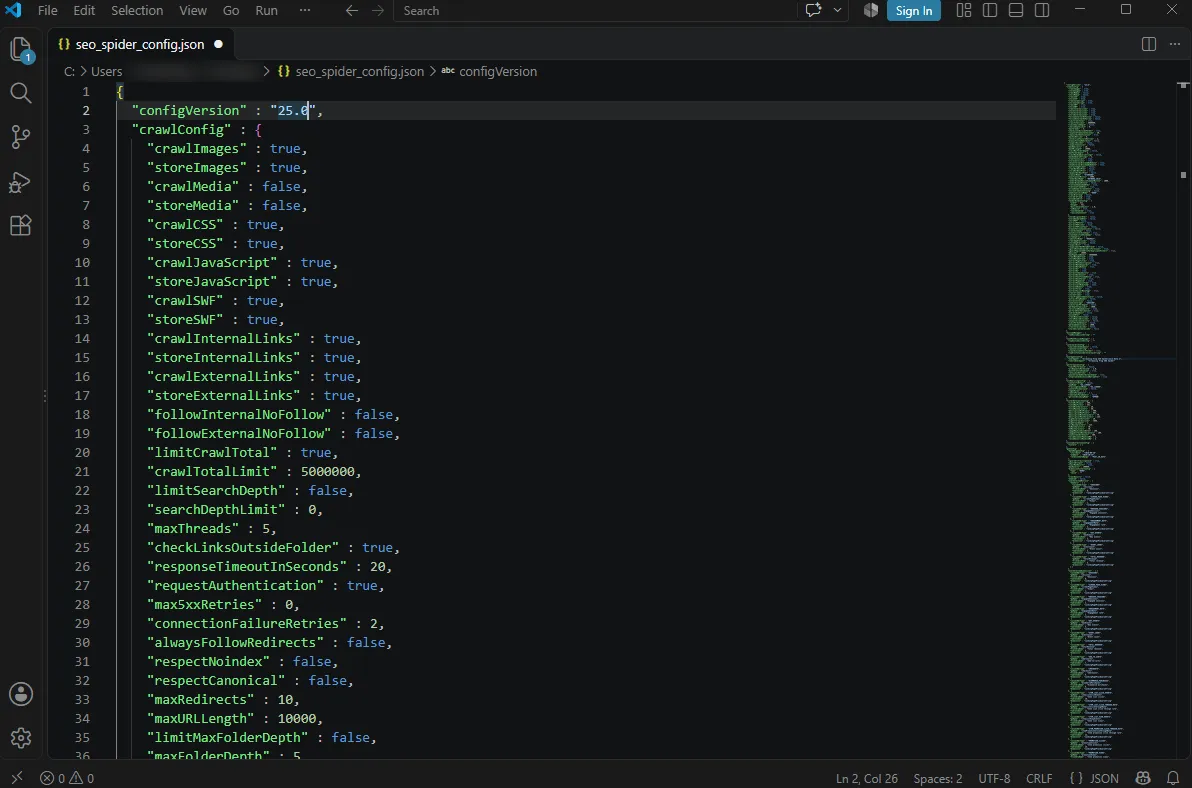
Up to v24, SEO Spider configuration files (the ones you save from 1File›2Configuration›3Save As) used a format only the program could read. From version 25 they are JSON files: open them in any text editor, see every option with its value, and change them by hand or with a script.
The main benefit is automation through the CLI and MCP. A structured text file is far easier to generate, keep under Git and compare across projects than a binary one. Configuration files in the old format are still supported, so your saved profiles keep working.
Setting up the crawl in plain language
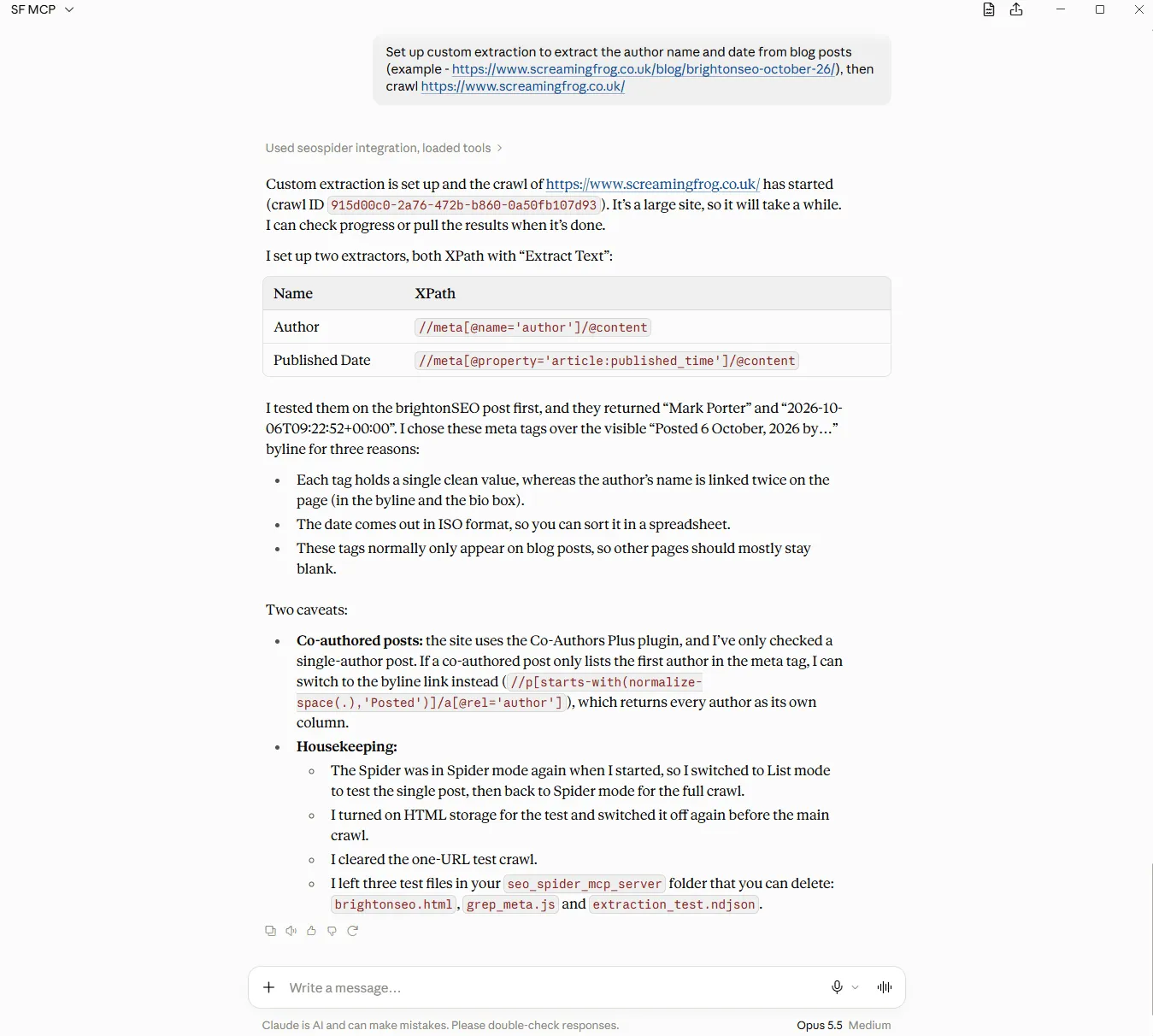
JSON is what lets an AI assistant connected over MCP change the whole configuration on the fly. Instead of hunting for the right option across menus, you describe what you need and the AI sets up the crawl: it switches on JavaScript rendering, builds complex segments, writes Custom JavaScript snippets or works out the right XPath for a Custom Extraction.
An example prompt:
Set up a custom extraction that pulls
the author and publish date from blog posts.
Test it first on https://www.example.com/blog/post/
then start a crawl of https://www.example.com/
In the official example the assistant tests the XPaths on a single post in List mode, explains why it prefers meta tags over the visible text, puts SEO Spider back into Spider mode and only then launches the full crawl.
Crawl debugging over MCP
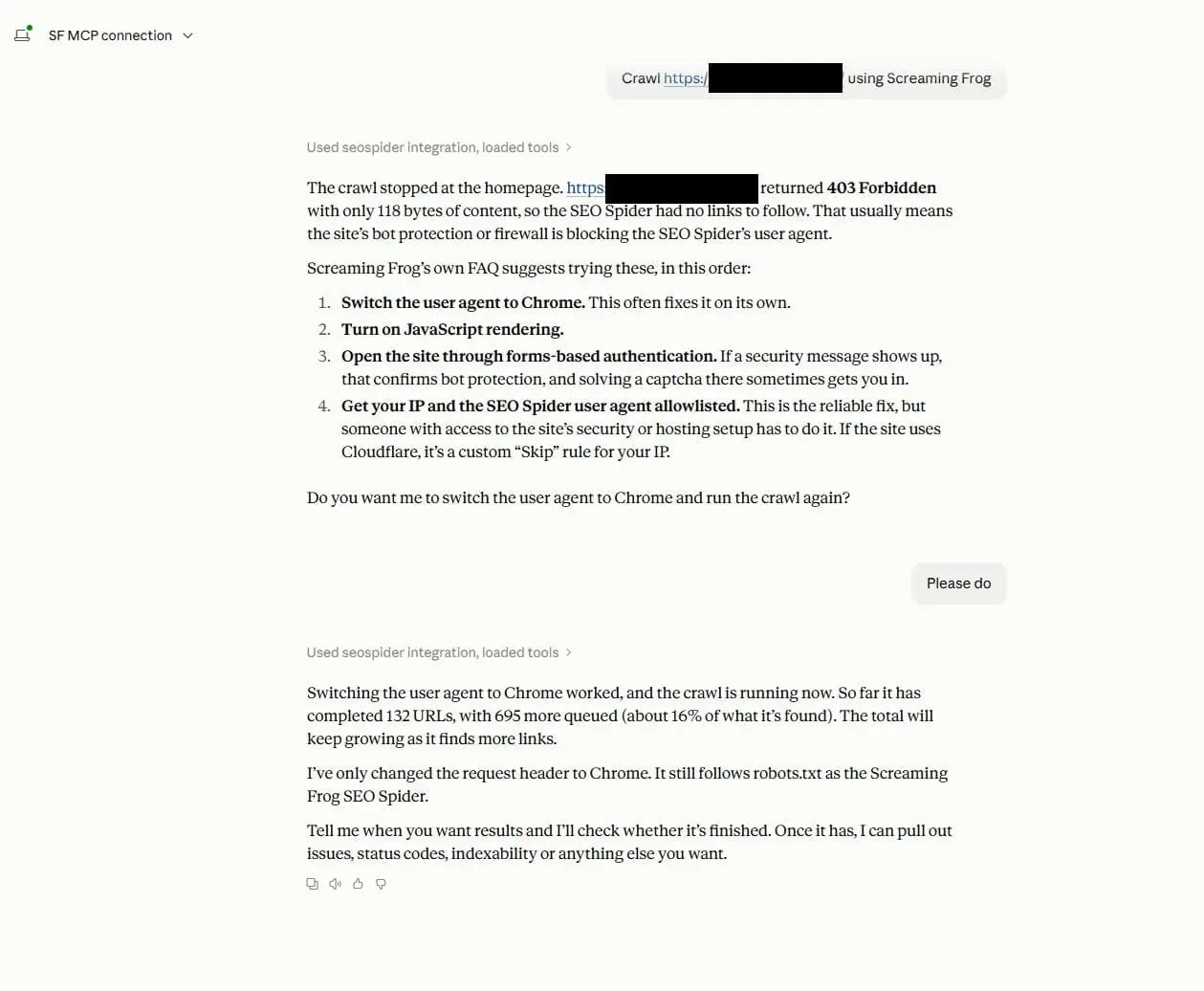
Debugging tools have also been built into the MCP: if the crawl stalls or returns odd results, the assistant notices, explains the likely cause and suggests a fix.
The textbook case is a 403 Forbidden on the homepage: the crawl stops at the first URL because a firewall or anti-bot system blocks the SEO Spider user-agent. The AI lists the fixes in the order Screaming Frog’s FAQ recommends (Chrome user-agent, JavaScript rendering, forms-based authentication, IP allowlisting) and, with your go-ahead, runs the crawl again.
A word of advice: treat the AI’s diagnosis as a hypothesis to check, not a confirmed cause. As Techziano’s analysis points out, a crawl that wrongly excludes key sections can look “clean” while missing half the site. And if the block comes from the protection of a site you don’t own, the right move is to ask for allowlisting, not to get around it.
List mode and new CLI commands
Rounding out the automation side:
- List mode in MCP: the assistant can now work on URL lists too, not just in Spider mode;
- pause, resume and delete crawls from the CLI, with new command-line arguments;
- crawl and project management from the CLI: rename and move crawls; create, rename and delete projects.
Dashboards and Issues your way
Custom Dashboard
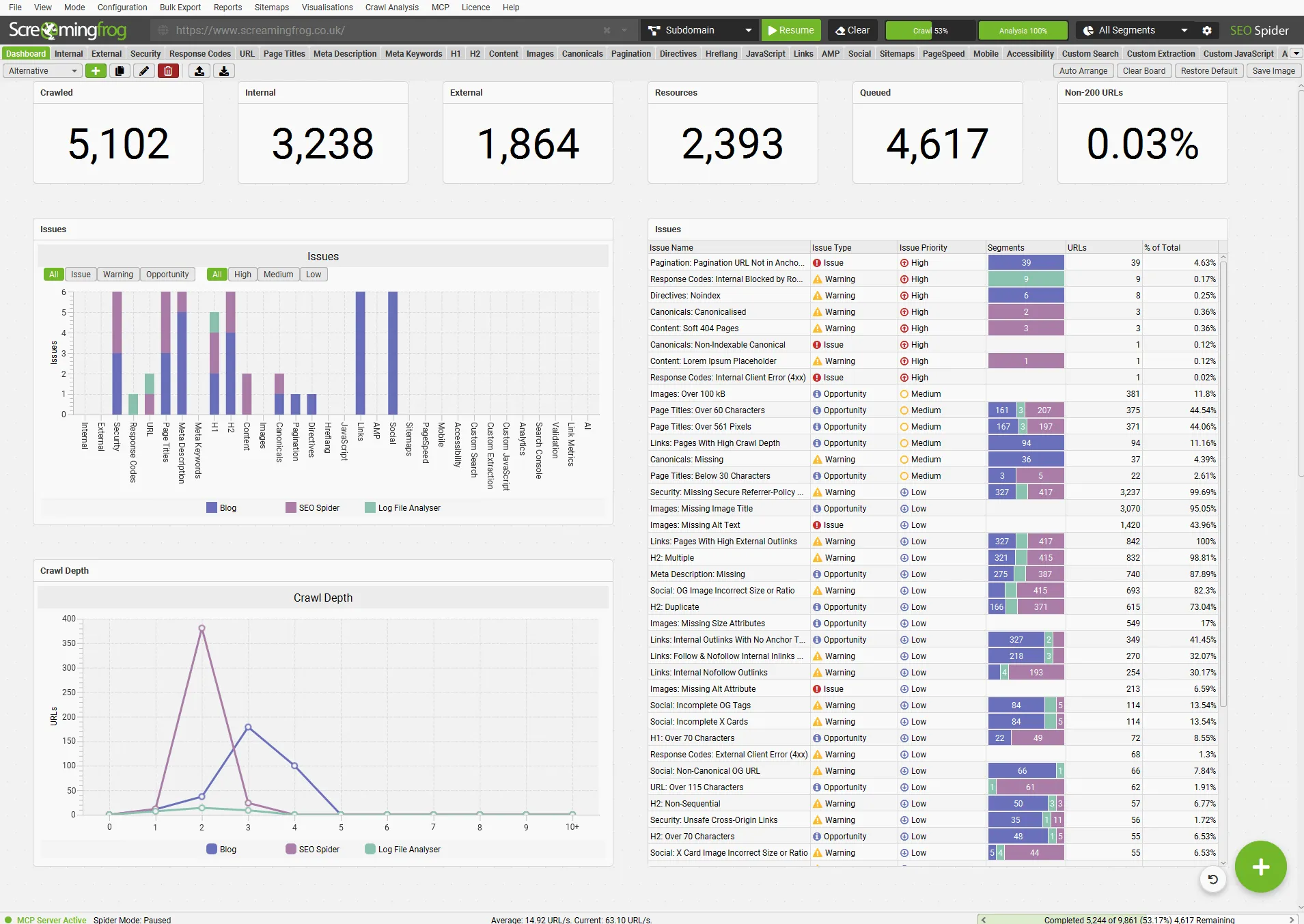
Next to the Internal tab there’s a new Dashboard tab. It’s a board of widgets (counters, charts, tables) that sums up the crawl at a glance: crawled, internal and external URLs, number of issues, warnings and opportunities, response times, content types, status codes and crawl depth.
To add a widget, click the “+” at the bottom right. From the toolbar at the top you can create several dashboards, duplicate and rename them, pick a default one, and export or import them to share with your team or use as a client summary.
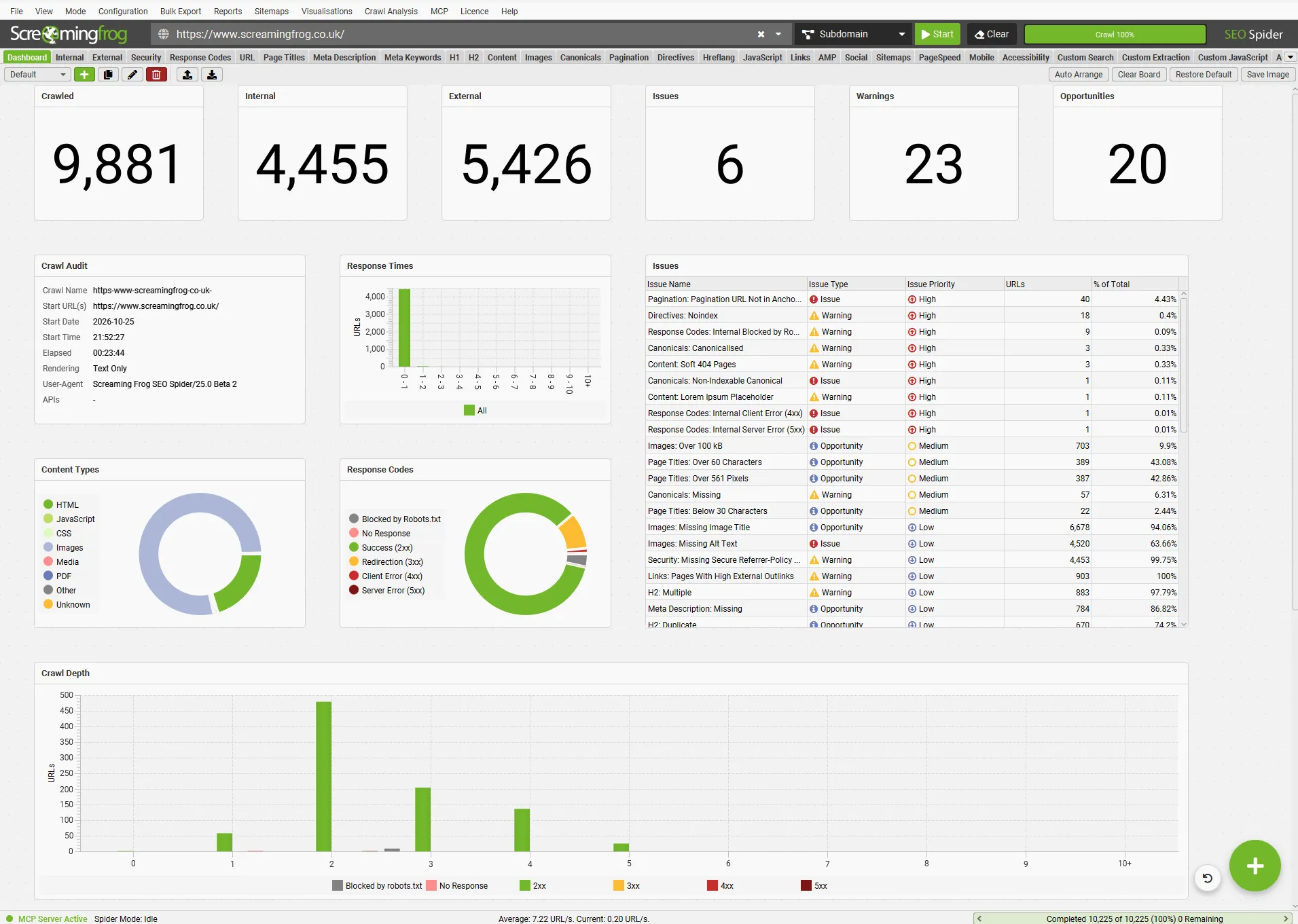
The dashboard gets even more useful with segments: charts and tables split by site section, so you can see straight away which area concentrates the problems.
Configurable Issues
We all know that not every issue SEO Spider flags is a real problem for every site. With v25, issues become configurable per crawl from the Issues tab in the right-hand panel. Right-click one or more issues to:
- disable it (Disable This Issue);
- change its type (Issue, Warning, Opportunity);
- change its priority (High, Medium, Low);
- put it back to default (Reset to Default).
At the top you’ll find the Found in Crawl and All Issues filters (the latter also shows issues not triggered in the crawl), a counter of disabled issues and a new search box.
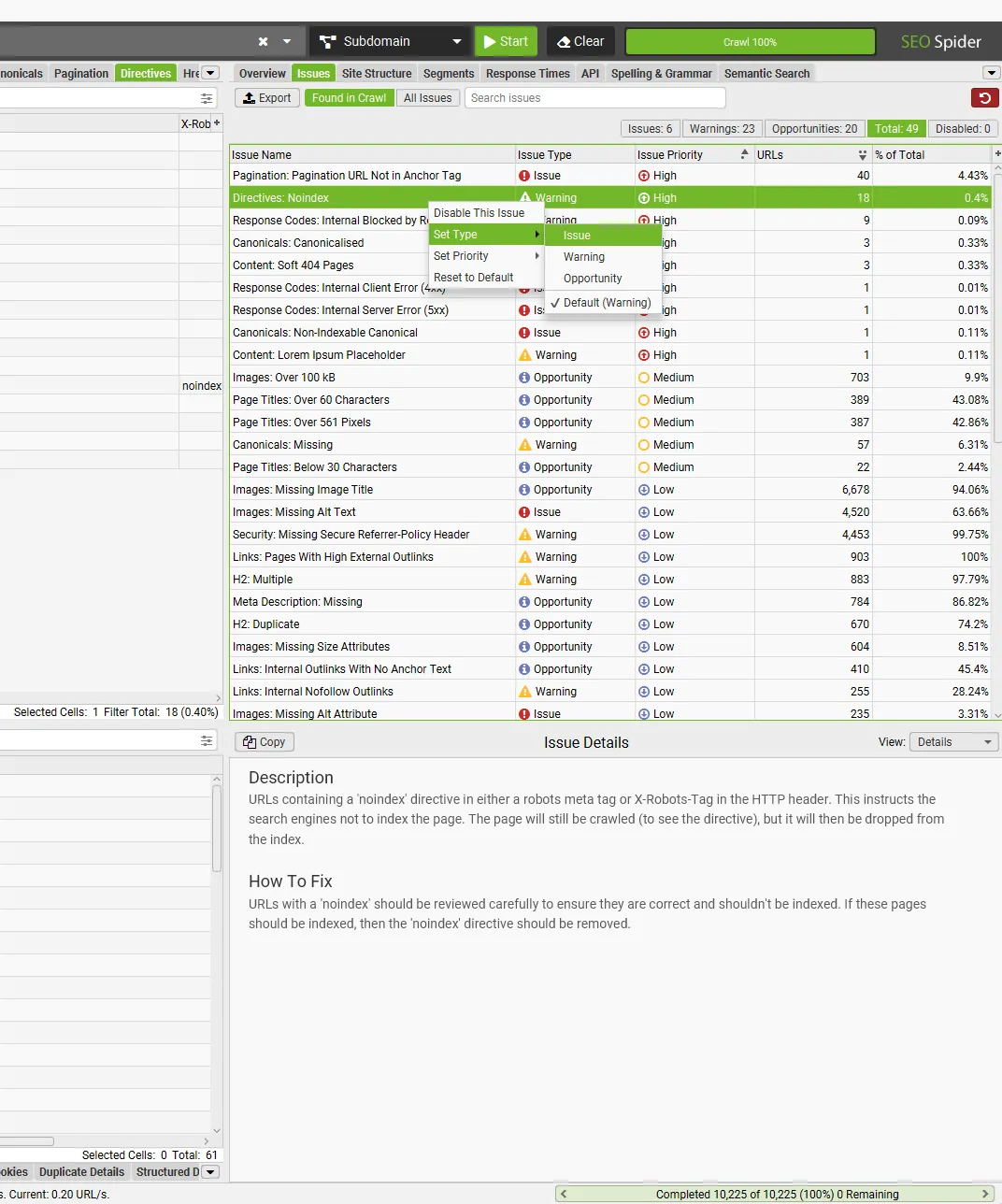
This is the feature that makes the audit truly yours: you can align it with your own standards or your client’s priorities. For example, on an e-commerce site with thousands of product images a missing title attribute is hardly a priority, whereas a canonical pointing to a non-indexable page always is.
The new issues
Besides the Social tab checks (more on those below), there are four new issues:
- Images: Missing Image Title, images without a title attribute;
- Hreflang: Self Reference Only, pages whose hreflang only points to themselves;
- Hreflang: Mismatch with HTML Lang Attribute, when the language declared in hreflang doesn’t match the HTML lang attribute;
- Links: Pages With Empty Anchor Tags, pages with empty
<a>tags.
Cleaner, more polite crawls
Excluding links by position (Link Paths)
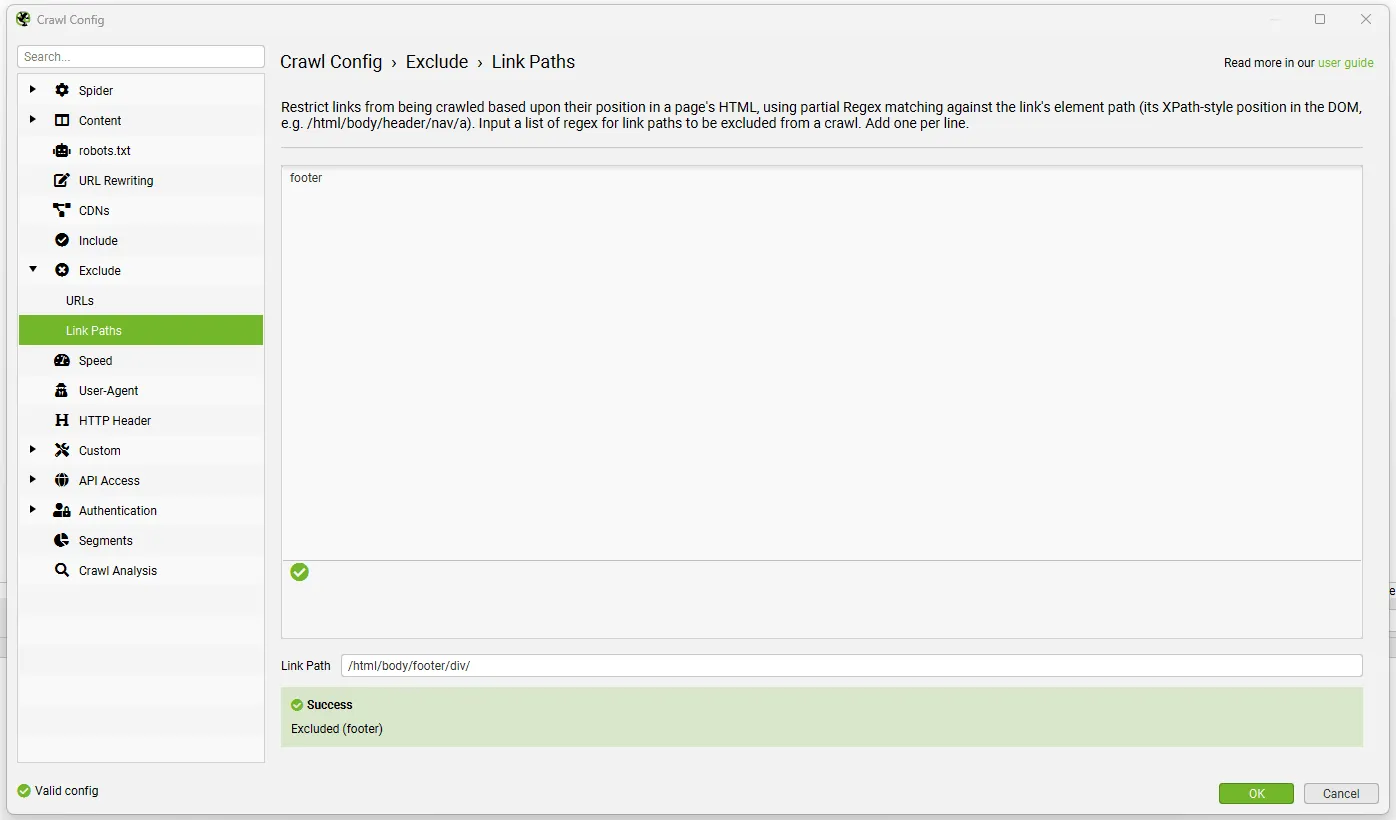
Until now you could only exclude URLs by their pattern. With v25 you can also exclude links by their position in the HTML, meaning the element’s path in the DOM (XPath-style, for example /html/body/header/nav/a).
It helps when the URLs to skip share no common pattern but always sit in the same area of the page: the menu, the footer, faceted navigation filters. You’ll find the option in 1Configuration›2Exclude›3Link Paths: enter one regex per line and check the result with the tester below.
Auto Throttle: the crawl slows itself down
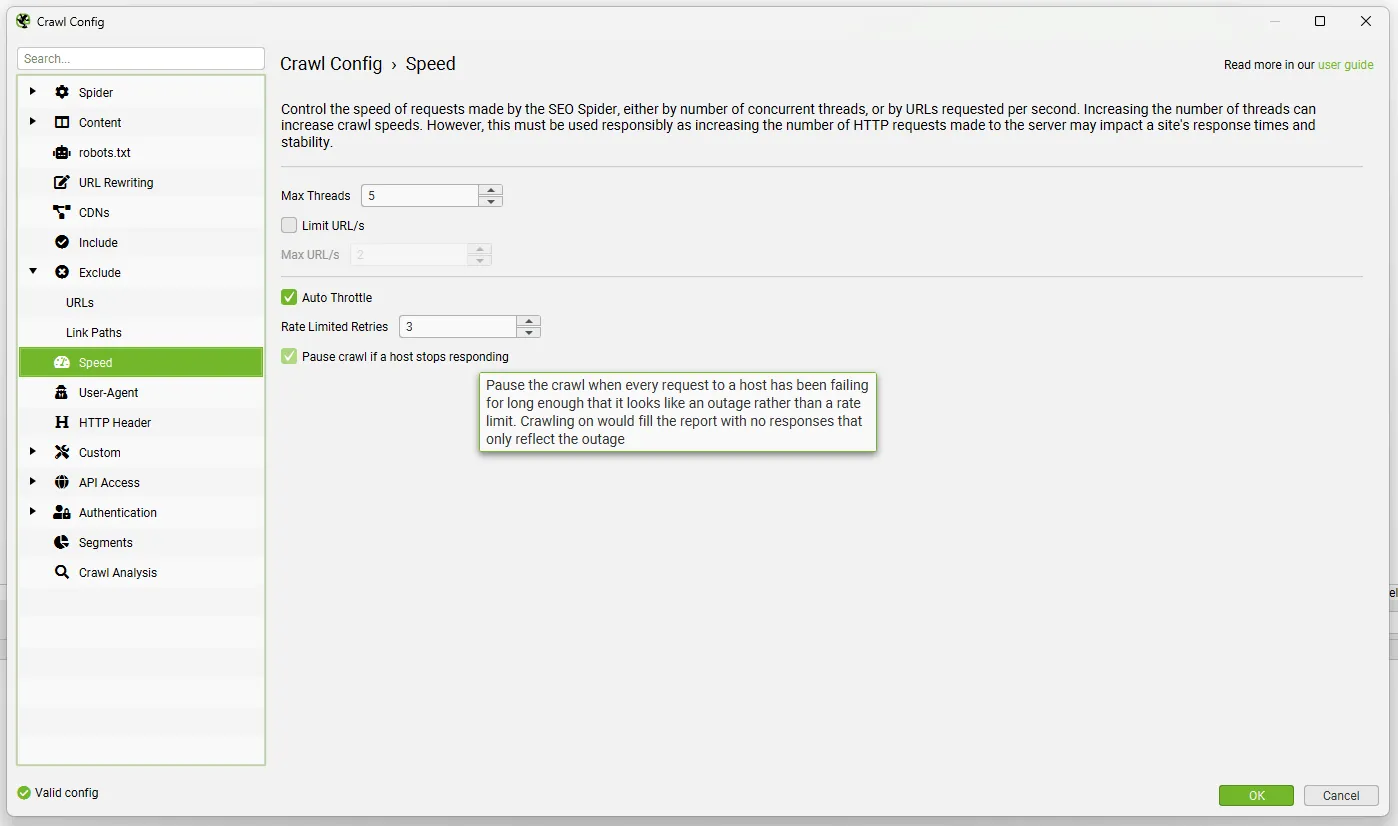
The new Auto Throttle option automatically slows requests when the server answers with 429 (too many requests) or 503, or drops connections. Speed climbs back gradually as the host recovers and, if it stops responding altogether, the crawl pauses.
You’ll find it in 1Configuration›2Speed, together with:
- Rate Limited Retries, the number of attempts on throttled URLs;
- Pause crawl if a host stops responding, which stops the crawl when the failures look like an outage rather than a simple rate limit.
In 1Configuration›2Spider›3Advanced there’s also a new Connection Failure Retries setting, working alongside the familiar 5XX Response Retries. When the crawl is being throttled, you’ll see it in the bottom bar next to the crawl speed.
If you audit Shopify sites or sites behind aggressive CDNs, this is the most practical change: no more crawls full of 429s to run again. Just don’t read it as permission to crawl harder: crawl speed should always be agreed with whoever runs the site.
Further readingSEO Spider crawling issues.Status code 0, HTTP errors and the Shopify 429 case: what to check when the crawl doesn’t go as planned.Read the guideJavaScript rendering: say hello to Network Idle
The new default JavaScript rendering option is Network Idle: SEO Spider treats the page as ready once the network and event loop go quiet, instead of waiting a fixed time. It’s closer to how Google decides a page has finished rendering, and lowers the risk of capturing half-loaded content. The settings are in 1Configuration›2Spider›3Rendering.
Further readingJavaScript site analysis.How to configure rendering and compare raw and rendered HTML to find content search engines can’t see.Read the guideExports, Social and Markdown
Filename Patterns for exports
Time to stop renaming exports by hand. In 1File›2Settings›3Export Filename you set a filename pattern built from tokens: date, date and time, domain, crawl name, project and report name. The pattern applies to scheduled tasks, Multi Export and exports from tabs and reports, and can be changed for a single set of exports in 1Bulk Export›2Multi Export.
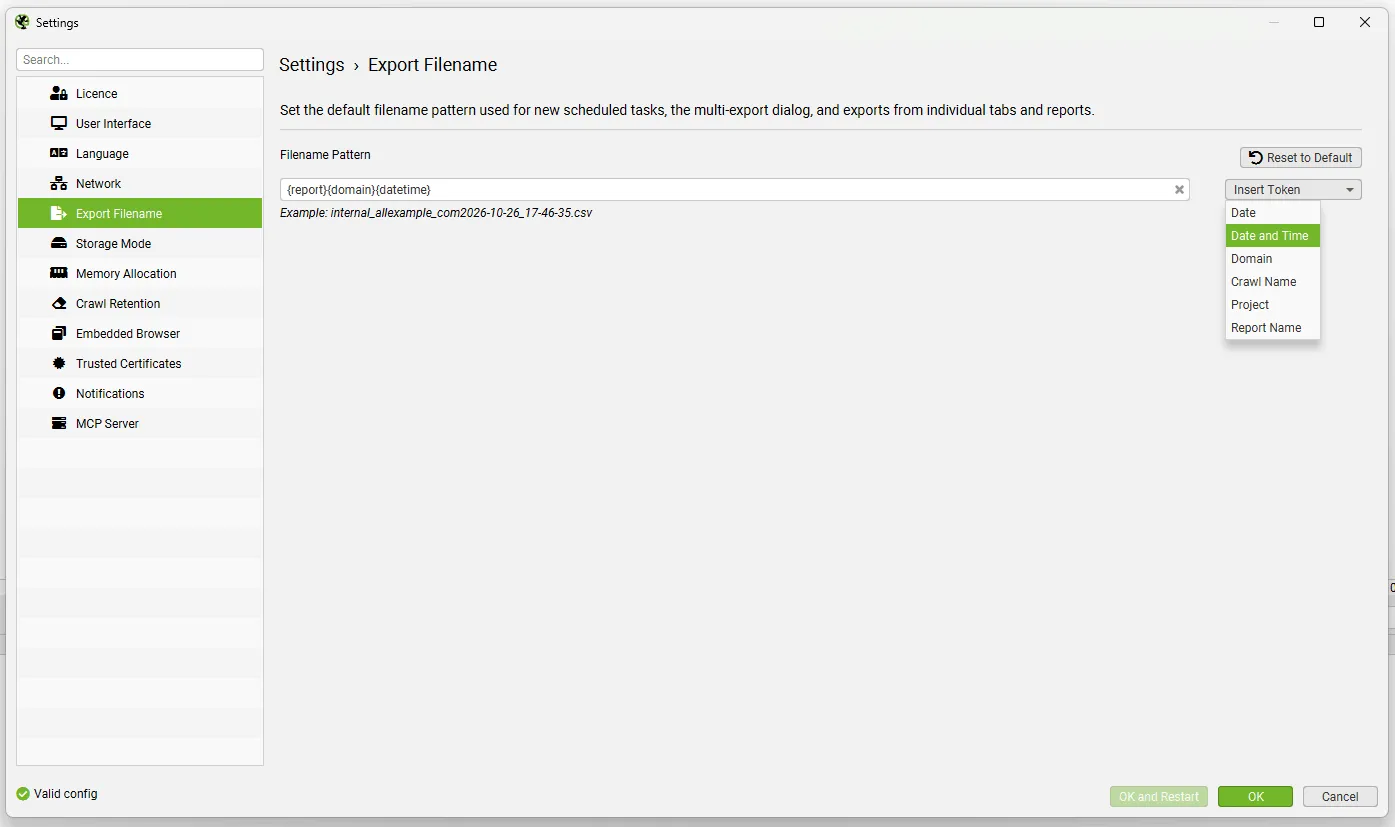
If you use scheduled crawls with automatic exports to Google Drive or Looker Studio, settle on a stable pattern before wiring up your dashboards, so file names stay consistent from one crawl to the next.
Further readingScheduled crawls.How to automate recurring crawls and exports, now with the new Run Now button and pausing of scheduled tasks.Read the guideThe new Social tab
The Social tab shows Open Graph tags (og:url, og:title, og:description, og:image with image weight and dimensions) and X Cards, with a long list of checks: missing, incomplete or duplicate tags, multiple tags, non-canonical og:url, images returning a non-200 status, over 5 MB or with the wrong size or ratio, and tags outside the <head>.
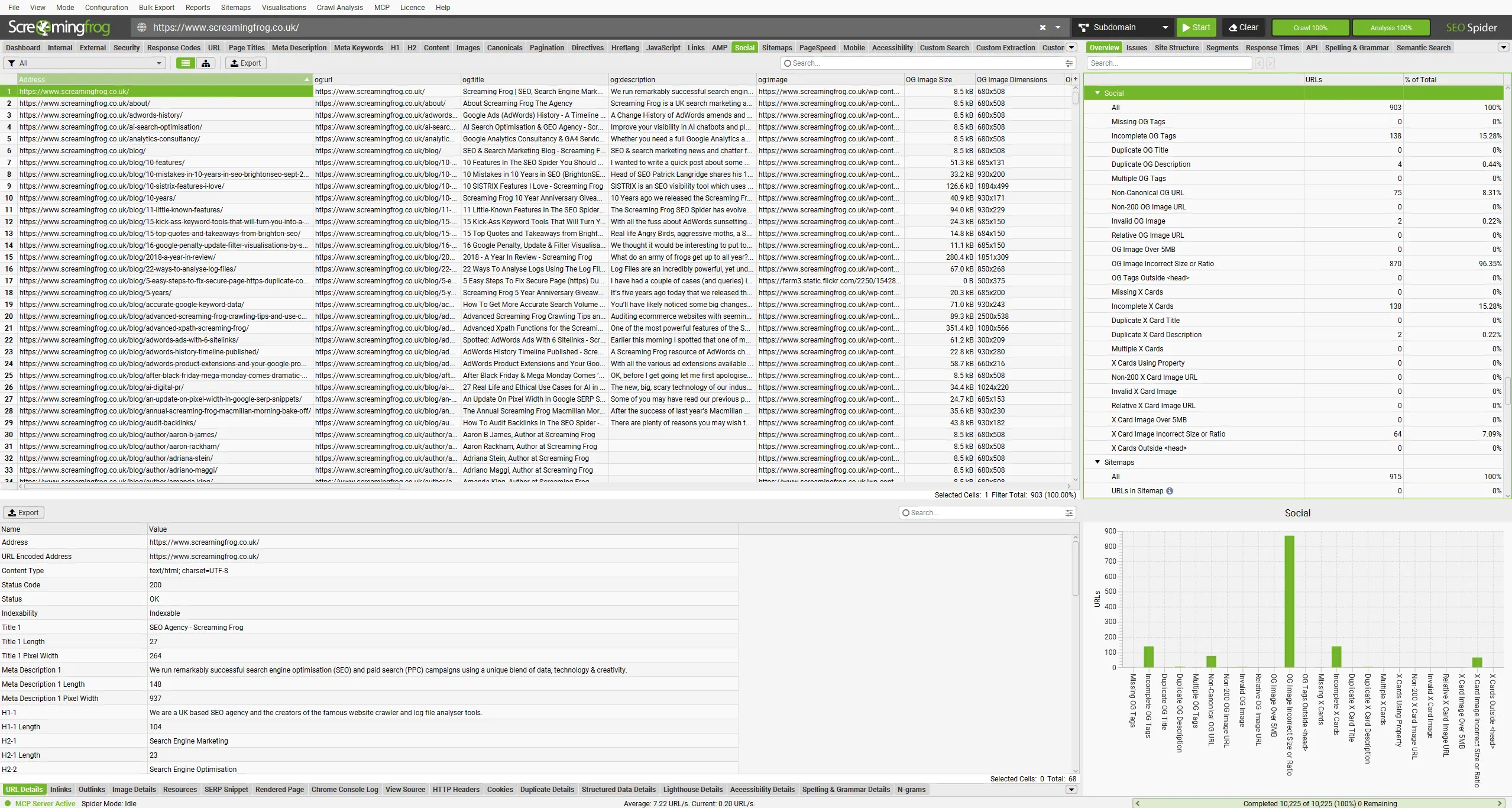
Social tags aren’t a ranking factor, but they control how your links look when shared on LinkedIn, WhatsApp or Facebook: a preview with the wrong or cropped image costs clicks.
Extracting and exporting pages as Markdown
With Store HTML or Store Rendered HTML enabled, the View Source lower tab gets a Markdown filter showing the page content converted. Bulk export lives in 1Bulk Export›2Web›3All Page Markdown.
It’s aimed at anyone working on AI search visibility: Markdown is the format language models read most easily, and it’s handy to feed to an LLM for content analysis, rewrites or comparisons.
Further readingSEO Embeddings with Screaming Frog.Semantic similarity, clusters and internal linking: another way to use page content with AI.Read the guideOther updates in v25
Version 25.0 also includes:
- Scheduling: scheduled tasks can be switched on or off, a Run Now button starts them immediately, and in 1File›2Crawls you can right-click to pause scheduled or CLI-launched crawls.
- Relative XML sitemaps: in Crawl Linked XML Sitemaps you can enter a relative URL such as
/sitemap.xml. - Fixed row numbers: they stay visible when you scroll columns horizontally.
- New search boxes in the Overview and Issues tabs.
- AI prompts with an empty target: in each AI provider’s advanced settings you can let a prompt run even when one of its targets is empty, useful when there are several targets.
- Rich result validation updated to Google’s latest specs.
- New languages: Turkish and Dutch.
The community’s first reactions
The release is two days old, but the comments on the official post and social media have already surfaced some useful pointers.
Update to 25.1 right away
Several users reported that 25.0 crashed a few seconds into a crawl on Windows. Dan Sharp explained the cause was Windows display scaling set above 100%, and it was fixed in 25.1 on 4 November.
25.1 also updates Node.js to version 24.22.1, closing a vulnerability a user had flagged (CVE-2026-111497). Node.js is the engine SEO Spider uses for scripts run over MCP, so the update matters most if you use the AI integration. Check your version from 1Help›2About.
What people like (and what they don’t)
- Auto throttle and dashboards are the most mentioned features. For many users auto throttle is the real game changer in day-to-day work.
- People already using MCP for audits like the JSON config + debugging combo: the team describes the crawl in plain language and the AI configures it, saving a lot of time. Markdown export also gets praise for AI search visibility work.
- On X, Prasenjit Sarkar noted that MCP debugging matters mostly because of who’s shipping it: the go-to crawler for technical SEOs is reorganising itself around AI agents that run crawls.
- Techziano’s analysis is more cautious: an AI that configures the crawl doesn’t replace judgement about the site. Issues should be prioritised by impact and business value, not by warning count, and generated configurations should be checked against a sample of real pages.
A touch of irony: Screaming Frog introduces the dashboard by saying “everyone knows the GUI is dead”, but as one user put it in the comments, for a dead GUI those new dashboards look very much alive.
Conclusions
Screaming Frog SEO Spider version 25 completes the path that started with MCP in v24. JSON config and debugging turn the AI into a real crawl co-pilot, while dashboards, configurable issues and the Social tab make the audit easier to read and closer to each project’s priorities. Finally, auto throttle and link path exclusion solve two problems anyone crawling e-commerce and protected sites knows well.
Practical advice: install 25.1 directly, re-save your configuration profiles to get them in JSON, and spend ten minutes building a dashboard and an issue set tailored to your clients. You’ll reuse them in every audit.
Happy crawling!
Questions about Screaming Frog – Version 25.0?
These guides come from real projects. If something in your crawl doesn’t add up, or you want to apply this process to your site, get in touch.
 Author.Raffaele Visintin.Search & Strategic Marketing Advisor
